
ON1 Portrait AI vs. Imagen: Which AI Tool Fits Your Professional Workflow?
Table of contents
- Key Takeaways
- The Core Philosophy: ON1 Portrait AI vs. Imagen
- Deep Dive: Imagen Capabilities
- Deep Dive: ON1 Portrait AI Capabilities
- Comparison: Workflow Integration
- Comparison: Whole-Gallery Styling vs. Per-Face Retouching Depth
- Comparison: Culling
- Comparison: Pricing Models
- Feature Comparison Table
- Conclusion: Which Tool Fits You?
- Frequently Asked Questions
Portrait and wedding photographers searching for AI help usually land on two very different kinds of tools. One is a dedicated retoucher built to perfect a face. The other is built to edit and cull a whole gallery in your own style. ON1 Portrait AI and Imagen fall on opposite sides of that line, so the right pick depends on which part of your workflow actually hurts.
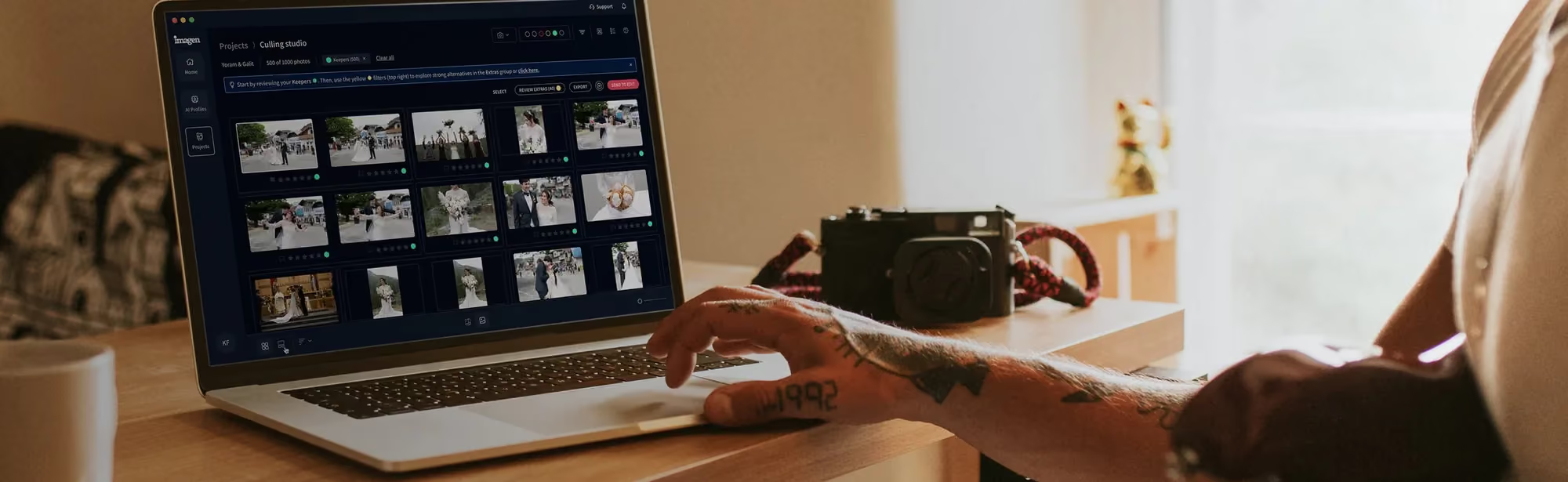
Imagen is now an intelligent Studio for professional photographers, the next evolution of the same product you already know, not a new app or a new brand. The new experience is rolling out gradually to photographers over several weeks, shaped by their feedback. Inside one non-linear project you cull, edit, review, and export in any order, and come back whenever you want. ON1 Portrait AI, by contrast, focuses narrowly on per-face retouching, with dedicated controls for skin, eyes, teeth, and facial proportions.
This guide compares what each tool actually does, checked against each company’s own site, so you get an honest read instead of marketing copy.
Neither tool is trying to do the other’s job. Imagen is not trying to be a dedicated retouching plugin, it goes deeper on the part of post-production that eats your week, the styling and culling of a whole gallery, and the result has to look like you made it. ON1 Portrait AI is not trying to learn your editing style across a catalog, it wants to be the fastest way to fix a face. Many photographers end up using a version of both.
Key Takeaways
- Imagen is now an intelligent Studio: one non-linear project where you cull, edit, review, and export in any order, with edits that learn your personal style.
- ON1 Portrait AI is a dedicated retouching tool that automatically detects faces and offers skin smoothing, eye enhancement, teeth whitening, blemish removal, and face sculpting.
- Imagen builds a Personal AI Profile from your past Lightroom Classic edits, or you can start from a Talent AI Profile and refine it over time.
- ON1 Portrait AI gives each detected face independent controls, which is useful when a group photo has several people who need different adjustments.
- Imagen’s built-in editor (Beta) and assistant work alongside manual sliders, and you can export directly from Imagen or keep sending files to Lightroom Classic.
- ON1 Portrait AI runs standalone or as a plugin for Photoshop, Lightroom Classic, Affinity Photo, Capture One, and several other editors.
The Core Philosophy: ON1 Portrait AI vs. Imagen
It helps to start with what each company actually set out to build, before getting into feature lists.
Imagen
Imagen asks how a photographer gets from memory card to finished gallery as fast as possible while still looking like them. It learns how you edit color, exposure, tone, and style from your own past work, then applies that style consistently across hundreds or thousands of images. Culling, editing, and review happen inside the same project, in whatever order you want to work. The photographer stays in the driver’s seat the whole time, with creative control when you want it and automation when you don’t.
ON1 Portrait AI
ON1 Portrait AI asks a narrower question: how do you retouch a face faster and more consistently? Its face detection finds each person in a photo, analyzes their features, and offers targeted controls for skin, eyes, teeth, and facial proportions. It is less concerned with learning your personal editing style across a whole catalog and more focused on giving you precise, fast control over how an individual face looks, whether you run it standalone or as a plugin inside your existing editor.

Deep Dive: Imagen Capabilities
What follows is the current Imagen experience itself, not a rehash of older marketing claims.
AI Editing in Your Personal Style
Imagen’s core feature is the Personal AI Profile, built from your own Lightroom Classic catalog of past edits. It learns how you treat exposure, white balance, color, and tone, then applies that style consistently to a new gallery. If you do not have enough past edits yet, you can start from a Talent AI Profile built by working photographers and refine your own over time. You can also apply more than one AI Profile to a selection of photos, for example a black and white treatment on ten images inside a gallery that is otherwise in color.
Culling in the Same Project
Culling happens inside the same project as editing, not as a separate step you export out of. Imagen offers AI culling for faster batch review, plus free manual culling whenever you want to go photo by photo yourself. AI filters, sometimes called smart tags, help you filter fast for things like blur or closed eyes. Edited photos do not make you wait for the whole gallery either, batches arrive as they finish processing so you can start reviewing sooner.
The Built-in Editor and Assistant
Imagen’s built-in editor is currently in Beta and sits alongside the AI tools rather than replacing manual work. It includes high-quality manual sliders, a histogram, crop and straighten, and presets you can import from Lightroom or build yourself.
The Imagen assistant finding and editing photos from a plain-language request
Some AI tools are not yet supported inside this editor, and projects using those continue through the Lightroom flow instead. Imagen also includes an assistant that lets you find and act on photos using plain language, for example asking it to find every shot with closed eyes. It understands what is in a photo, not where within the frame, so it cannot place masks on a specific person yet, and it does not generate images. It is useful for finding and filtering, but it still has real limits, and it can struggle with subjective requests.
Export to Lightroom or Directly From Imagen
You can export JPG, TIFF, or PNG files directly from Imagen, or keep exporting through Lightroom Classic the way you always have. Both paths are first class, neither is a fallback. AI Profile and AI-tool edits carry over to Lightroom as XMP data, while manual edits, ratings, flags, and culling choices made inside Imagen’s own editor stay in Imagen rather than exporting back out.
Deep Dive: ON1 Portrait AI Capabilities
ON1’s own product page is specific about what Portrait AI focuses on, and it is almost entirely per-face retouching.
Automatic Face Detection and Skin Work
ON1 Portrait AI automatically finds each face in a photo, analyzes it, and applies retouching tuned to that face. Its skin enhancement uses frequency separation to reduce color and tonal imperfections while keeping natural texture, alongside skin smoothing and shine reduction controls.
Targeted Facial Adjustments
Beyond skin, Portrait AI offers eye enhancement with brightness and iris sharpening, teeth whitening with color and saturation controls for lips, blemish removal through automatic reduction or manual content-aware erasing, and face sculpting for the jawline, eye size, and facial proportions. Fill-light adjustments are available for improving lighting on the face. Each detected face gets independent controls, which matters for group shots where different people need different treatment.
Standalone App and Plugin Support
Portrait AI runs as a standalone application or as a plugin inside Photoshop, Lightroom Classic, Photoshop Elements, Apple Photos, Affinity Photo, Capture One, and Corel PaintShop Pro. It is also fully integrated inside ON1 Photo RAW 2027 for photographers who use that editor. Additional tools on the same product include Mask AI for automated subject and region segmentation, content-aware crop with edge-filling, a content-aware eraser for object removal, and batch processing for folder-level automation.
Licensing and System Requirements
ON1 lists a License to Own option for Portrait AI as a one-time purchase, and a subscription path through Photo RAW MAX that bundles Portrait AI with the rest of ON1’s toolkit. The software runs on macOS 10.15.6 and later and Windows 10 or 11 (64-bit), with a minimum of 8GB of RAM, 2GB of graphics memory, and an internet connection required for activation.
Comparison: Workflow Integration
Imagen’s workflow folds into whatever you already run. A shoot comes in, the AI Profile starts applying your style while culling happens alongside it, and edited batches arrive for review as they finish. You can adjust anything in the built-in editor, keep sending files to Lightroom Classic, or export directly from Imagen, all inside the same project. ON1 Portrait AI is more of a dedicated stop you visit for facial retouching, either as a standalone app or a plugin launched from inside Lightroom Classic, Photoshop, or another editor you already use, before you move the finished files on to wherever you deliver from.
Comparison: Whole-Gallery Styling vs. Per-Face Retouching Depth
This is the real dividing line between the two. Imagen’s strength is consistent, whole-gallery editing in your own style, plus culling and review in one place. ON1 Portrait AI’s strength is retouching depth on an individual face, the kind of precise skin, eye, teeth, and facial-proportion work that used to mean careful manual masking. Granular retouch sliders, the sort that let you sculpt a face or smooth skin pixel by pixel, are a future direction for Imagen. Nothing is promised yet, and for now ON1 Portrait AI remains the better fit if that level of per-face control is what you need on every image.
Comparison: Culling
Imagen’s culling happens inside the same non-linear project as editing, combining AI batch culling for speed with free manual culling whenever you want full control, plus smart tag filters for things like blur or closed eyes. ON1 Portrait AI does not include a culling feature of its own on its product page; it is a retouching tool you apply after you have already picked your keepers elsewhere, whether that is in ON1 Photo RAW, Lightroom, or another app.
Comparison: Pricing Models
ON1 lists a License to Own option for Portrait AI as a one-time purchase, alongside a subscription path through Photo RAW MAX that bundles it with ON1’s broader toolkit. Imagen’s pay-as-you-go pricing charges per exported photo, and exploring any tool across a whole gallery before you commit is free. High-volume studios can move to the flat-fee Limitless plan instead, and studios can get custom Business pricing. Pricing varies by plan on both sides, so check each company’s current pricing page before you budget.
Feature Comparison Table
| Feature | Imagen | ON1 Portrait AI |
|---|---|---|
| Core focus | Whole-gallery editing in your personal style | Per-face retouching and facial proportion control |
| Face detection | Subject-aware AI tools applied across a gallery | Automatic per-face detection with independent controls |
| Skin retouching | Batch AI tools applied across a gallery | Frequency separation, skin smoothing, shine reduction |
| Facial sculpting | Future direction, not available today | Jawline, eye size, and facial proportion sliders |
| Culling | AI batch culling plus free manual culling, same project | Not offered on this product; works after culling elsewhere |
| Style source | Personal AI Profile learned from your past edits | Per-face presets and manual retouch sliders |
| Platforms | Imagen project with Lightroom Classic integration | Standalone app or plugin (Photoshop, Lightroom, Affinity, Capture One) |
| Export destinations | Direct export (JPG, TIFF, PNG) or continue to Lightroom Classic | Exports from the host app or standalone application |
| Pricing model | Pay-as-you-go per exported photo, or flat-fee Limitless plan | License to Own, or subscription via ON1 Photo RAW MAX |
| Free exploring | Exploring tools on a whole gallery is free, pay on export | Pricing varies by plan; check ON1’s current pricing page |
Conclusion: Which Tool Fits You?
Choose ON1 Portrait AI if your bottleneck is facial retouching itself, if clients expect precise, consistent work on skin, eyes, teeth, or facial proportions in nearly every portrait, and you want that available as a plugin inside the editor you already use.
Choose Imagen if your bottleneck is getting a whole gallery culled, edited, and reviewed consistently in your own style without retouching face by face, and you want that to happen inside one project that still plays well with Lightroom Classic.
A lot of working photographers use both. Imagen handles the bulk of a gallery in your style, and ON1 Portrait AI steps in for the portraits that need heavier facial work before delivery. That combination tends to work well for wedding and portrait photographers who want consistent color and tone across hundreds of images but still want precise control over the handful of hero shots a client will scrutinize closely. Neither tool is the universally right choice, only the one that matches how you already work, so test each on a real project before deciding.
Want to see how your own portraits hold up? Try the free trial at imagen-ai.com and run a gallery through culling and editing in your own style. The Imagen tips hub has more comparisons if you want to keep researching.
Frequently Asked Questions
1. What is the main difference between Imagen and ON1 Portrait AI? Imagen edits and culls a whole gallery in your personal style inside one project, while ON1 Portrait AI specializes in per-face retouching for skin, eyes, teeth, and facial proportions.
2. Does Imagen offer the kind of facial sculpting ON1 Portrait AI does? Not today. Granular retouch sliders are a future direction for Imagen. Nothing is promised yet, and ON1 Portrait AI stays the right pick if you need that level of facial control on every image right now.
3. Can ON1 Portrait AI handle more than one face in a photo? Yes, according to ON1’s own product page. Each detected face gets independent controls, which is useful for group portraits where people need different adjustments.
4. Can I cull and edit in the same place with Imagen? Yes. Culling and editing happen inside the same non-linear project, so you can move between them in any order without exporting to a separate app.
5. Do I still need Lightroom if I use Imagen? That is up to you. You can finish entirely inside Imagen, or continue your workflow in Lightroom Classic the way you always have. Lightroom stays part of the Imagen ecosystem rather than something you have to give up.
6. Does ON1 Portrait AI work as a Lightroom plugin? Yes. ON1 lists Lightroom Classic as one of several supported host applications, alongside Photoshop, Affinity Photo, Capture One, and others, in addition to running as a standalone app.
7. How does Imagen’s pricing work? Pay-as-you-go photographers pay per exported photo, and exploring any tool across a whole gallery is free before you decide to export. A flat-fee Limitless plan is available for high-volume studios, and studios can get custom Business pricing.
8. What can Imagen’s assistant do? It lets you find and act on photos using plain language, for example asking it to locate a certain kind of shot. It understands what is in a photo, not where within the frame, so it cannot place masks on a specific person yet, and it does not generate images.
9. Does ON1 Portrait AI include a culling feature? Its own product page does not describe one. It is a retouching tool you apply after you have already selected your keepers in another app, such as ON1 Photo RAW or Lightroom.
10. Which tool should I pick if I want both automated styling and deep facial retouching? Many photographers run the whole gallery through Imagen for culling and consistent editing, then open the portraits that need heavier facial work in ON1 Portrait AI before final delivery.
