

Live Performance Photo Editing Workflow: AI Tools and Tips for 2026
Table of contents
- The Complete Live Performance Photo Editing Workflow for 2026
- Why live performance photos need a dedicated workflow
- Step one: import, back up, and cull the take
- Step two: batch color and exposure across the set
- Step three: tame stage lighting and low-light noise
- Step four: retouch the frames that need it
- Step five: check consistency before export
- Step six: export, deliver, and archive
- Choosing the right tools for your stage work
- Frequently asked questions
The Complete Live Performance Photo Editing Workflow for 2026
A reliable live performance photo editing workflow splits into two clear halves: let AI carry the repetitive culling, white balance, and exposure work across thousands of stage frames, then finish the hero shots by hand. For a full concert or theater run that fills a card with mixed stage lighting and fast movement, the quickest dependable route is to train an editor on your own style and apply that look consistently across the whole set. This guide walks the real workflow from ingest to delivery, names the tools that earn a place at each step, and shows exactly where Imagen fits without overpromising.
Live performance is one of the harder photo jobs to edit well. The stage runs hot while the crowd sits in near darkness, colored spotlights swing between songs, and performers move faster than any single preset can track. You shoot heavy bursts, long lenses wide open, and a big tail of near-duplicate frames from every peak moment. The plan below keeps your edit consistent and repeatable, and it treats AI as a way to automate the slow steps instead of a shortcut that flattens your look.
Why live performance photos need a dedicated workflow
A concert or stage show mixes several lighting situations inside a single set. You have hard key spots, saturated wash lights, haze that scatters every beam, and a house that shifts color cue by cue. White balance drifts frame to frame, and a red wash on one song reads nothing like the blue wash on the next, so one global preset rarely holds across the night. Performers move through all of it, which means motion blur, blocked faces, and blown highlights arrive in bursts you have to sort fast.
Volume is the real pressure. A single headline set can generate 2,000 to 5,000 raw files, and editors, promoters, or the band often want a gallery back before the tour rolls on. Editing every frame by hand at that scale is slow and drifts as your eye tires past the second hour. A dedicated workflow fixes this by separating the mechanical work from the creative work, so the software carries the bulk and you spend your attention on the frames that define the show.
Step one: import, back up, and cull the take
Start by ingesting the full take into Lightroom or Capture One and writing two copies before you touch a slider. One copy lives on your working drive, and the other goes to a separate disk or cloud backup. A live set never happens twice, so a second copy is not optional.
Then cull hard, because this is where most stage editors lose their night. AI culling changes the math. Imagen offers AI culling that groups near-duplicate frames, flags closed eyes and soft focus, and surfaces the sharpest frame in each burst, so you approve a shortlist instead of scrubbing every file. You can also skip AI culling and cull manually for free. Aftershoot is another real option built around culling, and it also learns your keep-or-cut tendencies over time. Whichever you choose, keep the human veto, because a slightly soft frame at an emotional peak is often the keeper an algorithm would cut.
- Ingest every card and verify file counts against the camera before you format anything.
- Write a second backup copy to a separate drive or cloud location right away.
- Run an AI culling pass to drop blinks, misfires, and redundant burst frames.
- Sweep the flagged peak moments by hand so you never lose a real keeper.
Step two: batch color and exposure across the set
Once you have a clean selection, color and exposure become the biggest time sink. Every frame needs white balance correction, exposure balancing between a hot stage and a dark room, and a consistent look so the gallery reads as one show rather than a thousand separate photos. Doing this frame by frame across colored lighting is the slowest part of the whole edit.
This is the step where Imagen earns its place. Imagen learns your personal editing style from your existing Lightroom or Capture One catalog, then applies that style consistently across a full set in one pass. It reads each frame, adjusts white balance, exposure, contrast, and tone to match how you would have edited it, and holds that look steady from the opening number to the encore. It is not a generator: it edits the real photos you shot, so nothing gets invented and your color choices stay yours. Edited photos arrive in batches as they process, so you can start reviewing early frames while the rest finish. Pricing is pay-as-you-go, which means you pay for the photos you export, and exploring the tools is free, so you can test it against a real concert take before you commit.
Other tools live at this step too. Lightroom’s own AI presets and adaptive masking can carry a smaller set, and a dedicated color tool like Radiant Photo offers automatic scene-based correction on a per-image basis. These are honest options for lighter volumes. The reason a style-learning approach tends to win on a full performance is consistency under shifting light: instead of nudging each frame, you get your look applied uniformly, then spend your time on the handful of images that still need a personal touch.
Step three: tame stage lighting and low-light noise
Live performance pushes your gear into its hardest corner, which means high ISO, deep shadows, and clipped highlights on lit faces. After the batch color pass, walk the gallery for the frames that need targeted rescue. A blue-lit ballad frame may need shadow lift and noise reduction, while a white-hot spotlight moment may need highlight recovery so the performer’s face keeps detail. Treat these as corrections to real captured light, not as fabrication.
For noise specifically, dedicated denoise tools built into Lightroom or a standalone raw denoiser handle the worst high-ISO frames well, and they pair cleanly with a style-based color pass. Keep the goal honest: you are recovering detail that the sensor recorded in dim light, not inventing a scene. AI editing here adjusts the actual stage, the actual performers, and the actual haze in your frames.
- Sort the low-light frames from the well-lit ones so you only rescue what needs it.
- Apply noise reduction to the darkest frames before you sharpen anything.
- Recover blown highlights on spotlit faces so skin and instruments keep texture.
- Confirm colored-light frames still read true to the moment rather than muddy.
Step four: retouch the frames that need it
Retouching a live set is targeted, not blanket. You are not beauty-retouching every crowd member. You are cleaning the shots that will get printed, licensed, or featured: the lead singer at the mic, the guitarist mid-solo, the conductor at the downbeat. That means light skin cleanup, softening harsh stage shadows, reducing shine from hot lights, and evening out sweat glare without making anyone look plastic.
Imagen includes AI retouching in the same connected workflow, so you can apply skin, blemish, and evening-out adjustments to your selected frames right after the color pass, without exporting to a separate app. For deeper hand retouching on a single hero image, dedicated plugins that run inside Photoshop remain the standard for frequency separation and fine dodge-and-burn work. Match the tool to the stakes: batch AI retouching for the gallery, hand work for the one or two frames that will run on a poster or magazine cover.
Keep retouching honest at a live show. The goal is a clean, flattering version of the real moment, not a fabricated one. AI retouching here adjusts the actual people and objects in your frames. It does not add stage lights that were not there, swap faces, invent an audience, or build a set, and you should not ask it to.
Step five: check consistency before export
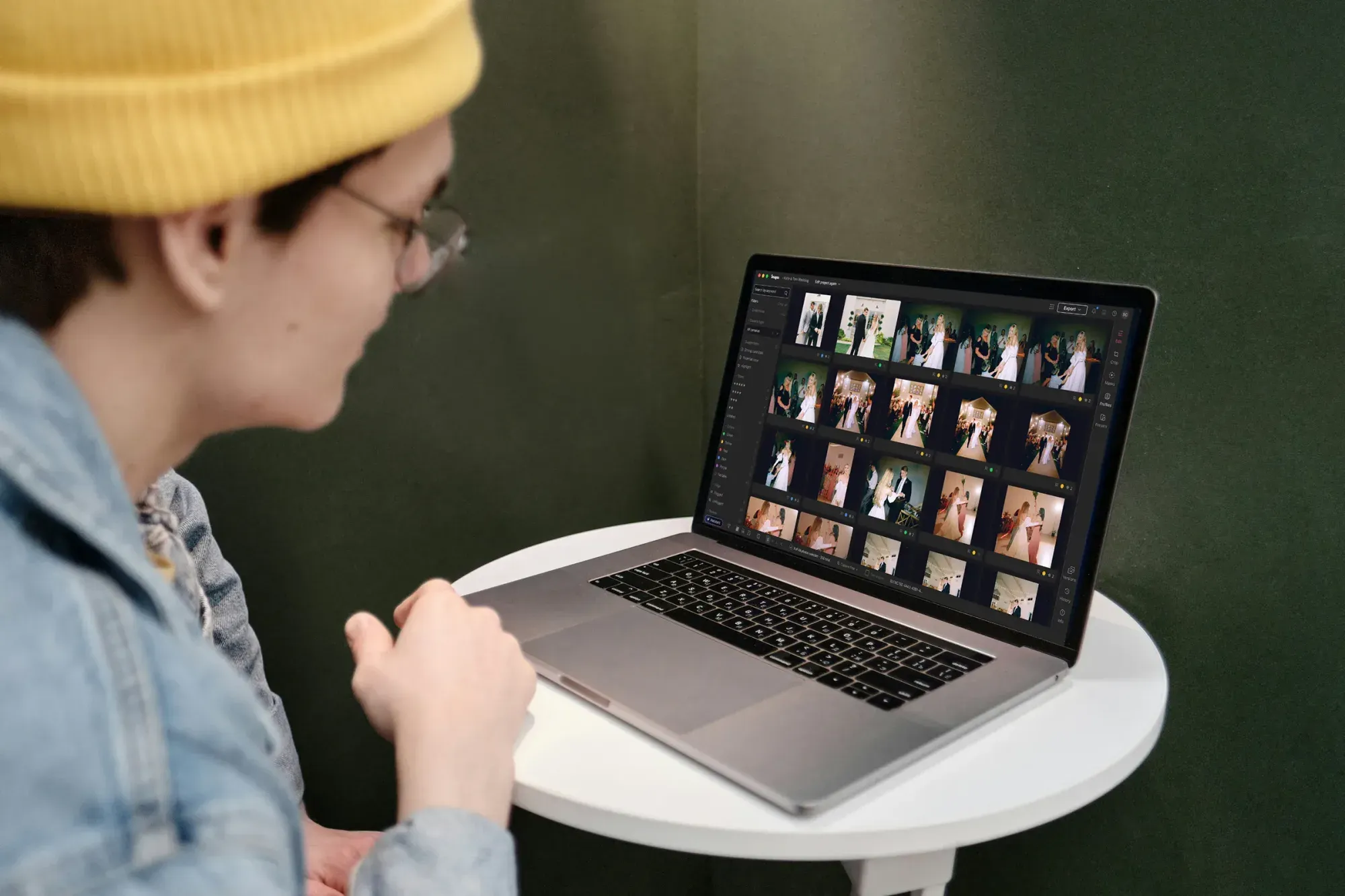
Before you export, review the gallery as a set rather than as single frames. Put the images in a grid and scan for drift: a photo that reads warmer than its neighbors, a skin tone that shifted under a color cue, a stage that looks greener in one row. A style-learning edit holds consistency well, but swinging concert lighting still throws the occasional frame off, and those outliers jump out the moment a client scrolls the full gallery.
This pass is quick because the heavy lifting is done. You are correcting a handful of frames instead of hundreds, which is exactly the point of pushing the bulk work onto AI earlier in the chain. For a deeper look at the settings behind each stage, see our companion piece on the AI live performance photo editing guide, which covers the color and retouch steps in detail.
Step six: export, deliver, and archive
Export in the formats your client actually needs. Most performance clients want full-resolution files for print and press, plus a web-optimized set for social and streaming promotion. Build two export presets so you run both in one action: one high-resolution set at the color profile your lab expects, and one sized-down set with sharpening for screen. If the promoter plans to post highlights the same night, deliver that priority subset first while the rest processes.
Imagen can export finished JPG, TIFF, or PNG files straight from the app. Deliver through a gallery platform that lets the client download and share cleanly, and keep your naming consistent so a specific song or performer is easy to find. Then archive the full edited catalog alongside your originals, because bands and venues often come back months later for anniversary posts or the next tour’s promotion. A tidy archive turns a repeat request into a five-minute job. For a broader tool comparison, our roundup of the best AI theater show photo editing software lines up the options, and you can browse more field guides on the Imagen tips hub.
Choosing the right tools for your stage work
The tool landscape sorts cleanly once you match each product to a job. For culling at volume, Imagen and Aftershoot both automate the sort and both keep you in control of the final keep list. For color and exposure at scale, a style-learning editor like Imagen applies your personal look across the whole set, while Lightroom’s built-in AI and a scene-based corrector like Radiant Photo cover lighter loads. For retouching, batch AI handles the gallery and Photoshop-based plugins handle the rare hero image that needs hand work.
Pricing models differ, and that matters more than a headline rate. Imagen is pay-as-you-go, so you pay for the photos you export while exploring the tools is free, which suits the uneven volume of gig work since the cost tracks what you actually export. Several competitors run on subscriptions or per-image credit systems instead, so run the math against your typical monthly show load rather than a single concert. The right pick is the one that matches how often you shoot and how much of the edit you want automated.
For most working performance photographers, the strongest setup is an AI editor that learns your style and connects culling, color, and retouching in one flow, backed by Lightroom or Capture One for the manual finishing that hero frames deserve. That combination gets a full concert gallery out the door fast without handing your creative decisions to a machine.
What’s new in Imagen: Imagen is now an intelligent, agentic Studio for professional photographers, with one project where you cull, edit, review and export in any order. For live performance work, after a concert or stage run you can export finished JPG, TIFF or PNG files straight from Imagen for delivery, or send the AI edits back to Lightroom Classic as XMP, while edited photos arrive in batches so you can start reviewing early frames. The Studio is rolling out gradually as a beta.
Frequently asked questions
How long should it take to edit a full live performance gallery?
With an AI culling and style-based color pass, a photographer can move from a few thousand raw files to a delivered gallery in a fraction of the time a manual edit takes. The bulk color and culling run in batches, so your hands-on time drops to culling review, consistency checks, and finishing the hero frames. Most editors find that same-day or next-day delivery becomes realistic once the slow steps are automated.
Can AI editing handle the wild color of stage lighting?
A style-learning tool handles shifting stage color better than a single global preset, because it reads each frame and applies your look rather than one fixed setting. Imagen learns your editing style from your own catalog and holds it steady across red washes, blue ballads, and hot white spots. You still review the outliers by hand, but the batch pass carries the vast majority of the swinging light.
Can AI retouching invent or fake parts of a live performance photo?
Imagen edits, culls, and retouches the real photos you shot. It corrects color, cleans skin, reduces noise, and evens out lighting on the actual performers and objects in the frame. It does not generate scenes, add stage lights, swap faces, or fabricate an audience, which keeps your documentary record of the show accurate and trustworthy.
What is the best way to test an AI editor before a big concert job?
Run a past performance take through it before you rely on it live. Imagen lets you explore its tools for free and pay only when you export, so you can try it on a real concert gallery and judge the consistency and skin tone against your own hand edit. Testing on your own footage tells you far more than any sample gallery.
Ready to cut hours off your next show edit while keeping your own look? Try Imagen’s new Studio, where you cull, edit and export in one project.
