Ah, Kodachrome. Even the name sounds nostalgic, right? As a professional photographer who has been in the game for a long time, I remember the buzz around this legendary film. It wasn’t just a film stock. It was the standard for decades. When we see those stunning, vibrant photos from National Geographic in the 70s and 80s, we are almost certainly looking at Kodachrome. Today, in our digital world, the “Kodachrome Lightroom preset” is one of the most searched-for tools by photographers trying to capture that same magic.
Key Takeaways
- Kodachrome’s Look is Iconic: It is defined by rich, saturated colors (especially reds), deep blacks, high contrast, and incredible sharpness.
- It’s Hard to Replicate: Kodachrome was not a normal film. It used a complex K-14 development process that added dyes in three separate layers. This is very different from how digital sensors or other color films work.
- Presets Are a Static Fix: A “Kodachrome preset” applies the same set of slider adjustments to every photo. This often fails because every photo has different lighting and exposure.
- Profiles Are a Better Start: A Lightroom Profile (or a custom camera calibration) changes the base interpretation of your RAW file’s color, which is closer to how film works.
- AI Is the Modern Solution: Tools like Imagen move beyond static presets. A Personal AI Profile learns your specific style (film-inspired or not) from your own edited photos. It then applies that style dynamically, adjusting exposure, white balance, and other settings for each individual photo.
- The Goal is Your Style: The hunt for a Kodachrome preset is really a hunt for a beautiful, timeless style. The best tool is one that learns and scales your unique vision, not one that just copies someone else’s.
What Was Kodachrome (And Why Are We Obsessed with It?)
Before we can recreate the look, we have to understand what it is. Why does this one film stock have such a hold on our creative imagination, years after it was discontinued?
A Brief History of an Icon
Kodachrome was introduced by Kodak in 1935. Think about that. It was one of the very first successful color films and it stayed in production for almost 75 years. That is an incredible run.
But here is the most important thing to understand: Kodachrome was not a normal color film.
Most color films, called chromogenic films (like Kodak Portra or Fuji 400H), have their dye couplers inside the film emulsion. When you develop them, a standard C-41 process activates those dyes, and the image appears. It’s a (relatively) simple, single process.
Kodachrome was different. It was a “subtractive” process. The film itself was essentially three layers of black-and-white emulsion. All the color dyes were added during development, one layer at a time. This was an incredibly complex, 14-step chemical bath known as the K-14 process.
This process meant you could not just take your roll of Kodachrome to the local drug store. You had to send it to a dedicated, highly specialized Kodak lab. This complexity is what gave it its unique look, and it’s also what led to its death.
The “Kodachrome Look”: What Defines It?
When photographers talk about the “Kodachrome look,” they are usually describing a few key visual trademarks:
- Rich, Vibrant Saturation: The colors are deep and bold, but not in the “oversaturated” digital way we see today. The reds, in particular, are legendary. They are deep, rich, and have a unique character. Blues and greens are also famously vibrant.
- High Contrast and Deep Blacks: Kodachrome had a beautiful, punchy contrast. Its D-max (the measure of its deepest black) was excellent. This meant you got rich shadows and a snappy, three-dimensional feel.
- Incredible Sharpness and Fine Grain: Because the dyes were added during processing, the emulsion layers themselves could be thinner. This resulted in fantastic sharpness and very fine, pleasing grain. It just looked clean.
- Archival Longevity: This is a big one. Because the dyes were so stable, Kodachrome slides are famous for lasting 100 years or more without fading. Those shots from the 1950s can still look like they were shot yesterday. This is why so many archives and museums are full of it.
The Famous Photos That Sealed the Legend
If you want to see Kodachrome in action, just open a National Geographic from 1960 to 1990. But the most famous example? That has to be Steve McCurry’s 1984 portrait, “Afghan Girl.”
That photo is Kodachrome. The penetrating green of her eyes. The deep, rustic red of her shawl. The sharp detail in her face. It was shot on Kodachrome 64 film. That single image, seen by millions, probably did more to cement the “Kodachrome look” in our minds than any other. McCurry himself shot Kodachrome for decades, and it was the film he used for his final roll in 2010.
Why It Disappeared
The K-14 process was Kodachrome’s superpower, but it was also its fatal flaw.
- It was complex: Only a few labs in the world could handle it.
- It was expensive: All that chemistry and machinery cost a lot to maintain.
- It was slow: It took much longer to process than standard C-41 film.
- It was bad for the environment: The chemicals used were not friendly.
As digital photography got better and better in the early 2000s, the demand for all film dropped. But the demand for a slow, expensive, and complex film like Kodachrome dropped the fastest. Kodak discontinued the film in 2009. The very last roll was processed in December 2010 by Dwayne’s Photo in Kansas, the last lab on Earth that still ran the K-14 line.
Section Summary
So, we are obsessed with Kodachrome because it represents a “golden age” of photography. It was sharp, vibrant, and built to last. Its look is tied to some of the most important photographs ever taken. Replicating it is our way of trying to connect with that history and bring some of that analog magic into our clean, digital world.
The Digital Challenge: Why Is Kodachrome So Hard to Replicate?
This is the big question. Why can’t we just move a few sliders in Lightroom and call it a day? I’ve spent years trying, and I can tell you it’s a deep rabbit hole.
It Was a Fundamentally Different Technology
As I mentioned, the K-14 process was subtractive. It built the color in layers. Digital sensors are additive. They capture light in a grid of Red, Green, and Blue pixels (an RGB Bayer array) and add them together to create an image.
You are trying to make one technology (a bicycle) behave like another, fundamentally different technology (a helicopter). You can get close, but it will never be a perfect match. The way Kodachrome’s dyes “bloomed” and interacted with each other in the emulsion is just not the same as how a digital sensor records light.
The Myth of the “One-Click” Solution
This is the biggest trap photographers fall into. They buy a “Kodachrome Lightroom preset,” click it, and it looks terrible. Why?
- Lighting is Everything: A preset is just a saved recipe of settings. A recipe that was designed for a photo shot in bright, hard sunlight (like in Afghanistan) will look muddy and dark when applied to a photo shot on a cloudy day in Seattle.
- Digital Sensors Vary: The way a Canon sensor “sees” red is different from how a Sony or Nikon sensor “sees” red. A preset built for one camera model will look different on another.
- Kodachrome Itself Varied: There wasn’t just one Kodachrome. There was Kodachrome 25 (insanely sharp, less sensitive to light), Kodachrome 64 (the all-around workhorse), and Kodachrome 200 (more grain, for lower light). A preset for one will not look like the others.
This is why I see so many photographers get frustrated. They blame the preset, or they blame their camera. The problem is that a static preset is the wrong tool for a dynamic job.
Presets vs. Profiles vs. LUTS: A Quick Technical Detour
This is really important to understand. In Lightroom, we have a few ways to change color.
- Presets: This is what most people use. A preset is a saved set of slider positions in the Develop module. When you apply it, it moves your Exposure, Contrast, HSL, and Tone Curve sliders. You can see exactly what it changed. A preset is relative. It adds to or subtracts from the settings that are already there.
- Profiles: This is a much more powerful tool. A profile is a new base interpretation of your RAW data. It changes how Lightroom funda-mentally renders the color before you even touch a single slider. When you go to the “Profile” browser (at the very top of the Basic panel), you see profiles like “Adobe Color,” “Adobe Standard,” “Adobe Vivid,” etc. A well-made Kodachrome profile is much more powerful than a preset because it attempts to mimic the film’s core DNA, not just its surface-level adjustments.
- LUTs (Look-Up Tables): You hear this term a lot in video. A LUT is a simple, dumb map. It says, “Take this exact RGB value and change it to that exact RGB value.” It’s very rigid. While you can use LUTs in Lightroom (via the Profile browser), they are less flexible for RAW photos because they don’t have the “smarts” to handle a wide dynamic range.
Section Summary
Replicating Kodachrome is not as simple as just “adding contrast” and “boosting reds.” Its unique look came from a chemical process that has no direct digital equivalent. Simple, static presets often fail because they can’t account for different lighting, cameras, or the film’s own variations. A profile is a better starting point, but we are still left with a big challenge: consistency.
Finding Your Kodachrome Lightroom Preset: The Good, The Bad, and The Costly
Okay, so you still want to find a good starting point. I get it. We all use presets and profiles, even as professionals. But let’s look at the market with a “dry, functional” eye, as the prompt requests.
The “Dry, Functional” Look at the Market
When you search for a Kodachrome Lightroom preset, you will find a few main categories.
- Free Presets:
- What they are: These are .xmp files shared on photography blogs, forums, or YouTube tutorials.
- Functional Description: They are almost always simple presets, not profiles. They are typically the result of one photographer tweaking their sliders on one photo and deciding to share the settings.
- The Challenge: The quality is a total gamble. Many are just a high-contrast S-curve with boosted saturation. They often crush blacks, blow out highlights, and make skin tones look waxy and orange. They are a starting point, but rarely a professional solution.
- Paid Preset Packs (Commercial Emulations):
- What they are: These are commercial products sold by companies that specialize in film emulation. You have likely heard their names.
- Functional Description: These are more than just simple presets. They are typically systems. You get a pack of Lightroom Profiles (the powerful base interpretation) and then a set of presets that work with those profiles to apply adjustments (like push/pull processing, different white balances, or grain levels). These companies often acquire actual film and professionally scan it to create a more scientific and accurate match.
- The Challenge: This is the most popular route, but it has its own issues. First, it can be expensive. Second, you are still limited by the preset creator’s interpretation of that film. Third, it can lead to a “sameness” in the industry. When everyone uses the same popular film pack, it becomes harder to stand out. And you still have to tweak them for every lighting situation.
How to Judge a Kodachrome Preset (A Practical Checklist)
Whether it’s free or paid, how do you know if a Kodachrome emulation is any good? Here is my personal checklist.
- Check the Reds: This is rule number one. Are the reds rich, deep, and distinct? Or are they just “loud” and oversaturated? A bad preset will just crank the Red Saturation slider, which “clips” the color and makes it look like a flat, digital mess. A good profile will target the reds to feel deep, like a fine wine.
- Look at Skin Tones: Does the preset make people look natural? Kodachrome was known for a specific, slightly warm and defined rendering of skin. A bad preset will make skin look waxy, orange, or even magenta.
- Analyze the Grain: Is the grain tasteful? A good emulation adds fine, well-structured grain that mimics the real film stock (like K-64). A bad preset just cranks the Grain slider, which looks like digital “noise” and makes the photo look muddy.
- Check the Shadows: Are the shadows dark and contrasty, but do they still hold some detail? Or are they just crushed to 100% pure black? Kodachrome had great blacks, but it wasn’t just a “crushed” look.
- Look for Halation (The Pro Move): This is a subtle one. In some high-contrast film (especially older stocks), you’d get “halation.” This is a faint red or orange glow around very bright highlights (like a window or a bright sky). Some of the most advanced film profiles try to (very subtly) mimic this for added realism.
Section Summary
The market for Kodachrome presets is vast. Free ones are a gamble. Paid ones are often high-quality systems (profiles + presets) that offer a much better starting point. But all of them share the same core limitation: they are static. They are just a recipe. They are someone else’s interpretation of Kodachrome, and they are not intelligent enough to adapt to your unique photo.
How to Create Your Own Kodachrome-Inspired Look in Lightroom (Step-by-Step)
Tired of using other people’s looks? Let’s build our own. As a pro editor, this is where the real fun begins. This gives you total control. It’s also the first step toward creating a style you can later use to train an AI.
Let’s open a RAW file in Lightroom Classic and get to work. Choose a photo shot in good, clear light.
Step 1: Start with a Good Foundation
You must start with a good photo. A preset cannot save a blurry, out-of-focus, or badly composed image. Make sure your White Balance and Exposure are reasonably correct before you start.
Step 2: The Camera Calibration Panel (The Secret Weapon)
This is the most important panel. Before you touch any other slider, scroll all the way down to the Camera Calibration panel. This panel, like a Profile, changes the base color rendering.
- Find the Process dropdown and make sure it’s on a recent version (like V5).
- Find the Profile dropdown. Start with “Adobe Color” or “Adobe Standard.”
- Now, we’ll apply the “Kodachrome trick.”
- Red Primary: Increase Saturation to around +15 to +25. This will make your reds pop. You can also shift the Hue slightly to the right (towards orange), maybe +5.
- Green Primary: Increase Saturation to around +10. You can shift the Hue slightly to the right (towards yellow) or left (towards aqua) to see what it does to your foliage.
- Blue Primary: This is a big one for skies. Increase Saturation to +10. Shift the Hue slightly to the left (towards aqua), maybe -5 to -10. This helps get those rich, cyan-ish Kodachrome skies.
Just by doing this, your photo already looks fundamentally different. It’s punchier.
Step 3: Basic Panel Adjustments (Contrast and Tone)
Now go back up to the Basic panel.
- Exposure: Adjust as needed.
- Contrast: Give it a healthy boost. Try +20 to +35.
- Highlights: Pull these down. Film is known for holding highlight detail. Try -30.
- Shadows: This is up to you. You can drop them (-10) for a contrasty look or lift them (+10) for a slightly more open, modern feel.
- Blacks: I like to drop the blacks to get that deep, rich D-max. Try -15.
- Presence: Add a touch of Vibrance (+10). Avoid the main Saturation slider, as it’s too broad. Vibrance is smarter and protects skin tones.
Step 4: The HSL Panel (Targeting the Colors)
Now we refine the colors. Go to the HSL/Color panel.
- Red: Go to Saturation. Boost it by +10 or +15. This, combined with the Calibration, gives you that powerful red.
- Green: Go to Saturation. Boost it by +10. You can also go to Hue and shift it slightly towards blue.
- Blue: Go to Saturation and boost it (+15) for deep skies. Go to Luminance and drop it (-10) to make the sky even deeper and richer.
Step 5: The Tone Curve (The “Film” Curve)
The Tone Curve is where the magic happens.
- Make sure you are on the Point Curve (the little white circle).
- Create a classic, gentle S-curve.
- Click in the center to anchor the midtones.
- Click in the shadows (bottom-left quadrant) and pull it down slightly.
- Click in the highlights (top-right quadrant) and pull it up slightly.
- This S-curve is what adds that classic “pop” and contrast.
- Pro Tip: To get a “matte” or “faded” look (like an old print), grab the very bottom-left point (the black point) and lift it straight up. Don’t overdo this!
- To get a “crushed” black look, pull the shadow point down but don’t lift the black point.
Step 6: Effects (The Grain)
Finally, let’s add some character. Go to the Effects panel.
- Find the Grain section.
- Add a small Amount, maybe 15 to 25.
- Keep the Size low (around 20-30). Kodachrome was known for fine grain.
- Keep the Roughness low (around 30-40).
Step 7: Save Your “Koda-Look” Preset
You did it! Now, go to the Presets panel on the left, click the + icon, and choose “Create Preset.” Give it a name like “My Koda-Look.” Now you can apply this to other photos.
Section Summary
Building your own look is powerful. It gives you control over every element and teaches you why the look works. But you will quickly discover the exact same problem as before. This new preset you just made will work great on that one photo. But on the next one? You will have to go back and re-tweak the Exposure, the White Balance, and the Contrast. You have solved the creative problem, but not the workflow problem.
The Problem with Presets (And the AI Solution)
This brings us to the core of the issue. As a professional photographer, my biggest enemy is time. I don’t get paid for the hours I spend editing. I get paid for the gallery I deliver.
The Pro Photographer’s Frustration
Here is the dilemma I faced for years, and I see it in my peers every day:
- We buy presets to save time.
- The presets don’t work perfectly on 90% of our photos.
- We spend all our time tweaking the presets to fix exposure and white balance.
- This defeats the entire purpose of buying the presets.
We are stuck in a loop. We are essentially just re-editing every photo, but starting from a “film” base. It’s faster than starting from scratch, but it is still incredibly slow. If you shoot a 3,000-photo wedding, that is a full day (or two) of just tweaking presets.
What if the “Preset” Could Think?
This is the question that led me to explore AI editing. What if my “Kodachrome preset” was smart? What if it could look at a photo, analyze the light, and apply my style intelligently?
- What if it could see an underexposed, tungsten-lit reception photo and know it needs to raise the exposure by +1.5 and set the white balance to 3200K…
- …and then apply my S-curve, my HSL settings, and my grain?
- And on the very next photo, see a bright, backlit outdoor portrait and know it needs to drop the exposure by -0.5, set the white balance to 6500K, and lift the shadows…
- …and then apply the same style?
This is exactly what Imagen does. It’s not a preset. It’s an editing assistant that has learned your style.
How Imagen Moves Beyond Static Presets
This is where Imagen changed my entire workflow. It addresses the “preset problem” head-on. Here is how, based on the product features.
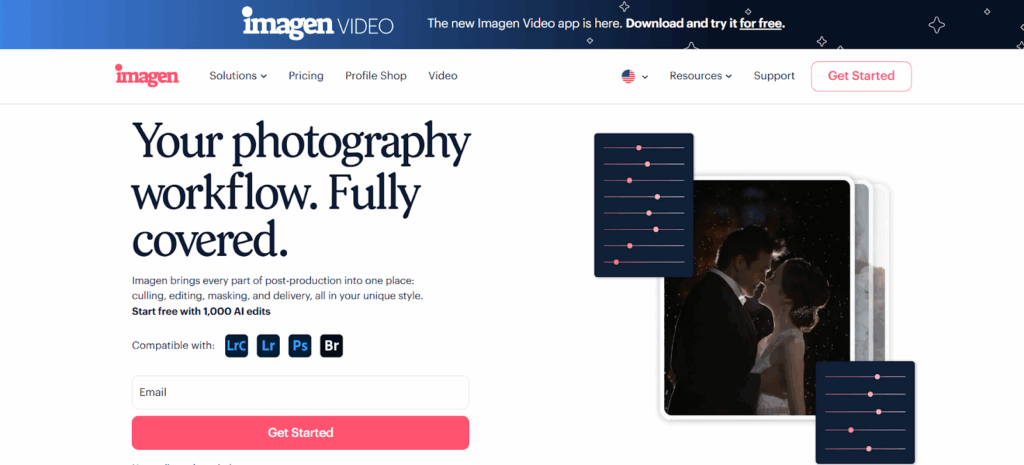
- Personal AI Profile: This is the flagship. This is your style, scaled. Imagen asks you to upload a minimum of 3,000 of your already edited photos from a Lightroom Classic catalog. Let’s say you spent the last year perfecting your “Koda-Look” on all your weddings. You feed that catalog to Imagen. Its AI analyzes everything: how you handle exposure, your white balance preferences, your tone curve, your HSL, everything. It builds a unique AI profile that edits exactly like you.
- Lite Personal AI Profile: What if you don’t have 3,000 photos? This is a brilliant solution. Imagen allows you to create a profile using just one of your presets (like the one we built!) and by answering a short style survey. It uses your preset as the creative base and its AI to handle the technical corrections (like exposure and white balance). This is the perfect bridge from a static preset to a dynamic AI profile.
- Talent AI Profiles: What if you don’t have a style yet? Imagen offers a marketplace of profiles from industry-leading, world-class photographers. This is like buying a commercial preset pack, but with one massive difference: it’s not a static preset. It’s that photographer’s AI brain. When you apply a Talent AI Profile, it intelligently edits every photo, just as that pro would.
The Workflow in Practice
So, here is what my “Kodachrome-inspired” workflow looks like now.
- I shoot a wedding. I come back to the studio.
- I do my culling. (Often, I use Imagen‘s Culling feature, which uses AI to group, rate, and identify blurry shots or closed eyes. It saves me even more time).
- I open the Imagen desktop app. I create a new project and point it to my Lightroom Classic catalog.
- I select my “Koda-Look” Personal AI Profile. I also add AI Tools like Straighten and Crop.
- I click “Upload.”
- I go play with my dog. I answer emails. I do not sit there and move sliders.
- In about 10-15 minutes, Imagen has edited all 3,000 photos. The edits are pushed directly back into my Lightroom catalog via the cloud.
- I open Lightroom. The entire wedding is edited. The exposure is right. The white balance is right. And my custom S-curve, HSL settings, and grain are all there.
- Do I make final tweaks? Of course! I’m the artist. I might go to the “hero” shots and add a special mask or a creative touch. But Imagen just did 95% of the work in 15 minutes. It saved me two full days of labor.
Fine-Tuning: The Profile That Learns
This is the final, most amazing part. My preset never gets smarter. My AI Profile does.
After I make my final 5% tweaks in Lightroom, I go back to the Imagen app. I click “Upload Final Edits” on that project.
Imagen re-analyzes my new changes. It learns. “Ah, I see. On these backlit photos, you like to lift the shadows even more than I did. Got it.” My Personal AI Profile evolves with me. If I decide to make my Kodachrome look a bit warmer next month, I just make those changes, upload my final edits, and my profile learns. It’s a living, breathing preset that is 100% mine.
Section Summary
A Kodachrome preset is a static tool that solves a creative problem but creates a workflow problem. An Imagen AI Profile is a dynamic assistant. It learns your unique, film-inspired style and applies it intelligently to every photo. It solves both the creative and the workflow problem, allowing professional photographers to finally scale their business.
Expanding Your Film Emulation Toolkit
The hunt for Kodachrome is just the beginning. The world of film is vast and beautiful. Once you have a workflow (especially an AI workflow) that works, you can explore other looks.
Beyond Kodachrome: Other Iconic Film Stocks to Emulate
- Fujifilm Pro 400H: (Sadly, also discontinued). This was a wedding photographer’s dream. It’s known for its light, airy feel, low contrast, and absolutely beautiful, minty-green and aqua tones. Its skin tones are bright and smooth.
- Kodak Portra 400: This is the modern king of color-negative film. If you see a modern film portrait, it’s probably Portra. It’s famous for its warm, golden, and incredibly flattering skin tones. It has very soft contrast and is super versatile.
- Ilford HP5 Plus: A classic black-and-white. This is a gritty, contrasty, and flexible B&W stock. It’s perfect for photojournalism and street photography, with a “punchy” grain.
- Agfa Vista (Consumer): This was a cheaper, consumer-grade film. But it has a cult following for its unique, punchy reds and color shifts.
With a tool like Imagen, you could even create separate Personal AI Profiles. You could have your “Koda-Look” for contrasty outdoor work, a “Portra-Look” for soft portraits, and an “HP5-Look” for your black-and-white conversions.
Common Pitfalls in Film Emulation (And How to Avoid Them)
As you go down this path, it’s easy to make a few common mistakes. Here is what I watch out for.
- Pitfall 1: Overdoing the Grain. A little grain adds texture and character. Too much grain just looks like digital noise and makes your photo look soft and muddy. Use it sparingly.
- Pitfall 2: Crushing the Blacks… Always. It’s tempting to pull that tone curve down to get “inky blacks.” But not all film was super contrasty. Portra, for example, is famous for its open shadows. Let your shadows breathe.
- Pitfall 3: The “Faded” Look. Lifting the black point on the tone curve (a “matte” look) became a huge trend. It can mimic an old, faded print. But 9 times out of 10, it just looks washed out and weak. A true Kodachrome look has deep, not faded, blacks.
- Pitfall 4: Ignoring White Balance. This is the big one. Your amazing film look will fail every time if your starting white balance is wrong. A photo shot in a tungsten-lit room (which is very orange) will look like a muddy mess if you apply a “sunny day” preset. This is why an AI-based tool like Imagen is so much more effective. Its AI corrects the white balance first, then applies the creative style.
- Pitfall 5: Inconsistency. Using 10 different film presets in one client gallery is jarring. It looks amateur. The goal is a cohesive story. A single, well-trained Imagen AI Profile is the ultimate tool for this. It ensures that from the first photo of the day to the last, your style is 100% consistent.
Conclusion: The Best “Preset” is Your Own Style
The hunt for the perfect Kodachrome Lightroom preset is a fun and important journey. It teaches us about color theory, history, and what we really want from our images. We are chasing a feeling. We want that timeless, vibrant, and archival quality in our own digital work.
A static preset is a good starting point. Building your own preset is even better, as it gives you creative control.
But for a working professional, the ultimate solution is to move beyond static tools. The future of editing is not about a “one-click” preset. It’s about a “one-click” assistant that understands your style. Tools like Imagen let you take your hard-won, unique, film-inspired vision and scale it.
Imagen‘s AI Profiles (Personal, Lite, and Talent) free you from the single most time-consuming part of our job: tweaking sliders. It handles the repetitive, technical work. This lets you get back to the creative work: shooting, making final “hero” tweaks, and delivering beautiful, consistent galleries to your clients faster than ever before.
Frequently Asked Questions
1. What is the main difference between a Lightroom preset and a Lightroom profile?
A preset is just a saved group of slider settings (like Exposure +1.0, Contrast +20, etc.). It’s a recipe. A profile is a more fundamental change. It’s a new starting point that tells Lightroom how to interpret the RAW color data before you even move any sliders.
2. Why do my “Kodachrome” presets make my photos look bad?
It’s probably because of lighting. The preset was likely made for a photo in bright sun. If you apply it to a photo shot indoors or on a cloudy day, the settings (like exposure, contrast, and white balance) will be wrong. A static preset cannot adapt to new lighting conditions.
3. Is Kodachrome the same as Kodak Portra?
No, not at all. Kodachrome was a “slide” film (E-6 process, though K-14 was unique) known for high contrast, deep blacks, and rich, saturated colors. Portra is a “color negative” film (C-41 process) known for soft, open shadows, low contrast, and famously warm, gentle skin tones. They are almost opposites.
4. How many photos do I really need for an Imagen Personal AI Profile?
Imagen requires a minimum of 3,000 of your own edited photos. This is because the AI needs a lot of data to learn your style in all kinds of different lighting situations (day, night, indoors, outdoors, flash, no-flash). More photos are even better.
5. What if I don’t have 3,000 edited photos?
You have two great options. You can use Imagen‘s Lite Personal AI Profile, which you create with just one preset and a style survey. Or, you can use a Talent AI Profile from another professional photographer, which is a great way to get started immediately.
6. Will Imagen’s AI replace me as a photographer?
Absolutely not. I use it every day, and it’s a tool, not a replacement. It’s an assistant. It does the 90% of boring, repetitive work (basic exposure, WB, and applying my style). This frees me up to spend more time on the 10% of “hero” shots, doing creative masking and fine-tuning. It lets me be more of an artist and less of a computer operator.
7. Does Imagen work with just Lightroom?
Imagen is a separate desktop app (for Mac and Windows) that works with your existing workflow. It directly integrates with Lightroom Classic, Lightroom CC, Photoshop, and Bridge. It reads your catalogs/folders, sends the data to the cloud for AI processing, and then syncs the edits right back.
8. What happens when I “Fine-Tune” my Imagen profile?
When you get your edits back from Imagen, you might still make a few small tweaks. “Fine-Tuning” is the process of uploading those final edits back to Imagen. The AI analyzes your changes and learns from them, making your profile even more accurate next time. Your profile evolves with your style.
9. Can I use Imagen for my black-and-white film look?
Yes. You would simply create a separate Personal AI Profile for your black-and-white style. You would feed Imagen 3,000 of your best black-and-white edits, and it would build a profile that learns your specific B&W conversion, contrast, and grain preferences.
10. What is the difference between an Imagen Talent AI Profile and a commercial preset pack?
A preset pack is static. It applies the exact same settings to every photo. A Talent AI Profile is dynamic. It’s an AI that has learned how that photographer edits. It will analyze each of your photos individually and apply that style intelligently, adjusting exposure, white balance, and other settings for each specific photo.
11. Can I get a “Kodachrome” look with an Imagen Talent AI Profile?
Yes, you can browse the Talent AI Profiles to find a photographer whose style is close to that punchy, vibrant, high-contrast look you want. This is a great way to start if you don’t want to build your own profile from scratch.
12. Does Imagen just change the color and tone?
No, you can add other AI Tools to your edit. When you send a project, you can also have Imagen automatically Straighten the horizon, Crop the photo based on composition, and apply Subject Mask (which is a huge time-saver).
13. Is this just for wedding photographers?
Not at all. While it’s very popular for high-volume work like weddings, Imagen is for any photographer who wants to save time. It’s used for portraits, real estate, events, family, and newborn photography. Any time you have more than a handful of photos to edit, an AI workflow is a massive advantage.
