

Jewish Wedding Photo Editing Workflow: AI Tools and Tips for 2026
Table of contents
- Why Jewish Weddings Demand a Dedicated Editing Plan
- Step 1: Import and Cull the Full Day
- Step 2: Set White Balance and Base Color per Scene
- Step 3: Apply Your Personal Style Across the Whole Shoot
- Step 4: Retouch the Frames That Carry the Story
- Step 5: Export and Deliver for Album and Web
- Where AI Tools Fit in a Jewish Wedding Workflow
- Common Jewish Wedding Editing Mistakes to Avoid
- Frequently Asked Questions
A Jewish wedding photo editing workflow is the repeatable sequence you use to cull, color-correct, and retouch the thousands of real frames you shoot across the bedeken, the ketubah signing, the chuppah, and the hora, so a full celebration leaves your studio in hours instead of days. The fastest route in 2026 pairs an AI editor that learns your personal style with a tight manual finishing pass, and this guide walks that production line step by step. Jewish weddings pack more distinct scenes into one day than almost any other event, and each moment brings its own light, so you need a plan that scales across the whole shoot without flattening your look.
Below you’ll find the exact order professional photographers follow, where AI saves the most time, and how to keep every image honest to what actually happened under the chuppah. For a hands-on companion, read our AI Jewish wedding photo editing guide and, for a related multicultural angle, our breakdown of the best AI Greek wedding photo editing software, both part of our valuable tips hub.
Why Jewish Weddings Demand a Dedicated Editing Plan
A Jewish wedding runs as a chain of separate scenes, and each one hands you a different lighting problem. The tisch and bedeken often happen in warm, low-lit rooms, the ketubah signing sits under mixed indoor light, the chuppah can be outdoors in full sun or inside a synagogue with tungsten fixtures, and the hora explodes into a dark reception hall lit by spotlights and moving bodies. A single celebration can produce 2,000 to 4,000 frames, and every one needs consistent skin tones, controlled highlights, and a white balance that reads natural across all of it.
Editing that volume by hand is where wedding photographers lose their week. The real goal is a production line that applies your look across every frame, corrects the scene-specific problems as they change, and leaves you free to hand-finish only the images that carry the story. That balance between automation and control shapes every step that follows.
Step 1: Import and Cull the Full Day
Start by importing the raw files into your catalog in Lightroom or Capture One, both of which remain the standard hubs for wedding work. Back up to two locations before you touch a single slider, because a Jewish wedding happens once and the files are irreplaceable.
Culling comes next, and it’s the first place AI earns its keep. Instead of clicking through 3,000 frames to find keepers, AI culling ranks images by sharpness, closed eyes, and duplicate poses, so you review a shortlist rather than the whole take. Imagen’s AI culling flags the technically weak frames and groups near-identical shots, which turns an afternoon of sorting into a quick confirmation pass. You can also skip AI culling and cull manually for free. You still make the final calls, but you make them on a set that’s already close to final.
- Reject frames with motion blur, missed focus, or fully closed eyes first, since the hora produces plenty of all three.
- Keep the sharpest frame from each burst and mark the rest as backups.
- Flag the ritual milestones, such as the bedeken, the ketubah signing, the seven blessings, and the breaking of the glass.
Step 2: Set White Balance and Base Color per Scene
White balance is the make-or-break setting across a day this varied. Group your frames by scene first, then pick a neutral reference in each one, such as the white of a tallit, the ketubah paper, or the bride’s dress, and set your base temperature there. A single wedding usually needs four or five base corrections rather than one, because the warm tisch, the daylight chuppah, and the spotlit reception simply do not share a color.
Once each scene looks right, you build your personal color from it. This is the foundation your AI editor will learn and repeat, so spend real attention here on skin tones, the warmth of candlelight, and the way stage lights read on faces during the hora. Get one strong frame from each lighting zone exactly where you want it, and you have the reference set that drives the rest of the shoot.
Step 3: Apply Your Personal Style Across the Whole Shoot
This is the step that used to eat two full days, and it’s where AI changes the math. Imagen learns your personal editing style directly from your Lightroom or Capture One catalog, then applies that style consistently across every frame in the wedding. It reads how you handle exposure, contrast, color, and tone in your own past edits, so the output looks like your work rather than a generic filter. Ready-made AI Profiles are there too if you want a head start.
For a Jewish wedding, consistency matters more than in almost any other event, because the couple moves through a dozen lighting situations while your look has to stay steady. An AI that matches your style frame by frame keeps skin tones even from the candlelit ketubah room to the strobing hora, and it does the color, culling, and retouching inside one connected workflow. You point it at the catalog, review the pass, and adjust rather than build each edit from scratch.
Here’s the honesty part that matters for wedding work. Imagen edits, culls, and retouches the real photos you shot at that celebration. It does not invent scenes, guests, garments, the chuppah, or any background, and it never generates a moment that didn’t happen. Every frame it returns is your actual coverage of a real event, corrected and finished, which is exactly what a couple trusts you to deliver.
Step 4: Retouch the Frames That Carry the Story
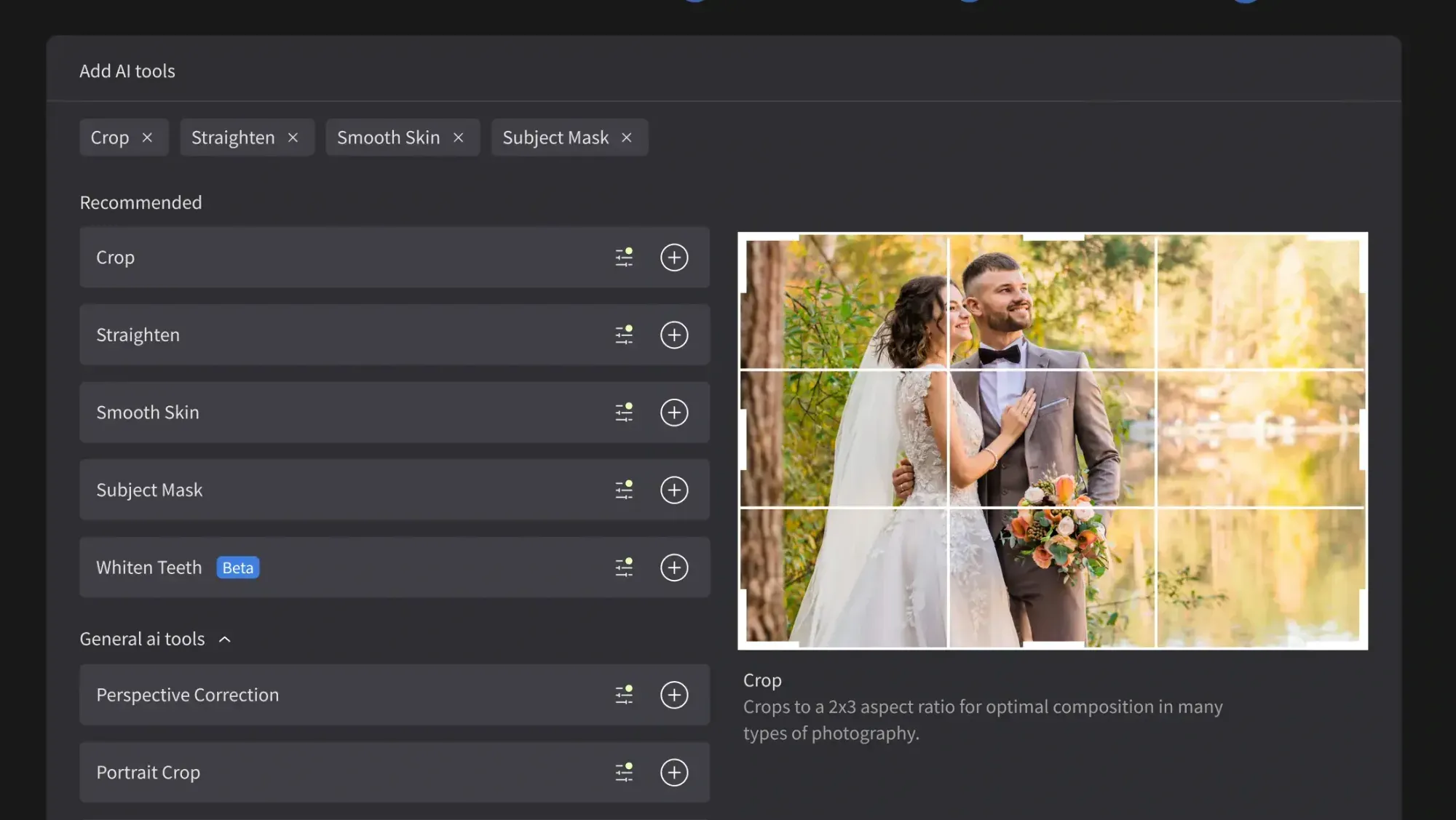
After the batch pass, you finish the images that will land in the album and the first posts on social. AI retouching handles the repetitive skin and blemish work at scale, smoothing distractions while keeping texture natural, so you don’t manually clone every frame. Imagen’s AI retouching runs in the same workflow as the culling and color, which means you stay in one place from import to export. For quick manual touches, the built-in editor (Beta) offers sliders, a histogram, and crop and straighten.
Reserve your hands for the frames that need judgment. A portrait editor such as PortraitPro gives you granular manual control for a hero portrait of the couple, and a general tool like Photoshop still owns the complex composites and object removals that a packed reception sometimes needs. Use those for the handful of images that justify the time, and let the AI carry the volume.
- Run AI retouching across the full keeper set for even skin and clean distractions.
- Hand-finish the album heroes, the chuppah portraits, and the breaking of the glass with a portrait editor.
- Remove exit signs, stray gear, or a wandering guest in your general editor only where it truly helps.
Step 5: Export and Deliver for Album and Web
Export in two flavors so the couple gets the right file for every use. Deliver full-resolution files for the printed album and social-sized JPEGs for quick sharing, and keep your color profile consistent so a print house doesn’t shift your ceremony tones. Build a naming and folder structure you reuse for every wedding, because a predictable system saves you on the next delivery too.
Before you send, spot-check a spread from each part of the day. Confirm the warm bedeken, the daylight chuppah, and the spotlit hora all read like one cohesive gallery. When the batch was built on a style the AI learned from you, that check is usually quick, because the whole set already speaks with one voice.
Where AI Tools Fit in a Jewish Wedding Workflow
Different tools solve different parts of this job, and honest guidance means naming what each does well. Imagen sits at the center for high-volume professional editing, because it learns your personal style, culls, colors, and retouches a full wedding in one connected pass. Pricing is pay-as-you-go, so you pay for what you export, and exploring the tools is free, so you can test it on a real celebration before you commit.
That core plugs straight into the catalog tools you already run, so your files and masters stay where you expect them. The next paragraph covers exactly which supporting tools finish the exceptions.
Around that core, a few other real tools earn a place. Lightroom and Capture One remain the catalog and raw-processing homes where your files live and your masters export. PortraitPro offers detailed manual portrait control on a licensing model for your hero frames. Photoshop handles the heavy composites and object removals on a subscription model when a scene needs surgery. Each of these does its job well, and the smart move is to let the AI editor carry the volume while these tools finish the exceptions.
Common Jewish Wedding Editing Mistakes to Avoid
The biggest error is forcing one white balance across scenes that were lit completely differently, which leaves the tisch orange or the hora sickly green. The second is over-smoothing skin until faces look plastic, which reads as fake in a printed album. The third is chasing a trendy look that fights the warm, joyful mood most couples want from their simcha.
Avoid all three by grouping your edit by scene, grounding it in a style you actually like, and keeping retouching restrained. When your AI editor applies a look you trained yourself, these mistakes get rarer, because the system repeats your good judgment instead of a stranger’s preset. Build the habit once and the whole workflow stays honest and fast.
What’s new in Imagen: Imagen takes its next step as an intelligent, agentic Studio for professional photographers, where you cull, edit, review and export in one project, in any order. AI filters such as blur and closed eyes help you narrow a full day of frames, and the built-in editor (Beta) covers quick manual adjustments like crop and straighten. The Studio is rolling out gradually.
Frequently Asked Questions
Does AI editing replace a professional wedding photographer?
No, AI editing speeds up the work a photographer already does. You still shoot the wedding, make the creative calls, and approve every image, while the AI handles the slow culling, color, and retouching. It gives you back the hours you’d otherwise spend on repetitive edits.
Will an AI editor change what actually happened in my wedding photos?
No, a tool like Imagen edits the real frames you shot and does not invent scenes, guests, or the chuppah. It corrects exposure, color, and skin, and it removes technical distractions you flag, but the celebration in the photos is the celebration that happened. Your delivery stays a true record of the day.
How does AI handle the many different lighting scenes in a Jewish wedding?
You set clean base corrections for each scene, then the AI applies your style consistently from there. It matches the skin tones and color balance you established, so the warm tisch and the spotlit hora read as one gallery. You review the result and fine-tune the few frames that need it.
How much does AI Jewish wedding photo editing cost?
Imagen runs pay-as-you-go, so you pay for what you export, and exploring the tools is free. That lets you try a real wedding before deciding, so you measure the time savings against your own workflow. Other tools price by subscription or one-time license instead.
Ready to cut a full wedding from days to hours while keeping your own look? Try Imagen’s new Studio, where you cull, edit and export in one project, and work your next Jewish wedding in the style you already trust.
