

How to Edit Vineyard Wedding Photos with AI in 2026
Table of contents
- Import and Cull the Full Shoot First
- Set a Warm Base Tone for Golden Hour
- Build One Consistent Look Across the Whole Day
- Balance Green and Gold in Wide Landscapes
- Finish Portraits and Details by Hand
- Automate the Slow Steps with Imagen
- Export for the Couple, the Gallery, and Print
- Frequently Asked Questions
To edit vineyard wedding photos with AI, you cull the shoot down to the keepers, set one warm base tone that respects the golden-hour light, and then let AI apply your personal look across every frame so the ceremony, the vines, and the portraits all match. AI handles the slow, repetitive passes while you keep the creative calls, which is how a full vineyard wedding goes from thousands of raw files to a finished gallery in a fraction of the usual time. This guide walks the real workflow step by step, and it shows where a tool like Imagen automates the parts that used to eat your evenings.
One honest note before we start. AI editing here means editing the actual photos you shot at the vineyard. It corrects exposure, color, and skin, and it can cull and retouch, but it does not invent skies, vines, guests, or backgrounds that were never there. Your job is to shoot the day well, and the AI’s job is to finish those real frames faster.
Import and Cull the Full Shoot First
A vineyard wedding fills memory cards fast. You often walk away with 3,000 to 5,000 frames across the getting-ready room, the ceremony under the vines, golden-hour portraits, and the reception. Before you touch a single slider, import everything into your catalog and back it up to two drives. Editing is much calmer when you know the originals are safe.
Next comes the cull, and this is where most photographers lose hours. You are looking for sharp focus, open eyes, and genuine moments, and you are cutting the blinks, the test shots, and the near-duplicate burst frames. AI culling reads the whole set, groups the duplicates, and flags the technically strong picks, so you review suggestions instead of scrubbing through every frame one at a time. You stay in control and confirm the final selects, but the first heavy pass is done for you.
- Keep the sharp, well-timed frames where the couple and guests look their best.
- Cut blinks, obvious misfires, and all but the strongest frame in each burst.
- Star the hero shots you already know belong in the album and on the couple’s wall.
- Group the ceremony, portraits, and reception so you edit each block in one pass.
Set a Warm Base Tone for Golden Hour
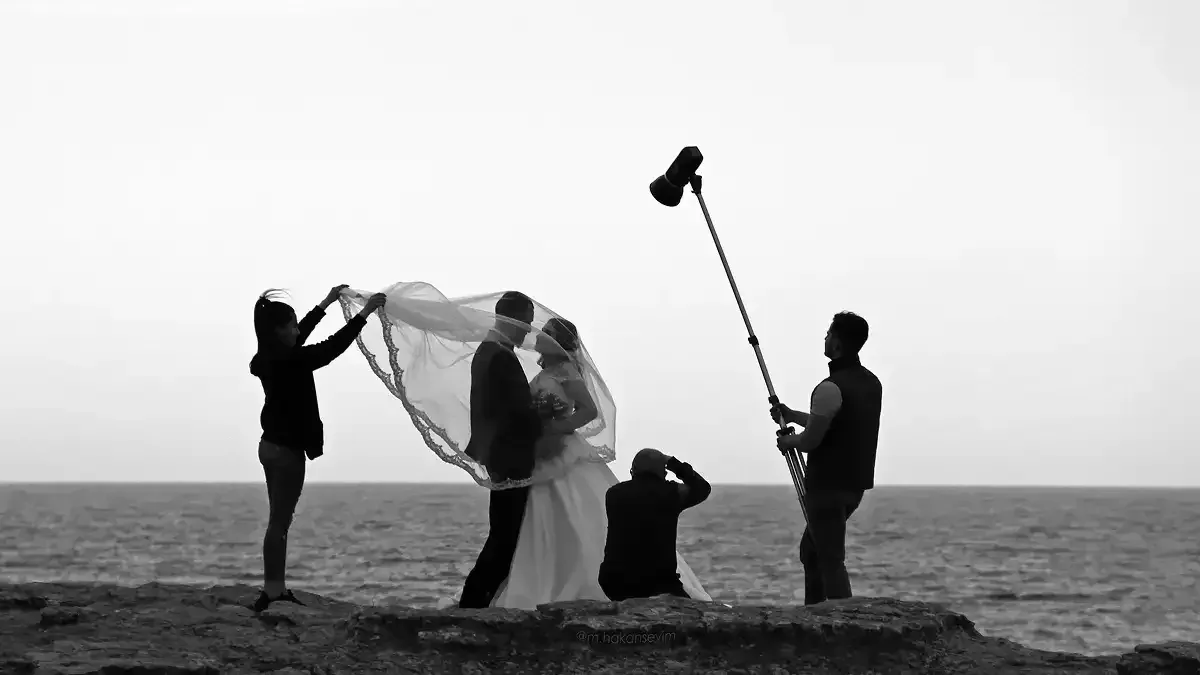
Vineyard weddings live and die by golden hour. The low sun rakes across the rows, the light turns honey-gold, and warm tones spill over skin, wine glasses, and the vines. Your base tone should protect that warmth instead of fighting it. Start by fixing white balance on a neutral reference, usually the groom’s shirt or a printed program, then nudge the temperature slightly warm so the frame feels like the evening actually felt.
From there, set exposure so the highlights on the horizon hold detail and the shadows under the vines stay open. Pull the highlights down a touch, lift the shadows a touch, and add a gentle contrast curve so the image has depth without going harsh. Editors like Lightroom and Capture One give you the raw controls to build this look, and both are the daily home base for most wedding photographers. The goal is a base recipe you can trust, because you are about to apply it to hundreds of frames at once.
Build One Consistent Look Across the Whole Day
Consistency is what separates a professional vineyard gallery from a folder of nice photos. The couple should feel like the ceremony, the vineyard portraits, and the candlelit reception all belong to one story, even though the light changed dramatically between them. That means the same warmth, the same skin rendering, and the same green-to-gold balance from the first frame to the last.
This is the step AI transforms. Instead of copying settings from one photo and pasting them across a batch that then needs constant hand correction, you apply a personal style that already knows how you edit. Imagen learns your look from your own past catalogs in Lightroom or Capture One, then applies that style across the full shoot with matched exposure, color, and tone. Edited photos arrive in batches as they process, so you can start reviewing early frames while the rest finish. A gallery that used to take days of manual syncing lands in a consistent state you can refine, not rebuild.
For a deeper walk through building that repeatable look, our vineyard wedding photo editing workflow guide breaks the process into a clear sequence you can reuse on every booking.
Balance Green and Gold in Wide Landscapes
The vineyard itself is a character in these photos. Wide landscape frames show rows of vines stretching to the hills, and the color of that foliage carries the mood. Warm light pushes the greens toward yellow, and if you overdo the warmth, healthy vines can look tired or sunburned. If you cool them too far, the whole scene loses its evening glow. The balance is the point.
Work the greens with targeted controls rather than a global shift. Adjust the hue of the greens so the vines read alive, hold their saturation so they stay rich without turning neon, and let the golds in the sky and the light stay warm. When you apply your consistent style, these landscape frames inherit the same logic as your portraits, so a wide establishing shot and a close two-shot of the couple sit side by side without clashing. Small local adjustments on the hero landscapes finish the job.
Finish Portraits and Details by Hand
Once the batch carries your look, the portraits deserve individual care. This is where you retouch skin, even out shine from the warm sun, brighten eyes, and clean up small distractions like a stray hair or a wine spill on the tablecloth. AI retouching speeds the repetitive parts, smoothing skin naturally and handling blemishes across a set of portraits while keeping texture real, so faces still look like the people who got married.
Dedicated retouching tools such as Retouch4Me and PortraitPro also focus on skin and portrait finishing, and many photographers keep one in their kit for heavy beauty work. The advantage of an integrated workflow is that your culling, color, and retouching live in one connected pass instead of hopping between apps. Whatever you choose, keep the edits honest. You are refining a real face in real light, not building a new one.
- Retouch skin and even out golden-hour shine while keeping natural texture.
- Brighten eyes and teeth gently so portraits feel fresh, not overworked.
- Remove small distractions like stray hairs, tan lines, or clutter behind the couple.
- Add a light local dodge and burn to shape the face in the warm evening light.
Automate the Slow Steps with Imagen
Here is where the whole workflow tightens. Imagen learns your personal editing style from your Lightroom or Capture One catalog and applies it consistently across a full shoot, and it pairs that with AI culling and AI retouching in one connected workflow. For a vineyard wedding, that means the cull, the color match, and the first retouching pass all run together, and you step in for the creative finishing rather than the grunt work, either in Imagen’s built-in editor (Beta) or back in Lightroom Classic.
Imagen is not a generator. It edits, culls, and retouches the real photos you shot at the vineyard, and it does not invent scenes, skies, guests, garments, or backgrounds. Every frame it returns is your frame, finished in your style. That matters for wedding work, where the couple trusts you to document what actually happened on their day.
Pricing is pay-as-you-go, a monthly base fee plus a charge for each photo you export, and exploring Imagen’s new Studio is free. That structure fits the uneven volume of wedding season, since you pay for the shoots you actually deliver. To compare the leading options for this niche, see our roundup of the best AI vineyard wedding photo editing software, and browse more field guides on the Imagen tips hub.
Export for the Couple, the Gallery, and Print
The last step is delivery, and it needs the same care as the edit. Vineyard couples usually want a web gallery to share, high-resolution files for print, and a few social-ready crops for the honeymoon posts. Export a full-resolution set for archiving and print, then a compressed web set sized for fast online galleries. Sharpen appropriately for each output, since a file bound for a 24-inch canvas needs different treatment than one headed for a phone screen.
Because your whole gallery already shares one consistent tone, the exports stay coherent no matter where the couple views them. Build export presets once, name them clearly, and reuse them on every wedding so your delivery is as repeatable as your editing. A tidy, consistent handoff is often what earns the next referral.
What’s new in Imagen: Imagen is now an intelligent, agentic Studio for professional photographers, so the steps in this vineyard guide can share one project where you cull, edit, review and export in any order. When you finish portraits and details by hand, the built-in editor (Beta) offers sliders, crop and straighten, presets and versions. The Studio is rolling out gradually as a beta.
Frequently Asked Questions
How long does it take to edit a vineyard wedding with AI?
A full vineyard wedding of several thousand frames can move from raw import to a consistent, near-final gallery in hours rather than days once AI handles the cull and the color match. You still spend focused time on hero portraits and hand finishing, but the repetitive passes shrink dramatically, which is the biggest time saver in the whole workflow.
Will AI editing change the natural golden-hour look?
No, because you set the base tone and the AI applies your look. When you build a warm base and teach the tool your personal style, it protects the honey-gold light instead of flattening it. The point of learning your style is that the finished frames look like your work, warmth and all.
Does AI invent parts of the vineyard scene?
Imagen edits the real photos you captured and does not invent skies, vines, guests, or backgrounds. It corrects exposure, color, and skin, and it can cull and retouch, so the couple receives an honest record of their actual day, finished cleanly in your style.
Can I keep using Lightroom or Capture One with AI editing?
Yes, and most photographers do. Imagen learns your style from your existing Lightroom or Capture One catalogs and works alongside them, so you keep your familiar raw editor as home base while the AI handles the heavy consistency and retouching passes across the full shoot. Imagen can send AI edits back to Lightroom Classic as XMP, or you can export finished JPG, TIFF, or PNG files straight from Imagen.
