

How to Edit Shopify Product Photos with AI in 2026
Table of contents
- How to Edit Shopify Product Photos With AI
- What AI Product Photo Editing Actually Does
- Shoot Consistently So the AI Has an Easy Job
- Import and Cull Your Product Shoot
- Train Your Personal AI Editing Style
- Batch Edit the Whole Catalog for Consistent Color
- Finish Individual Hero Shots and Retouch
- Export and Upload to Your Shopify Store
- What Imagen Costs
- Frequently Asked Questions
How to Edit Shopify Product Photos With AI
To edit Shopify product photos with AI, you teach an AI editor your personal editing style once, then let it apply consistent color, exposure, white balance, and tone across your whole batch of product shots. The fastest way to do this in 2026 is Imagen, which learns your look from your Lightroom or Capture One catalog and edits every real photo you captured the same way you would, so a 300 frame product shoot leaves editing in minutes instead of days. This guide walks the full workflow from import to export, and it names a few other honest tools where they genuinely fit.
Shopify stores live and die on visual consistency. A shopper scrolling your collection page compares thumbnails side by side, so one mug that reads slightly warm next to another that reads cool makes the whole catalog feel unfinished. The real job is not editing one hero image well. It is making 40 or 400 product images look like they belong to the same store, shot on the same day, under the same light. That is precisely the problem an AI style engine solves, and this article shows you how to run it start to finish.
What AI Product Photo Editing Actually Does
An AI editor studies thousands of your past edits and builds a model of your choices, then repeats those choices on new frames. For a Shopify catalog that translates into steady exposure so every product sits at the same brightness, matched white balance so a white t-shirt reads clean white across the set, controlled contrast so texture stays visible, and consistent color so a navy candle jar looks identical in frame 5 and frame 300. You still make the creative calls. The AI simply carries them across the batch.
One point matters before you start. Imagen edits the real photos you captured. It adjusts color, tone, exposure, and finishing on the actual product that sat in front of your lens. It does not invent products, labels, packaging, food, garments, models, or fake backgrounds, and it does not generate a product that never existed. You photograph the item honestly, and the AI handles the slow color and tone work you would otherwise grind through by hand. It also does not plug into Shopify directly, so you edit your files first and upload the finished images to your store afterward.
Shoot Consistently So the AI Has an Easy Job
Great AI editing starts at capture, because a tidy shoot gives the AI a predictable canvas. Lock your exposure and white balance in camera, keep your lighting fixed between products, and shoot in RAW so you preserve the full range of color and detail. When every frame lands in roughly the same place, your learned style applies cleanly and you spend almost no time on corrections.
- Use manual mode with a fixed aperture, shutter, and ISO so brightness stays even across the set.
- Set a custom white balance with a gray card so neutral colors read neutral from the first frame.
- Keep your backdrop, lights, and product distance constant so the AI sees one consistent scene.
- Shoot a quick reference frame with a color checker at the start of each lighting setup.
Import and Cull Your Product Shoot
Start by pulling your RAW files into Lightroom or Capture One and grouping them by product. A single product session often covers many SKUs, each with several angles, so clean folders save you real time later. Then cull, because you rarely keep every frame you fired.
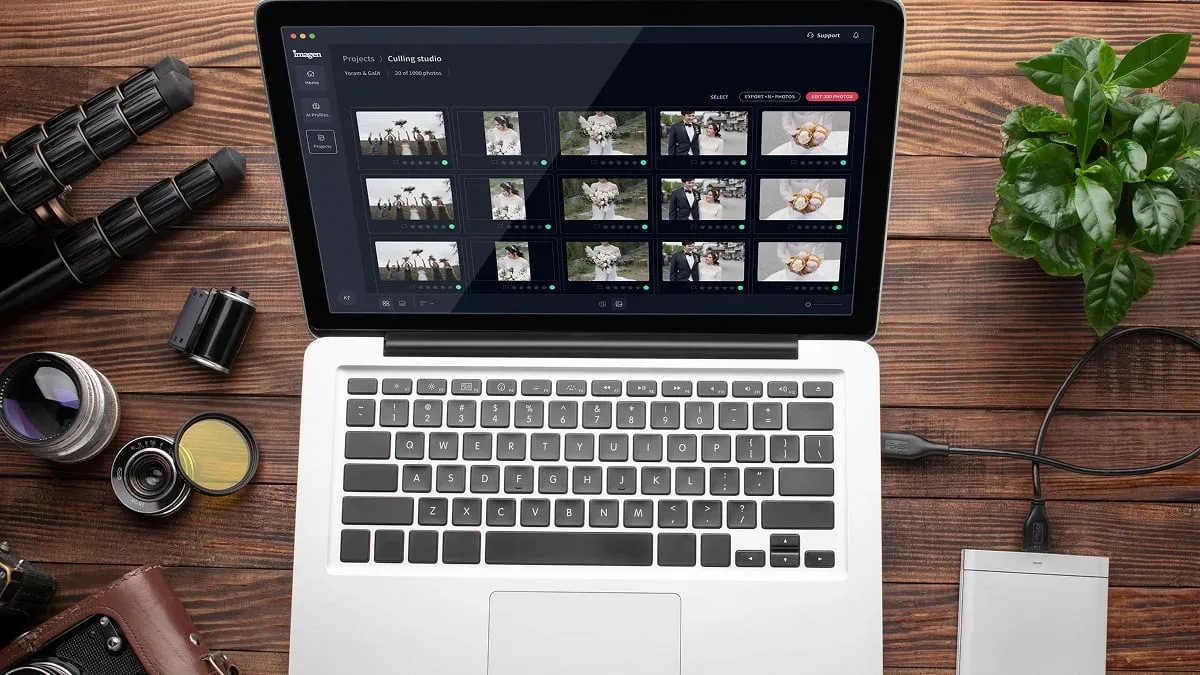
Imagen includes AI culling that reviews your frames and flags the sharpest, best exposed options per shot, so you can clear a large take quickly instead of zooming into each thumbnail by hand. You keep final say, and manual culling is free if you would rather pick by eye. The AI just does the first heavy pass. Tools like Aftershoot also focus on AI culling if that is the only step you want to automate, and their plans run on a subscription model.
- Keep the sharpest angle for each required view, such as front, three quarter, back, and detail.
- Drop frames with blown highlights on glossy packaging or soft focus on the label.
- Flag the cleanest hero frame per SKU for extra finishing attention.
- Remove near duplicate frames so your gallery stays lean and fast to review.
Train Your Personal AI Editing Style
This is the step that makes AI editing feel like your own work rather than a generic filter. Imagen builds a personal AI profile from your existing edited catalog, so it learns how you handle exposure, color, contrast, and tone on real products. You point it at a body of photos you already edited, and it studies your decisions to build a model of your taste. You can also start from a ready-made AI Profile, and more than one profile can be applied to a selected set of photos, which takes some processing time.
If you are just starting out and have no back catalog, you can begin with one of the ready made styles and refine from there. The important idea is that the profile represents your look, so the edits it produces match the aesthetic your store already uses. Once the profile exists, you reuse it on every future shoot, and your catalog stays visually consistent season after season.
Batch Edit the Whole Catalog for Consistent Color
With your profile ready, apply it to the full set in one pass. This is where AI editing earns its keep, because the slow, repetitive work of matching exposure, white balance, and color across hundreds of frames happens automatically. A product line that shipped as a jumble of slightly different edits now reads as one clean, cohesive collection.
Batch color work is the single biggest time saver for a Shopify seller. When you list a product in three colorways, buyers need each variant to look true, so a forest green hoodie cannot drift toward teal from one frame to the next. Consistent AI editing holds that color steady across every angle and every variant, which reduces returns caused by color surprises and keeps your collection pages looking professional.
- Match brightness so every product sits at the same exposure on the collection grid.
- Hold white balance so neutral backgrounds and whites stay clean across the batch.
- Keep color accurate so each variant reads true to the physical product a buyer receives.
- Preserve texture so knit, grain, and matte finishes stay visible after editing.
Finish Individual Hero Shots and Retouch
After the batch pass, a few hero images usually deserve extra attention. These are the photos that anchor a product page, so a little cleanup pays off. Imagen offers AI retouching that handles common cleanup on the real photo, which helps you remove distracting dust, lint, or minor blemishes on the product surface without repainting the item into something it is not. For manual finishing, the built-in editor (Beta) offers sliders, a histogram, crop and straighten.
For deeper compositing or background swaps you might still open Photoshop, which runs on a subscription and remains the standard for pixel level work. The point is to reserve manual retouching for the handful of frames that truly need it, while the AI handles color, tone, and light cleanup across everything else. That split keeps your editing time low and your output consistent.
Export and Upload to Your Shopify Store
Once your edits look right, export at settings that suit Shopify. Aim for a square or consistent aspect ratio so your grid stays even, size your files large enough to stay crisp on retina screens, and compress sensibly so pages load fast. Because Imagen is not a Shopify plugin, you export finished JPG, TIFF, or PNG files straight from Imagen, or send AI edits back to Lightroom Classic, and then upload them to your product pages through the Shopify admin.
- Export a consistent aspect ratio, such as square, so every thumbnail aligns on the collection page.
- Keep the longest edge around 2048 pixels so images stay sharp without bloating file size.
- Save as JPEG for photos and name files with the product and SKU so your library stays organized.
- Upload the finished set to Shopify and set the hero frame as the first image on each product.
That is the full loop. You shoot honestly, cull fast, train a style that matches your brand, batch edit for consistent color, finish the heroes, and upload a clean catalog. For more workflow depth, read our AI Shopify product photo editing guide and our Shopify product photo editing workflow, and browse more tutorials on the Imagen valuable tips hub.
What Imagen Costs
Imagen is priced on export: pay-as-you-go photographers pay for the photos they export. Sliders, crops, and masks you do yourself are always free. Check the pricing page for current details. That structure suits a Shopify seller with uneven volume, because a big product drop and a quiet month cost you in proportion to what you actually export. You can try Imagen’s new Studio, where you cull, edit and export in one project, on the Imagen platform and see the results on your own frames.
What’s new in Imagen: Imagen is now an intelligent, agentic Studio for professional photographers, so a Shopify catalog can move from import to finished files in one project where you cull, edit, review and export in any order. Edited photos arrive in batches as they process, which lets you review the first products while the rest finish, and you can send AI edits back to Lightroom Classic or export finished files for your store. It is rolling out gradually as a beta, and you can learn more here.
Frequently Asked Questions
Does AI editing generate fake product photos?
No, Imagen edits the real photos you captured. It adjusts color, exposure, white balance, tone, and finishing on the actual product you photographed. It does not invent products, labels, packaging, food, garments, or backgrounds, so your listings stay honest and match what buyers receive.
Does Imagen integrate directly with Shopify?
No, Imagen is a photo editing tool, not a Shopify app. You edit your images in Imagen, export the finished files, and then upload them to your store through the Shopify admin. The workflow is simple and takes only a few minutes once your batch is done.
How much does it cost to edit product photos with Imagen?
Imagen is priced on export: pay-as-you-go photographers pay for the photos they export. Check the pricing page for current details. That means you can test the results on your own catalog before you commit to a larger batch.
Can AI keep color consistent across product variants?
Yes, that is a core strength. Once Imagen learns your style, it applies the same color, exposure, and tone decisions to every frame, so each variant reads true and your collection page looks cohesive. Consistent color also reduces returns caused by products that looked different online than in hand.

