

The Complete Guide to AI Shopify Product Photo Editing in 2026
Table of contents
- AI Shopify Product Photo Editing Guide
- What AI product photo editing actually does
- Set up your catalog and import your shots
- Cull the batch and keep only the sharp frames
- Batch color, exposure, and white balance
- Per-photo finishing and retouching
- Export web-ready files for your store
- Where Imagen fits and what it costs
- Other tools worth knowing
- Frequently asked questions
AI Shopify Product Photo Editing Guide
AI Shopify product photo editing means using software that learns how you edit and then applies your color, exposure, white balance, and tone across an entire batch of store photos in one pass. The fastest path for a busy shop is to shoot your products, import the raw files into a catalog, cull the throwaways, run a batch edit that matches your look, finish the hero shots by hand, and export web-ready files. This guide walks that workflow step by step and shows where a tool like Imagen automates the slow parts so your listings stay consistent from the first product to the last.
Product photography for an online store is repetitive by nature. You shoot dozens or hundreds of items against the same background, and every image needs the same clean white, the same brightness, and the same true-to-life color so shoppers trust what they see. Editing each frame one at a time is where most sellers lose their weekends. The goal here is to keep the quality high and the manual clicks low. For a deeper look at each stage, see our companion pieces on how to edit Shopify product photos with AI and the full Shopify product photo editing workflow.
What AI product photo editing actually does
AI editing tools for product photos work on the real images you shot. They adjust exposure, correct white balance, balance color, refine tone, and clean up small distractions so every photo in a set looks like it belongs to the same store. Imagen learns your personal editing style from your Lightroom or Capture One catalog, then applies that style consistently across a full shoot. It reads the corrections you already make and repeats them so a batch of 300 product frames lands with one coherent look.
It helps to be clear about what these tools do not do. Imagen edits, culls, and retouches the actual photos you captured. It does not invent products, labels, packaging, garments, or backgrounds, and it does not generate a fake studio scene. If you photograph a ceramic mug on a white sweep, the output is that same mug with cleaner light and accurate color, not a synthetic render. That honesty matters for a store, because your customers expect the item that arrives to match the photo on the listing.
Set up your catalog and import your shots
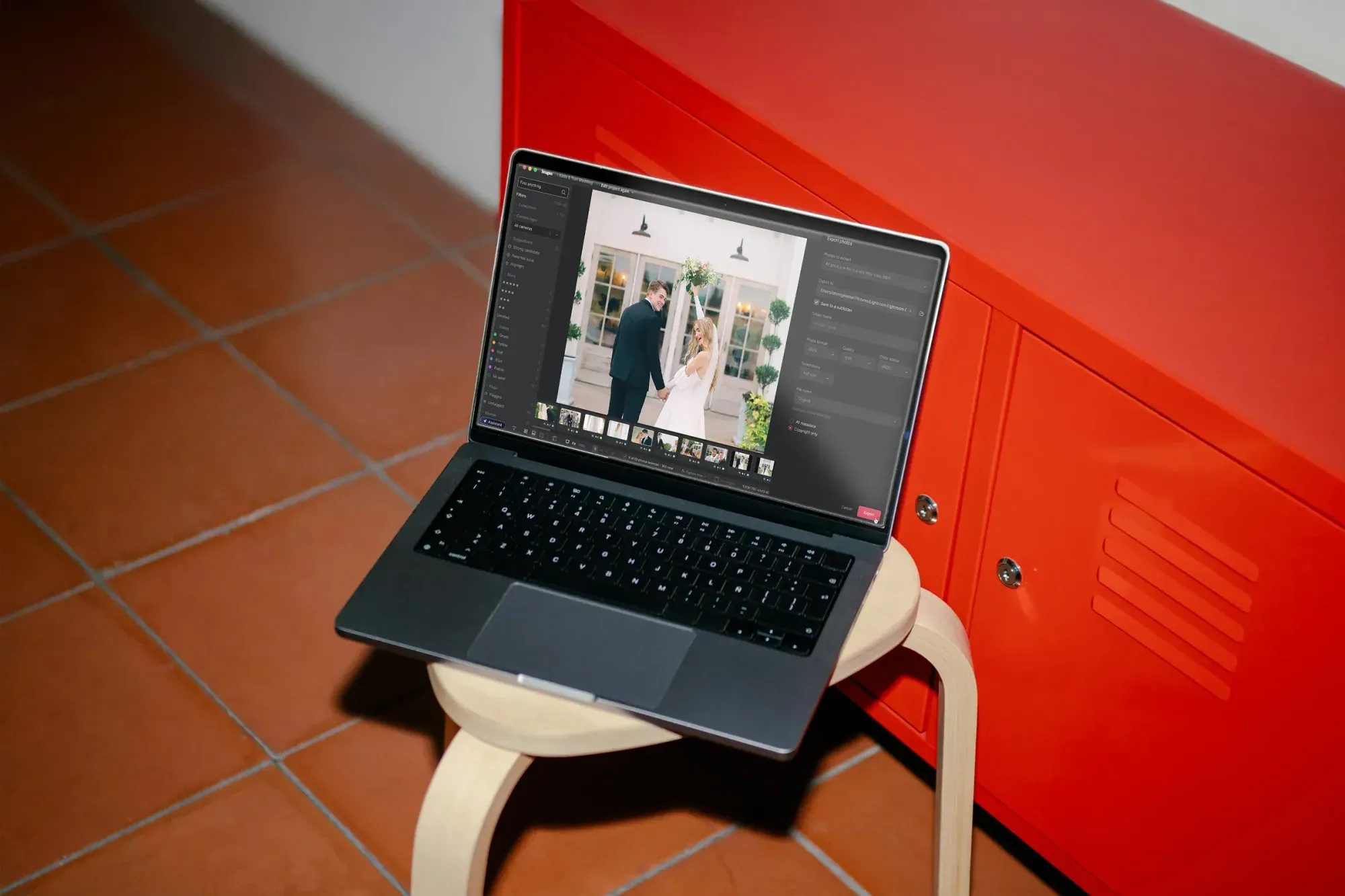
Good editing starts with organized files. Shoot in raw when your camera supports it, because raw gives the editing engine the most room to correct exposure and white balance without banding. Copy the memory card into a dated folder, then import everything into your Lightroom or Capture One catalog. A tidy catalog is what an AI tool reads from, so the cleaner your import, the cleaner your results.
- Create one folder per shoot day and name it with the date and the product line.
- Import raw files rather than in-camera JPEGs so corrections stay flexible.
- Add a simple keyword or color label for each product group before you edit.
- Shoot a gray card or white sweep in the first frame so white balance has a reference.
A consistent capture setup pays off later. When your lighting and background stay the same across a session, the batch edit has far less variation to fight, and your whole store gains a uniform feel.
Cull the batch and keep only the sharp frames
Most product shoots produce several frames per item, and only one or two are worth keeping. Culling is the job of choosing the sharp, well-composed keepers and dropping the blinks, blurs, and near-duplicates. Done by hand, this stage eats real time when you have hundreds of frames to review.
AI culling speeds this up by flagging out-of-focus and duplicate frames so you review a short list instead of the full card. Imagen includes AI culling in the same connected workflow as its editing, so you move from raw import to a clean shortlist without switching apps, and you can skip AI culling and cull manually for free. You stay in control and make the final call, but you start from a filtered set rather than a wall of thumbnails. Aftershoot is another tool photographers use for culling if you want a dedicated option for that step.
Batch color, exposure, and white balance
This is the stage that decides whether your store looks professional. Every product image needs the same neutral white background, the same brightness, and color that matches the real item. Editing each frame by hand is accurate but slow, and small drifts creep in as you tire, which leaves one listing warmer than the next.
Batch editing solves the consistency problem. Because Imagen has learned your editing style from your catalog, it applies your white balance, exposure, and color choices across the entire shoot in one pass. A set of 200 frames comes back matching your look, so a shopper scrolling your catalog sees one steady visual voice. Edited photos arrive in batches as they process, so you can start reviewing early frames while the rest finish. You then spot-check the batch and nudge any outliers, which takes minutes rather than hours.
- Pick a reference frame that shows your target white balance and brightness.
- Run the batch edit so your style applies to every keeper at once.
- Review the set on a calibrated screen and flag any frame that drifts.
- Adjust the few outliers by hand so the whole batch reads as one look.
Per-photo finishing and retouching
After the batch pass, your hero shots deserve a closer look. Finishing covers the small touches that make a product photo sell: removing a speck of dust, evening out a reflection, cleaning a smudge on glossy packaging, or tidying a loose thread on fabric. These fixes keep the item accurate while presenting it at its best.
Imagen offers AI retouching in the same workflow, which handles routine cleanup so you spend your attention on the frames that carry the listing. Retouching here means refining the real photo, not altering the product into something it is not. The mug still has its true glaze, the shirt keeps its true weave, and the color stays honest. For lighter manual tweaks, the built-in editor (Beta) in Imagen offers sliders, crop and straighten, while Photoshop remains the standard for heavy, pixel-level manual work when a single flagship image needs bespoke care.
Export web-ready files for your store
The last step is exporting files sized for the web. Large, slow images hurt page speed and cost you sales, so you want sharp photos that load fast. Set a consistent long-edge dimension, export as compressed JPEG or WebP, and keep the color space in sRGB so screens render your color the way you edited it.
- Export at a fixed long edge, often around 2000 pixels, so every listing image matches.
- Save as sRGB JPEG or WebP to keep color accurate and file sizes small.
- Name files with the product SKU so uploads stay organized on your store.
- Keep your edited catalog as the master in case you need a new crop later.
Imagen edits and exports the photos you already have, and it does not connect directly to Shopify, so you upload the finished files to your store the same way you always have. The saved time comes from the editing pass, not from a store plugin. You can export finished JPG, TIFF, or PNG files straight from Imagen, or send AI edits back to Lightroom Classic.
Where Imagen fits and what it costs
Imagen fits the middle of this workflow, from import to export, and automates the slow steps of culling, batch color work, and routine retouching. Because it learns your personal style, the batch result looks like your own editing rather than a generic filter, which is what keeps a store catalog consistent. You keep shooting the way you shoot, and the editing keeps pace with your volume.
Pricing is pay on export, which suits sellers whose shoot volume changes month to month. Pay-as-you-go photographers pay for the photos they export, so check the pricing page for current details. That means you can test the style match on a real product set before you commit. Sliders, crops, and masks you do yourself are always free. When you are ready, try Imagen’s new Studio, where you cull, edit and export in one project, at imagen-ai.com and run your first batch. For more tactics, browse the full library on our valuable tips hub.
Other tools worth knowing
No single tool owns every step, so it helps to know the landscape. Lightroom and Capture One are the catalog and raw editors most photographers already use, and Imagen reads your style straight from either one. Both follow a subscription or license model depending on the version you choose. Photoshop covers deep manual retouching for flagship images when you need pixel-level control, and it also sits in that subscription family.
Aftershoot is a dedicated culling option if you prefer to keep that step separate. When you compare these tools, look past the label and match each one to the step it serves in your pipeline. For high-volume store editing where consistency across a big batch is the priority, an editor that learns and repeats your personal style does the heaviest lifting.
What’s new in Imagen: Imagen is now an intelligent, agentic Studio for professional photographers, built around one project where culling, editing, review and export happen together and in whatever order suits your shoot. For a store catalog, the assistant can find photos and act on them when you ask in plain language, such as pulling every frame of one product, while you stay in charge of each decision. The Studio is rolling out gradually as a beta, and more is on the Imagen site.
Frequently asked questions
Does Imagen generate product images or backgrounds? No, it edits the real photos you shot. It corrects color, exposure, white balance, and tone, and it retouches actual frames. It does not invent products, packaging, or scenes, so your listings stay true to the item a customer receives.
Does Imagen connect directly to my Shopify store? No, Imagen does not integrate with Shopify. You edit and export your photos in Imagen, then upload the finished files to your store the same way you do today. The time savings come from the batch editing itself.
How much does Imagen cost for product photo editing? Imagen is priced on export: pay-as-you-go photographers pay for the photos they export. Check the pricing page for current details. That means you can test it on a real set first.
Will a batch edit keep my whole catalog consistent? Yes, that is the point of a style-based batch pass. Imagen learns your editing from your Lightroom or Capture One catalog and applies it across the full shoot, so every product image shares the same white, brightness, and color. You then spot-check and adjust any outliers.

