

How to Edit Senior Portrait Photos with AI in 2026
Table of contents
- How to Edit Senior Portrait Photos With AI
- Why Senior Portraits Need a Different Editing Plan
- Step 1: Import and Back Up the Full Session
- Step 2: Cull the Take Down to Real Keepers
- Step 3: Apply Your Personal Style in One Batch
- Step 4: Retouch Skin Without Erasing the Senior
- Step 5: Finish the Hero Frames by Hand
- Step 6: Export and Deliver the Gallery
- What Imagen Costs and How to Start
- Frequently Asked Questions
How to Edit Senior Portrait Photos With AI
To edit senior portrait photos with AI, you cull the session down to the real keepers, apply your own editing style across the whole gallery in one batch, and then finish the hero frames with gentle skin and detail work. The fastest way to do this is to let an AI tool learn your look from your Lightroom or Capture One catalog, so every outfit and every location matches without you touching each slider by hand. This guide walks the full workflow for high-school senior sessions, step by step, and names the real tools that help at each stage.
The key thing to understand is that AI editing works on the real photos you shot. Imagen learns your personal editing style from your existing catalog and applies it consistently across a full shoot, then adds AI culling and AI retouching in one connected workflow. It edits, culls, and retouches the actual frames, so it does not invent a person, a pose, a background, or a scene. If you want more context first, the deeper AI senior portrait photo editing guide and the practical AI senior portrait photo editing tips pair well with the steps below.
Why Senior Portraits Need a Different Editing Plan
Senior sessions pack more variety into one shoot than almost any other portrait genre. A single graduating student shows up with two or three outfit changes, props like a letterman jacket or an instrument, and a schedule that often jumps from open shade to hard afternoon sun within the same hour. That range is exactly what makes a consistent edit hard, because a warm look that flatters the golden-hour field frames can leave the shaded brick-wall frames cool and flat. Your plan has to hold one cohesive style across every outfit and every location so the gallery reads like a single session.
Skin is the second pressure point, and teenagers are the reason it matters. Seniors and their parents notice blemishes, uneven texture, and braces, and they also notice when retouching goes too far and erases the person. A good AI plan keeps skin tone steady while it balances exposure, then leaves room for honest, restrained finishing on the frames that will print. When you know these two forces up front, consistency and restraint, the rest of the workflow falls into place.
Step 1: Import and Back Up the Full Session
Start by importing the full card into Lightroom or Capture One and copying it to a second drive before you move a single slider. A typical senior session runs 400 to 900 frames across the outfit changes, and you want two copies of that raw take before any editing begins. Working from a catalog matters here, because the AI step reads your catalog to understand your style, and a clean import keeps everything in one place for the passes that follow.
Add basic keywords or a session label during import so the gallery stays organized when you deliver it later. This small habit saves time when a parent asks for a specific outfit set or when you build a print order weeks after the shoot.
Step 2: Cull the Take Down to Real Keepers
Culling is where senior editing usually stalls, because only about a third of those frames survive once you drop the blinks, the awkward transitions, and the near-duplicates. Scrubbing every thumbnail by hand eats an hour or more per client, so this is the first place AI earns its keep. Imagen’s AI culling reviews the full set, groups the near-identical frames, and flags blur, closed eyes, and soft focus, then hands you a shortlist to confirm. You stay in control of the final selects and review a clean shortlist instead of every frame.
Aftershoot is another real option that focuses heavily on culling and duplicate detection, and it runs on a subscription model if you want a dedicated culling step before your edit. Whichever tool you use, follow a simple selection rule so the gallery stays tight.
- Keep the best two or three frames per pose and outfit, then cut the rest of the burst.
- Drop every closed-eye frame unless the expression is worth a quick manual fix.
- Confirm one clear hero frame per outfit change for the finishing pass later.
Step 3: Apply Your Personal Style in One Batch
This is the step that changes senior editing the most. Instead of building each frame from a raw base, you apply your own look across the whole gallery at once. Imagen learns your personal editing style from your Lightroom or Capture One catalog, so the color, contrast, and tone you already use come back on every frame, including the shaded ones and the backlit ones. The result is a gallery that matches from the first outfit to the last, and it lands in minutes rather than hours. Edited photos arrive in batches as they process, so you can start reviewing the early frames while the rest finish.
Because the AI is matching your style and not a generic preset, the shaded brick-wall frames and the sunny field frames end up in the same family instead of drifting apart. You still open the catalog and confirm the batch, and you can nudge white balance or exposure on any frame that needs it. The heavy, repetitive part is done, and you are left reviewing an edit that already looks like yours.
Step 4: Retouch Skin Without Erasing the Senior
Once the color is consistent, move to skin. The goal for a graduating student is clean and honest, not plastic. Imagen’s AI retouching handles the repeatable work across the gallery, so temporary blemishes, minor texture, and stray flyaways get evened out while the real features stay in place. Because it retouches the actual photo you shot, the senior in the final gallery is the same person who sat for you, with the same freckles, eye color, and smile. For a hands-on pass on the hero frames, the built-in editor (Beta) offers sliders, crop and straighten, and presets.
Keep a few genre-specific rules in mind so the retouch reads as natural.
- Clear temporary blemishes, but keep permanent marks like moles and freckles that make the senior recognizable.
- Even out texture lightly so skin still looks like skin under a print.
- Leave braces and glasses as they are unless the family asks otherwise, since these are part of the year they want to remember.
- Save any heavier reshaping for a single hero frame, and never apply it across the full gallery.
Step 5: Finish the Hero Frames by Hand
Most of the gallery is ready after the batch and retouch passes, so now you spend your creative time only where it counts. Pick the one hero frame per outfit that the senior is most likely to print, and finish those by hand in Photoshop or your editor of choice. This is the moment for a targeted dodge and burn, a background cleanup, or a small catchlight adjustment that lifts a single portrait above the set.
Keeping hand work to the heroes is what makes an AI senior workflow both fast and personal. The AI carries the consistency across hundreds of frames, and you carry the artistry on the handful of images that will hang on a wall. That division of labor is the whole point, and it is why photographers move high-volume senior work onto an AI pass in the first place.
Step 6: Export and Deliver the Gallery
With the edit locked, export in the sizes your clients actually use. Deliver full-resolution files for print and lab orders, and add web-sized versions for the social posts that seniors love to share on graduation day. Keep your export presets tied to your gallery host or lab so the sizing stays the same session after session, which protects the consistent look you just built.
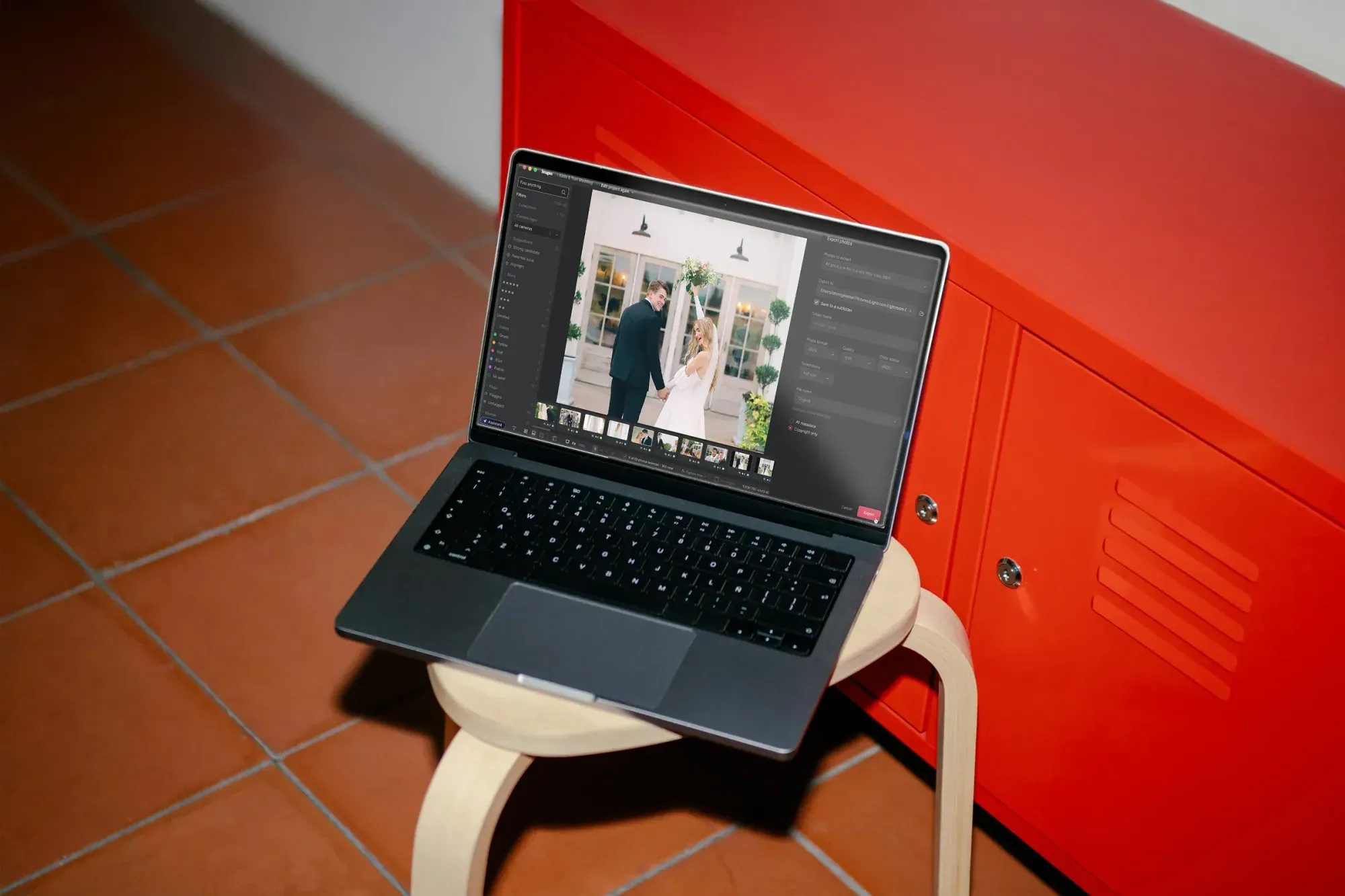
Back up the finished catalog alongside the raw take, then send the gallery. You can export finished JPG, TIFF or PNG files straight from Imagen, or send the edits back to Lightroom Classic. Because the whole set already matches, you can post the delivery link the same evening instead of stretching the edit across a week. For more workflow ideas and quick wins, the Imagen valuable tips hub collects guides that build on these steps.
What Imagen Costs and How to Start
Imagen runs on pay-as-you-go pricing, a monthly base fee plus a charge for the photos you export. Exploring the tools is free, which is enough to run a full senior session through culling, style matching, and retouching before you export and pay. That structure fits senior season well, because your volume rises in the fall and settles afterward, and your export charges stay low in a slow month.
If you want to see your own style applied to a real senior gallery, connect your catalog and run a session through the full workflow. You can try Imagen’s new Studio, where you cull, edit and export in one project, and edit your first gallery to judge the consistency and the retouching for yourself.
What’s new in Imagen: Imagen is now an intelligent, agentic Studio for professional photographers, so a senior session can go from cull to edit to review to export in one project, in any order. AI filters such as blur and closed eyes help you narrow a big shoot, and the Personal AI Profile you build from your past edits keeps the whole gallery in your look. The Studio is rolling out gradually as a beta.
Frequently Asked Questions
Does AI editing make senior portraits look fake?
It does not have to, because good AI editing works on the real photo you shot. Imagen applies your own style and retouches the actual frame, so the senior keeps their features, their freckles, and their expression. The look stays fake only if you push retouching too far, which is why restraint on skin and texture matters so much in this genre.
How long does it take to edit a full senior session with AI?
Most of the work moves from hours to minutes. AI culling trims a 400 to 900 frame take down to a shortlist quickly, the style pass applies your look across the gallery at once, and retouching runs in the same connected workflow. You still spend hand time on a few hero frames, so a session that once took most of a day can be ready to deliver the same evening.
Can AI match my editing style across different outfits and lighting?
Yes, and that is the main reason to use it for seniors. Imagen learns your personal style from your Lightroom or Capture One catalog and applies it consistently across the shoot, including the shaded frames and the backlit frames. The whole gallery reads as one session instead of a set of frames edited on different days.
Do I need to know Photoshop to edit senior portraits with AI?
You do not need advanced Photoshop skills for the bulk of the work. The AI handles culling, style matching, and retouching across the gallery, so you review rather than build each frame. Photoshop still helps on the handful of hero frames where you want a targeted finish, but the everyday senior session runs through the AI workflow without it.
