

How to Edit Newborn Photos with AI in 2026
Table of contents
- How to Edit Newborn Photos With AI
- Start With a Clean Import and Backup
- Cull the Session With AI First
- Apply Your Personal Style in a Batch
- Soften Delicate Newborn Skin
- Keep Warmth and Color Consistent Across the Gallery
- Finish Each Hero Image by Hand
- Export, Deliver, and Save Your Recipe
- What AI Newborn Editing Costs and How to Try It
- Frequently Asked Questions
How to Edit Newborn Photos With AI
To edit newborn photos with AI, you connect your Lightroom or Capture One catalog to a tool like Imagen, which learns your personal editing style and applies it consistently across the full session, then adds AI culling and AI retouching in one connected pass. That means the slow, repetitive work of matching skin tones, softening delicate skin, and keeping warmth even across hundreds of frames happens automatically, while you keep final control over every image. The result is a gallery that looks handcrafted, delivered in a fraction of the usual time.
Newborn sessions are unforgiving. Babies flush and blotch, studio light shifts as you move between poses, and parents expect soft, warm, gentle skin in every shot. This guide walks through a practical AI editing workflow, from import to export, so your newborn galleries stay tender and consistent without you editing each frame by hand. One clarification first: Imagen edits, culls, and retouches the real photos you shot. It does not generate babies, invent backgrounds, or fake a scene, so what parents receive is an honest, polished version of their own session.
Start With a Clean Import and Backup
Good editing starts before you touch a single slider. Offload your cards to two locations right away, since a newborn session cannot be reshot casually. Import the raw files into Lightroom Classic or Capture One, apply your lens corrections, and set your color space, because AI tools read from this catalog and build on the baseline you set. A tidy import keeps the automated steps that follow predictable and repeatable.
- Back up every raw file to two drives before you begin editing.
- Shoot in raw so skin tones hold up when you push warmth and exposure.
- Keep your white balance close in camera to give the AI a clean starting point.
- Group images by setup, such as wraps, bowls, and parent poses, so batches stay coherent.
Cull the Session With AI First
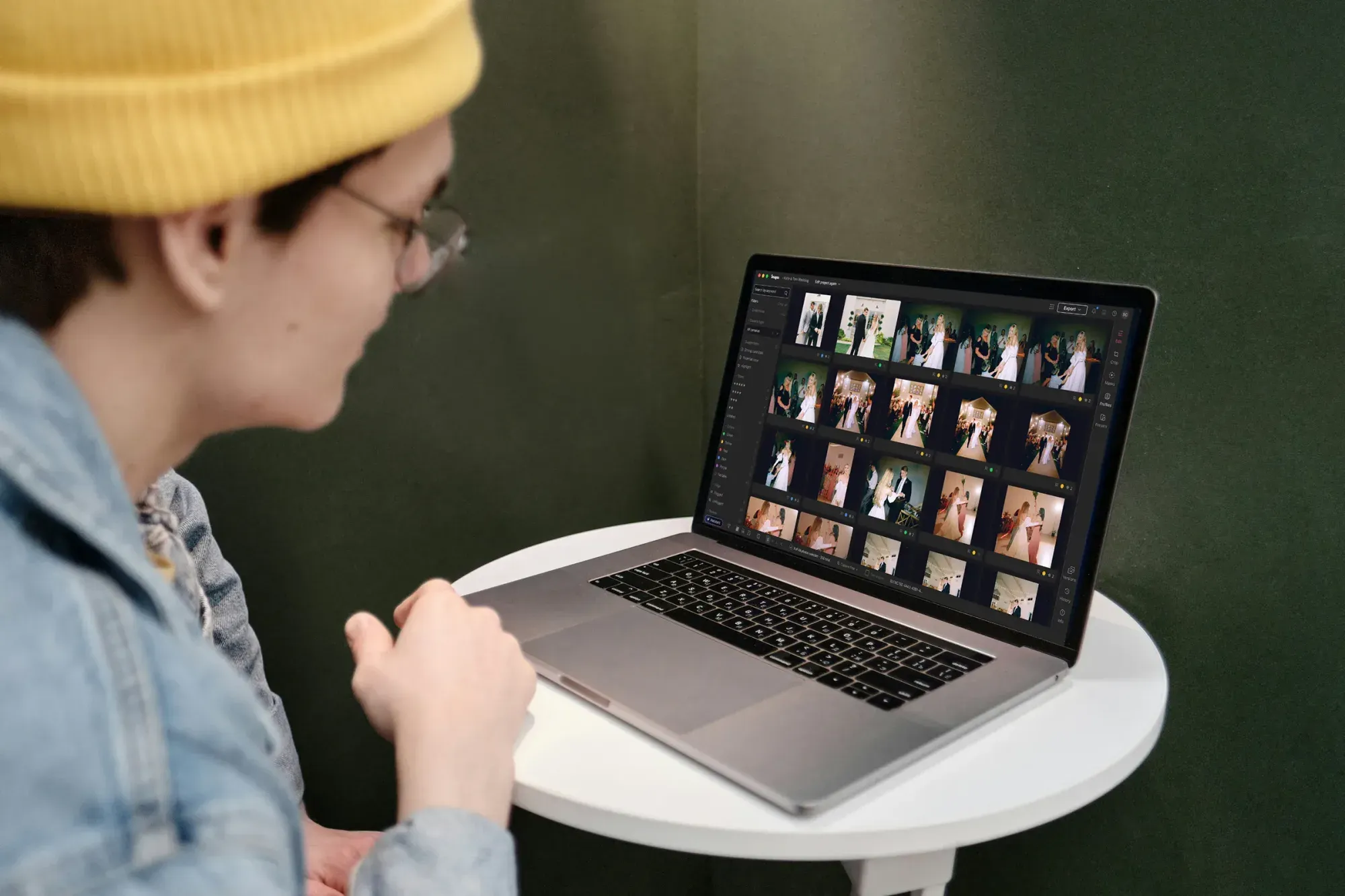
A typical newborn session produces 400 to 900 frames, and many are near duplicates where the baby shifted slightly or a hand moved into frame. Culling by eye is the part most photographers dread. AI culling reviews the whole take, flags closed eyes, checks focus, and groups the near identical frames so you pick the strongest keeper from each cluster in seconds. Imagen handles this culling inside the same project it uses to edit, so you move from a raw dump to a tight selection without switching apps. You can also skip AI culling and cull manually for free. Dedicated cullers like Aftershoot do this step too, and you can lean on either, but combining culling and editing in one place saves the most time.
Aim to cut the session down to 40 to 80 delivered images. Review the AI picks quickly, override anything you feel differently about, and lock your selection before you start the tonal work. A clean selection means the batch color and skin steps run only on frames you actually plan to deliver.
Apply Your Personal Style in a Batch
This is where AI editing earns its place. Imagen learns your personal editing style from your own past catalogs, so instead of nudging exposure and color on each newborn shot, it applies the look you already deliver across the entire selection at once. Your blacks, your highlight roll off, your gentle contrast, and your signature warmth all carry over automatically. Edited photos arrive in batches as they process, so you open the first ones and refine while the rest finish, rather than building every image from zero.
For studios that do not yet have a large back catalog, you can start from a talent profile and adjust it toward your taste over your first few sessions. Either way, the goal is the same. You want a first pass that already sits at 90 percent, so your hands-on time goes to the few frames that genuinely need attention. Lightroom presets can approximate a look, but a preset applies the same recipe to every photo, while a learned style adapts to each frame’s exposure and tone.
Soften Delicate Newborn Skin
Newborn skin is the heart of the edit, and it is also the trickiest. Fresh skin shows redness, dry flaky patches, milia, cradle cap, and uneven blotching, none of which parents want front and center. The job is to calm those distractions while keeping the natural texture that makes a baby look real. Heavy handed smoothing turns a newborn into plastic, which is the single most common mistake in this niche.
AI retouching handles the tedious cleanup at scale. It evens out redness, reduces temporary blemishes, and softens flaky patches while preserving pores and fine detail. Run the automated skin pass across the batch, then check a few frames at 100 percent to confirm the skin still reads as skin. Order your skin work this way:
- Even out overall redness and color blotching first, since that sets the base tone.
- Reduce temporary marks like milia, scratches, and dry patches next.
- Apply gentle, texture-preserving smoothing last, and keep it subtle.
- Leave permanent features such as birthmarks unless the parents specifically ask.
Imagen applies your retouching preferences consistently across the whole gallery, so the softening looks the same on the first frame and the last. Standalone skin tools such as Retouch4me can also automate frequency separation style cleanup if you prefer a separate step, though keeping retouching in the same pass as culling and color keeps your delivery faster.
Keep Warmth and Color Consistent Across the Gallery
Warmth consistency is what separates a professional newborn gallery from a snapshot set. As you move the baby between a bean bag, a basket, and a parent’s arms, the light bouncing onto the skin changes, and a cool frame next to a warm one breaks the mood parents love. The whole set should feel like one soft, warm story, not a patchwork of temperatures.
Because Imagen applies your learned white balance and color grading uniformly, the warmth stays even from the first wrap shot to the last family pose. Set your target warmth on a reference frame, let the AI match the rest to that baseline, then scan the gallery as a grid to catch any outlier. Fixing one drifting frame is quick when every other image already agrees.
- Pick one well-exposed frame as your warmth and color reference.
- Let the AI match skin tone and temperature across every setup automatically.
- Review the full gallery in grid view to spot any frame that drifts cool.
- Nudge only the outliers, since the batch already carries your consistent look.
Finish Each Hero Image by Hand
Automation clears the repetitive 90 percent, which frees your attention for the frames that sell the session. The parent closeups, the newborn yawn, and the tiny-feet detail deserve individual care. Bring these hero shots into Photoshop or your editor of choice for the finishing touches that a batch pass should not attempt, such as compositing a safety hold or refining a complex wrap.
Newborn safety often means an assistant supports the baby in poses, so composite editing to remove a supporting hand is standard and honest work on your real frames. Handle those hero edits deliberately, then send the finished versions back so the entire gallery, batch and hero alike, shares the same tone. Because your baseline already matches, these final touches blend in cleanly.
Export, Deliver, and Save Your Recipe
Once the gallery is consistent and retouched, export in two sizes: full resolution files for printing and web sized files for the online gallery and social sharing. Sharpen for the output medium, embed your color profile, and add your studio watermark to previews if that is your practice. Deliver through a proofing gallery so parents can favorite their picks for albums.
Save the style and retouching settings you used so your next newborn session starts from the same warm, gentle baseline. This is how AI editing compounds over time. Each session teaches the system a little more about how you like newborn skin and warmth to look, and your first pass keeps getting closer to finished. For more depth on building that repeatable look, read our AI newborn photo editing guide, and if your work spills into older siblings and family shots, see how to edit baby photos with AI. You can browse more workflow tutorials on our tips hub.
What AI Newborn Editing Costs and How to Try It
Imagen runs on simple pay-as-you-go pricing: exploring the tools is free, and you pay for the photos you export, so your cost follows the newborn sessions you deliver. Competing tools price differently, through subscriptions, one-time licenses, or per-image credits, so compare on how each fits your session volume.
The math is straightforward for a busy studio. If AI editing saves you 30 to 60 minutes per newborn session and keeps your warmth and skin consistent, the per-photo cost pays for itself in reclaimed hours. Ready to try it on your own catalog? Start editing with Imagen and run a newborn gallery through its new Studio, where you cull, edit and export in one project.
What’s new in Imagen: Imagen is now an intelligent, agentic Studio for professional photographers, one project where you cull, edit, review and export a newborn session in any order. Edit in your own style with a Personal AI Profile learned from your past edits, or start from a ready-made AI Profile, and receive edited photos in batches so you can review early frames while the rest finish. The Studio is rolling out gradually as a beta.
Frequently Asked Questions
Does AI editing make newborn skin look fake?
It does not, as long as you keep the smoothing gentle. Good AI retouching evens redness and reduces temporary marks while preserving the pores and fine texture that make a baby look real. Always review a few frames at full zoom to confirm the skin still reads naturally.
Can AI keep warmth consistent across a whole newborn session?
Yes. Because Imagen applies your learned white balance and color grading uniformly, the warmth stays even as the baby moves between setups. You set the target on one reference frame, and the AI matches the rest so the gallery feels like one warm story.
Does Imagen generate or invent newborn photos?
No. Imagen edits, culls, and retouches the real photos you shot. It does not generate babies, invent backgrounds, or fake a scene, so parents receive an honest, polished version of their own session.
How much does it cost to edit newborn photos with AI?
Imagen uses pay-as-you-go pricing: exploring the tools is free, and you pay for the photos you export, so your cost follows the sessions you deliver.
