

How to Edit Music Festival Photos with AI in 2026
Table of contents
- What AI Editing Actually Does for Festival Photos
- Step 1: Import and Back Up the Full Take
- Step 2: Cull the Keepers With AI
- Step 3: Batch the Base Color and Exposure
- Step 4: Finish the Hero Frames by Hand
- Step 5: Retouch Performers and Crowd Faces
- Step 6: Export, Deliver, and Meet Deadlines
- Where Imagen Fits and What It Costs
- Frequently Asked Questions
To edit music festival photos with AI, you cull the strong frames first, apply your own color and exposure look across the full set in one batch, then finish the hero shots by hand. AI handles the slow, repetitive steps so you spend your time on the frames that sell. This guide walks the real workflow for an outdoor multi-stage festival, where daylight, stage lights, haze, and dense crowds all land in the same card. Tools like Imagen learn your personal editing style and apply it consistently across thousands of images, which is exactly what a two-day festival demands.
A festival card is messy on purpose. You shoot wide crowd sweeps at golden hour, tight performer portraits under hard magenta wash, backstage candids in shade, and pit action where the light changes every eight bars. Editing that by hand, one slider at a time, is how photographers lose a full weekend. The point of AI here is not to fake a look. It is to move fast on real photographs while keeping your voice intact.
What AI Editing Actually Does for Festival Photos
It helps to be precise about what the AI is doing before you trust it with a paid shoot. A tool like Imagen edits the real photos you shot. It culls, color grades, and retouches the actual frames from your Lightroom or Capture One catalog. It does not invent a stage, add a crowd, swap in a sky, or generate a performer who was never there. That honesty matters at a festival, where the crowd size, the lighting rig, and the artist on stage are the story. You are documenting a real event, so the edit stays true to what happened in front of your lens.
Within those limits, AI editing is strong at three jobs that eat your night. It sorts thousands of frames down to the keepers, it applies a single consistent look across an entire set, and it cleans up faces and skin without you touching each slider. If you want a deeper comparison of the tools that do this well, the roundup of the best AI music festival photo editing software breaks down where each one fits.
Step 1: Import and Back Up the Full Take
Start by pulling every card into one catalog before you touch a slider. A busy festival day can produce 3,000 to 8,000 frames per shooter, and you want all of it in one place with a second copy on a separate drive. Import into Lightroom Classic or Capture One, since those are the catalogs the AI editors read from. Add basic keywords at import time, such as the stage name, the set time, and the artist, so you can find any block of the night in seconds.
- Copy both cards to your working drive and a backup drive before deleting anything.
- Import as DNG or keep native RAW, then apply lens corrections on import.
- Tag each import batch with the stage and set so search stays fast later.
- Flag any obvious technical failures, like a dropped card sequence, right away.
This step feels boring, and it is the one people skip when they are tired. Do it anyway, because every later stage depends on a clean, complete catalog that both you and the AI can trust.
Step 2: Cull the Keepers With AI
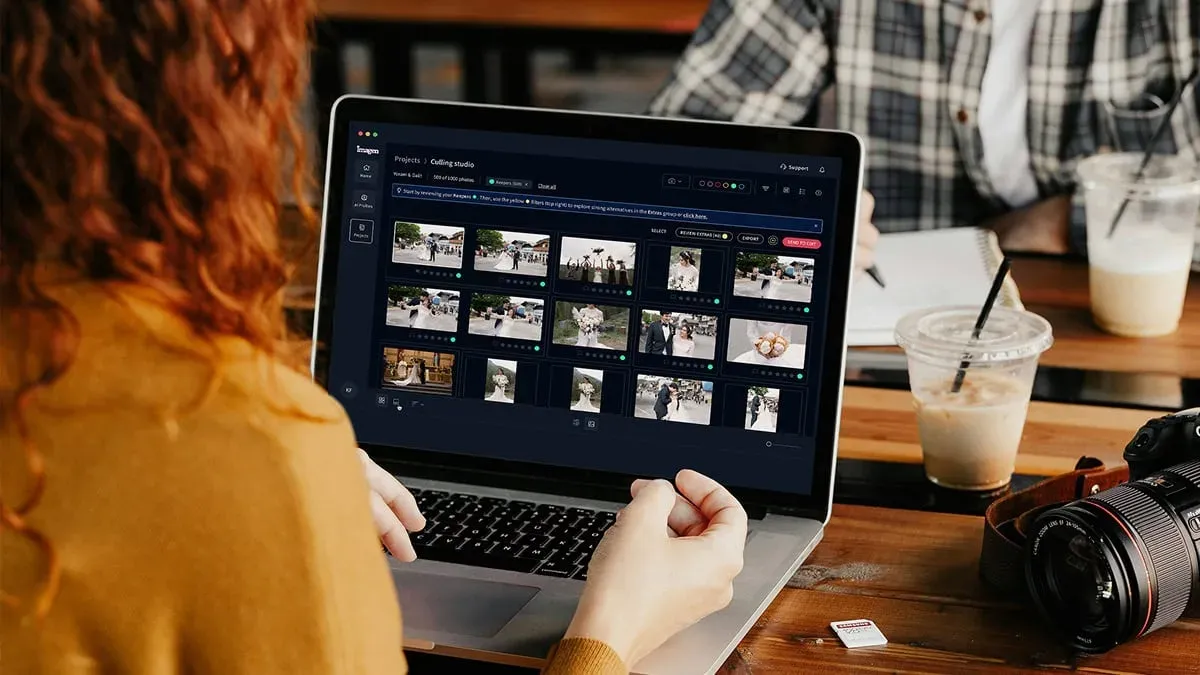
Culling is where festival editing gets slow, because you are staring at long bursts of nearly identical frames. A performer jumps, and your shutter fires twelve times. Only two of those frames have the peak gesture, sharp eyes, and a clean background. AI culling reviews the whole set, groups the near-duplicates, and flags the sharpest, best-exposed frame in each burst. Imagen runs this culling in the same project as its editing, so you move from a raw dump to a tight selection without jumping between apps. If you would rather cull by hand, you can skip AI culling and cull manually for free.
Treat the AI cull as a strong first pass, not a final verdict. The machine is good at rejecting soft focus, closed eyes, and blown highlights. You still make the call on the frames that need a human eye, like a shot that is technically imperfect but catches the exact moment the crowd erupts. Aftershoot is another tool built around this fast culling step if you want to compare approaches.
- Run the AI cull across the full day to group bursts and mark technical rejects.
- Review the flagged keepers stage by stage, not all at once.
- Rescue any emotionally strong frame the AI graded down for minor softness.
- Lock your selection before you start any color work.
Step 3: Batch the Base Color and Exposure
Now comes the step AI was built for. A multi-stage festival throws wildly different light at you, so a flat preset never holds up across the whole set. Daylight crowd shots run warm and even, while the main stage after dark is a wash of saturated red, blue, and magenta LEDs that crush skin tones and clip channels. You need a look that reads as one coherent gallery even though the light changed every hour.
This is where Imagen learns your personal editing style from your own past catalogs and applies it consistently across the full shoot. Instead of nudging the same five sliders on 2,000 frames, you get a set that already matches how you edit, adapted per image to its actual exposure and white balance. That means the daylight frames stay natural and the stage-light frames keep the color of the show without turning a singer’s face orange. You then refine from a strong starting point rather than from scratch. Edited photos arrive in batches as they process, so you can start reviewing the early frames while the rest finish.
Hold a few things in mind as the batch runs. Stage lighting is colored on purpose, so do not neutralize it into gray. Keep the red wash reading as red, and only correct the skin enough to keep faces believable. Protect the highlights on bright LED sources so they do not clip into flat white, and lift the shadows on crowd faces just enough to show the energy without going muddy.
Step 4: Finish the Hero Frames by Hand
Once the whole set carries your base look, pull the 20 to 40 hero frames that will front the gallery, go to the artist, or run in press. These deserve manual attention because they carry the weight of the whole job. This is per-photo finishing, and it is where your taste separates you from every other shooter in the pit. For this pass you can use Imagen’s built-in editor (Beta), which offers manual sliders, a histogram, and crop and straighten, or send the AI edits back to Lightroom Classic as XMP for deeper work.
- Dodge and burn to lift the performer off a busy crowd background.
- Clean up distracting elements at the frame edge, like a stray hand or a lens flare you do not want.
- Refine local white balance on the face when stage color pushed it too far.
- Add a subtle vignette or grain if that is part of your signature look.
Because the base batch already matches your style, this manual pass is fast. You are polishing, not rebuilding. For the full frame-by-frame method under live stage lighting, the concert photo editing workflow guide goes deeper on handling hard color and motion.
Step 5: Retouch Performers and Crowd Faces
Sweat, harsh side light, and long lenses are not kind to skin. Performer close-ups often need light retouching so the artist looks their best without looking plastic. Imagen includes AI retouching in the same workflow, so it smooths skin, evens tone, and softens hot spots on the real photographed faces while keeping texture. It retouches the actual people you shot and does not swap faces or invent anyone who was not on that stage.
Keep retouching honest for this genre. Festival photography is documentary at heart, so the goal is a flattering, natural edit, not a beauty-campaign rebuild. Retouch the hero performer frames and any tight crowd portraits you plan to publish, and leave the wide documentary shots mostly alone. PortraitPro is a dedicated option if you want heavier, portrait-specific control on select frames, though most festival sets do not need that level of skin work.
Step 6: Export, Deliver, and Meet Deadlines
Music clients move fast, so your export plan matters as much as your edit. Editors and social teams often want a first batch within hours of the set ending, while the artist and the festival want the full gallery a day or two later. Build export presets ahead of time so you are not sizing images at 2 a.m.
- Export a small hero batch first, sized for Instagram and press, for the same-night deadline.
- Deliver full-resolution files for the artist and festival archive next.
- Add web-sized JPEGs for the gallery link the client shares with fans.
- Keep your edited catalog so you can re-export any format the client asks for later.
When the AI handled the cull and the base grade, you reach this delivery step with hours to spare instead of racing the clock. Imagen can export finished JPG, TIFF, or PNG files straight from the app, or send its AI edits back to Lightroom Classic as XMP. For more workflow guides across genres, the Imagen valuable tips hub collects them in one place.
Where Imagen Fits and What It Costs
Imagen is built for the exact problem a festival creates, which is high volume with a personal look that has to stay consistent. It learns your style from your Lightroom or Capture One catalog, applies it across the full shoot, and pairs that with AI culling and AI retouching in one connected pass. It edits the real photos you captured and never generates scenes, stages, or people, so your festival coverage stays a true record of the night.
Pricing is pay-as-you-go, which suits shooters whose volume spikes on festival weekends and drops between them. It means you pay for the photos you export, while exploring Imagen’s tools is free. Other tools in this space use different models, such as subscriptions, one-time licenses, or per-image credits, so weigh those against how your festival work actually flows through the year.
Try Imagen’s new Studio on your next festival set, where you cull, edit and export in one project.
What’s new in Imagen: Imagen is now an intelligent, agentic Studio for professional photographers: one project where you cull, edit, review and export in any order. For festival work, that means you can ask the assistant in plain language to find the crowd shots with raised hands and act on them while you steer, and edited photos arrive in batches so you can start reviewing early frames while the rest finish. The Studio is rolling out gradually as a beta.
Frequently Asked Questions
Can AI keep colored stage lighting looking natural?
Yes, when the AI adapts per image instead of forcing one preset. A good editor reads each frame’s exposure and white balance, then keeps the red or magenta stage wash as part of the show while correcting skin just enough to stay believable. You still review the hero frames by hand, since colored light is the hardest case and your eye makes the final call on faces.
Does AI editing invent people or backgrounds in my festival photos?
No, and this matters for documentary work. Imagen edits, culls, and retouches the real photos you shot, so it does not add a crowd, swap a sky, or generate a performer who was not there. Your festival coverage stays an honest record of the actual event, which is what artists, press, and organizers expect from you.
How much time does AI save on a two-day festival edit?
The savings land in culling and base color, which are the two slowest steps at scale. Sorting several thousand frames and grading them one at a time can take a full day or more, and AI compresses that into a review-and-refine pass. You still spend real time finishing the hero frames, so the net effect is that your hours move from grunt work to the shots that earn the fee.
Do I still need Lightroom or Capture One if I use AI editing?
For most shooters, yes, as the home base for your library. Imagen works alongside Lightroom: it learns your style from your past edits in Lightroom Classic, and you can send its AI edits back as XMP or export finished JPG, TIFF, or PNG files straight from Imagen. For manual tweaks, the built-in editor (Beta) offers sliders, a histogram, and crop and straighten, though it is an early release.
