

How to Edit Kids Photos with AI in 2026
Table of contents
- How to Edit Kids Photos With AI
- Why Kids Photos Need a Careful Editing Approach
- Step 1: Import and Cull the Session
- Step 2: Apply Your Editing Style Across Every Frame
- Step 3: Retouch Skin While Keeping Kids Natural
- Step 4: Balance Color and Light for a Warm Feel
- Step 5: Handle Group and Sibling Shots
- Step 6: Export and Deliver the Gallery
- Where Imagen and Other Tools Fit
- Frequently Asked Questions
How to Edit Kids Photos With AI
The fastest way to edit kids photos with AI is to cull the session automatically, apply your own editing style across every frame in one batch, and finish skin and eyes with a light hand that keeps children looking natural. Imagen learns the way you already edit from your Lightroom or Capture One catalog, then repeats that look consistently across a full family or portrait session so every frame reads like the same warm afternoon. This guide walks the complete workflow from import to final delivery, and it names a few other real tools where they honestly fit. You can explore Imagen for free and pay for the photos you export.
Why Kids Photos Need a Careful Editing Approach
Children rarely hold still, so a single session produces hundreds of frames with quick expressions, half blinks, and constant movement. Parents want to see honest, joyful pictures of their kids, which means the edit has to stay gentle and true to life. Your job as the editor is to keep skin soft but real, hold natural color in cheeks and eyes, and let each child’s personality come through. Every frame in a family gallery should share the same tone, the same warmth, and the same light, so parents see one coherent story rather than a scattered mix of looks.
It helps to know what these tools do and do not do. Imagen edits, culls, and retouches the real photos you shot, and it does not invent faces, backgrounds, clothing, or scenes. That distinction matters for family work, because these images become keepsakes that parents keep for decades, and any invented feature would break the trust that turns a client into a repeat booking. You edit the real moments the camera captured, and the AI simply speeds the slow parts.
Step 1: Import and Cull the Session
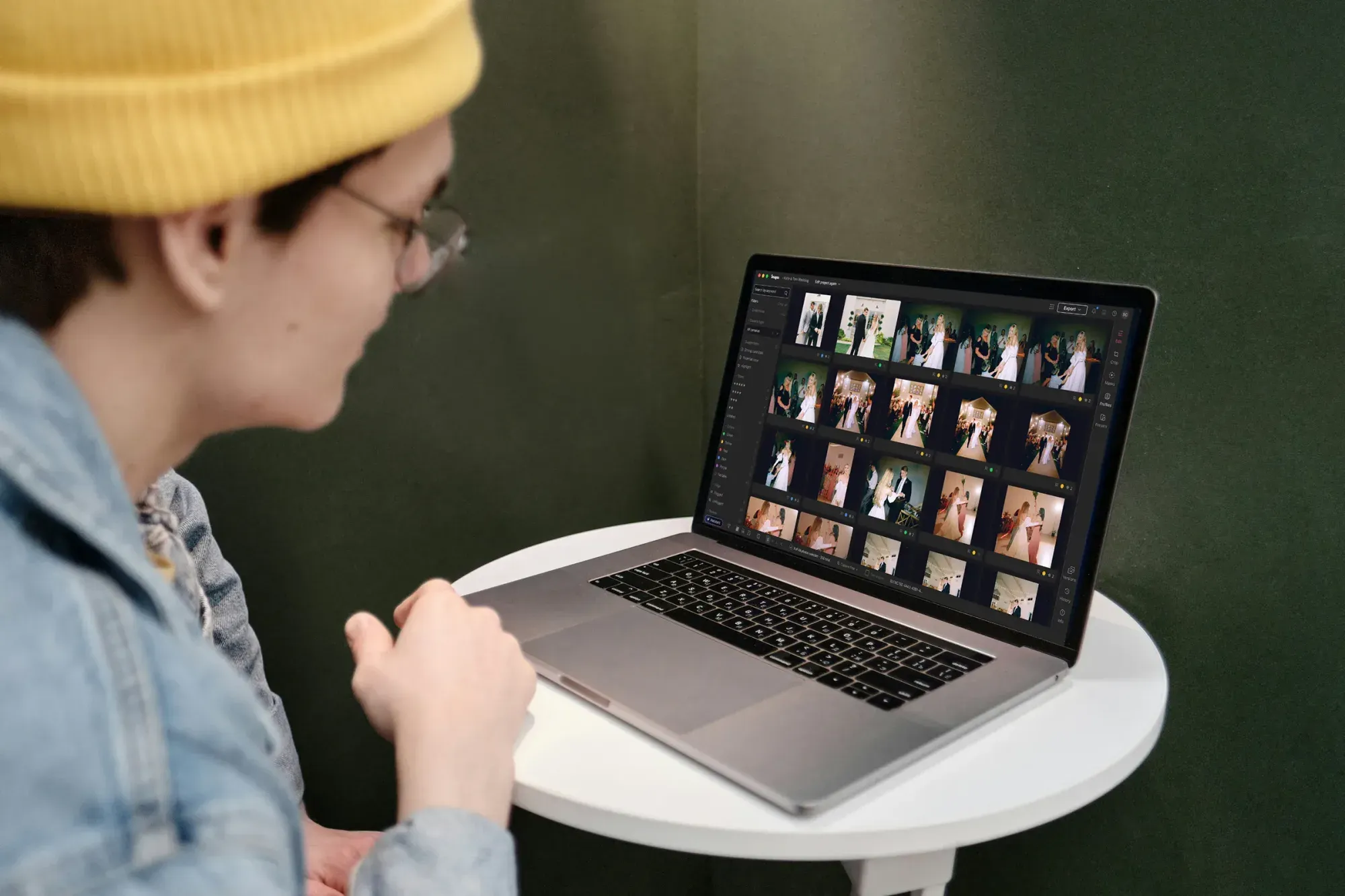
A lively kids session often produces 400 to 900 frames across several games, snacks, and outfit changes. Culling by hand eats an hour or more, and tired eyes miss the difference between a genuine giggle and a forced grin. AI culling reads focus, closed eyes, and near duplicate poses, then flags the strongest frames so you review a short list instead of the full take.
- Import the full session into your catalog and back up the raw files before you touch anything.
- Run AI culling to group near duplicates and surface the sharpest frame in each burst.
- Keep two or three real expressions per setup so parents have honest choices to pick from.
- Reject blinks and soft frames early so they never reach the color and retouch stages.
Imagen handles culling inside the same project that later edits and retouches, so your selects flow straight into the next step without a separate export. That connected path saves the handoff time that usually creeps in when culling lives in one app and editing lives in another. AI culling is optional, and you can cull manually for free. With kids, speed here matters, because a fast turnaround keeps parents excited while the memory is still fresh.
Step 2: Apply Your Editing Style Across Every Frame
Consistency is where a batch approach earns its keep. Instead of setting exposure, white balance, and contrast one frame at a time, you apply a single look to the whole select set. Imagen learns your personal style from the way you have edited past catalogs, so the batch result matches the choices you would make by hand rather than a generic filter. For a mixed indoor and outdoor kids session, that means your warm, bright signature carries through every frame. Edited photos arrive in batches as they process, so you can start reviewing early frames while the rest finish.
For children, aim for clean skin tones, gentle contrast, and colors that feel true rather than heavy. Kids often wear bright clothing and play in changing light, so watch that reds and yellows stay natural instead of oversaturated. Once the base edit lands across the session, you review the set as a group and nudge only the frames that drift. This keeps every frame in the gallery looking like one afternoon, which is exactly what a family album should feel like.
- Apply your learned style to the full select set in one pass.
- Check white balance against the child’s skin, not against a bright toy or wall.
- Hold shadow detail so hair and clothing keep texture and depth.
- Confirm the set reads as one look before you move to retouching.
Step 3: Retouch Skin While Keeping Kids Natural
Retouching children has one rule above the rest, and that rule is restraint. Calm a stray bit of shine, remove a temporary scratch or a smear of lunch, and even out a patch of redness, but keep the freckles, dimples, and soft texture that make each child specific. Parents want to recognize their own kid, so an over smoothed face reads as strange rather than polished. A light touch protects the honesty that makes family photos worth keeping.
AI retouching in Imagen speeds the repetitive parts of this pass, so you clean skin across the whole select set with a consistent hand instead of retouching each frame from scratch. You still make the final call on every face, and you dial the strength down so a child’s natural texture stays intact. The goal is a clean, current portrait that still looks like the real kid on a good day, not a plastic version of them.
Step 4: Balance Color and Light for a Warm Feel
Family and children galleries usually lean warm, bright, and open, because that tone matches the joy of the moment. Decide the target look before you finalize color, then hold that tone across the whole set so the gallery speaks with one voice. Kids sessions often mix window light, shade, and open sky, so a batch edit that evens out these shifts saves you from correcting each frame alone.
Watch the eyes at this stage, because they carry the frame in any portrait of a child. Add gentle clarity to the iris, keep catchlights honest, and avoid heavy sharpening that makes eyes look artificial. When you edit the full session as a batch, these tone choices apply evenly, and you avoid the drift that shows up when you finish frames hours apart. For fine tuning, Imagen’s built-in editor (Beta) offers manual sliders and a histogram. You can find more portrait ideas on the Imagen valuable tips hub as you refine your own signature look.
Step 5: Handle Group and Sibling Shots
Group frames with siblings or parents add their own challenge, because you need everyone looking good at once. A batch edit keeps the base color and exposure matched across the whole group, so no single face falls into shadow while another blows out. Start from your strongest frame where the most kids are engaged, then apply the same look to the near duplicates so you have honest options for parents to choose from.
- Pick the frame where the most children are looking and relaxed as your anchor.
- Match exposure across every face so no one falls dark against a bright sky.
- Keep skin tones consistent between siblings so the family reads as one set.
- Save two or three group options so parents can pick the expressions they love.
Because the whole session shares one edit, group frames sit naturally beside the solo portraits in the final gallery. That consistency makes the album feel like a single story instead of separate mini shoots stitched together. Parents notice the flow even when they cannot name why the gallery feels so complete.
Step 6: Export and Deliver the Gallery
Parents need several file sizes from the same edit. Print labs want high-resolution files for wall art and albums, online galleries need web versions, and phones need smaller shares for grandparents. Set up export presets once so every delivery leaves your catalog at the correct size and color space, and you never resize frame by frame at the end of a long day.
- Deliver a high-resolution file for prints, albums, and canvas wall art.
- Export a web-ready version sized for your online gallery and client proofing.
- Keep a small share option for quick phone sends to family and friends.
- Name files with the family name and shoot date so clients can find them fast.
Because the whole session shares one edit, every export stays consistent no matter which size the family uses. That consistency protects your brand across every print, screen, and social post where the images land. A fast, tidy delivery also frees you to book the next session sooner.
Where Imagen and Other Tools Fit
Imagen sits at the center of a high-volume kids and family workflow because it combines culling, style-matched batch editing, and retouching in one connected path. It reads your Lightroom or Capture One catalog, learns how you already edit, and applies that look across a full session so you spend your time on selects and expression rather than sliders. Pricing is pay-as-you-go, so you pay for the photos you export, and exploring the tools is free. Imagen edits and retouches the real photos you shot, and it does not invent children, faces, clothing, or backgrounds.
Other real tools cover pieces of the process. Adobe Lightroom remains a strong catalog and raw editor on a subscription model, and many photographers keep it as their library even while batch editing elsewhere. Capture One offers detailed color control on a subscription or one-time license, which some studio shooters prefer for portrait days. Dedicated retouching plug-ins handle manual skin work for editors who like a hands-on pass. Each of these fits honestly into a family pipeline, and none of them replaces the connected culling, style learning, and batch retouching that Imagen brings to a full session.
For a deeper look at the full process, see our companion piece on the AI kids photo editing guide, and for quick wins during a busy shoot day, review these AI kids photo editing tips. Both build on the same batch-first approach this guide describes.
What’s new in Imagen: Imagen has become an intelligent, agentic Studio for professional photographers, where you cull, edit, review and export a family session together in one project. With busy sessions full of near-identical frames, AI culling and AI filters such as blur and closed eyes help you narrow the shoot before you edit in your own style. See Imagen for more as the Studio rolls out gradually in beta.
Frequently Asked Questions
How long does it take to edit a full kids session with AI?
Most photographers cut a multi-hour edit down to a fraction of that time when AI handles culling and the style-matched batch pass. You still review every select and make the final retouching calls, so the quality stays in your hands while the repetitive steps move quickly across the whole session.
Will AI editing make my kids photos look fake?
It will not if you edit with restraint. Imagen edits and retouches the real photos you shot and does not invent faces or features, so each child stays recognizable. Keep natural skin texture, calm any shine, and clean only temporary marks, and the portrait still looks like the real kid on a good day.
Can I keep my own editing style with a batch tool?
Yes, and that is the point of a style-learning approach. Imagen studies how you have edited past catalogs and applies that same look across the session, so the batch result reflects your choices rather than a generic preset. You review the set and adjust any frame that drifts before delivery.
What does Imagen cost for editing kids photos?
Imagen runs on pay-as-you-go pricing, so you pay for the photos you export, and exploring the tools is free. You can try the culling, style learning, and retouching on a real family session of your own.
Ready to speed up your next family shoot? Start editing with Imagen, in a Studio where you cull, edit and export in one project, and see how a style-matched batch keeps every kids photo warm and consistent from the first select to final delivery.
