

The Complete Guide to AI Kids Photo Editing in 2026
Table of contents
- AI Kids Photo Editing Guide
- Start with a clean import and folder structure
- Cull the blinks, turns, and duplicates with AI
- Apply your personal style across the whole session
- Retouch skin and cleanup without over-editing
- Review, fine-tune, and keep the gallery honest
- Export, deliver, and price your time back
- Frequently asked questions
AI Kids Photo Editing Guide
AI kids photo editing means using software that learns how you already edit portraits and then applies that look across an entire session, so a two-hour cull and edit becomes a task you finish in minutes. For a family and children photographer, the fastest reliable path is to shoot in raw, cull the keepers with AI, and let a tool like Imagen apply your personal style, skin retouching, and consistent color across every frame before you deliver. This guide walks through that workflow step by step, names the tools that honestly help at each stage, and shows where automation saves the most time without flattening the warmth that makes kids’ portraits sell.
Children’s sessions produce huge volumes. A single milestone shoot, a birthday, or a school day can leave you with 800 to 2,000 raw files, most of them near-duplicates as a toddler blinks, turns, or laughs. The editing bottleneck is not creativity, it’s repetition. AI handles the repetition so you keep the taste. Below you’ll find a practical, present-tense process you can run this week, plus answers to the questions photographers ask most when they move their kids’ work into an AI editing pipeline.
Start with a clean import and folder structure
Good editing starts before you touch a slider. Import your raw files into Lightroom or Capture One, and keep one folder per session so the AI has a clean set to work from. Add basic capture-time metadata such as the client name, the child’s age, and the location, because you’ll reuse those fields when you deliver and when you search your archive later. Back up the raws to a second drive right away, since a kids’ session almost never repeats.
Keep your catalog tidy so your style profile stays accurate. Imagen learns your personal editing style directly from your Lightroom or Capture One catalog, which means the cleaner and more consistent your past edits are, the closer its results land to your hand. If your older edits are all over the place, pick 3,000 to 5,000 of your best, most representative kids’ portraits and let the tool build the profile from those.
Cull the blinks, turns, and duplicates with AI
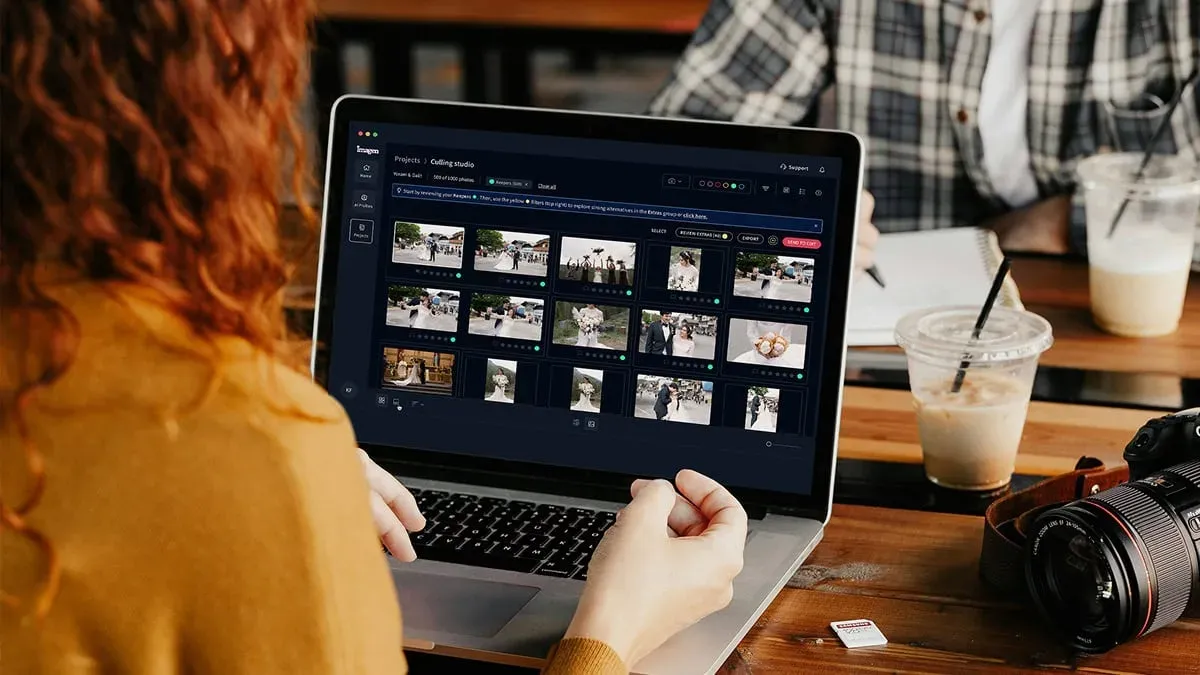
Culling is where children’s photography eats your evening. Kids move constantly, so a burst of ten frames might hold two keepers and eight near-misses. AI culling reads each frame for sharp eyes, open expressions, and focus, then flags the strongest shots and groups the duplicates so you review in seconds instead of squinting one file at a time.
Run your cull in this order:
- Let AI culling rank the full session and mark obvious rejects like closed eyes and motion blur.
- Review the flagged keepers group by group, keeping the best frame from each near-duplicate cluster.
- Star the hero shots you already know the parents will want printed.
- Move rejects to a separate collection rather than deleting them, in case a parent loves a candid you passed over.
Imagen includes AI culling in the same project as its editing and retouching, so your keepers flow straight into the style pass without an export in between, and you can cull manually for free if you prefer. Other tools also cull well. Aftershoot focuses on culling and editing for high-volume shooters, and it remains a reasonable option if you only want a culling step. Compare features rather than prices, since honest tool choice depends on how the cull hands off to your edit.
Apply your personal style across the whole session
This is the step that defines AI kids photo editing. Instead of editing one image and copy-pasting settings, you let the AI apply your learned look to every keeper at once. Imagen studies how you handle exposure, white balance, tone, and color in your own catalog, then edits a full shoot in your style so the gallery reads as one cohesive set. For children’s portraits that consistency matters, because parents view the images as a story, not as isolated frames. Edited photos arrive in batches as they process, so you can start reviewing early frames while the rest finish.
Imagen is not an image generator. It edits, culls, and retouches the real photos you shot, and it does not invent scenes, backgrounds, clothing, or people. That honesty protects you with clients who expect the delivered gallery to reflect the day their child actually had. You keep full control, so after the AI pass you can still nudge any individual frame by hand in Lightroom or Capture One.
A few style choices pay off specifically with kids:
- Keep skin tones warm and natural, since heavy filters age a child’s face and read as artificial in prints.
- Protect highlight detail in light hair and pale skin, which blow out fast under window light.
- Hold a gentle, consistent contrast so a laughing frame and a quiet frame still belong to the same set.
- Match your color across indoor and outdoor frames when a session moves from a nursery to a garden.
Retouch skin and cleanup without over-editing
Children’s skin needs a light hand. The goal is to remove the passing distractions, not the child. AI retouching in Imagen smooths and cleans while keeping natural texture, so you can clear a scrape, a smear of lunch, or a stray hair across the eyes without turning a real toddler into plastic. Run retouching as a batch across the session, then spot-check the hero frames that will print large.
Keep these edits, and skip the rest:
- Remove temporary marks like scratches, drool, or a runny nose that the parents will not want framed.
- Clean small distractions in the background such as a stray toy or an outlet on the wall.
- Even out harsh shadows under the eyes from a long nap-skipped afternoon.
- Leave freckles, dimples, gap teeth, and baby rolls exactly as they are, because those are the memory.
Dedicated retouching tools exist if you want a separate step, and several plug into Photoshop as a subscription or one-time license. For a high-volume kids’ workflow, keeping the retouch inside the same style pass usually saves the most time, since you avoid another round trip through a second application.
Review, fine-tune, and keep the gallery honest
After the AI passes, do a human review at full screen. Scroll the whole gallery once for consistency, then open the hero frames at 100 percent to check eyes, skin, and any print crops. This is where your taste earns its keep. The AI gets you 90 percent of the way in a fraction of the time, and your final touch on a handful of frames makes the set feel personal.
Watch for the small things that matter to parents. Check that both eyes are catchlit in the portraits meant for prints, confirm skin tones match between siblings shot in different light, and make sure no retouch accidentally softened a favorite freckle. If a frame drifts from your look, adjust it by hand and, if it’s a pattern, refine the style profile so the next session lands closer on the first pass.
For more hands-on technique, see our companion walkthrough on how to edit kids photos with AI and our quick-reference set of AI kids photo editing tips. You’ll find more workflow guides for professional photographers across the Imagen valuable tips hub.
Export, deliver, and price your time back
Export presets keep delivery fast and consistent. Set one preset for high-resolution print files and one for web-sized gallery previews, then export the whole session in two passes. Deliver through an online gallery so parents can favorite, download, and order prints without waiting on email attachments. Consistent naming, tied to the metadata you added at import, keeps reorders painless months later when a grandparent asks for one more print.
The real payoff of an AI workflow is the hours you reclaim. Imagen uses pay-as-you-go pricing, so you pay for the photos you export. Sliders, crops, and masks you do yourself are always free. When a milestone session that once took a full evening ships the same afternoon, you can book more clients or simply hand your family back the night.
Ready to try it on your own children’s portraits? Build your style profile and run a session through the new Studio, where you cull, edit and export in one project, at Imagen.
What’s new in Imagen: Imagen is now an intelligent, agentic Studio for professional photographers, where you cull, edit, review and export a family session in one project, in any order you like. For kids’ sessions, the assistant can find photos when you ask in plain language, and the built-in editor (Beta) covers manual sliders, crop and straighten on the hero frames. The Studio is rolling out gradually as a beta.
Frequently asked questions
Does AI editing make kids’ portraits look fake?
It does not have to, because good AI editing applies your own style rather than a generic filter. Imagen learns how you already edit and matches it, and its retouching keeps natural skin texture, so a child still looks like the child. You always review and fine-tune the final frames by hand, which keeps the warmth in the gallery.
Will AI culling delete good photos of my subject?
AI culling flags and groups frames, and it does not delete anything on its own. It ranks each shot for sharp eyes and open expressions, then leaves the final keep-or-cut decision to you. Move rejects to a separate collection rather than trashing them, so a candid you nearly passed over stays recoverable.
How much does AI kids photo editing cost?
Imagen uses pay-as-you-go pricing, so you pay for the photos you export. That lets you get a feel for the full cull, edit, and retouch workflow on a real session of your own.
Do I still need Lightroom or Capture One?
Yes, and that is a strength. Imagen learns your personal style directly from your Lightroom or Capture One catalog and returns fully editable files, so you keep your existing library, presets, and manual control. The AI handles the repetitive bulk of the session, and you finish the hero frames in the editor you already know or in Imagen’s built-in editor (Beta).

