

How to Edit Gala Photos with AI in 2026
Table of contents
- What Makes Gala Photos Hard to Edit
- Step 1: Import and Back Up the Full Night
- Step 2: Cull the Set Down to the Real Keepers
- Step 3: Teach the AI Your Personal Style
- Step 4: Batch Color the Mixed Evening Light
- Step 5: Retouch Skin and Finish the Hero Frames
- Step 6: Export and Deliver Fast
- Why Imagen Fits High-Volume Gala Work
- Frequently Asked Questions
To edit gala photos with AI, you cull the full night down to the real keepers, teach an AI your personal look so it colors the whole evening in your style, and let it retouch skin and clean up the mixed room light while you finish only the hero frames by hand. That single pass turns a formal evening of low warm light into a polished gallery in a fraction of the manual time. This guide walks the real workflow from card to delivery, and it names the tools that genuinely help at each step.
The key thing to understand up front is that good AI editing works on the real photos you shot. Imagen learns your personal editing style from your Lightroom or Capture One catalog and applies it across the entire shoot, then adds AI culling and AI retouching in one connected flow. It edits, culls, and retouches your actual frames, so it never invents a scene, a guest, a chandelier, or decor that was not in the room. For hands-on companions to this walkthrough, the AI gala photo editing guide and the deeper gala photo editing workflow pair well with the sections below.
What Makes Gala Photos Hard to Edit
A gala is a formal evening event, and the light works against you from the first frame. Ballrooms run on warm tungsten uplighting, candle centerpieces, and glowing chandeliers, and that mixes with whatever ambient or stage light the venue adds. Two frames shot minutes apart can carry very different color casts, so a look that flatters the cocktail hour turns muddy under the dinner lights. Your job is one cohesive edit across the whole night, so the gallery reads like a single elegant evening.
Skin tone is the second pressure point. Guests in formalwear remember how they looked, and warm tungsten light pushes faces orange while shadowed corners drain them pale. A strong AI workflow holds skin steady while it balances exposure, so every person looks like themselves whether they stood under a chandelier or near a dim bar. Volume is the third challenge, since a single gala can produce 1,500 to 3,000 frames across the reception, dinner, speeches, and dancing, and clients expect fast delivery.
Step 1: Import and Back Up the Full Night
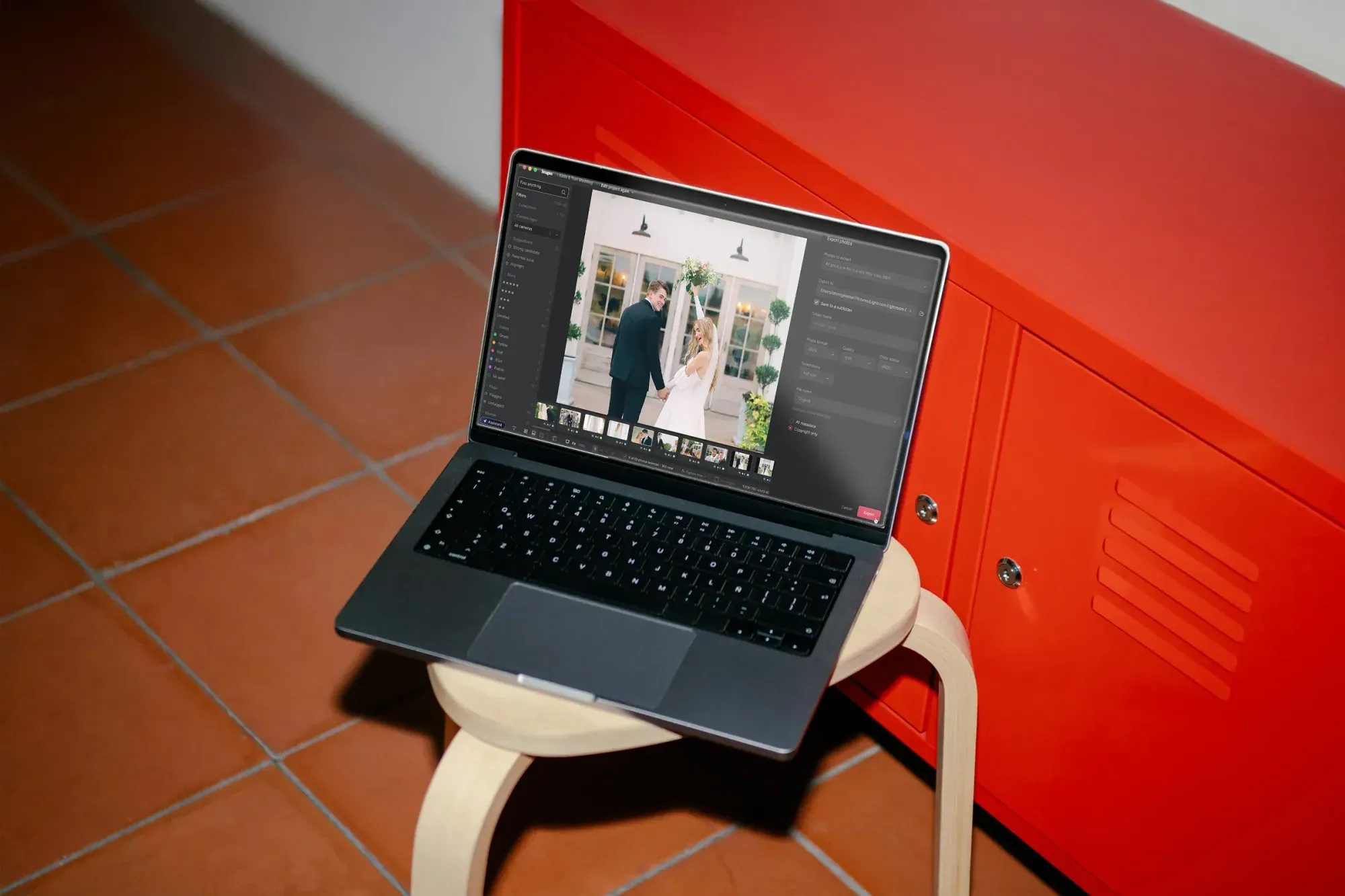
Start by ingesting every card into Lightroom or Capture One and copying the take to a second drive before you touch a single slider. Galas run long, so you often shoot across several cards and two bodies, and you want one merged catalog with capture times aligned. If you shot with a second photographer, sync the clocks first so the timeline stays honest through the speeches and the first dance.
Group the night into stages while the shoot is fresh in your mind. Most galas break into arrivals and red carpet, cocktail hour, the seated dinner, the program or awards, and the dancing. Tagging those stages early makes the later color work faster, because each stage tends to share a lighting signature you can treat as a batch.
Step 2: Cull the Set Down to the Real Keepers
A gala hands you thousands of frames, and maybe a third survive once you drop the blinks, the test shots, the empty stage frames, and the near-duplicates from burst mode. Culling by hand across 2,000 frames eats two hours or more, so this is the first place AI earns its keep. Imagen’s AI culling reviews the set for you, groups near-identical frames, and flags blur, closed eyes, and soft focus, then hands you a shortlist to confirm, and you can skip AI culling and cull manually for free if you prefer.
You stay in control of the final selects, so you review a clean shortlist instead of scrubbing every thumbnail at midnight. Aftershoot is another real option that focuses heavily on culling and duplicate detection, and it runs on a subscription model if you want a dedicated culling step before your edit. Whichever tool you use, keep these gala-specific rules in mind while you confirm the picks.
- Keep both frames when two guests share a genuine laugh, even if the pose looks nearly identical.
- Cut every blink and every frame where the focus missed the eyes under the low dinner light.
- Flag the speeches, the award handoffs, and the first dance early, since those hero moments need separate finishing.
- Save at least one wide room shot per stage, so the gallery shows the scale of the ballroom.
Step 3: Teach the AI Your Personal Style
This step is where AI editing stops feeling generic. Instead of applying a stock filter, you point Imagen at a catalog of images you already edited by hand, and it studies how you handle exposure, white balance, contrast, tone curves, and color across different lighting. It builds a personal AI profile that matches your taste, so the output looks like your work rather than a template.
For gala work, train the profile on your own event and low-light portrait edits, not on daylight landscapes, so the model learns how you treat skin, warmth, and mood under tungsten and candlelight. Once the profile is ready, you reuse it on every future gala, and it stays consistent event after event. That reuse is what separates a personal style engine from a one-time preset, and it is why the training step is worth doing carefully the first time.
Step 4: Batch Color the Mixed Evening Light
With your profile trained, run the full set through an AI editing pass and let it apply your look across every frame at once. This is the heart of gala editing, because the software balances the warm tungsten cast, lifts the shadowed corners, and holds skin tone steady from the red carpet to the dance floor. Instead of matching white balance frame by frame, you review a set that already shares one cohesive evening look.
Work stage by stage if the venue changed the lighting dramatically between rooms. Apply your profile to the whole night first, then spot-check one frame from each stage and nudge the temperature if the dinner room ran warmer than the reception. Because the AI edits your real captures, the chandeliers, the table settings, and the formalwear stay exactly as they were photographed, and only the exposure and color get refined. A few other real tools live in this space too, and it helps to know where each fits.
Adobe Lightroom offers its own adaptive presets and AI masking on a subscription, which is useful for one-off manual corrections on a hero frame. Capture One is a strong tethering and color-grading choice that many event shooters license outright, and it pairs well with an AI pass for the bulk work. The practical split is to let the AI carry the full-volume color and reserve the manual tools for the handful of frames that need a personal touch.
Step 5: Retouch Skin and Finish the Hero Frames
After color, the portraits and hero moments need a light retouch. Formalwear and close dinner lighting show shine, stray hairs, and shadow under the eyes, and a natural pass keeps guests looking like themselves. Imagen’s AI retouching smooths skin, reduces shine, and cleans small distractions across the whole batch in the same connected flow, so you are not opening every portrait in a separate editor. For a final nudge on a portrait, Imagen’s built-in editor (Beta) offers sliders and crop and straighten, though it is an early release and not every AI tool is inside it yet.
Keep the retouch honest and subtle, because a gala gallery should look like a real evening, not a magazine composite. Dial the strength down for candid frames and reserve heavier work for the formal portraits guests will print. Retouch4Me is another real option built around targeted skin and portrait retouching, and it sells as individual plugins if you want dedicated control on your best frames. For the hero images, the workflow usually looks like this.
- Confirm the AI color and retouch pass on the frame, then open it for any final hand adjustments.
- Even out the tungsten cast on faces and recover detail in the darkest corners of the room.
- Clean only real distractions, since the goal is the true moment rather than an invented scene.
- Export the hero frames at full resolution and flag them for the highlight gallery.
Step 6: Export and Deliver Fast
Gala clients, whether a nonprofit, a corporate host, or a foundation, usually want a preview within a day and the full gallery soon after. Set up two export presets, one lightweight batch for a same-week preview and one full-resolution batch for the final delivery and any print orders. Because the heavy lifting already happened in the AI pass, exporting a few thousand finished frames becomes a background task rather than another late night.
Deliver in the stages you tagged during culling, so the host can find the awards, the speeches, and the dancing without scrolling through everything. A clear structure makes the gallery easier to share with sponsors and attendees, and it reflects the care you put into the shoot. When your color and retouching are already consistent, the delivery step is the fast, satisfying finish to the night. When you are ready to deliver, you can send AI edits back to Lightroom Classic or export finished JPG, TIFF or PNG files straight from Imagen. You can browse more event guides on the Imagen valuable tips hub when you plan your next shoot.
Why Imagen Fits High-Volume Gala Work
Galas reward speed and consistency, and that is exactly what a personal-style AI pass gives you. Imagen ties culling, style-matched color, and retouching into one flow, so a night of 2,000-plus frames moves from raw card to polished gallery without the frame-by-frame grind. Every edit lands in your look, so the whole evening feels cohesive from the red carpet to the last dance.
The pricing is pay-as-you-go, a monthly base fee plus a charge for each photo you export, and exploring Imagen’s tools is free. That structure suits event work, since you pay for the volume you actually shoot rather than a flat plan that ignores your busy and quiet months. Because Imagen edits the real photos you captured, the gallery you deliver is the gala that truly happened.
Ready to see it on your own take? Try Imagen and cull, edit and export your next gala in one Studio project, in your own style.
What’s new in Imagen: Imagen is now an intelligent, agentic Studio for professional photographers, built to carry a gala from card to gallery in one project. Cull, edit, review and export in any order, using a Personal AI Profile learned from your past edits or a ready-made one. You can apply more than one AI Profile to a selected set of photos, which takes some processing time. It is rolling out gradually as a beta.
Frequently Asked Questions
How does AI handle the warm tungsten light at a gala?
The AI reads the color and exposure of each frame and applies your trained look, which balances the warm tungsten cast and lifts the shadowed corners while holding skin tone steady. You still spot-check one frame per stage and nudge the temperature if a room ran especially warm, so you keep full control over the final mood.
Will AI editing change what actually happened in the room?
No, and this matters for event work. Imagen edits, culls, and retouches the real photos you shot, so it refines exposure, color, and skin without inventing chandeliers, decor, guests, or scenes. The gallery you deliver shows the true evening, just with cleaner light and a consistent look.
How fast can I turn around a full gala with AI?
Once your personal profile is trained, culling and color that once took a full day compress into a batch pass you review rather than build by hand. Most photographers can send a same-week preview and deliver the full gallery days sooner than a manual edit would allow, which fits the fast turnaround gala hosts expect.
Do I need to keep my Lightroom or Capture One workflow?
Yes, and that is the point. Imagen learns your style from your Lightroom or Capture One catalog and slots into the workflow you already run, so you import and back up as usual and let the AI carry the culling, color, and retouching. You keep your hero frames for any final hand adjustments in Imagen’s built-in editor (Beta) or in the editor you know.
