

How to Edit Family Photos with AI in 2026
Table of contents
- How to Edit Family Photos With AI
- Step 1: Import and organize your session
- Step 2: Cull the weak frames with AI
- Step 3: Teach the AI your personal editing style
- Step 4: Batch-apply color and tone across the shoot
- Step 5: Retouch skin and faces automatically
- Step 6: Review, fine-tune, and hand-finish the heroes
- Step 7: Export and deliver the finished gallery
- Why Imagen fits family photography
- Frequently asked questions
How to Edit Family Photos With AI
You edit family photos with AI by loading your session into a tool that learns your personal look and applies it across every frame, then culls the weak shots and retouches skin automatically before you export. The fastest path in 2026 is to shoot as usual, hand the full take to an AI editor like Imagen, and spend your saved hours on the few images that deserve a manual touch. This guide walks the real workflow step by step, from import to delivery, so a full family shoot goes from raw files to finished gallery in a fraction of the usual time.
Family sessions produce a lot of files fast. A single golden-hour shoot with a family of five can leave you with 800 to 1,200 frames, and hand-editing each one in the same style eats an entire evening. AI changes the math by handling the repetitive color, tone, and retouching work while you keep full creative control. Below is how professionals actually run it.
Step 1: Import and organize your session
Start by importing your raw files into your catalog software so everything sits in one place. Most family photographers build their libraries in Lightroom or Capture One, and both give you a clean home for the shoot before any editing begins. Keep each family session in its own folder with a clear date and client name so the AI step reads the right set of images.
Before you edit anything, do a quick pass to confirm your files are all there and none are corrupt. A short checklist keeps the rest of the workflow smooth:
- Confirm every card is offloaded and backed up to a second drive.
- Group the session by scene, such as the park bench, the walk, and the candid play.
- Flag any frames with obvious eye-closed or motion problems so you skip them early.
A tidy import saves you real time later, because the AI works best when it reads a consistent, well-organized set of photos rather than a scattered pile of files.
Step 2: Cull the weak frames with AI
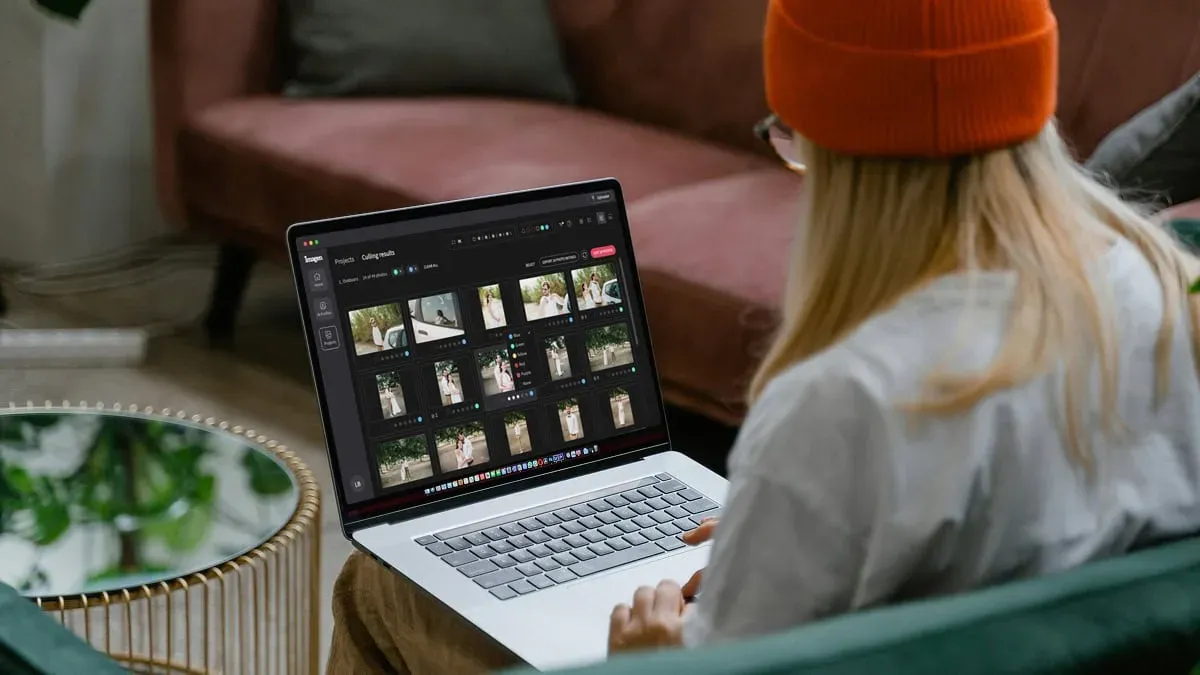
Culling is the slowest manual chore in family work, since toddlers blink, siblings look away, and you shoot in bursts to catch the one real moment. AI culling scores your frames for focus, eyes, and expression, then groups the near-duplicates so you pick the keeper in seconds instead of minutes. Imagen handles this culling inside the same connected project that later edits and retouches your photos, so you never bounce between separate apps. If you would rather skip AI culling, you can cull manually for free.
Run the AI cull first, then do a fast human review of its picks. You stay the decision-maker, and the software just clears the noise so your eyes land on the strong candidates. For a family gallery, aim to narrow 1,000 raw frames down to the 60 to 90 images you will actually deliver.
Step 3: Teach the AI your personal editing style
This step is what separates AI editing from a canned preset. Imagen learns your personal editing style from your own Lightroom or Capture One catalog, so it studies how you actually edit and then applies that same look to a new shoot. You are not borrowing a stranger’s filter, you are cloning your own hand.
The setup is a one-time investment that pays off on every session afterward. Point the tool at a catalog of images you already edited the way you like, let it build a personal profile, and from then on it edits new family galleries in your signature style. Warm, airy, and lifted for a bright lifestyle look, or deeper and moodier for a film feel, the profile matches whatever you have taught it.
Keep in mind that Imagen edits the real photos you shot. It culls, colors, and retouches your actual frames, and it does not invent people, faces, backgrounds, or scenes. Your family portraits stay true to the moment you captured, which matters when you deliver honest memories to a client.
Step 4: Batch-apply color and tone across the shoot
With your style profile ready, apply it to the whole culled set in one batch. This is where AI earns its keep, because it delivers consistent white balance, exposure, and color across hundreds of family photos in minutes rather than hours. Consistency is the mark of a professional gallery, and a family expects the shot on the bench to match the shot on the walk.
After the batch runs, scroll the full gallery as a filmstrip and check for even skin tones and matching light across scenes. A few frames may need a nudge if the sun ducked behind a cloud mid-session, and that is normal. The point is that the AI gets you to roughly 90 percent finished on the whole set, so your manual work shrinks to small corrections.
Here is what a strong batch pass should deliver before you move on:
- Neutral, matching white balance so skin reads natural across every scene.
- Even exposure that keeps highlights on faces recoverable and shadows open.
- Your signature color grade applied uniformly to the entire family gallery.
Step 5: Retouch skin and faces automatically
Family portraits benefit from light retouching, since kids get scraped knees, everyone gets stray hairs, and skin catches shine under bright light. AI retouching smooths skin naturally, evens tone, and cleans small blemishes while keeping real texture, so nobody looks plastic. Imagen runs this retouching in the same pass as your culling and color, which keeps the whole job in one connected workflow.
Dial the retouching to a gentle level for family work. You want the parents to still look like themselves and the children to keep their freckles, so aim for clean rather than airbrushed. For a hero portrait that needs deeper work, such as removing a large distraction behind the group, you can open that single frame in Photoshop and finish it by hand.
Step 6: Review, fine-tune, and hand-finish the heroes
Now the human eye takes over on the small set that carries the gallery. Pull your top 10 to 15 images, the ones a family will print and frame, and give each a short manual review. Check catchlights in the eyes, confirm the crop honors everyone in the group, and warm or cool a frame slightly if the mood calls for it.
Because the AI already did the heavy lifting on color and skin, this pass is quick and creative rather than a grind. You are polishing, not building from scratch, and that shift is the real value of an AI-first workflow. Spend your energy on the storytelling frames and let the batch handle the rest.
If you want a deeper reference on the specific settings and looks that suit family work, our AI family photo editing guide breaks down the full approach, and our roundup of AI family photo editing tips covers quick wins you can apply on your next session.
Step 7: Export and deliver the finished gallery
Export your finished family gallery in the sizes your clients need, usually high-resolution files for print and web-sized copies for sharing. Keep your export presets saved so every delivery leaves your catalog with the same sharpening, color space, and file naming. A consistent export keeps your brand tidy from the first session to the hundredth.
Deliver through your usual client gallery platform, and archive the edited catalog so you can rebuild the delivery later if a family reorders prints. Because Imagen keeps culling, editing, and retouching in one place, your finished files are ready to export the moment your review pass ends. You can export finished JPG, TIFF or PNG files straight from Imagen, or send the edits back to Lightroom Classic. You can find more workflow ideas on our valuable tips hub.
Why Imagen fits family photography
Imagen suits family work because it combines the three slow steps, culling, style-consistent editing, and retouching, into one connected pass built on your own personal style. You get a gallery that looks like you edited every frame by hand, without the hours that hand-editing demands. Pricing is pay-as-you-go, a monthly base fee plus a charge for the photos you export, and exploring the tools is free.
Other tools fit specific corners of the job. Lightroom and Capture One remain excellent catalog and raw-processing homes, and both integrate cleanly with an AI editing step. Photoshop stays the right choice for deep, single-image retouching on a hero portrait. These editors work on a mix of subscription and license models, and you can pair any of them with an AI editor to build a workflow that matches how you shoot. Try the full flow in Imagen’s new Studio, where you cull, edit and export in one project, at imagen-ai.com and see how a real family session moves from raw to ready.
What’s new in Imagen: Imagen is now an intelligent, agentic Studio for professional photographers, so a family session can move from cull to edit to review to export in one project, in any order. When a favorite frame needs a hands-on touch, the built-in editor (Beta) offers sliders and a histogram, crop and straighten, presets and versions, so you can stay in Imagen. The Studio is rolling out gradually as a beta.
Frequently asked questions
Can AI edit family photos in my own style?
Yes, AI can edit family photos in your own style when you use a tool that learns from your catalog. Imagen studies your past edits in Lightroom or Capture One, builds a personal profile, and applies that exact look across a new session, so the results read as your work rather than a generic filter.
Does AI editing make family portraits look fake?
AI editing keeps family portraits natural when you set retouching to a gentle level. The tools smooth skin and even tone while preserving real texture, freckles, and expression, so parents still look like themselves and children keep their character. Imagen edits the real photos you shot and does not invent faces or scenes.
How much time does AI save on a family shoot?
AI can turn an evening of editing into a short review session. Culling, batch color, and retouching run automatically across hundreds of frames in minutes, so your remaining work is a quick human pass on the top images. Most family photographers cut their editing time on a session by a large margin.
How much does AI family photo editing cost?
Imagen runs on a pay-as-you-go model, a monthly base fee plus a charge for the photos you export. Exploring the tools is free, which lets you work through a full sample session before you export and pay.
