

The Complete Guide to AI Family Photo Editing in 2026
Table of contents
- AI Family Photo Editing Guide
- What AI does and does not do for family photos
- Step 1: Import, back up, and organize the session
- Step 2: Cull the shoot with AI
- Step 3: Batch your color and tone in your personal style
- Step 4: Retouch the real photos, not invented ones
- Step 5: Finish the hero frames by hand
- Step 6: Export and deliver
- What it costs to try Imagen
- Frequently asked questions
AI Family Photo Editing Guide
AI family photo editing means training software on your own past edits, then letting it cull, color, and retouch a full session in your personal style while you spend your time with people instead of sliders. The fastest way to do it in 2026 is to import and back up, cull with AI, batch your color and tone in your look, finish a few hero frames by hand, then export. Imagen sits at the center of this guide because it learns your Lightroom or Capture One style and applies it consistently across every frame, and it culls and retouches the real photos you shot rather than generating anything new.
Family sessions are high volume and emotionally loaded. A newborn morning, an extended-family reunion, or a lifestyle shoot at golden hour can leave you with 600 to 1,500 frames, and parents want them warm, natural, and delivered fast. This guide walks the real editing workflow from card to gallery so you can turn a pile of RAW files into images that look like you, on a schedule that protects your evenings. For quick wins first, our companion post on AI family photo editing tips for 2026 pairs well with the full process below.
What AI does and does not do for family photos
It helps to fix the honest boundary before you build a workflow around it. Imagen edits your real family photos to your personal style. It does not invent people, poses, or moments, and it does not create fake children, garments, backgrounds, or scenes. When you run a session through it, you get the same kids, the same expressions, and the same light you captured, adjusted to match how you already edit.
That distinction matters for family work more than almost anywhere else. Parents trust you with their children, and a delivered image has to be a true record of the day. So the AI here does three concrete jobs. It culls the frames you would keep, it applies your color and tone across the whole shoot, and it handles routine retouching on the real skin and real backgrounds already in the picture. Think of it as a fast second editor who has studied thousands of your past edits, not an image generator.
Step 1: Import, back up, and organize the session
Good editing starts before the first slider moves. Ingest your cards into your catalog with a clear folder structure, then back up to a second drive or the cloud before you touch anything. Family galleries are irreplaceable, so you keep two copies until delivery is done.
- Copy RAW files into a dated, named folder such as 2026-05-10-Ramirez-Family.
- Verify the copy finishes, then write your backup to a separate drive.
- Import into Lightroom Classic or Capture One and add a session keyword.
- Render standard previews so culling stays responsive in the next step.
A consistent naming pattern pays off all year. When a client emails in November asking for one more file from a spring session, you find it in seconds instead of scrolling through a wall of untitled folders.
Step 2: Cull the shoot with AI
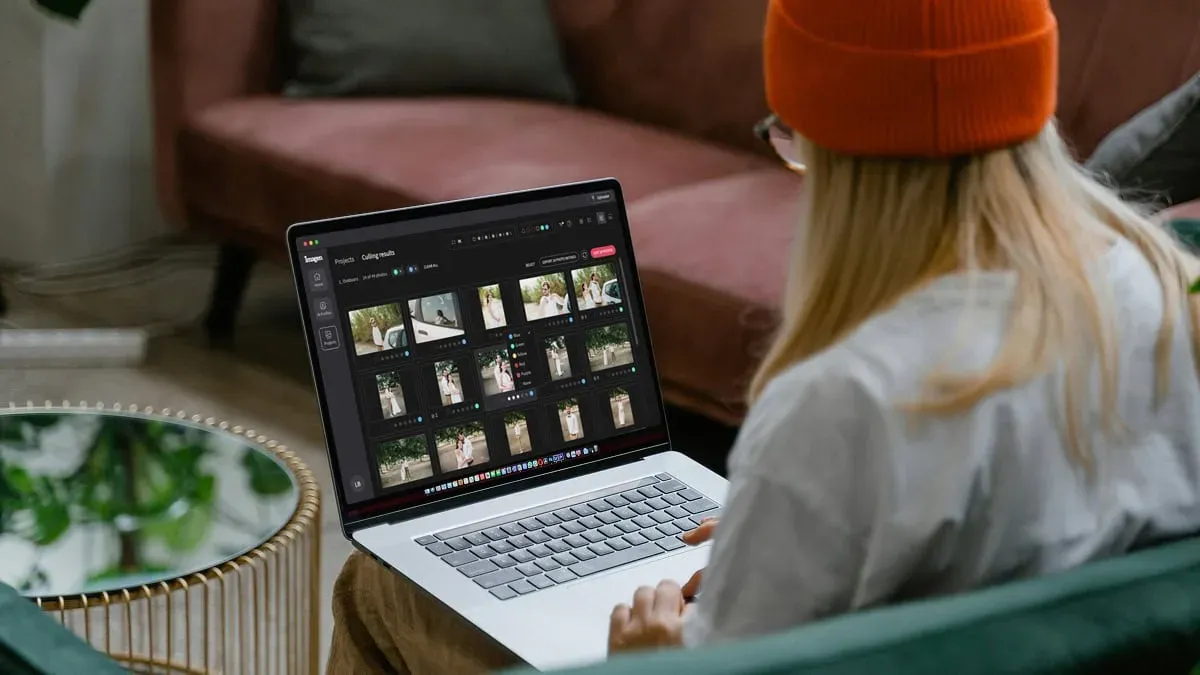
Culling is where family editing quietly eats hours. Kids blink, they turn, and you shoot in bursts to catch the one real smile, so a session can hold hundreds of near-duplicates. Imagen’s AI culling scans the shoot, groups the similar frames, and flags the sharpest, best-exposed, eyes-open options so you review a short list instead of every card. You can also skip AI culling and cull manually for free.
Keep your own judgment in the loop. Let the AI pull the technical keepers, then make the final calls yourself, because you know which candid the parents will love even when a competing frame is technically cleaner. A practical target is to cut a 1,000-frame session down to a 200 to 300 image working set before any color work begins.
Step 3: Batch your color and tone in your personal style
This is the step AI changes the most. Instead of copying settings from one hero frame and pasting them across the gallery, Imagen learns your editing style from your own catalog. It studies how you set white balance, exposure, contrast, and color on past family work, then applies that same look across the new session frame by frame.
Because it reads the content of each image, it adapts. A backlit frame at sunset and a shaded frame under a tree both land in your style rather than getting one flat preset that only suits half the shoot. The result is a gallery that reads as consistently yours, which is exactly what parents notice when they scroll from the first frame to the last. If you want a deeper look at applying a trained profile step by step, see our guide on how to edit family photos with AI in 2026.
A few habits keep the batch clean:
- Feed the profile a broad, representative set of your past edits, not just your favorite ten frames.
- Run the batch, then scan the full gallery at thumbnail size to catch any outliers fast.
- Trust the consistency across skin tones, since even coverage is what makes a family gallery feel finished.
Step 4: Retouch the real photos, not invented ones
Family retouching should stay light and true. You are smoothing a stray flyaway, calming a temporary blemish, evening skin, and cleaning a distracting spot on the background, not rebuilding faces. Imagen’s AI retouching works on the real skin and real detail already in the frame, so a toddler still looks like that toddler and grandma still looks like grandma.
Batch the routine passes across the set, then reserve manual attention for your hero frames, the wall-worthy portraits the family will print. For that hands-on finish, Imagen’s built-in editor (Beta) offers sliders and a histogram, crop and straighten, and presets. Because Imagen edits real photographs and does not invent products, clothing, faces, or scenes, you can retouch at volume and still deliver images the parents will recognize as genuine.
Step 5: Finish the hero frames by hand
Every family session has a handful of frames that carry the story. The three generations on the porch, the newborn asleep on dad’s chest, the belly laugh that nobody posed. These earn a few minutes of hand finishing on top of the AI pass.
Open your ten to fifteen best frames and do the small, human touches: a gentle dodge to lift a face, a crop that tightens the moment, a local adjustment to guide the eye. The AI has already carried the whole gallery to a consistent, on-style baseline, so your handwork sits on a finished foundation instead of starting from raw. That is the point of the whole workflow, since it moves your effort to the frames that deserve it.
Step 6: Export and deliver
With the gallery culled, colored, and retouched, exporting is the easy part. Set up presets once and reuse them every session.
- Export full-resolution JPEGs for print and web-sized files for the online gallery.
- Apply consistent output sharpening for the delivery medium.
- Name the export folder to match your session so archiving stays simple.
- Upload to your client gallery and send the reveal.
Delivery speed is part of the client experience. When you cut editing time from a full weekend to an evening, you can promise a turnaround that parents remember and refer. You can export finished JPG, TIFF or PNG files straight from Imagen, or send the edits back to Lightroom Classic. For more workflow ideas across niches, browse the full library on the Imagen valuable tips hub.
What it costs to try Imagen
Imagen is pay-as-you-go pricing, a monthly base fee plus a charge for the photos you export. You see every edit in the gallery before you export, so you can run a real session through the full workflow and judge the results on your own images first.
Other family editing tools price differently, and you will see subscriptions, one-time licenses, per-image credits, and freemium tiers across the market. Compare them on the outcome that matters for you, which is whether the finished gallery looks like your work and holds up across an entire high-volume session.
Ready to see your style applied across a full family shoot? Start editing with Imagen and run your next session through the workflow above in its new Studio, where you cull, edit and export in one project.
What’s new in Imagen: Imagen is now an intelligent, agentic Studio for professional photographers, where you cull, edit, review and export a family session in one project, in any order. The Assistant finds photos and acts on them when you ask in plain language, which can save scrolling through a long session, and you steer every step. The Studio is rolling out gradually as a beta.
Frequently asked questions
Does AI family photo editing replace my personal style?
No, it applies your style at scale. Imagen learns how you already edit from your Lightroom or Capture One catalog, then carries that same look across a full session, so the gallery reads as yours rather than as a generic preset.
Will the AI change how my clients’ children actually look?
No, it edits the real photos you shot. Imagen culls, colors, and retouches the frames you captured, and it does not generate faces, poses, clothing, or scenes, so every delivered image stays a true record of the day.
How much time can an AI workflow save on a family session?
The biggest savings come from culling and batch color, which are the two slowest manual steps. Many photographers move a high-volume session from a full weekend of editing down to a single evening, since the AI handles the repetitive work and you finish only the hero frames by hand.
How much does Imagen cost for family photographers?
Imagen is pay-as-you-go, a monthly base fee plus a charge for the photos you export. You see every edit in the gallery before you export, so you can test the full workflow on a real session before you export and pay.

