

How Long Cloud Photo Editing Takes for Automotive Photographers (and How to Speed It Up)
Table of contents
- The real timeline: where the hours actually go
- Upload and sync time: your connection is the bottleneck
- Cull to gallery: trimming before you edit
- Batch edit consistency: the part cloud AI speeds up most
- Backup and versioning time: protection without the wait
- Export specs and delivery: matching the output to the destination
- What slows delivery down, and how to fix it
- A realistic speed-up checklist
- Frequently asked questions
For most automotive shoots, cloud photo editing takes somewhere between a few minutes and a few hours from the moment you finish shooting to the moment a graded gallery is ready to send. The single biggest variable is not the editing itself but the upload: pushing a full car shoot of large RAW files to the cloud over your connection is usually the slowest step. Once your files are synced, an AI batch editor can apply a consistent grade across an entire gallery in minutes rather than the hours a manual pass would take.
This guide breaks the timeline into its real parts, upload and sync, culling, batch editing, backup and versioning, and export, so you can see exactly where the hours go on a dealership or studio car shoot. More usefully, it shows where the time is actually recoverable, because a lot of what feels like “editing time” is really waiting, hunting for the right frame, or fixing inconsistency you could have prevented. If you shoot inventory, feature cars, or client vehicles at volume, shaving even a few minutes per gallery adds up fast.
The real timeline: where the hours actually go
It helps to stop thinking of “editing” as one block and instead see it as a chain of stages, each with its own clock. On a typical automotive gallery of a few hundred frames, the rough breakdown looks like this: upload and sync can run from several minutes to well over an hour depending on your connection and file sizes; culling down to the keepers takes fifteen to forty-five minutes by hand; the actual grading pass, if done manually, can eat one to three hours for a full lot; backup and versioning happen in the background but still consume bandwidth; and export plus delivery adds another chunk on top.
Cloud editing changes the shape of that chain rather than shortening every link equally. It moves the heavy lifting off your local machine, so your laptop is not pinned for an hour rendering a batch. It also lets sync, backup, and processing overlap instead of running one after another. The stages that stay slow are the ones tied to physical limits, mainly how fast you can move gigabytes of RAW data over your internet connection. Understanding which stage you are actually stuck in is the whole game, because the fix for a slow upload is completely different from the fix for a slow grade.
Upload and sync time: your connection is the bottleneck
Automotive work produces big files. Full-frame and medium-format RAWs from a car shoot, especially bracketed sequences, pile up quickly, and a single gallery can run into tens of gigabytes. Cloud editing cannot begin until those files are in the cloud, so your upload speed sets the floor for everything that follows. On a fast fiber connection you might sync a full shoot in a handful of minutes. On a slower or shared connection, the same shoot can take an hour or more, and that time is almost entirely out of the editor’s hands.
The practical levers here are all about the pipe and the payload. Use a wired connection instead of Wi-Fi when you are pushing a large gallery, since a stable cable beats a congested wireless signal for sustained transfers. Start the upload the moment you get back to a connection, or even from the location if you have a reliable signal, so syncing runs while you do other work. If your camera and workflow allow it, avoid uploading obviously unusable frames, because every gigabyte you do not send is a gigabyte you do not wait on. And keep your files organized before they leave your machine, so you are not re-uploading a folder you mislabeled.
Cull to gallery: trimming before you edit
Culling is one of the most underrated time sinks in automotive work. A single car shoot generates near-duplicate frames by the dozen: the same three-quarter hero angle shot five times, wheel details, interior sequences, bracketed exposures for the same composition. Deciding which frames survive is genuine work, and doing it slowly means every later stage inherits the delay, because you are uploading, backing up, and processing images you were always going to delete.
The fastest workflows cull early and cull decisively. Cut the obvious rejects, soft focus, blown highlights on the paint, closed eyes on a driver, before anything else touches them. AI culling can flag likely keepers and likely rejects across a large batch, so you review a shortlist instead of scrubbing every frame one at a time. The goal is not to hand editing decisions to software but to remove the frames nobody would ever choose, so your attention goes to the ten hero angles that actually sell the car rather than the ninety variations you will never use.
Batch edit consistency: the part cloud AI speeds up most
This is where cloud AI editing earns its keep for automotive photographers. The challenge with a car gallery is not editing one frame beautifully; it is editing forty frames so they look like they belong to the same shoot. Paint color has to read the same from the front three-quarter to the rear detail. Interior tone has to match across the dash, the seats, and the trim. Shadow depth under the car should be consistent from frame to frame. Done by hand, that consistency is slow and error-prone, because you are re-deciding the same adjustments over and over and small drift creeps in.
An AI batch editor that has learned your style applies your look across the whole gallery at once, so the grade is consistent by construction rather than by discipline. A personal AI profile captures how you handle exposure, white balance, and tone, then reproduces those choices frame after frame. For a photographer shooting a lot of thirty cars, that turns an afternoon of repetitive slider work into a batch that processes in minutes. You still review and adjust the results, but you start from a consistent, near-final gallery instead of a pile of raw frames.
Imagen is built for exactly this kind of high-volume, consistency-critical work. It is a desktop app with cloud processing that learns your editing style through personal AI profiles, then applies that grade in batch across an entire shoot, delivering even color and tone from the first frame to the last. Because it runs in the cloud, the processing does not tie up your laptop, edited photos arrive in batches as they process so you can start reviewing early frames, and pricing is straightforward: a monthly base fee plus a per-photo charge when you export, and exploring the tools is free, so you can size the cost against the volume you actually shoot. For automotive photographers editing large galleries on repeat, that per-image economy matters as much as the speed.
Backup and versioning time: protection without the wait
Backup is the stage most photographers forget to count until a drive fails. Every serious automotive workflow needs a copy of the originals somewhere safe, and moving that copy takes time and bandwidth. The trick is to make backup overlap with everything else instead of adding a separate block at the end of your day. Cloud workflows are well suited to this, because the same sync that feeds the editor can also stand in as an offsite copy of your working files.
For photographers on Apple hardware, keeping originals safe without babysitting a manual copy routine is its own workflow question, and it is worth solving once rather than improvising per shoot. Imagen’s Mac cloud backup for photographers is on the roadmap as a future way to keep a protected copy of your library in the cloud, so for now set up your own backup to cover your edited galleries and originals while you work, rather than waiting for a nightly transfer to finish. Versioning matters too: when a dealership asks for a revised crop or a different look on a hero shot weeks later, having the original and the edit both preserved means you reopen and adjust instead of reshooting. Time saved on a reshoot dwarfs any time spent on backup.
Export specs and delivery: matching the output to the destination
The final stage is export, and getting the specs right the first time prevents a slow round of re-exports. Automotive images usually land in one of a few places, and each wants something different. Dealership inventory and marketplace listings want web-optimized JPEGs sized so galleries load fast on a phone, since most car shoppers browse on mobile. A print feature or a manufacturer submission may want full-resolution files with a wider color space. Social and reel-style content wants tighter crops and platform-specific dimensions.
Decide the destination before you export, then batch each output set in one pass rather than exporting the whole gallery repeatedly at different settings. Consistent, correctly sized files also upload to the client or the listing platform faster, closing the loop on the same connection-speed issue you started with. If you deliver to multiple channels from one shoot, a single well-organized export session beats three ad-hoc ones, both for your time and for the consistency of what the client receives.
What slows delivery down, and how to fix it
Most delivery delays trace back to a short list of fixable habits. Slow uploads over congested Wi-Fi are the classic one, and the fix is a wired connection and an early start. Bloated galleries full of frames you never culled are another, and the fix is to cut hard before you upload. Inconsistent manual grading that forces a second corrective pass is a big hidden cost, and the fix is a learned batch grade that is consistent on the first try. Missing or last-minute backup that blocks the end of your day is another, and the fix is a cloud copy that runs alongside your edit instead of after it.
There is also a category of work that genuinely does not belong in a fast batch pipeline, and pretending otherwise is what wrecks a timeline. Heavy compositing, removing a stray cone or a reflection of the crew from a car’s bodywork, correcting perspective on a wide interior, or true HDR bracket-merging for a tricky showroom lighting scene are all specialized jobs. Those are best handled in a dedicated retouching tool or a dedicated exposure-blending tool as a separate step, not forced into a batch grade. Keeping that heavy work out of your main pipeline is itself a speed strategy: batch the ninety-percent that is consistent grading, and route the handful of hero frames that need surgery to the right specialized tool. When you are ready to move your batch grading into the cloud, you can start at Imagen, now a Studio where you cull, edit and export in one project, and build a profile on your own catalog.
A realistic speed-up checklist
Pulling it together, here is where automotive photographers actually recover time. Start the upload early and use a wired connection, so sync overlaps with the rest of your day instead of blocking it. Cull hard and cull first, so you never spend bandwidth or processing on frames you will delete. Use a learned batch grade for gallery-wide consistency, so paint and interior tone match across the shoot on the first pass. Let backup run in the cloud alongside editing rather than as a separate end-of-day chore. Lock your export specs to each destination before you render, so you export once. And route genuinely heavy retouching to a dedicated tool instead of stalling the whole batch on three hard frames.
None of these are exotic. They are the difference between a car gallery that goes out the same afternoon and one that slips to the next morning, and across a busy month of inventory and feature shoots, that difference is the bulk of your editing time. The tools do the fast part; a clean workflow makes sure the fast part is not waiting on the slow part.
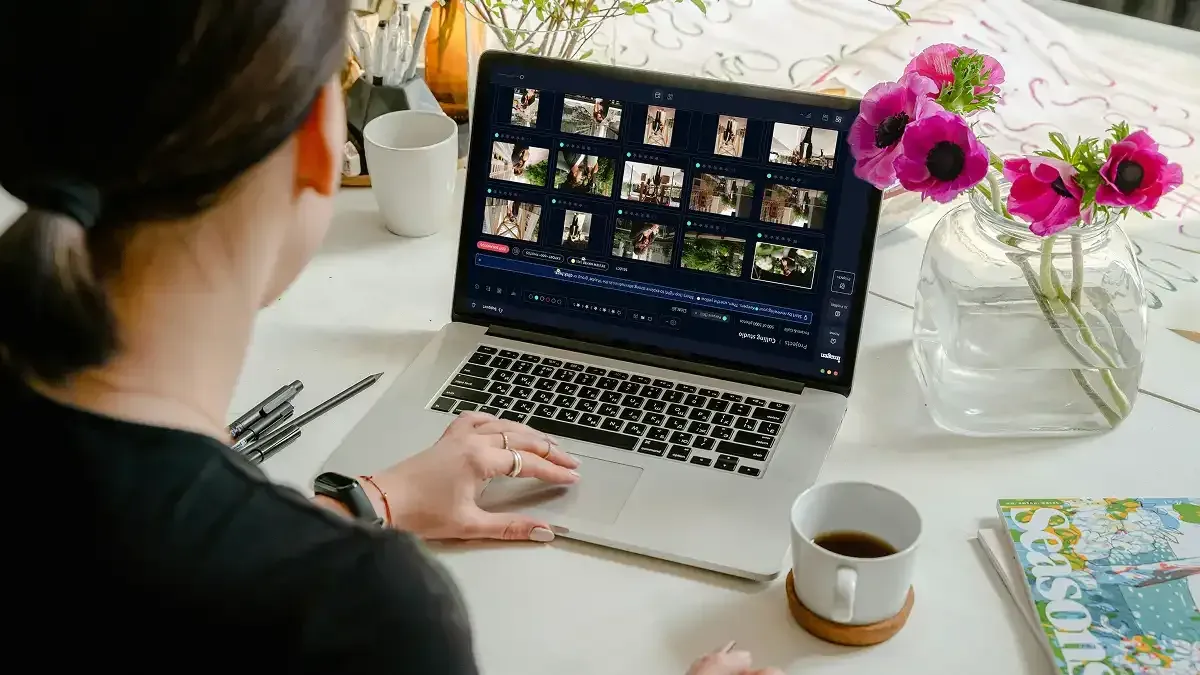
What’s new in Imagen: Imagen is now an intelligent, agentic Studio for professional photographers, built to shorten the timeline you just read about: one project where you cull, edit, review and export in any order. Use AI culling to trim a big vehicle take, or skip it and cull manually for free, and AI filters such as blur help you narrow it faster. A Personal AI Profile learned from your past edits then sets the look. The Studio is rolling out gradually as a beta; see Imagen.
Frequently asked questions
How long should editing a full car shoot take? With a learned batch grade and a decent connection, a gallery of a few hundred frames can go from synced to graded in minutes of processing, plus your review time. The larger and more variable number is the upload, which can range from a few minutes on fiber to an hour or more on a slow or shared connection. Culling and export add modest, predictable chunks on either side.
Is cloud editing slower than editing locally because of the upload? The upload is real time you have to account for, but cloud editing usually wins overall because the heavy processing runs off your machine and can overlap with sync and backup. Locally, your laptop is pinned during a batch render and cannot do anything else. In the cloud, the upload is the tax you pay to get parallel processing and offsite backup in return.
How do I keep color consistent across a whole automotive gallery? Use a batch editor that applies a single learned style across every frame at once, rather than grading each image by hand. A personal AI profile reproduces your exposure, white balance, and tone choices frame after frame, so the paint reads the same from the hero angle to the wheel detail. You review and fine-tune, but you start from a consistent gallery instead of chasing consistency manually.
What editing work should not go through a batch pipeline? Specialized retouching that changes the content of the frame, removing objects, fixing perspective distortion, or merging bracketed exposures into a true HDR composite, is best done as a separate step in a dedicated tool. Batch editing is for consistent, gallery-wide grading. Trying to force complex per-frame surgery into a batch pass slows the whole gallery down for the sake of a few images, so keep those jobs separate.
