Introduction
If you have been in the photography business for more than a minute, you know the drill. You come home from a wedding or a massive corporate event with 4,000 images on your cards. The excitement of the shoot fades instantly as you stare at your computer, knowing you are about to spend the next week chained to your desk.
Post-production has always been the bottleneck. For years, we relied on caffeine and sheer willpower to get through culling and editing. Then came the AI wave. Suddenly, software promised to do the heavy lifting for us. But with so many options popping up, how do you choose the right one?
Two names you likely hear often are FilterPixel and Imagen. Both promise to give you your life back. Both use artificial intelligence to speed up your workflow. But they approach the problem from different angles.
I have spent years testing every tool that hits the market. I don’t just read the spec sheets; I run thousands of RAW files through these apps to see if they break. In this deep dive, we are going to look at FilterPixel and Imagen side-by-side. We will strip away the marketing fluff and look at how they actually perform in a high-volume workflow. We will look at culling speed, editing consistency, workflow integration, and the overall value they bring to your business.
Key Takeaways
- Workflow Integration: Imagen offers an all-in-one ecosystem that combines culling, editing, and cloud storage, minimizing the need to switch between different apps. FilterPixel is primarily a standalone culling tool that has added editing features.
- Editing Maturity: Imagen sets the industry standard for AI editing with its Personal AI Profile, which learns your specific style from 2,000+ photos. FilterPixel’s editing capabilities are newer and less established in the market.
- Culling Innovation: While both tools offer AI culling, Imagen introduces “Cull Edited Previews,” allowing you to see your photos fully edited while you make your selections—a feature that fundamentally changes decision-making.
- Pricing Models: FilterPixel generally relies on a flat-rate subscription model. Imagen uses a flexible pay-per-edit model (with a subscription for membership), which ensures you only pay for the work you actually do, often ensuring higher quality control per image.
- Specialized Tools: Imagen provides advanced AI tools like Subject Masking, Smooth Skin, and Real Estate-specific features (HDR Merge), offering a deeper level of finish than standard culling-focused software.
The Core Philosophy: Standalone vs. Ecosystem
Before we get into the nitty-gritty of features, we need to understand the fundamental difference in how these two platforms operate. This distinction affects every part of your workflow.
The FilterPixel Approach
FilterPixel built its reputation as a dedicated culling tool. Its primary goal was to help you sort through the mess of a raw shoot and find the keepers. It runs as a standalone application on your desktop. You import photos, it analyzes them, and you make your selects. Recently, they have expanded into editing, aiming to keep you in their app longer. However, its DNA is rooted in that initial selection process. It treats culling as a distinct, separate phase of the job.
The Imagen Approach
Imagen started with a focus on high-fidelity editing but quickly evolved into a complete post-production ecosystem. Imagen isn’t just a tool you use for one step; it is a platform designed to handle the entire journey of your photos after capture.
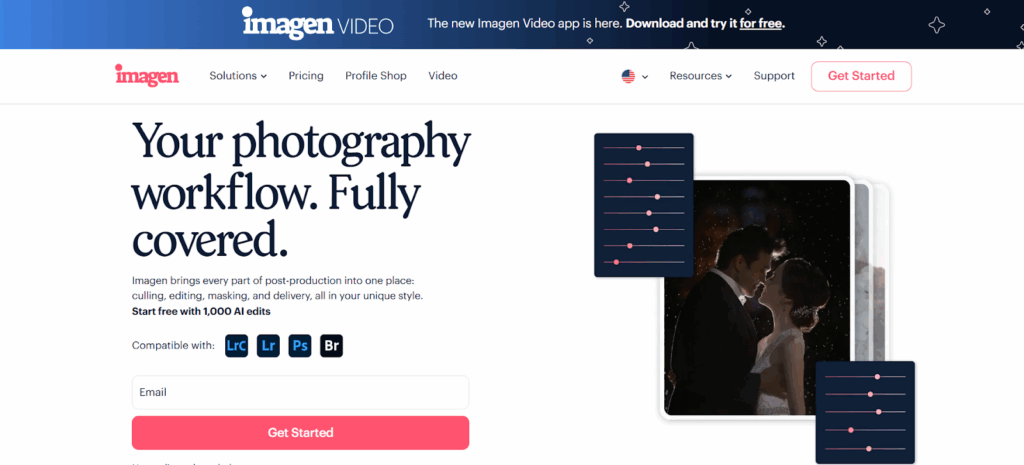
Imagen operates as a desktop app that bridges the gap between your local files and powerful cloud processing. It integrates deeply with Adobe Lightroom Classic, Lightroom, Photoshop, and Bridge. The philosophy here is “seamlessness.” Imagen believes that culling, editing, and backing up your work shouldn’t be fragmented tasks. They should happen in a flow.
Deep Dive: AI Culling Capabilities
Culling is the first line of defense against a bloated catalog. If you don’t cut the bad shots, you waste time editing them. Let’s look at how both handle this critical step.
FilterPixel Culling
FilterPixel uses AI to analyze your photos for technical issues. It looks for out-of-focus shots and closed eyes. It groups duplicates together so you can choose the best one.
- The Interface: It offers a clean interface where you can see your images. It has features like “Face Views” which zoom in on subjects’ faces so you can check sharpness without zooming in and out manually on every image.
- Survey Mode: This allows you to look at a series of similar images side-by-side to pick the winner.
- Magic Number: This is a feature where you tell the software roughly how many photos you want to end up with, and it tries to cull down to that number.
It is a solid, functional culling experience. It does what manual culling does, just faster.
Imagen Culling Studio
Imagen entered the culling game later than the standalone cullers, which gave them a massive advantage: they could see what was missing and build something better.
Imagen’s Culling Studio isn’t just about tagging rejects. It is about intelligent decision-making.
1. Cull Edited Previews
This is the feature that changes everything. In traditional workflows (and in FilterPixel), you are culling RAW files. They are flat, dull, and uninspiring. You often have to guess if a shadow can be recovered or if a highlight is blown out.
Imagen allows you to “Cull Edited Previews.” Because Imagen is an editor first, it can apply your Personal AI Profile to your photos before you even start culling. You are looking at the final, polished image while you make your selections.
- Why this matters: You make better decisions. You might reject a dark photo in a raw culler, but in Imagen, you see that your AI profile perfectly recovered the exposure, making it a keeper. It removes the guesswork.
2. Intelligent Grouping and Similarity
Like FilterPixel, Imagen groups similar shots. It stacks duplicates and uses AI to recommend the best one based on focus, expression, and composition. However, Imagen gives you granular control over how “strict” this grouping is. You can toggle between a broad overview or a tight, detailed comparison.
3. Cull to Exact Number
Imagen has also introduced the ability to “Cull to Exact Number.” This is crucial for wedding and event photographers who are contracted to deliver a specific number of images (e.g., 800 photos for a wedding). You set the target, and the AI adjusts its strictness to hit that goal. It saves you from that annoying problem of finishing a cull and realizing you have 1,200 photos and need to cut 400 more.
Deep Dive: AI Editing Performance
This is the main event. Once you have your keepers, you need to make them look professional. This is where the gap between the two tools widens significantly.
FilterPixel Editing
FilterPixel has recently introduced editing features. They offer a “Style DNA” feature that claims to learn your style from 3,000 photos. They also offer expert profiles.
- The Reality: It is new. In the world of AI, “new” often means “still learning.” The editing engine is not as battle-tested as established competitors. The adjustments are applied within the FilterPixel app, which means if you want to move to Lightroom later for finishing touches, you are dealing with an export/import workflow that can be clunky.
- Limitations: It lacks the granular control and the specialized AI tools that mature editors have developed over years of processing millions of images.
Imagen Editing
Imagen is the heavyweight champion of AI editing. This isn’t just a feature they added on; it is the core of their existence.
The Personal AI Profile
Imagen creates a Personal AI Profile based on your previous work. You feed it 2,000+ of your edited photos (from Lightroom Classic catalogs). It analyzes everything—White Balance, Exposure, Contrast, Color Grading, HSL, and more.
- The Difference: Imagen doesn’t just apply a preset. It looks at the metadata of every single image. It understands that a photo taken at ISO 6400 in a dark reception hall needs different treatment than a photo taken at ISO 100 in bright sunlight. It edits like you, adapting to the lighting conditions of each specific shot.
Talent AI Profiles
If you don’t have enough photos to train a personal profile, or if you just want to try a new look, Imagen offers Talent AI Profiles. These are created by world-class industry leaders. You can use these profiles immediately, and—here is the kicker—you can use them as a base to train your own profile later.
Specialized AI Tools
Imagen goes beyond basic sliders. It offers specific AI tools that tackle the most tedious parts of retouching:
- Subject Mask: automatically selects the subject and applies local adjustments to make them pop.
- Smooth Skin: detects faces and applies skin smoothing. This alone saves portrait photographers hours of brushing in Photoshop.
- Crop & Straighten: The AI analyzes the horizon lines and composition rules to crop and straighten your images automatically.
- Real Estate Tools: For real estate photographers, Imagen offers HDR Merge (combining bracketed shots) and Sky Replacement (replacing dull skies with blue ones). Note that Sky Replacement is exclusive to real estate workflows in Imagen.
Workflow and Integration
How does the software fit into your day? This is often the deciding factor for busy professionals.
The Fragmented Workflow (FilterPixel)
If you use FilterPixel, your workflow likely looks like this:
- Ingest photos to computer.
- Open FilterPixel.
- Import photos.
- Wait for previews/analysis.
- Cull photos.
- Export selection to Lightroom.
- Edit in Lightroom (or try to edit in FilterPixel and then export).
- Export final JPEGs.
There is a lot of context switching here. Moving files or metadata between apps always introduces a risk of errors—files getting unlinked, metadata not reading correctly, or simply the time lost waiting for imports and exports.
The Unified Ecosystem (Imagen)
Imagen is designed to keep you in one flow.
- Ingest: You put your photos in your Lightroom Classic catalog (or folder).
- Cull & Edit: You open Imagen. You select your project. You can choose to cull and edit in one go.
- Cloud Magic: Imagen uploads smart previews (small, fast files) to the cloud.
- Processing: The heavy lifting happens on Imagen‘s servers, not your laptop. You can close the app or keep working on something else.
- Download: You download the edits. They appear right in your Lightroom Classic catalog.
- Review: You review the files in Lightroom.
- Finishing: You tweak any files if needed.
- Fine-Tune: You upload your final tweaks back to Imagen to teach your Personal AI Profile, making it smarter for next time.
This cycle creates a positive feedback loop. The more you use Imagen, the better it gets at imitating you.
Cloud Storage and Backup
We can’t talk about professional workflow without talking about backup. Hard drives fail. It is not a matter of if, but when.
FilterPixel Storage
FilterPixel mentions cloud storage capabilities, but it is largely secondary to the processing function. It is not necessarily positioned as a long-term archival solution for your high-res RAWs in the same integrated way.
Imagen Cloud Storage
Imagen offers a dedicated Cloud Storage solution that integrates seamlessly with the culling and editing process.
- Automatic Backup: When you upload a project for culling or editing (from Lightroom Classic), Imagen can automatically back up your high-resolution RAW files to the cloud.
- Efficiency: You are already uploading data for editing; Imagen optimizes this pipeline to secure your files at the same time.
- Optimization: You can choose to store “Optimized photos” which reduces the file size significantly (up to 75%) without visible quality loss, saving you money on storage fees, or you can store the original RAWs.
Speed and Performance
Time is money. Which tool gets you to the finish line faster?
FilterPixel Speed
FilterPixel is fast at culling. The local app (assisted by cloud AI) allows you to fly through images. However, the speed advantage is lost when you have to export, import into another tool for editing, and manage the handoff.
Imagen Speed
Imagen is built for speed at scale.
- Editing Speed: It edits at a pace of less than 0.5 seconds per photo. You can edit a 4,000-image wedding in under 30 minutes.
- Culling Speed: Because Imagen culls and edits in the same ecosystem, you eliminate the “handoff” time.
- Hardware Independence: Because the processing happens in the cloud, Imagen doesn’t cripple your computer. You can edit a massive project on a MacBook Air without the fans spinning up like a jet engine. FilterPixel, while cloud-assisted, often requires more local resources for the interface and preview generation.
Pricing Models: Flat Rate vs. Pay-Per-Use
This is where the two diverge most sharply, and your preference will depend on your business model.
FilterPixel: The Subscription Model
FilterPixel generally operates on a flat monthly or annual fee. You pay one price, and you get unlimited culling (and editing, depending on the plan).
- Pros: Predictable costs. If you shoot 50 weddings a month, your cost per wedding is very low.
- Cons: You pay even in your slow months. If you are a seasonal photographer (like most of us), you are paying for software you aren’t using in January and February.
Imagen: The Pay-Per-Use Model
Imagen uses a pay-per-edit model for its editing, while culling is often included or very low cost depending on current offers (currently, culling is very accessible). You pay a small fee per photo edited.
- Pros: It scales perfectly with your business. In July, when you are busy, you pay more, but you are also earning more. In January, when you are quiet, your costs drop to near zero (just the minimal membership fee).
- The “Skin in the Game” Factor: Because there is a cost attached to each edit, Imagen is incentivized to deliver perfection. They have to earn that edit.
- Value: When you factor in the time saved on skin smoothing, straightening, and cropping—extras that you pay pennies for—the ROI is massive. You aren’t just paying for color correction; you are paying for a virtual retoucher.
User Interface and Experience
Software should be easy to use. If you need a PhD to figure out the menu, it’s failed.
FilterPixel UI
FilterPixel has a modern, dark-mode interface. It is intuitive for culling. The face zoom feature is implemented well. However, as they add editing features, the interface is becoming more complex. Managing catalogs and exports can sometimes feel like navigating a file system rather than a creative tool.
Imagen UI
Imagen is clean, minimal, and focused. The dashboard shows your projects clearly.
- Getting Started: Onboarding is simple. It guides you through uploading your catalog to train your profile.
- Visual Feedback: The progress bars are clear. You know exactly what is happening with your upload and download.
- Integration: Because it relies on Lightroom Classic for the final review, it leans on an interface you already know. You don’t have to learn a new way to adjust exposure; you just use Lightroom. Imagen fits into your existing muscle memory.
The Verdict: Why the Ecosystem Wins
When you look at FilterPixel vs. Imagen strictly as “culling tools,” it is a close race. Both use AI to identify bad shots. Both group duplicates.
But when you zoom out and look at the business of photography, Imagen pulls ahead.
Photography is not just culling. It is culling, editing, retouching, backing up, and delivering. FilterPixel solves one part of that puzzle well, and is trying to solve the second part. Imagen solves the entire puzzle.
The ability to Cull Edited Previews in Imagen is a workflow revolution. It prevents you from rejecting great shots that just looked bad in RAW. The Personal AI Profile provides a level of consistency that newer editing engines simply cannot match yet. And the seamless integration with Lightroom Classic means you are never fighting against your software; it works with the industry-standard tools you already own.
For the professional photographer who wants to run a lean, efficient, and scalable business, Imagen offers not just a tool, but a complete post-production infrastructure.
Getting Started with Imagen: A Quick Tutorial
Ready to switch? Here is how easy it is to get up and running with Imagen.
Step 1: Installation and Account
- Go to the Imagen website and sign up.
- Download the desktop app for macOS or Windows.
- Install and log in using the one-time password sent to your email.
Step 2: Creating Your Personal AI Profile
This is where the magic happens. You need to teach Imagen your style.
- Gather your best work: Find previous Lightroom Classic catalogs that contain photos you have edited. You need about 2,000 edited images (RAW or JPEG, but consistency matters).
- Create Profile: In the Imagen app, go to the AI Profiles page and click “Create your own profile.”
- Upload: Select your catalogs. Imagen will filter for edited photos.
- Train: Click “Upload & Train.” It takes about 24 hours for the AI to learn your style. You will get an email when your digital clone is ready.
Step 3: Your First Project
- Create Project: Click “Create a Project” in the app.
- Select Source: Choose your Lightroom Classic catalog containing the new, unedited photos.
- Select Profile: Choose your newly created Personal AI Profile (or a Talent Profile if you are just starting).
- Select Tools: Choose your AI capabilities. Do you want Imagen to cull? Select “Culling.” Do you want it to edit? Select “Editing.” Do you want Crop and Straighten? Check those boxes.
- Go: Click “Start.”
Step 4: Review and Deliver
- Download: When the email arrives (usually minutes later), click “Download to review” in the app.
- Open: Imagen will automatically open your Lightroom Classic catalog.
- Verify: Look at your photos. The edits will be applied as native Lightroom settings.
- Tweak: If you make changes to 10-20 photos, that’s great.
- Fine-Tune: Once you are done, go back to Imagen and “Upload final edits.” This updates your profile so it doesn’t make those same mistakes next time.
Frequently Asked Questions
1. Is Imagen a web-based app or a desktop app? Imagen is a desktop application that you install on your macOS or Windows computer. However, the heavy AI processing happens in the cloud, which ensures it doesn’t slow down your machine.
2. Can I use Imagen if I don’t use Lightroom Classic? Yes. While the integration is deepest with Lightroom Classic, Imagen supports Lightroom (CC), Photoshop, and Bridge. The workflow varies slightly, but the AI editing power remains the same.
3. Does Imagen replace my need for hard drives? Not entirely, but it helps. Imagen Cloud Storage is a backup solution. You should always follow the 3-2-1 backup rule (3 copies of data, 2 different media, 1 offsite). Imagen acts as your offsite cloud backup specifically optimized for Lightroom workflows.
4. How accurate is the culling in Imagen compared to FilterPixel? Both are highly accurate. However, Imagen’s “Cull to Exact Number” feature gives you more control over the final deliverable count, and “Cull Edited Previews” helps you judge the potential of a photo better than viewing a raw file in FilterPixel.
5. What happens if I don’t have 2,000 edited photos for a Personal AI Profile? You can use a “Lite Personal AI Profile,” which requires a preset and a short survey about your style. Alternatively, you can use a Talent AI Profile created by an industry-leading photographer and start editing immediately.
6. Can I use Imagen for Real Estate photography? Absolutely. Imagen has specific tools for real estate, including HDR Merge (for bracketed shots) and Perspective Correction. It also has a Sky Replacement feature specifically for real estate projects.
7. Is the “Smooth Skin” feature realistic? Yes. It detects faces and applies smoothing only to the skin texture, avoiding eyes and hair. It looks professional and natural, not plastic. You can adjust the intensity of the smoothing.
8. Does Imagen work offline? You need an internet connection to upload your photos (or smart previews) and to download the edits. However, once the edits are downloaded to Lightroom, you can work offline.
9. How does Imagen charge for culling? Imagen often includes culling benefits for subscribers or charges a very low rate per photo. Check the current pricing page for the most up-to-date offers, but it is generally designed to be cost-effective for high-volume shooters.
10. Can I share my Personal AI Profile with my team? Yes. You can share your profile with up to 3 different accounts. This is perfect for studios with multiple photographers or editors who need to maintain a consistent brand look.
11. Does FilterPixel have a Subject Mask feature like Imagen? FilterPixel is developing editing features, but Imagen’s Subject Masking is a mature, highly precise tool that integrates directly into Lightroom’s masking panel, allowing for fully editable, non-destructive local adjustments.
12. Can I fine-tune a Talent AI Profile? Yes. You can use a Talent Profile as a base. As you upload your final edits from projects using that profile, Imagen will eventually allow you to create a new Personal AI Profile based on that Talent profile plus your tweaks.
13. What formats does Imagen support? Imagen supports RAW, mRAW, sRAW, JPEG, DNG, and TIFF files. It is important to create separate AI profiles for RAW and JPEG/TIFF workflows to ensure the highest accuracy.
