As professional photographers, we all chase a certain feeling. We capture moments, but we deliver memories. For many of us, the look of classic analog film holds a special power. It has a soul, a character that feels timeless. Achieving that film look in Adobe Lightroom is a common goal. This guide explores how to do it, from the manual slider adjustments to the powerful AI tools that change the game.
Key Takeaways
- Film Emulation is a Style: This is the art of making digital photos look like they were shot on classic film stocks, such as Kodak Portra or Fuji Velvia.
- It’s More Than Grain: A true film look involves specific color science, contrast, and tonal relationships. It is not just a filter.
- Manual Edits are Hard: You can create film looks using Lightroom’s Tone Curve, HSL, and Calibration panels. This method is slow and very hard to keep consistent.
- Presets Have Limits: Static presets are a popular starting point. They apply the same settings to every photo. This means they often “break” in different lighting and require a lot of manual tweaking.
- AI is the Solution: A tool like Imagen offers a modern workflow. It learns your specific film style from your past edits. Then, its AI applies that style adaptively to new photos.
- Consistency is Key: The goal is not just to get one photo to look like film. The goal is to get your entire shoot to feel consistent. This is where AI-driven tools provide a major advantage over static presets.
The Soul of Film: Why We Chase the Analog Look
Digital cameras are amazing. They are sharp, clean, and capture incredible detail. But sometimes, they can feel too perfect, almost sterile. We look back at old film photos and see something different. We see a softness, a richness in the colors, and a texture that feels more like a painting than a file.
Beyond Nostalgia: The “Why” of Film Emulation
Why do so many of us work so hard to make our clean digital files look like old film?
- Superior Color Science: This is the big one. Film stocks were chemical products. Each had its own unique way of seeing color. Fuji films often rendered beautiful, lush greens. Kodak Portra is famous for its warm, forgiving skin tones. This specialized color science is very appealing.
- Pleasesnt Tonal Roll-off: Film handles highlights and shadows differently. Digital sensors “clip” highlights hard. This means they turn pure white and lose all detail. Film “rolls off” highlights. It keeps a little bit of detail and has a much softer, more gradual transition to white. This feels more natural.
- Consistency and Timelessness: A good film emulation gives your entire portfolio a single, cohesive voice. This “look” becomes part of your brand. It also feels timeless. A clean, well-executed film style does not feel like a passing trend.
What “Film Look” Even Means
When clients ask for a “film look,” they rarely mean one specific thing. This look is a combination of several key elements:
- Contrast: Film has a very specific contrast curve. This is often an “S-curve.” It has deep (but not crushed) blacks and bright (but not blown-out) whites.
- Color Shifts: This is the “secret sauce.” Film does not see color like a digital sensor. It may shift greens toward a more teal or olive tone. It might make blues deeper. Skin tones often move toward a peachy-red.
- Grain: This is the most obvious part, but it is easy to get wrong. Real film grain is a result of silver halide crystals. It is not a uniform, noisy overlay. Good emulation uses grain that is more visible in the mid-tones.
- Texture: Some film stocks also have minor “flaws” like halation. This is a subtle red-orange glow around very bright light sources.
Understanding these parts helps you build the look from the ground up.
The Traditional Toolkit: Manual Film Emulation in Lightroom
Before presets and AI, we had to do this the hard way. I still think every professional should know how these tools work. It helps you understand what your other tools are doing. We can do all of this in Lightroom’s Develop module.
The Tone Curve: The Heart of Contrast
The Tone Curve is the most important tool for film emulation. It controls the relationship between the darks, mids, and brights of your photo.
- The “S-Curve”: This is the classic film contrast shape. You click the curve in the middle to lock the mid-tones. Then, you pull the shadow area (bottom-left) down slightly. You pull the highlight area (top-right) up slightly. This adds punchy contrast.
- The “Matte Look”: To get that faded, matte look, you lift the bottom-left point. Click the very end of the line in the corner and drag it straight up. This means your darkest black in the photo will be a dark gray. It is a very popular style.
HSL and Color Grading: Crafting the Palette
This is where you create the unique color science of your “film stock.”
- HSL (Hue, Saturation, Luminance): This panel lets you control specific colors.
- Hue: This is where you get your color shifts. To get that “Fuji” look, you might shift your Greens toward Blue (more teal). To get warm skin, you might shift Oranges slightly toward Red.
- Saturation: You can pull back the saturation on colors that are too strong. I often desaturate the Blues in my skies just a little.
- Luminance: This controls the brightness of a color. You can make the sky darker (lower Blue luminance) to make clouds pop.
- Color Grading: This tool is perfect for film looks. It lets you add a color tint to your shadows, mid-tones, and highlights. A common trick is to add a little bit of Teal or Blue to the shadows. Then, add a little bit of warm Orange or Yellow to the highlights. This creates a classic color separation that feels very cinematic.
The Camera Calibration Panel: The Secret Weapon
This panel is at the very bottom of the Develop module. Many photographers ignore it. That is a mistake. The Calibration panel changes the engine of how Lightroom renders color. It changes the digital “primaries” of the photo.
This is where the magic happens. Before you touch HSL, try small adjustments here.
- Red Primary: Adjusting this slider can deeply affect skin tones.
- Green Primary: This is my secret for foliage. Shifting the Green Primary Hue can completely change the feel of an outdoor shoot.
- Blue Primary: This often controls the sky, but it also affects the overall “vibe” of the photo.
Small changes in this panel can have a big, beautiful effect. It is a more “global” way to edit color before you get into the small details with HSL.
Grain and Texture: The Final Polish
The last step is to add texture. You find this in the Effects panel.
- Go to the Grain section.
- Add a small Amount. Start low.
- Increase the Size. I find larger, softer grain looks more natural than small, sharp grain.
- Adjust Roughness. This controls how uniform the grain is.
Pro Tip: Zoom in to 100% on a mid-tone area (like a blue sky or a gray wall) to see what you are doing. Do not overdo it. A little grain goes a long way.
The Limits of the Manual Method
So, you just spent 20 minutes crafting the perfect film look on one photo. It looks amazing.
Now what?
You can copy and paste those settings onto the next photo. And it will probably look terrible.
Why? The next photo was shot in different light. The white balance is different. The exposure is different. That “perfect” setting from the first photo is now crushing the blacks or blowing out the highlights on the second.
This is the problem. The manual method is slow. And it is extremely inconsistent. You end up creating the look from scratch on almost every photo. As a professional, I do not have time for that.
The Preset Problem: A Common but Flawed Solution
This problem leads us to the most common solution: Lightroom presets.
What Are Lightroom Presets?
A preset is just a saved file (.xmp) of all those slider positions you just set. You can buy them from other photographers or create your own. You click one button, and it applies all the settings from the Tone Curve, HStop, and Calibration panels at once.
The Rise of Preset Marketplaces
This created a huge market. You can find many photographers and companies selling their “looks.” This is a functional and popular way to get a starting point for an edit. These marketplaces provide a valuable service for photographers who want to try on different styles quickly.
Why Presets Fail
We all know the experience. You buy a preset pack that looked amazing on the creator’s Instagram. You apply it to your own photos. It looks nothing like the sample.
This is the “preset problem.” Presets are static. They are “dumb.”
A preset applies the exact same set of values to every single photo, no matter what is in it.
- It applies Exposure: +0.50 whether your photo is already too bright or way too dark.
- It applies Temp: +15 (warmer) whether your photo was shot in cool shade or warm sunlight.
- It applies the exact same S-curve to a low-contrast foggy scene and a high-contrast midday scene.
This is why presets “break.” They only work on photos that are already very similar to the photo the preset was created on.
As professionals, we do not waste time “finding the right preset.” We spend our time fixing the preset we applied. We apply the preset, then we have to re-adjust the exposure, fix the white balance, pull the highlights back down, and lift the shadows.
This is still a huge waste of time. It solves the “starting point” problem, but it does not solve the “consistency” problem or the “time” problem.
A Smarter Way: AI-Powered Film Styles with Imagen
This is where our workflow must evolve. We need a tool that is smart. We need a tool that understands our style but also understands the photo it is editing.
This is exactly what Imagen does.
Moving Beyond Static Presets
I want you to think about how you edit. You do not apply the same settings to every photo. You adapt. You look at a photo, judge its exposure and white balance, and then you apply your style.
You might think, “This one is dark, so I need to raise the exposure before I add my contrast curve.” Or, “This one is very cool, I need to warm it up and then apply my color shifts.”
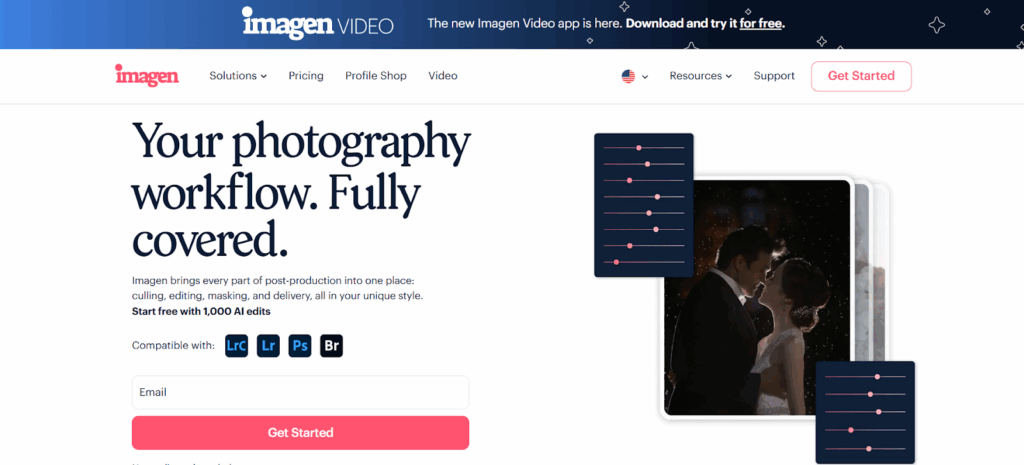
Imagen is an AI that learns to think the same way. It is a desktop app that uses powerful AI processing in the cloud. It works directly with your Lightroom Classic, Lightroom, Photoshop, or Bridge catalogs.
Instead of a “dumb” preset, Imagen creates an AI Profile. This profile learns your unique style. But it does not just slap it on. It first analyzes the new photo. It fixes the base exposure and white balance. Then, it intelligently applies your film style on top of that corrected base.
The result? The consistent look you want. In seconds. Across thousands of photos.
The Imagen Personal AI Profile: Your Style, Codified
This is the core of the Imagen system. You create a Personal AI Profile. This is an AI model that only you have. It edits exactly like you.
How does it work? You “teach” the AI by showing it your best work.
To build a strong profile, Imagen needs to learn from at least 3,000 of your previously edited photos. These must be your final, best edits from a single, consistent style.
If you have a “light and airy” film style and a “dark and moody” film style, you must create two separate profiles. For this guide, you would gather 3,000+ of your best film emulation edits.
The AI analyzes everything. It learns your taste in exposure. It learns how you shift your greens. It learns what S-curve you like. It learns how you adapt that style to different lighting (daytime, flash, tungsten).
The result is an AI that is your personal editing assistant.
Step-by-Step: Creating a Film Emulation Personal AI Profile
This is a professional, detailed process. But you only have to do it once to save thousands of hours.
- Curate Your Edit Collection: This is the most important step. Open your Lightroom Classic catalogs. Create a new collection. Go through your past shoots and find only the photos that represent your best film emulation work.
- Be consistent. Do not mix in black and white photos (unless you are making a B&W-only profile).
- Be diverse. Include photos from all parts of a shoot. Include indoor, outdoor, sun, shade, flash, and dark receptions. This teaches the AI how you adapt.
- Be patient. You need a minimum of 3,000 photos. More is better. This ensures the AI has enough data.
- Upload to the Imagen Desktop App: You install the Imagen app on your computer. You point it to your Lightroom catalogs. You tell it which collection of photos to learn from.
- Train the Profile: The Imagen app uploads your edit data (not the full RAW files) to the cloud. The AI “trains” on this data. This can take up to 24 hours. You will get an email when your Personal AI Profile is ready.
- Apply to New Shoots: This is the magic.
- Import your new, unedited shoot into Lightroom Classic.
- Open the Imagen app.
- Create a new project. Point it to your new photos.
- Select your “Film Emulation” Personal AI Profile.
- Click “Edit.”
- Imagen uploads low-resolution previews, analyzes them, and sends the edit instructions (the .xmp data) back to your computer. This happens fast. We are talking about 0.5 seconds per photo.
- A shoot with 1,000 photos can be edited in minutes.
- You return to Lightroom, and all the edits are there. The sliders are all moved. Your film look is applied. Consistently.
What If I Don’t Have 2,000 Edits?
This is a common question. Maybe you are new. Or maybe you want to start using a film look but do not have a library of them. Imagen has two solutions.
- Talent AI Profiles: You can use an AI Profile created by another industry-leading photographer. You can browse these profiles, many of which have film-inspired looks (e.g., “Natural Feels,” “Warm Tones”). This is a great starting point.
- Lite Personal AI Profile: You can create a “Lite” profile with just one preset. You give Imagen your favorite film preset, and its AI will learn to apply it intelligently. It will adjust the exposure and white balance first, then apply the look from your preset. This makes your favorite preset 100 times smarter and more useful.
Fine-Tuning: Your Style Evolves, So Does Your AI
This is my favorite part. Presets are static. They never get better.
Your Personal AI Profile is alive. After Imagen edits a shoot for you, you review the photos in Lightroom. You might make a few small tweaks. Maybe you decide you want your film look to be a bit warmer this year.
When you are done, you click “Upload Final Edits” in the Imagen app. The AI analyzes your new tweaks. It learns your new preferences. When you have enough new edits, Imagen will prompt you to “Fine-Tune” your profile.
Your AI assistant gets smarter over time. It evolves with your artistic vision. This is something no preset can do.
Comparing Workflows: Manual vs. Presets vs. Imagen
Let’s put this all together. Imagine a 1,000-photo shoot.
Workflow 1: The Manual Craftsman
- Time: 10-20 hours.
- Process: Edit photo 1. Spend 15 minutes on photo 2. Try to make photo 3 match. Fail. Spend 20 minutes on photo 3. Get frustrated.
- Result: Massive time sink. Inconsistent gallery. Photographer burnout.
Workflow 2: The Preset Collector
- Time: 4-8 hours.
- Process: Apply preset to all 1,000 photos. Go through all 1,000 photos one by one. Fix the exposure on 800 of them. Fix the white balance on 600 of them. Tweak the crushed blacks on 400 of them.
- Result: Better, but still slow. The final gallery is still inconsistent because you “fixed” each photo differently.
Workflow 3: The Imagen Professional
- Time: 1-2 hours.
- Process:
- Import photos. (10 min)
- Send to Imagen with your “Film Emulation” Personal AI Profile. (15 min)
- Review the beautifully consistent edits in Lightroom. (30 min)
- Make minor creative tweaks on your “hero” shots. (45 min)
- Upload your final tweaks to fine-tune your profile. (5 min)
- Export and deliver to the client.
- Result: An 80-95% faster workflow. A stunningly consistent gallery. A happy client and a happy photographer.
This presents the superiority of Imagen through a factual, professional, and dry comparison of process. The facts speak for themselves. The AI-powered workflow is simply more efficient.
Advanced Techniques and Considerations
- The “Hybrid” Approach: Use Imagen to do 95% of the work. It will nail the base edit and your core film style. Then, you do the fun part. Go in and add your final creative touches. Add a radial mask. Dodge and burn. Imagen handles the tedious work. You handle the art.
- Emulating Different Stocks: If you love Kodak Portra 400 for portraits and Fuji Pro 400H for landscapes, you should build two separate Personal AI Profiles. Label them! This gives you a powerful toolkit.
- Avoiding Common Pitfalls: The biggest mistake in film emulation is over-editing.
- Do not make the “matte” look too faded.
- Do not add so much grain that it looks like digital noise.
- Do not shift your colors so far they look unnatural. A good film look still looks believable.
Conclusion: The Future of Your Film Look
We all love the soul of film. For years, we have spent countless hours trying to capture it in Lightroom. We started with manual sliders. We moved to static presets. Both are flawed, slow, and inconsistent.
The professional workflow is moving again. Tools like Imagen are the logical next step.
By using AI, Imagen does not replace your creativity. It protects it. It learns your unique film style. It builds a Personal AI Profile that is yours alone. It applies that style with superhuman speed and consistency. It handles the 95% of tedious, repetitive work. This frees you to spend your time on the 5% that really matters: capturing moments and perfecting your art.
Stop “fixing” your presets. Stop editing every photo from scratch. Let AI be the assistant you always wanted.
Frequently Asked Questions (FAQ)
1. What is film emulation, really? It is the process of using digital editing tools in Lightroom to make a digital photo look like it was shot on a specific type of analog film. This involves adjusting contrast, color, and grain.
2. Why do my photos look bad with film presets? Your presets are likely “breaking.” A static preset applies the same settings (like Exposure +0.50) to every photo. If your photo is already bright, the preset will overexpose it. Presets do not adapt to the photo’s original lighting.
3. What’s the difference between a preset and an Imagen AI Profile? A preset is a static list of settings. An Imagen AI Profile is a dynamic AI model. It analyzes each photo’s unique lighting and exposure first. Then, it intelligently applies your learned style on top of that corrected base.
4. How much grain should I add for a film look? Less is more. Start with a small amount. Make sure the “Size” is larger and “Roughness” is varied. Zoom to 100% to check your work. It should feel like a texture, not like digital noise.
5. Can Imagen learn my black and white film style? Yes. You would create a new Personal AI Profile. When you curate your 3,000+ photos, you would select only your best black and white edits. Imagen will learn your specific B&W style, including your preferred contrast and tonal range.
6. Do I need 3,000 photos for every film style I have? Yes. To build a new Personal AI Profile, the AI needs at least 3,000 photos from one consistent style. If you have a Portra look and a Fuji look, you need to train two separate profiles. This is what makes them so accurate.
7. What is the Lightroom Calibration panel? It is a powerful panel that controls the base-level color rendering of your photo. By adjusting the Red, Green, and Blue “Primary” sliders, you can make big, global changes to your color palette. It is a key tool for advanced film emulation.
8. Can Imagen copy a preset I bought? Imagen learns from your final edits, not the preset itself. You can create a Lite Personal AI Profile from a preset. This teaches Imagen to apply that preset’s style intelligently, adjusting for exposure and white balance first. This makes your preset much more powerful.
9. Does Imagen work with Lightroom (CC) or just Classic? Imagen is a desktop app that works with Lightroom Classic, Lightroom, Photoshop, and Bridge. It integrates directly into a professional workflow.
10. What’s the most important part of the film look? Color and tone. The Tone Curve controls your contrast and the “matte” look. The Calibration and HSL panels control your color shifts (like teal greens or peachy skin). Grain is just the final polish.
11. How does Imagen handle different white balance? This is one of its biggest strengths. Imagen‘s AI is trained to identify and neutralize white balance before applying your style. A preset, on the other hand, will add its own white balance shift (like +15 Temp) on top of your already-incorrect white balance, making it look even worse. Imagen fixes the base first.
12. Is film emulation just a trend? No. The desire for pleasing, timeless color and tone is not a trend. The specific “looks” might change (e.g., “dark and moody” vs. “light and airy”), but the core principles of good color science are timeless.
13. How can I start using Imagen for my film emulation? You can start by downloading the Imagen desktop app. If you have 2,000+ film-style edits, you can start training your Personal AI Profile right away. If not, you can try a Talent AI Profile or build a Lite Personal AI Profile from your favorite preset.
