Key Takeaways
- Imagen reduces post-production time by up to 96% by automating repetitive tasks like culling, color correction, cropping, and straightening.
- The software operates as a desktop app for macOS and Windows, integrating directly with Adobe Lightroom Classic, Lightroom, Photoshop, and Bridge.
- Personal AI Profiles learn your unique editing style from your past catalogs, ensuring consistent results that look exactly like your manual edits.
- Imagen consolidates your entire post-production workflow—culling, editing, and cloud backup—into a single interface.
- Advanced AI tools like Smooth Skin and Subject Mask apply local adjustments automatically, saving hours of manual retouching.
- By speeding up your workflow, Imagen allows you to scale your business, shoot more weddings, and focus on client relationships without burnout.
Wedding photography is a high-pressure profession. You capture thousands of emotional moments in a single day. You manage difficult lighting, demanding timelines, and family dynamics. But for many photographers, the real marathon begins when the wedding ends. You sit down at your computer. You import thousands of raw files. And you realize you have weeks of work ahead of you.
Post-production is the biggest bottleneck for growing photography businesses. It eats up your evenings. It consumes your weekends. It drains your creative energy. The industry standard for delivery is getting faster. Clients expect sneak peeks instantly. They want full galleries in weeks, not months. To meet these demands without sacrificing your life, you need a workflow that moves faster than manual editing allows.
You need a system that learns your style. You need a tool that executes your vision with precision. This guide explores how to edit wedding photos fast using Imagen. We will break down the specific capabilities of the software. We will explain how it solves the unique challenges of culling and editing. We will look at how Imagen fits into your broader business strategy.
The High Cost of Slow Editing
Time is your most valuable asset. Every hour you spend moving sliders in Lightroom is an hour you cannot spend on high-value tasks. You cannot market your business. You cannot meet with prospective clients. You cannot shoot more weddings.
Consider the math. A typical wedding results in 4,000 to 6,000 raw files. You have to cull this massive number down to 500 or 800 keepers. Then you must color correct every single image. You have to fix the white balance. You have to adjust the exposure. You have to crop and straighten.
If manual editing takes you 15 hours per wedding, and you shoot 20 weddings a year, that is 300 hours of editing. That is nearly eight weeks of full-time work. That is two months of your life spent just getting photos to a baseline standard.
Burnout is real in our industry. It often comes not from shooting, but from the backlog. The stress of having ten weddings in the queue can paralyze you. It affects your customer service. It affects your sleep.
Why Manual Editing is a Bottleneck
Manual editing relies on thousands of micro-decisions. Is this photo too warm? Is the horizon straight? Are the eyes sharp? You make these decisions over and over again.
This leads to decision fatigue. Your first hundred edits look great. Your last hundred often lack the same polish. You start to second-guess yourself. You tweak the same photo for five minutes. This inconsistency hurts your brand.
Presets are the traditional shortcut. But presets are static. They apply a fixed setting to every photo. They do not account for the changing light between the ceremony and the reception. A preset that looks perfect for outdoor golden hour shots will likely make reception flash photos look orange and muddy. You still spend hours tweaking exposure and white balance for each image.
Traditional outsourcing is another option. You send your catalogs to a human editor. But this introduces new problems. It can be expensive. It is often slow. You wait five to ten days for results. And the consistency varies depending on who edits your catalog that week.
Enter Imagen: Your AI Post-Production Assistant
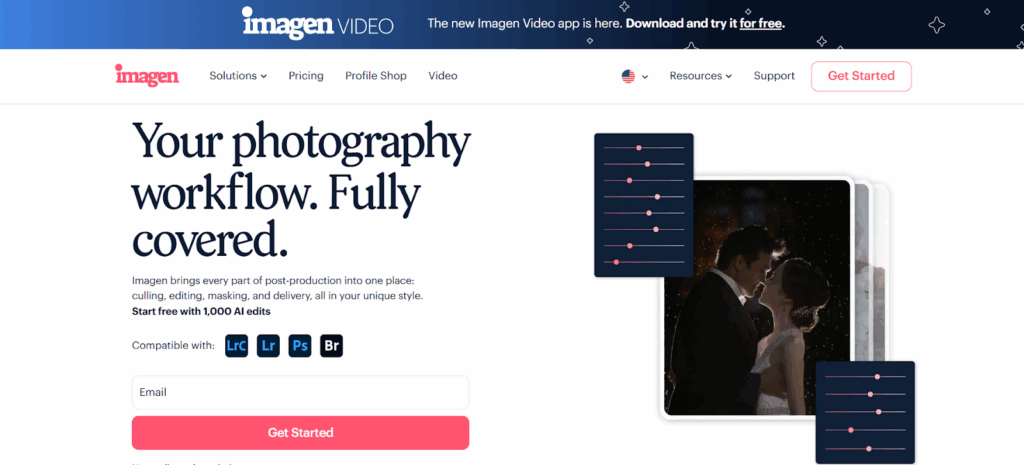
Imagen offers a different solution. It is not a filter. It is not a web-based editor that requires you to upload huge raw files to a browser. It is a powerful desktop application that integrates with the tools you already use.
Imagen uses artificial intelligence to learn your editing style. It analyzes your previous work. It builds a Personal AI Profile that understands how you edit. It predicts exactly how you would adjust each photo.
The software runs locally on your Mac or PC. It reads the data from your Adobe Lightroom Classic, Lightroom, Photoshop, or Bridge catalogs. It sends small, compressed data to the cloud for processing. The edits return to your computer in minutes.
This means you get the speed of automation with the personalization of a human editor. It is faster than any human. It is more consistent than any manual workflow. And it gives you your life back.
Capability Deep Dive: Intelligent Culling
You cannot edit what you do not select. Culling is the first hurdle in the workflow. It is often the most tedious. You have to look at nearly identical images. You have to check for focus. You have to check for blinks.
The Pain of Manual Culling
Culling requires intense focus. You have to zoom in to 100% to check sharpness. You have to compare five frames of the same group shot to find the one where everyone is looking at the camera. This process can take hours for a single wedding.
How Imagen Culling Studio Works
Imagen addresses this pain point with Culling Studio. This tool is built into the desktop app. It uses AI to mimic your decision-making process.
The software groups similar images together. If you shoot a burst of ten frames during the first kiss, Imagen identifies the group. It analyzes each photo. It checks for sharpness. It checks for open eyes. It assesses the emotional impact. It then selects the best image from that series.
Imagen is smart. It detects specific issues that slow you down. It flags photos where subjects are blinking. It identifies blurry shots. Crucially, it knows that closed eyes during a kiss are intentional. It keeps those emotional moments.
You have full control over the process. You can use the “Cull to an exact number” feature. If your contract promises 800 photos, you tell Imagen to select the best 800. This saves you the mental load of counting and cutting down your selection manually.
Seamless Integration
Culling Studio fits perfectly into the platform. You do not need to export files. You do not need to open a separate culling app. You create a project in Imagen. You run the cull. You review the selections.
A unique advantage is the ability to view your edits while you cull. You can apply your Personal AI Profile to the culling preview. This lets you make decisions based on the final look. A dark photo might look like a reject until you see how well the AI recovers the shadows.
Capability Deep Dive: Personalized Editing
Color correction is the core of post-production. Adjusting exposure, white balance, tint, and contrast for every lighting situation is time-consuming.
The Power of Personal AI Profiles
Imagen solves this with Personal AI Profiles. Unlike a static preset, an AI Profile is dynamic. It adapts to every photo.
To create a Personal AI Profile, you upload 2,000 or more of your previously edited photos. These must be photos you edited yourself. The AI analyzes your style. It learns how you handle skin tones. It learns your preference for contrast. It sees how you edit differently in dark reception halls versus bright outdoor ceremonies.
When you run a new project, Imagen predicts exactly how you would edit each photo. It adjusts the sliders in Lightroom Classic to match your style. The result is a gallery that looks like you edited it yourself.
Talent AI Profiles for Beginners
If you do not have 2,000 edited photos, you are not left out. Imagen offers Talent AI Profiles. These are profiles created by industry-leading photographers. You can browse different styles. You can find one that fits your aesthetic.
You can use a Talent AI Profile as a base. You apply it to your photos. Then you review the edits. If you make changes, Imagen learns from them. Over time, you can turn a Talent Profile into your own Personal AI Profile.
The Desktop Ecosystem
Imagen respects your existing workflow. It works with your local files. You do not need to move your raw files to the cloud.
The app integrates deeply with Adobe Lightroom Classic. It reads the Smart Previews or metadata. It processes the edits in the cloud. It writes the changes back to your catalog. This architecture ensures speed and security.
Capability Deep Dive: Local Adjustments and Retouching
Basic color correction is only the beginning. To deliver a polished gallery, you need to crop, straighten, and retouch. Doing this manually for hundreds of photos is exhausting.
Automating the Finishing Touches
Imagen includes a suite of AI tools designed to automate these tasks.
- Straighten: The AI detects the horizon line in your photos. It automatically rotates the image to ensure it is level. This simple fix saves seconds per photo. For a wedding with 800 photos, that adds up to serious time.
- Crop: Imagen analyzes the composition. It applies a crop that follows photographic rules, like the rule of thirds. It removes distractions from the edges. You can choose between “Classic Crop” and “Portrait Crop” depending on your needs.
- Subject Mask: This tool automatically selects the subject of your photo. It creates a mask in Lightroom. You can then apply specific adjustments to make the subject pop against the background.
- Smooth Skin: This is a game-changer for wedding photographers. The AI detects faces. It applies a subtle smoothing effect to the skin texture. It removes blemishes while keeping the texture natural. You do not need to open Photoshop for basic retouching.
Flexible Implementation
These tools are available as add-ons within your editing project. You select them before you start the edit. They run concurrently with the color correction.
When you download your edits, your catalog is updated with all these changes. The subject is masked. The skin is smoothed. The horizon is straight. You receive a near-final product that requires minimal tweaking.
Step-by-Step Workflow: Using Imagen with Lightroom Classic
Let’s walk through a practical workflow. This guide assumes you use Adobe Lightroom Classic, as it is the standard for high-volume wedding photography.
Phase 1: Preparation and Ingest
Your workflow starts before you open Imagen. Speed depends on good data management.
- Ingest: Offload your memory cards to your computer.
- Backup: Create a backup of your raw files immediately.
- Import: Import your photos into a new Lightroom Classic catalog.
- Smart Previews: Build Smart Previews during import. This is critical. Imagen works much faster with Smart Previews because the files are smaller. It speeds up the upload process significantly.
- Organize: Separate your photos into folders if needed (e.g., Getting Ready, Ceremony, Reception).
Phase 2: AI Culling
Now you are ready to select your keepers.
- Open Imagen: Launch the desktop application.
- Create Project: Click on “Culling” to start a new project.
- Select Source: Choose your Lightroom Classic catalog. Imagen will read the file structure.
- Set Preferences: Choose your culling method.
- Keep the best of each group: This creates a natural selection based on quality.
- Cull to an exact number: Use this if you have a target count (e.g., 500 photos).
- Run Cull: Start the process. The AI analyzes your photos. This typically takes just a few minutes for a full wedding.
- Review: Open Culling Studio. You will see the AI’s selections. You can view them with your Personal AI Profile applied.
- Refine: Review the groups. Change ratings if you disagree with a choice. The interface is designed for speed.
- Sync: When you are happy, sync the selection to Lightroom. Imagen adds color labels or flags to your catalog.
Phase 3: AI Editing
With your selection made, it is time to edit.
- Create Edit Project: In Imagen, select the photos you just culled.
- Choose Profile: Select your Personal AI Profile. If you are new, pick a Talent AI Profile.
- Select Tools: Enable the AI tools you need.
- Turn on Straighten and Crop for composition.
- Turn on Subject Mask to make subjects stand out.
- Turn on Smooth Skin for polished portraits.
- Upload: Click the edit button. Imagen uploads the Smart Previews to the cloud.
- Process: The processing happens on Imagen‘s servers. A wedding of 800 images often takes less than 10 minutes. You can take a break.
- Download: You will get a notification when the edits are ready. Click “Download to Review”. Imagen writes the edit parameters to your catalog.
Phase 4: Review and Fine-Tune
This is where you add your final artistic touch.
- Open Lightroom: Open your catalog. You will see the sliders have moved. The crop is applied. The masks are in place.
- Spot Check: Scan through the gallery. Check the consistency.
- Tweak: Make adjustments. Maybe you want to convert a moment to black and white. Maybe you want to adjust the exposure on a moody shot.
- The Feedback Loop: This step is vital. Imagen learns from your tweaks. When you finish the project, upload your final edits back to Imagen. This fine-tunes your profile. It makes the AI smarter for your next wedding.
Phase 5: Cloud Storage and Delivery
The final step is safety and delivery.
- Cloud Storage: Use Imagen Cloud Storage. It automatically backs up your optimized photos from your Lightroom Classic catalog. This runs in the background. It gives you peace of mind.
- Export: Export your high-resolution JPEGs from Lightroom.
- Deliver: You can use Imagen‘s delivery integration to upload directly to galleries like Pic-Time.
Business Impact: ROI and Scaling
Using Imagen is a strategic business decision. It changes the economics of your photography business.
The Return on Investment
Let’s look at the numbers. If you save 15 hours per wedding, and your hourly rate is $100, you save $1,500 in billable time per wedding.
The cost of using Imagen is a fraction of that savings. You pay a small fee per photo or a monthly subscription. The ROI is immediate. You spend a little money to save a massive amount of time.
Scaling Your Business
When you remove the editing bottleneck, you can scale. You can take on more work.
- Shoot More: You can book five more weddings a year without increasing your total work hours.
- Market More: You can use your free time to improve your SEO. You can blog your weddings faster.
- Network: You can meet with planners and vendors.
- Expand: You can hire associate shooters. You can run a multi-photographer studio because you have a consistent editing workflow.
Imagen allows you to maintain quality at scale. You do not have to worry about training new editors. Your Personal AI Profile ensures that every photo looks like you edited it, no matter who clicked the shutter.
Addressing Common Concerns
It is natural to have questions about adopting new technology. Let’s address some common hesitations.
The “Generic Look” Concern
Some photographers worry that AI will make their work look generic. This is a misunderstanding of how Imagen works.
Generic results come from generic inputs. If you use a standard preset, your photos look like everyone else’s. But Imagen uses Personal AI Profiles. It learns from your data. It learns your style.
If you edit with high contrast and warm tones, Imagen learns that. If you edit with soft contrast and cool tones, Imagen learns that. The result is unique to you. It is your specific artistic signature, applied consistently.
The “Loss of Control” Concern
Imagen is a non-destructive tool. It does not alter your raw files. It does not “bake” the edits into the image.
It simply moves the sliders in Lightroom Classic. You retain 100% control. You can change any setting. You can reset any photo. You are not locked into the AI’s decision. You use the AI to get you 90% of the way there, and you do the final 10%.
Data Privacy and Security
Security is a priority for professional photographers. Imagen is designed with this in mind.
Your high-resolution raw files stay on your local computer or hard drive. Imagen does not need to upload them to the cloud for editing. It uses Smart Previews or compressed metadata.
This means you maintain physical custody of your assets. The cloud processing is secure. Your Personal AI Profile is private to you (unless you choose to share it).
Shooting for Speed
You can make Imagen even more effective by adjusting how you shoot.
Consistency in Camera
The AI learns from patterns. If you shoot consistently, the AI edits consistently.
- Exposure: Try to expose correctly in camera. Avoid massive underexposure or overexposure.
- White Balance: You do not need to be perfect, but try to be consistent. If you change your Kelvin setting constantly, it can confuse the AI slightly.
- Lighting: Be aware of your light. The AI is great at balancing mixed lighting, but good light always yields better edits.
Culling in Camera
While Imagen Culling Studio is powerful, you save time by not overshooting. Do not spray and pray. Shoot with intention. This reduces the total number of files you have to process.
Checklists for Success
Use these checklists to ensure a smooth workflow with Imagen.
Pre-Edit Checklist
- [ ] Memory cards offloaded and backed up.
- [ ] Photos imported to Lightroom Classic.
- [ ] Smart Previews generated.
- [ ] Imagen desktop app updated.
- [ ] Internet connection active.
Culling Checklist
- [ ] Project created in Imagen.
- [ ] Culling method selected.
- [ ] Analysis completed.
- [ ] Review done in Culling Studio.
- [ ] Selection synced to Lightroom.
Editing Checklist
- [ ] Edit project created.
- [ ] Personal AI Profile selected.
- [ ] Straighten and Crop enabled.
- [ ] Subject Mask and Smooth Skin enabled for portraits.
- [ ] Edits uploaded and processed.
- [ ] Edits downloaded to Lightroom.
Delivery Checklist
- [ ] Spot checks completed.
- [ ] Final artistic tweaks applied.
- [ ] High-res JPEGs exported.
- [ ] Cloud backup confirmed.
- [ ] Gallery delivered to client.
- [ ] Final edits uploaded to Imagen for fine-tuning.
Conclusion
The wedding photography landscape is changing. The volume of work is increasing. The timelines are compressing. To thrive, you must adapt.
Imagen offers a path forward. It respects the art of photography while solving the problems of business. It removes the drudgery from post-production. It allows you to deliver better images, faster.
By integrating intelligent culling, personalized editing, and automated retouching, Imagen empowers you to reclaim your time. It is not about replacing the artist. It is about freeing the artist from the machine.
Start your journey with Imagen. Train your profile. Trust the process. You will find that you can edit wedding photos fast, keep your clients happy, and fall in love with photography all over again.
Frequently Asked Questions
1. Is Imagen a web-based photo editor? No. Imagen is a desktop application that you install on your macOS or Windows computer. It works with Adobe Lightroom Classic, Lightroom, Photoshop, and Bridge. The processing happens in the cloud, but the interface and your files remain on your local machine.
2. Can I use Imagen if I don’t use Lightroom Classic? Yes. Imagen supports Adobe Lightroom (CC), Photoshop, and Bridge. You can upload photos directly from folders. However, the most integrated experience, including Cloud Storage backups for catalogs, is with Lightroom Classic.
3. Do I need to upload my high-resolution RAW files to the cloud? No. Imagen uses Smart Previews or compressed metadata for the editing process. This makes the upload and download speeds extremely fast, even for large wedding galleries. You save bandwidth and time.
4. What if I don’t have 2,000 edited photos to create a Personal AI Profile? You can start with a Talent AI Profile. These are profiles created by leading photographers. You can also create a Lite Personal AI Profile using a preset and a short survey about your preferences.
5. How does the Smooth Skin feature work? Imagen uses AI to detect faces in your photos. It applies a mask and a smoothing effect to the skin texture. It is designed to look natural, not plastic. It saves you from doing manual brushing in Photoshop.
6. Does Imagen crop my photos? Yes, if you enable the Crop tool. The AI analyzes the composition and applies a crop based on photographic rules. You can review and adjust these crops in Lightroom.
7. Can Imagen straighten my photos? Yes. The Straighten tool detects the horizon line and rotates the image to correct the tilt. This saves significant time on manual straightening, especially for outdoor shots.
8. What is the difference between an AI Profile and a Preset? A preset applies fixed values to every photo (e.g., +0.50 exposure). An AI Profile analyzes each photo individually and applies values based on the specific lighting and content of that image (e.g., +0.20 for a bright photo, +1.50 for a dark photo).
9. How does the pricing work? Imagen typically operates on a pay-per-edit basis or a subscription model. You pay for the photos you edit. Features like culling and cloud storage may have different pricing structures or be included in specific plans.
10. Can I cull my photos with Imagen? Yes. Imagen has a feature called Culling Studio. It groups similar photos, detects blinks and focus issues, and helps you select the best images from your shoot. You can also cull to a specific target number.
11. Is my data secure with Imagen? Yes. Imagen prioritizes security. Your photos and profiles are protected. Since the actual high-res files stay on your local drive (unless you use Cloud Storage for backup), you maintain control over your assets.
12. Can I use Imagen for genres other than weddings? Yes. While popular for weddings, Imagen is used for real estate, portraits, school photography, sports, and events. You can create different profiles for different genres.
13. Does Imagen work on iPad or tablets? Imagen is a desktop application for macOS and Windows. It is designed to fit into professional desktop workflows and does not currently run on mobile operating systems like iPadOS.
