

Cross platform photo editing software for photographers: A Complete 2026 Guide
Table of contents
- What “Cross Platform” Actually Means for Photo Editing
- Desktop RAW Applications: Local Power, Per-Device Setup
- Cloud Editors: Device Independence by Design
- Where Imagen Fits: Cross Platform Batch Editing on Mac and Windows
- Culling Apps: Narrowing the Take Before You Edit
- Retouching and Detail Suites: Specialist Jobs Beyond the Batch
- How to Choose Cross Platform Photo Editing Software
- Frequently Asked Questions
If you edit on a MacBook at the studio, a Windows tower at home, and an iPad on location, you already know the frustration: your look, your presets, and your half-finished galleries do not always travel with you. Cross platform photo editing software for photographers solves that by keeping your workflow consistent no matter which machine you sit down at. This guide explains what “cross platform” really means in 2026, where a browser-based tool has a genuine edge over an installed application, and how to match the right category of software to the way you actually shoot and deliver.
The short answer is that the most portable option is one that runs in the browser, so the operating system underneath stops mattering. Below we walk through desktop RAW applications, cloud editors, culling apps, and dedicated retouching suites as neutral categories, then show where a cloud AI batch editor fits for photographers who deliver whole shoots across more than one device.
What “Cross Platform” Actually Means for Photo Editing
Cross platform can mean two very different things, and the difference matters when you are choosing software. The first meaning is a program that ships a separate installer for each operating system, so there is a Mac build and a Windows build of the same application. Your license works on both, but each machine holds its own catalog, its own cache, and sometimes its own slightly different feature set. You are responsible for syncing presets and files between them.
The second meaning is software that runs in a web browser, where nothing installs at all. Because the work happens in the cloud, the same session opens identically on macOS, on Windows 11, and on an iPad, and your edits are already there when you switch seats. For a photographer who moves between devices during a single job, that second model removes the syncing chore entirely. Neither approach is universally better. The installer model gives you offline control and local horsepower, while the browser model gives you true device independence and zero setup.
Desktop RAW Applications: Local Power, Per-Device Setup
Installed RAW editors remain the backbone of many professional workflows, and for good reason. They use your machine’s own processor and graphics card, they work offline on a plane or at a remote venue, and they give you fine-grained sliders for tone, color, and detail on every file. Most of the established options offer both a macOS and a Windows build, so they qualify as cross platform in the installer sense.
The trade-off is that portability lands on your shoulders. If you want your catalog, your presets, and your in-progress edits to appear on a second computer, you either point both installs at a synced folder or you export and import by hand. That is manageable for a photographer who works mostly at one desk, but it becomes a daily tax when you routinely bounce between a laptop in the field and a workstation back home. Choose a desktop RAW application when local speed and offline access matter more than seamless device switching.
Cloud Editors: Device Independence by Design
Browser-based editors flip the model. Instead of installing anything, you sign in and work inside a tab, which means the operating system beneath you becomes irrelevant. A cloud editor opens the same way on a Mac, a Windows 11 laptop, and an iPad, and your galleries follow your login rather than living on one drive. For teams that share editing duties, or for a solo photographer who edits wherever there is a spare hour, this is the most genuinely cross platform option available.
Cloud tools do depend on a reliable internet connection, and heavy pixel-level work can feel more natural with a local application and a large monitor. But for the core jobs of getting a full shoot color-corrected, culled, and consistent, running in the browser is a real advantage rather than a compromise. This is the category where an AI-driven batch editor fits best, and it is worth looking at closely.
Where Imagen Fits: Cross Platform Batch Editing on Mac and Windows
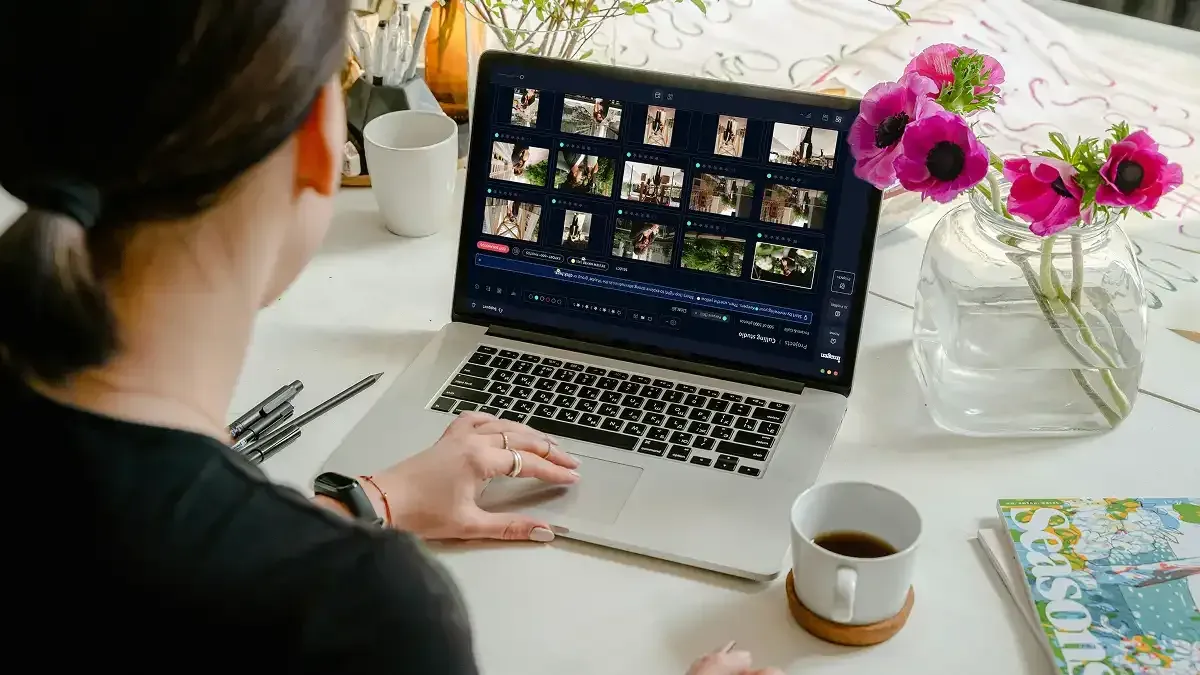
Imagen is a desktop app for Mac and Windows built for photographers who deliver whole shoots rather than single hero frames. It is cross platform across macOS and Windows 11: you download and install it on either one, and the AI processing runs in the cloud. When you finish a wedding on your laptop and pick up editing later at your desktop, the same app is waiting on either machine, now as a Studio where you cull, edit and export in one project.
The core of Imagen is batch editing driven by your Personal AI Profile. You point it at an entire shoot and it applies color correction, exposure, and white balance in your own consistent style across every frame, so a ceremony shot in shade and a reception under warm tungsten come back looking like one coherent gallery. Culling runs in the same flow, narrowing bursts of near-identical frames before you scroll through them, and the first batch typically finishes in under 10 minutes. Where an individual frame needs attention, the AI Assistant handles per-photo finishing such as object removal and background or plate blur. You ask in plain language, and it finds the photos and acts on them while you steer, and the built-in editor (Beta) covers quick manual sliders and crop. You can also save reusable style profiles, so the look you built once travels with your account to whichever Mac or Windows computer you sign in on next.
Pricing is pay-as-you-go: a monthly base fee plus a charge for the photos you export, and exploring the tools on a whole gallery is free. Two honest limits are worth stating plainly. Imagen does not generate images from scratch, and it does not sharpen or deblur a soft capture, reduce noise, upscale, or replace an entire background through compositing. It grades, culls, and finishes what your camera actually recorded. Within that lane, its cloud-powered batch approach is one of the most practical professional workflows you can adopt.
Culling Apps: Narrowing the Take Before You Edit
Before any editing happens, most high-volume shooters face the same bottleneck: choosing keepers from thousands of frames. Dedicated culling tools exist purely to speed that stage, grouping similar shots, flagging closed eyes or soft focus, and helping you reach a shortlist faster. Some are installed applications with builds for each operating system, and some run in the cloud, so portability varies by product.
If culling is your single biggest time sink, a tool focused on that job can pay for itself quickly. Photographers who deliver weddings and events benefit most, since the ratio of frames captured to frames delivered is highest there. Keep in mind that a batch editor that includes culling in the same flow can cover both stages at once, which reduces how many separate tools you juggle across devices.
Retouching and Detail Suites: Specialist Jobs Beyond the Batch
Some work simply needs hands-on, pixel-level control, and this is a category to treat neutrally because no batch tool replaces it. Layer-based editors remain the standard for compositing, precise masking, and building an image element by element. Dedicated portrait retouching tools automate skin, eyes, and blemishes as a starting point for beauty and fashion work. Separate detail-enhancement tools handle sharpening, noise reduction, and upscaling for files that were shot in dim rooms or need to print large, and true HDR bracket-merging tools combine multiple exposures into one high-dynamic-range frame.
These specialist jobs, heavy retouching, compositing, deblurring, denoising, geometry correction, and bracket merging, sit outside what an AI batch editor does. Many working photographers run two tools rather than one: they cull and batch-grade the whole set first, then hand the rare frame that needs deep local work to a specialist application. The point is to match each tool to the job it does best, not to force one program to do everything.
How to Choose Cross Platform Photo Editing Software
Start with two questions: how many devices do you edit on, and how much of your work is high volume versus single-image craft. If you genuinely move between a Mac, a Windows machine, and a tablet, a browser-based tool removes the syncing problem outright, because your login carries your galleries and style profiles rather than one hard drive. If you edit almost entirely at one desk and value offline access, an installed RAW application gives you local speed with cross platform installers as a bonus.
Then weigh your volume. If you deliver large galleries and consistency across a shoot is the whole game, a cloud batch editor that culls and grades in one pass will save the most hours. If your work is one perfect face or one built composite, a retouching or layer-based suite rewards the time you invest. Most professionals end up with a small stack: a portable batch tool for the volume, plus one specialist application for the frames that need deep, manual attention.
For deeper, platform-specific guidance, see our companion guides on photo editing software for MacBook Pro, photo editing software for Windows 11 professionals, and cloud-based photo editing software for photographers. You can also browse the full library of photography workflow tips for more on batch editing, culling, and consistent delivery.
What’s new in Imagen: Imagen is now an intelligent, agentic Studio for professional photographers, one project where you cull, edit, review and export in any order, on a Mac or a Windows computer. Edit in your own style with a Personal AI Profile or ready-made AI Profiles, then export finished JPG, TIFF or PNG files straight from Imagen or send AI edits back to Lightroom Classic. The Studio is rolling out gradually as a beta.
Frequently Asked Questions
What does cross platform mean for photo editing software?
Cross platform can mean two things. Some applications ship separate installers for macOS and Windows, so one license runs on both, though each machine keeps its own catalog and you sync presets yourself. Others run entirely in a web browser, where nothing installs and the same session opens identically on Mac, Windows 11, and an iPad. The browser model is the most portable because the operating system underneath stops mattering.
Is a browser-based photo editor better than an installed application?
Neither is universally better. A browser-based editor gives you true device independence and zero setup, which is ideal if you move between machines. An installed application gives you offline access and uses your computer’s own processor, which suits photographers who work mostly at one desk. Many professionals use both, choosing the browser tool for portability and volume and a local application for specialist, pixel-level work.
Can Imagen run on both Mac and Windows?
Yes on macOS and Windows 11, though not on an iPad. Imagen is a desktop app you download and install, and the AI processing runs in the cloud, so you can start a batch from either kind of computer.
How much does Imagen cost, and is there a free trial?
Imagen’s pay-as-you-go plan pairs a monthly base fee with a charge for the photos you export. Exploring the tools is free and you pay when you export, so you can test the batch on a real shoot on your Mac or Windows computer before committing, and the pricing page has the current rates.
Does cross platform software keep my presets and edits in sync?
It depends on the model. With installed applications you usually sync presets and catalogs yourself by pointing both installs at a shared folder or exporting and importing. With a browser-based tool, your login carries your galleries and style profiles automatically, so switching devices needs no manual syncing at all.
