

7 Common Cloud Photo Editing Mistakes for Automotive Photographers to Avoid
Table of contents
- 7 Common Cloud Photo Editing Mistakes Automotive Photographers Make
- 1. Editing in the cloud with no backup or version history
- 2. Inconsistent edits across the same vehicle set
- 3. Wrong export and sync specs for listing platforms
- 4. Disorganized cloud folders and naming
- 5. Sharing galleries insecurely
- 6. Slow uploads bottlenecking turnaround
- 7. Losing or overwriting original RAW files
- How Imagen removes the slowest steps
- Where a dedicated tool still beats the cloud batch pass
- Putting a clean cloud workflow together
- Frequently asked questions
7 Common Cloud Photo Editing Mistakes Automotive Photographers Make
Automotive photographers moved to the cloud for good reasons: an inventory of thirty vehicles can mean nine hundred frames a week, and editing that volume on one desktop is a bottleneck no dealership schedule tolerates. The most common cloud photo editing mistakes automotive photographers make are not about sliders or taste. They are about process: no backup or versioning, inconsistent edits across a set, wrong export and sync specs, disorganized cloud folders, insecure client sharing, slow uploads, and losing the original RAW files. Fix those seven, and cloud editing does what it promised, faster turnaround with fewer galleries lost or redone.
This guide walks through each mistake in the order it tends to bite, explains why it hurts an automotive workflow specifically, and gives you the fix. Cars are unforgiving subjects for sloppy process because paint color is the product and buyers scroll fast, so consistency and safe storage matter more here than in almost any other genre. Where an AI batch editor and proper cloud storage remove the pain, this guide says so plainly, and where a separate specialized tool is the right call, it says that too.
1. Editing in the cloud with no backup or version history
The first and most damaging mistake is treating a single cloud copy as if it were safe. It is not. A synced folder that overwrites the previous state, an accidental batch applied to the wrong selection, or a corrupted upload can wipe out an evening of grading with no way back. Automotive shooters feel this hard because a lost gallery is not one portrait, it is an entire lot that has to be reshot or re-edited before a listing deadline.
The fix is versioning, not just storage. Keep your original RAW files untouched in one place, work on derivatives, and use a system that preserves prior states so you can roll back a bad edit instead of recreating it. Cloud editing done right keeps the source safe while you experiment on top of it, which means an accidental grade or a wrong crop is an undo, not a disaster. Before you trust any cloud workflow with a week of inventory, confirm it keeps a recoverable history and does not silently overwrite your only copy.
2. Inconsistent edits across the same vehicle set
Buyers judge an inventory as a whole. When the first car reads warm and bright and the tenth reads cool and flat, the gallery looks amateur even though every individual frame is technically fine. This drift is the classic symptom of editing car by car in the cloud, applying your look from memory instead of from a fixed standard. It is the single fastest way to make a professional shoot look careless.
The fix is to decide the look once and apply it everywhere. Establish a baseline for how bright the bodywork sits, how neutral the whites read, and how much contrast the paint carries, then push that decision across every frame in one pass. A personal AI editing profile is built for exactly this: it learns the adjustments you make and reproduces them consistently across an entire batch, so car forty comes back matched to car one. Consistency stops being something you police manually and becomes the default output of the pass.
3. Wrong export and sync specs for listing platforms
The cloud makes it easy to export fast and export wrong. Every marketplace and dealer platform has its own expectations for dimensions, aspect ratio, file size, and color space, and a batch exported at the wrong spec either gets rejected, gets recompressed into mush, or shows up cropped in a way that cuts off the car. When you are pushing hundreds of images, one wrong preset multiplies into hundreds of broken listings.
The fix is to build export presets per destination and verify them before you run the full batch. Set a full-resolution preset for your archive, a web-optimized size for the listing platform, and any specific dimensions a marketplace requires, then export the entire graded set in one consistent operation. Match the color space the platform expects so a silver sedan does not shift blue between your screen and the live listing. Confirming the spec on two test frames before exporting nine hundred saves the re-export scramble that eats an afternoon.
4. Disorganized cloud folders and naming
A messy cloud is a slow cloud. When VINs, dates, and vehicles all live in one undifferentiated dump of folders with names like “new final v2 real,” you lose more time hunting for the right car than you ever lost editing it. Automotive work compounds this because each vehicle carries twenty to thirty frames, and an inventory week can mean dozens of vehicles that must stay separable for weeks after the shoot in case a listing needs a reshoot or a swap.
The fix is a naming and folder convention you set once and never break. Use a predictable structure, for example a top folder per shoot date, a subfolder per vehicle keyed to its stock number or VIN, and consistent filenames that sort correctly. Keep originals, working files, and delivered exports in clearly separated places so you never confuse a source RAW with a compressed export. A tidy structure is not busywork, it is what lets you find any car in seconds and hand a clean, organized set to a client or a colleague without explanation.
5. Sharing galleries insecurely
Speed tempts photographers into careless sharing: a public link with no expiry, a folder set to “anyone can edit,” or client files emailed around with no access control. For automotive work that often carries dealership branding, pre-release models, or client contact details, a leaky share is both a privacy problem and a professional embarrassment. Worse, an editable public link means anyone can alter or delete the very files a listing depends on.
The fix is deliberate, controlled delivery. Share galleries through links that are view or download only, not edit, set expiry where the platform allows it, and give clients a clean delivery view rather than raw access to your working storage. This is where dedicated client photo cloud storage earns its place, and Imagen’s own version is on the roadmap, so for now use a dedicated gallery service that keeps your originals and working files private while giving each client a secure, organized delivery space for their vehicles. You control who sees what, delivery looks professional, and your source files stay untouched behind the sharing layer.
6. Slow uploads bottlenecking turnaround
Cloud editing only pays off if the images actually reach the cloud quickly. Many automotive shooters lose their turnaround advantage at the upload step, pushing full-resolution RAW files over a weak connection, uploading serially instead of in parallel, or re-uploading the same set because a sync failed halfway. When a dealer wants the lot live tonight, an upload that crawls all evening defeats the entire point of a fast batch workflow.
The fix has two parts. First, tighten the pipeline: cull before you upload so you are only moving keepers, use a wired connection when volume is high, and choose a service with reliable resumable uploads so a dropped connection does not restart the whole transfer. Second, let the heavy processing run in the cloud rather than on your machine, so your laptop is free while the batch works. Cull, upload keepers, let the cloud grade, and your bottleneck moves from your hardware to your shooting schedule, which is where it should be.
7. Losing or overwriting original RAW files
The most permanent mistake is destroying the source. When your only copy of a car’s RAW files gets overwritten by an export, deleted in a folder cleanup, or lost because the working copy was the only copy, there is no recovery short of a reshoot. RAW is precious for automotive work specifically: it gives you the latitude to recover highlight detail on glossy panels and correct white balance accurately after the shoot, which is exactly the flexibility paint color demands.
The fix is to treat originals as sacred and never edit them directly. Keep RAW files in a protected location, work on derivatives, and make sure your cloud workflow stores the original alongside the edited version rather than replacing it. A workflow that preserves the source lets you re-grade a whole inventory later, deliver a different crop, or fix a color issue without ever asking a dealer to bring the cars back. Guard the originals and every other mistake on this list becomes recoverable.
How Imagen removes the slowest steps
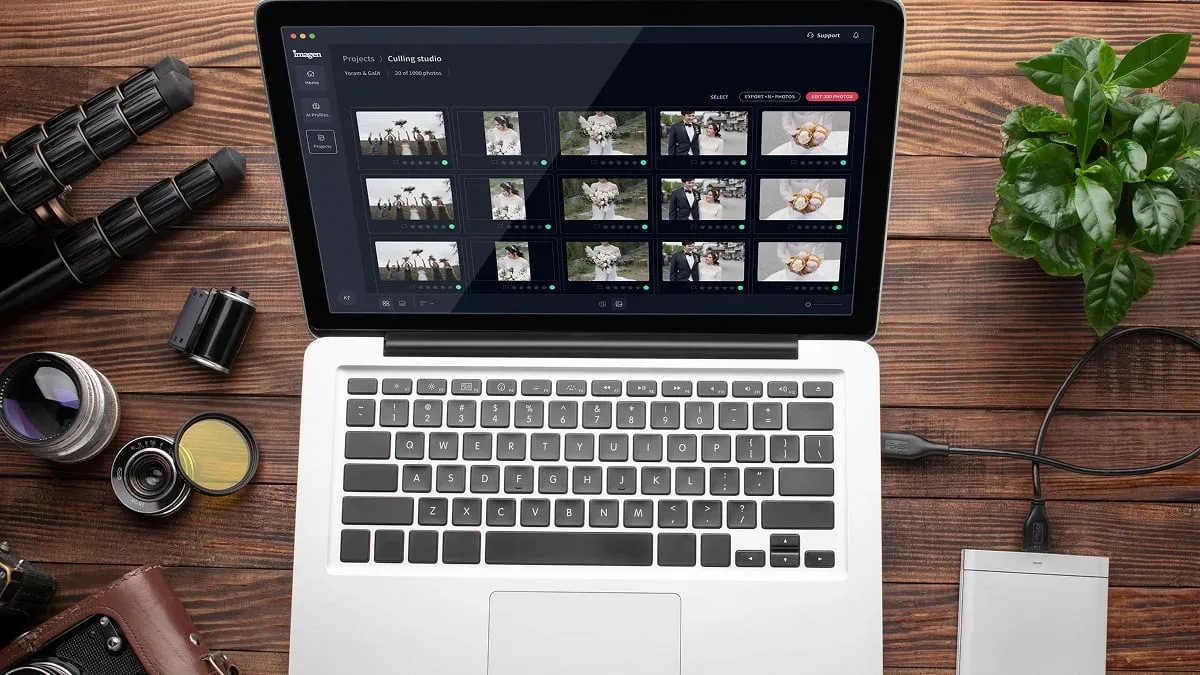
Several of these mistakes share one root cause: doing high-volume, consistency-first work by hand on a single machine. That is exactly the problem an AI batch editor built for the cloud is meant to solve. Imagen learns your personal editing style into a Personal AI Profile, then applies color, tone, and white balance consistently across an entire shoot, offers AI culling or free manual culling, works with RAW files, and is a desktop app for Mac and Windows with the AI processing in the cloud, so the heavy work is not tied to one computer. It attacks the inconsistency, the slow local processing, and the manual per-image grind in one move.
Paired with proper client photo cloud storage, that means your originals stay safe, your edits stay consistent across every vehicle, and your delivery stays organized and secure. On pricing, the model is straightforward pay-as-you-go: a monthly base fee plus a charge for the photos you export, which for a nine-hundred-image inventory week is a predictable line item rather than a lost weekend of editing. When you are ready to try it on real inventory, you can start at Imagen, where the new Studio lets you cull, edit and export in one project, and build a profile from your own past edits.
Where a dedicated tool still beats the cloud batch pass
A cloud batch workflow is the right engine for the vast majority of automotive editing, the grading, culling, white balance parity, and consistency that every listing needs. It is not the right engine for heavy, per-image repair, and trying to force that work into a batch pass is its own kind of mistake. Keep the specialty jobs separate so they never slow your inventory pass down.
Removing a large distracting object from a background, compositing in a clean sky, or rebuilding a damaged panel is retouching work for a dedicated retouching tool on the specific hero frames that justify it. True multi-exposure bracket merging, where you blend several exposures into one high-dynamic-range frame for a tricky showroom interior, is a job for a dedicated exposure-blending tool. Relighting a scene as if it were shot under different lights, or aggressive geometry and perspective rebuilds, likewise belong to dedicated specialty tools. Use those on the handful of images that earn the extra time, and let the cloud batch workflow carry everything else.
Putting a clean cloud workflow together
Avoiding these mistakes is really one discipline applied seven ways: protect the source, standardize the look, match the destination, organize the storage, control the sharing, speed the transfer, and never overwrite an original. Set those rules once and the cloud stops being a place where galleries go missing and becomes the fastest, safest room in your workflow. Cull so you only move keepers, grade the whole inventory in one consistent pass, store originals safely with versioning, and deliver through secure, organized links.
Do that, and a thirty-car week that used to risk a lost gallery or an inconsistent listing becomes routine: cards in, cull, batch grade in the cloud, store safely, deliver securely, live tonight. The cars get the attention they deserve, the inventory reads consistent from the first listing to the last, and your source files are always there when you need them again.
What’s new in Imagen: Imagen is now an intelligent, agentic Studio for professional photographers, where culling, editing, review and export share one project. Its assistant finds photos by what is in them and acts on them when you ask in plain language, with you steering, which helps when a big vehicle shoot needs tidying fast. It is a desktop app for Mac and Windows with the AI processing in the cloud, rolling out gradually as a beta. Explore Imagen to see it.
Frequently asked questions
How do I keep every car consistent when I edit in the cloud? Consistency comes from applying one set of decisions everywhere instead of editing each vehicle by feel. Establish a single grade, a neutral white balance reference, and a fixed crop and framing standard, then apply them across the whole set in one pass. A personal AI editing profile makes this reliable because it reproduces your exact adjustments on every frame, so the last car in the gallery matches the first.
What is the safest way to store original automotive RAW files? Treat originals as sacred and never edit them directly. Keep RAW files in a protected cloud location with version history, work only on derivatives, and use a workflow that stores the original alongside the edited version rather than overwriting it. That way an accidental batch or a wrong export is a rollback, not a reshoot, and you can always re-grade or re-crop a whole inventory later.
How should I share vehicle galleries with dealers or clients securely? Deliver through controlled links that are view or download only, never public edit access, and set an expiry where the platform allows it. Give clients a clean delivery view of their vehicles rather than raw access to your working storage, so your originals stay private behind the sharing layer. Dedicated client photo cloud storage handles this by separating your working files from an organized, secure delivery space per client.
Why are my cloud uploads so slow, and how do I fix it? Usually you are uploading everything instead of keepers, moving full-resolution files over a weak connection, or restarting failed syncs. Cull before you upload so you only move the frames you will publish, use a wired connection for high volume, and choose a service with reliable resumable uploads. Letting the heavy grading run in the cloud rather than on your laptop also frees your machine while the batch works.
