
Best Cloud Storage for Photos in 2026
Table of contents
- Key Takeaways
- Selection Criteria for 2026 Photo Storage
- Imagen: The AI-First Professional Choice
- Google Photos: The AI Consumer King
- iCloud+: The smooth Choice for Apple Users
- Adobe Creative Cloud: The Editor’s Standard
- Amazon Photos: The Prime Hidden Gem
- Dropbox: The File Management Specialist
- Backblaze B2: The Bulk Backup Solution
- Flickr Pro: The Community Archive
- pCloud: The Lifetime Investment
- SmugMug: The Portfolio Powerhouse
- Comparison Table: 2026 Cloud Photo Storage
- Final Recommendation: Which One Should You Choose?
- Frequently Asked Questions
- What’s the difference between cloud storage and cloud backup?
- Is cloud storage safe for my professional photos?
- How much cloud storage do I actually need?
- Can I store RAW files in any cloud service?
- Does Google Photos reduce the quality of my pictures?
- What happens to my photos if I stop paying for my cloud storage?
- Is a lifetime storage plan really for life?
- Can I use multiple cloud storage services at once?
Choosing the right cloud storage for your photos in 2026 isn’t just about buying digital shelf space anymore. With an estimated 2.3 trillion photos being taken this year alone, the old model of a simple online folder is broken. It’s too slow, too disorganized, and too dumb for the demands of modern photography.
The best services today don’t just store your files; they actively help you manage, edit, and share them. They need to be more than a digital shoebox. They need to be an active part of your workflow, whether you’re a professional photographer shooting 120MB RAW files or a parent trying to find that one photo of a birthday party from five years ago.
Key Takeaways
- AI is Now Standard - Storage without AI integration is a relic. Professional workflows are shifting to integrated AI, with 72% of photographers using tools like Imagen to cut hours from their editing time.
- RAW Files Demand More - With modern cameras producing RAW files averaging 60MB to 120MB, generic cloud services often struggle. True professional solutions must handle these large files without lag.
- Mobile is King - An incredible 92.5% of all photos are taken with smartphones, making fast, reliable mobile-to-cloud synchronization the most critical feature for most people.
- Privacy Isn’t a Luxury - The average cost of a data breach has hit $4.45 million, making end-to-end encryption a non-negotiable feature for protecting your valuable memories and professional work.
- The Ecosystem Lock-in is Real - For Apple users, iCloud+ remains the path of least resistance, with its role in locking users into the ecosystem underscored by over 1 billion paid subscriptions across Apple Services.
- Lifetime Plans Offer Value - Subscription fatigue is real. Services like pCloud, offering a 2TB lifetime plan for a one-time fee, break even against monthly subscriptions in roughly 40 months, offering significant long-term savings.
- Free Isn’t Free - Services like Amazon Photos offer unlimited storage for Prime members, but often come with clunky interfaces or severe limits on video, proving there’s always a trade-off.

Selection Criteria for 2026 Photo Storage
Look, the game has changed. Your cloud storage shouldn’t be a passive dumping ground. It’s an active workspace. The sheer volume of photos we create, projected to be over 2.3 trillion in 2026, makes manual organization impossible. And since 92.5% of those photos originate from a smartphone, the connection between your pocket and the cloud has to be flawless.
So, what actually matters when you’re comparing options? It’s not just about the cost per gigabyte anymore. That’s a race to the bottom that ignores the features that actually save you time and protect your work. We’ve broken it down into five key pillars.
The 5 Pillars of Modern Photo Storage
- Security and Encryption - You’re not just storing pixels; you’re storing memories and, for professionals, your livelihood. End-to-end encryption should be the baseline. With data breach costs soaring, you can’t afford to use a service that treats your security as an afterthought.
- AI Integration - This is the biggest differentiator in 2026. Can your storage service help you find photos based on content? Can it automatically cull duplicates from a shoot? Does it help you edit faster? If the answer is no, you’re using an outdated tool.
- Speed and RAW Support - For professionals and serious hobbyists, this is critical. How quickly can you upload a 10GB card of 100MB RAW files? How fast do previews load? A service that chokes on large files creates a workflow bottleneck that costs you money. Even with a 1Gbps connection that can theoretically upload 10GB in 90 seconds, the provider’s servers must be able to keep up.
- Mobile and Ecosystem Sync - Your photos live on your phone, your laptop, your tablet, and maybe a desktop. The service must sync reliably and instantly across all of them. A poor mobile app or a clunky desktop client makes the whole system frustrating.
- True Cost-per-Terabyte - This isn’t just the sticker price. It’s the value you get. A cheap service that offers no AI tools might cost you more in lost time than a pricier, more integrated solution. You’ve to consider the cost of your own time in the equation.
Imagen: The AI-First Professional Choice
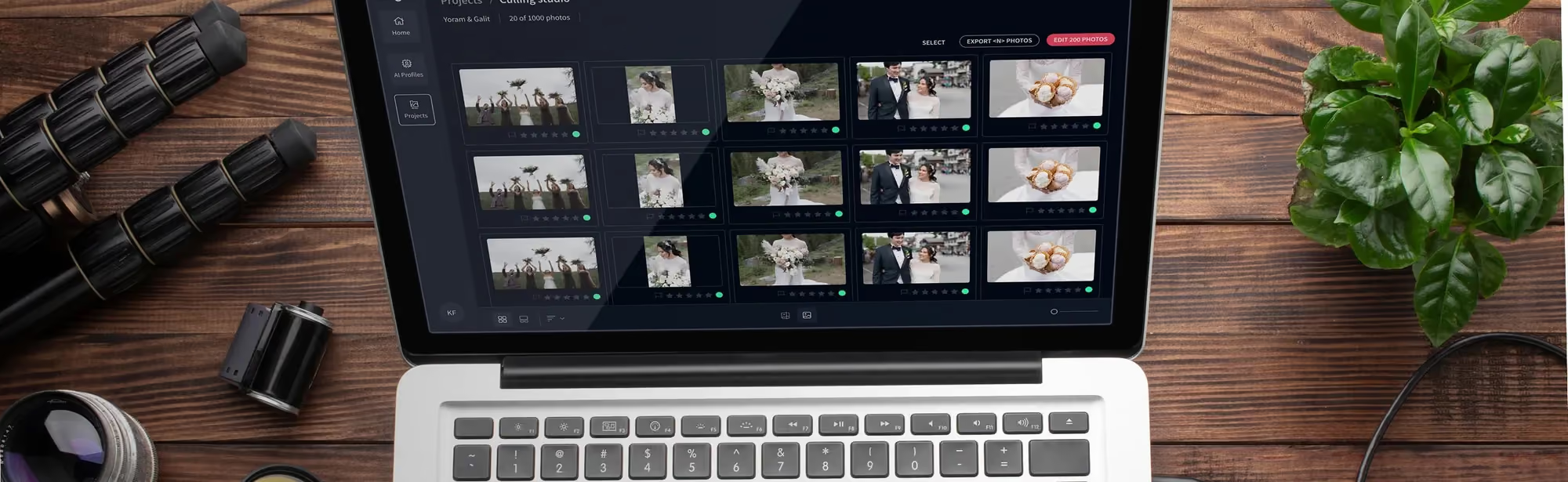
Let’s be clear from the start. Imagen isn’t just another place to park your photos. It’s a completely different approach that puts culling and editing in one professional post-production project, with cloud storage still on the roadmap. It’s built on the idea that the cloud should do the heavy processing for you. For wedding, portrait, and event photographers, this isn’t a nice-to-have; it’s a fundamental business advantage.
The core concept is simple but powerful: a personalized AI that edits photos in your unique style, with cloud backup planned on Imagen’s roadmap. It addresses the single biggest time sink for professional photographers: culling and editing. In fact, studies show 72% of professional photographers now use AI-assisted tools to reduce their workflow time. Imagen is at the forefront of this shift.
The biggest shift we’ve seen isn’t just storing photos in the cloud; it’s processing them there. Tools that combine AI editing with cloud access, like Imagen, are fundamentally changing the economics of being a professional photographer by turning hours of post-production into minutes. The storage is now part of the active toolkit, not just a digital warehouse.
Itamar Haim, AI Photography Workflow Specialist
Key Features
- Personal AI Profile Editing - This is the headline feature. You train an AI on your own previously edited Lightroom catalogs. It learns your specific style for everything from exposure and white balance to detailed color grading, and then applies it to new shoots in minutes.
- Cloud Backup with Instant Access (planned) - Imagen’s cloud storage is on the roadmap, not available yet. The idea is to back up your original RAW files while you work from high-fidelity previews anywhere, which is much faster than downloading massive files.
- Automated Culling - The AI photo culling tool analyzes entire shoots for focus, composition, closed eyes, and duplicates, presenting you with a curated selection of the best shots. It turns a multi-hour task into a 15-minute one.
- High-Speed RAW Synchronization - The desktop app is optimized for uploading huge volumes of RAW files without crippling your internet connection, a critical feature after a big event or wedding shoot.
Pricing
Imagen’s pricing model is flexible and scales with your usage. There’s a Pay-as-you-go option for the AI photo editing that charges a monthly base fee plus a rate for each photo you export, which is great for those with inconsistent workloads. Sliders, crops, and masks you do yourself are always free. Imagen’s cloud storage backup is on the roadmap, so for now keep using your usual backup, such as external drives, a NAS, or a cloud service.
Pros
- Massive Time Savings - The platform can cut post-production time by up to 96%, a figure that completely changes a photographer’s business model.
- smooth Workflow Integration - It’s not a separate app you’ve to manage. It plugs directly into Adobe Lightroom Classic, so your workflow doesn’t change, it just gets faster.
- Consistent, Personalized Edits - Your edits look like your edits, not some generic filter. The AI learns your specific taste, ensuring brand consistency across all your work.
- More Than Just Storage - You’re paying for an end-to-end efficiency tool, not just empty space.
Cons
- Requires Training Data - To build a Personal AI Profile, you need a catalog of at least 5,000 previously edited photos. If you’re new, you’ll have to start with pre-made Talent AI Profiles.
- Professional Focus - This is a tool for working photographers. The features and pricing may be overkill for a casual user just looking to back up phone photos.
Verdict: For professional photographers, Imagen is the smartest choice in 2026. It’s the only service here that treats culling, editing and export as one workflow that directly saves you time and makes you more profitable, with cloud storage on its roadmap.
Google Photos: The AI Consumer King
If Imagen is the professional’s choice, Google Photos is the undisputed champion for everyone else. Its superpower isn’t storage capacity; it’s search. Google has applied its decades of search engine dominance to your personal photo library, creating a tool that lets you find anything, instantly. It’s the reason it has become the default photo app for hundreds of millions of Android users.
You don’t organize photos in Google Photos. You just dump them in and let Google’s AI do the work. You can search for “hugs from last summer,” “sunsets in California,” or “pictures of my dog with a frisbee,” and it just works. With Google integrating its Gemini AI, these capabilities are only getting more powerful and conversational. It excels at managing the chaos of a decade’s worth of smartphone pictures, which, as we know, account for the vast majority of photos taken.
Key Features
- Unbeatable Semantic Search - The ability to search your photos using natural language is second to none. It recognizes people, places, objects, and even concepts.
- powerful Editor and powerful Eraser - Powerful AI editing tools that let you do complex edits, like moving subjects or removing unwanted objects, with a simple tap.
- Shared Albums and Partner Sharing - It’s incredibly easy to create collaborative albums with family and friends or automatically share all your photos with a partner.
- Automatic Creations - Google automatically creates collages, animations, and “Memories” from your library, resurfacing old photos you’ve forgotten about.
Pricing
Pricing is managed through Google One. You get 15GB for free, which fills up quickly. Paid plans are competitive, with the most popular 2TB plan at $9.99/month. There are also 5TB plans for around $24.99/month, and it’s expected that by 2026, plans with advanced Gemini AI features will carry a 20-30% premium.
Pros
- leading search and discovery.
- Excellent for families and casual users.
- smooth integration with the entire Google ecosystem.
Cons
- Privacy Concerns - Google scans your photos to power its AI features. While anonymized, this is a deal-breaker for some.
- Photo Compression - Unless you pay and specifically choose original quality, your photos are compressed, which isn’t ideal for serious photography.
Verdict: It’s the best set-it-and-forget-it solution for casual users and families who value search and ease of use above all else. If you live in the Android world, it’s a no-brainer.
iCloud+: The smooth Choice for Apple Users
For anyone using an iPhone, iPad, and Mac, iCloud+ is less of a choice and more of a default. And honestly, that’s its greatest strength. It’s so deeply woven into the fabric of Apple’s operating systems that it provides a genuinely effortless backup and sync experience. Apple’s relentless focus on the ecosystem means that photos taken on your iPhone appear on your Mac moments later without you having to do a thing. It’s this frictionless experience that has helped Apple Services cross the 1 billion paid subscriptions mark.
The philosophy here’s different from Google’s. Apple puts privacy front and center. With Advanced Data Protection enabled, nearly all of your iCloud data, including your photo library, is protected with end-to-end encryption. Apple can’t see your photos, and that’s a major selling point for privacy-conscious users.
Scenario: The Family Vacation
Imagine you’re on a family trip. You and your partner are both taking pictures on your iPhones. With the Shared iCloud Photo Library feature, you can set your Camera apps to contribute to a single, shared library for the duration of the trip. Every photo, regardless of who took it, appears in one place for everyone. When you get home and open your MacBook, all those full-resolution photos are there, ready to be organized, with no manual importing required. It’s that kind of integration that makes iCloud+ so sticky.
- Enable Shared Library - Before the trip, you invite your partner to a Shared iCloud Photo Library.
- Capture Photos - During the trip, you both set your Camera app to save directly to the Shared Library.
- Instant Sync - Photos sync across all devices (iPhones, iPads, Macs) in real-time. Friends and family back home with access can see new pictures as they’re added.
Pricing
Apple gives you a paltry 5GB for free. The paid iCloud+ tiers are reasonably priced: 50GB for $0.99/month, 200GB for competitive ratesnth, and 2TB for $9.99/month. For real power users and families, Apple now offers larger 6TB and 12TB plans.
Pros
- Flawless integration with Apple hardware.
- Strong commitment to privacy with end-to-end encryption.
- Optimized Storage feature is brilliant for saving space on your iPhone.
Cons
- The experience on Windows or Android is terrible. Don’t even try.
- Organizational and search tools lag far behind Google Photos.
Verdict: It’s the mandatory, and frankly best, choice for anyone who lives exclusively within the Apple ecosystem. The convenience and security are worth it.
Adobe Creative Cloud: The Editor’s Standard
For millions of creative professionals, storage isn’t a separate decision; it’s part of their Adobe Creative Cloud subscription. This isn’t just a place to dump RAW files; it’s a living, breathing ecosystem that syncs your work between Lightroom Desktop, Lightroom Mobile, and Photoshop. The storage is a means to an end: a smooth, multi-device editing workflow.
The power of Adobe’s cloud is that your edits, presets, and ratings are non-destructive and sync everywhere instantly. You can start editing a shoot on your desktop, then head out and continue tweaking the same RAW files on your iPad, with all changes reflected back on the desktop. This deep integration is why Adobe has managed to maintain such a strong hold on the professional market, with its AI features (like Firefly) increasing user retention by 14%.
Key Features
- Lightroom Cloud Sync - The core of the experience. Edits, ratings, keywords, and metadata sync across all devices logged into your account.
- Version History - Adobe automatically saves previous versions of your edits, so you can always go back in time if you make a mistake.
- Portfolio Integration - You can push photos directly from Lightroom to your Adobe Portfolio website, creating a smooth way to showcase your work.
- Advanced Sharing - Create web galleries for clients with options for them to comment, favorite, and even download images.
Pricing
Adobe’s pricing is built around its apps. The most popular option is the Photography Plan, which includes Lightroom, Photoshop, and 20GB of storage for $9.99/month. You can upgrade that to 1TB of storage for $19.99/month. If you need more, you’ll have to buy it in expensive increments, or subscribe to the All Apps plan.
Pros
- Unbeatable integration with the industry-standard editing tools.
- Excellent handling and rendering of virtually any RAW file format.
- Professional-grade sharing and collaboration features.
Cons
- It’s very expensive if all you need is storage.
- The interface can be complex and intimidating for beginners.
- The separation between Lightroom and Lightroom Classic can be confusing.
Verdict: It’s the best option for serious hobbyists and professionals who are already committed to the Adobe ecosystem and need their storage to be an extension of their editing tools.
Amazon Photos: The Prime Hidden Gem
If you’re one of the 200 million Amazon Prime members globally, you already have access to one of the best deals in photo storage and might not even know it. Amazon Photos offers Prime members unlimited, full-resolution photo storage. That’s not a typo. Unlimited. With no compression. It’s a staggering value proposition that’s hard for any other service to beat on price alone.
This makes it an incredible option for backing up your entire photo library without worrying about hitting a storage cap. It handles RAW files from most cameras, and the mobile app can automatically back up every photo you take on your phone. For the price of your Prime membership ($139/year), you get a photo backup solution that would cost you $120/year or more from Google or Apple for just 2TB of space.
Your Photo Backup Checklist
- Install the App - Get the Amazon Photos app on your smartphone (iOS and Android).
- Enable Auto-Save - explore the settings and turn on Auto-Save for both photos and videos. This will automatically back up new content.
- Install the Desktop Uploader - Download the desktop app for your Mac or PC to upload your existing library from your computer or external hard drives.
- Create a Family Vault - Invite up to five family members to share your unlimited photo storage benefit, creating a central repository for everyone’s pictures.
- Check Your Video Storage - Remember, you only get 5GB of free video storage. Check how much you’ve used and decide if you need to purchase an add-on plan.
Pricing
For photos, it’s included with your Amazon Prime subscription ($139/year). The catch is video. You only get 5GB of video storage for free. After that, storage plans start at competitive ratesnth for 100GB and go up from there.
Pros
- Truly unlimited, full-resolution photo storage.
- Effectively free for existing Amazon Prime members.
- Family Vault is a great feature for sharing the benefit.
Cons
- The user interface on both mobile and web is clunky and slow.
- Video storage is extremely limited, which can be a deal-breaker.
- Search and organization tools are very basic compared to Google Photos.
Verdict: It’s the best value on the market for pure photo backup, period. If you’re a Prime member, you should be using it, even if it’s just as a secondary backup.
Dropbox: The File Management Specialist
Dropbox wasn’t built specifically for photos, and it shows. It lacks the advanced galleries, AI search, and editing integrations of its competitors. But it wasn’t built for photos; it was built for one thing: incredibly fast, ridiculously reliable file synchronization. And it’s still the best in the business at that specific job. For photographers whose primary need is to deliver large files to clients or collaborate with a team, Dropbox remains a top contender.
Its core strength is the speed and reliability of its sync engine. The “block-level sync” means that when you change a file, it only uploads the parts that have changed, not the entire file again. This makes it feel faster than many other services. Features like Dropbox Transfer allow you to send up to 100GB of files in a single, secure package with download notifications and password protection, which is perfect for client deliveries.
Steps for Client Gallery Delivery
- Create a Project Folder - In your Dropbox, create a main folder for your client project (e.g., “Smith Wedding - 2026”).
- Upload Edited JPEGs - Add the final, edited high-resolution JPEGs to a subfolder named “High-Res Finals.”
- Generate a Share Link - Right-click the folder and create a “view-only” link. This prevents clients from accidentally deleting their photos. You can set a password and an expiration date for added security.
- Use Dropbox Transfer for RAWs - If the client purchased the RAW files, use the separate Dropbox Transfer feature to send them. This creates a separate, trackable package that doesn’t clutter their view of the main gallery.
Pricing
Dropbox is expensive for the storage you get. The Plus plan offers 2TB for $9.99/month (billed annually). The Professional plan offers 3TB and advanced sharing features for $16.58/month.
Pros
- Industry-leading sync speed and reliability.
- Powerful professional features for file sharing and transfers.
- Excellent integration with a wide range of third-party apps.
Cons
- No photo-specific features like editing or advanced galleries.
- Expensive on a per-terabyte basis compared to competitors.
Verdict: It’s the best choice for photographers who prioritize fast, reliable file delivery and collaboration over photo-centric organization and editing features.
Backblaze B2: The Bulk Backup Solution
What if you’ve 15 terabytes of photos and archives? Paying for that on Dropbox or Google Drive would be astronomically expensive. This is where a service like Backblaze B2 comes in. It’s not a photo gallery app. It’s not for sharing with clients. It’s simple, cheap, and massive cloud storage for bulk data. Think of it as an offsite hard drive for your entire archive.
Backblaze manages over 3 exabytes of data for its customers, and its B2 service is priced for volume. At $9 per terabyte per month, it’s one of the most cost-effective ways to back up a huge photo library. It’s what’s known as “hot storage,” meaning your files are always immediately accessible (unlike Amazon Glacier, which can take hours). You can connect B2 to a variety of third-party apps (like Synology NAS devices) to automate your backups. It’s a set-it-and-forget-it solution for archiving.
Key Features
- S3-Compatible API - This allows it to work with a huge range of backup software and hardware that supports the Amazon S3 protocol.
- No Deletion Fees - Unlike some competitors, Backblaze has straightforward pricing without hidden fees for retrieving or deleting your data.
- Hard Drive Restore - In a worst-case scenario where you need to recover a massive amount of data, Backblaze can load it onto a hard drive and mail it to you anywhere in the world.
Pricing
It’s simple: $9 per TB per month for storage. There’s a small fee for downloads after the first 1GB per day, so it’s best for archiving rather than active use. They also offer an unlimited Personal Backup plan for a single computer for a flat rate, but B2 is more flexible for multiple drives and NAS devices.
Pros
- Extremely low cost for multi-terabyte storage needs.
- Reliable, straightforward, and trusted by tech professionals.
- Great for a secondary or tertiary backup of your entire archive.
Cons
- There’s no user-friendly photo interface or mobile app. It’s pure storage.
- Can be complicated to set up if you’re not technically savvy.
- Download fees can add up if you need to restore large amounts of data frequently.
Verdict: It’s the best and most affordable secondary backup solution for photographers with massive, multi-terabyte archives that they don’t need to access every day.
Flickr Pro: The Community Archive
Before Instagram, before Google Photos, there was Flickr. It’s one of the original photo-sharing communities on the web, and it still holds a special place for many photographers. After being acquired by SmugMug, it has refocused on serving its core audience of passionate photographers with its Flickr Pro subscription, which offers a compelling feature: unlimited storage.
Flickr is a hybrid. It’s a place to back up every photo you’ve ever taken, but it’s also a community. You can share your work, join groups focused on specific genres or gear, and get feedback from other photographers. It’s less about private family sharing and more about public exhibition and connection. The platform also preserves all the metadata from your files, including detailed EXIF data, which is a big plus for gearheads and technical photographers.
Key Features
- Unlimited Storage - The main draw. Upload full-resolution photos without worrying about hitting a cap.
- Ad-Free Experience - As a Pro member, you and your visitors see your photos without any distracting ads.
- Advanced Stats - See which of your photos are getting the most views, comments, and favorites over time.
- 6K Video Support - You can upload and display high-resolution video up to 10 minutes long.
Pricing
Flickr Pro costs $71.99 per year when billed annually. There are also monthly and two-year options available. Considering the unlimited storage, it’s a very competitive price.
Pros
- True unlimited storage for a reasonable annual fee.
- A vibrant and active community of photographers.
- Excellent display quality that respects your original files.
Cons
- The long-term stability of the company has been a concern in the past.
- The organizational tools for large private archives aren’t as strong as other services.
- The interface feels a bit dated compared to more modern platforms.
Verdict: It’s the best option for photographers who want unlimited backup combined with a public platform to showcase their work and engage with a community.
pCloud: The Lifetime Investment
Are you tired of monthly subscription fees? pCloud has built its business model around this very question. This Swiss-based company offers something few others do: lifetime cloud storage plans. You pay a single, upfront fee and get access to your storage forever. It’s an appealing proposition for anyone planning for the long term and looking to save money over many years.
A key differentiator for pCloud is its focus on privacy and security. Being based in Switzerland means it operates under some of the world’s strictest privacy laws. For an additional fee, you can get pCloud Crypto, which provides client-side encryption. This means you hold the encryption key, and not even pCloud’s employees can access your files. It’s a level of security that few consumer-grade cloud services offer.
Scenario: The Long-Term Archive
Let’s say you’re a recent graduate with a growing portfolio. You don’t have a massive archive yet, but you know you’ll need space for decades to come. The pCloud 2TB lifetime plan costs a one-time fee of $399. Compared to Google’s 2TB plan at $9.99/month ($119.88/year), the pCloud plan pays for itself in just over 3 years (around 40 months). For the next 10, 20, or 30 years, that storage is effectively free. It’s a smart financial move for those who can afford the initial investment.
Key Features
- Lifetime Plans - Pay once and use it forever. Plans are available up to 10TB.
- Client-Side Encryption - The optional pCloud Crypto feature provides zero-knowledge privacy.
- Built-in Media Player - You can stream video and audio files directly from your pCloud drive.
- Platform Agnostic - It has user-friendly apps for Windows, Mac, Linux, iOS, and Android.
Pricing
The lifetime plans are the main attraction. As of 2026, the 500GB plan is around $199, the 2TB plan is $399, and the massive 10TB plan is $1190. They also offer traditional monthly subscriptions.
Pros
- Massive long-term savings compared to subscriptions.
- Strong focus on security and privacy, with a Swiss legal framework.
- Good cross-platform support.
Cons
- A significant upfront investment is required.
- The photo management and organization features are very basic.
- The company’s longevity is a bet you’re making with your purchase.
Verdict: It’s the best choice for budget-conscious individuals who want a secure, long-term storage solution and are willing to make an upfront investment to escape monthly fees.
SmugMug: The Portfolio Powerhouse
If your goal isn’t just to store photos but to sell them, then SmugMug is built for you. It’s a platform that combines unlimited photo and video storage with a powerful, customizable website builder and e-commerce engine. It’s the choice for professional photographers who need a beautiful portfolio to attract clients and a smooth way to sell prints and digital downloads. After its acquisition of Flickr, the combined SmugMug ecosystem now hosts over 100 billion photos, cementing its place as a major player for professional photographers.
With SmugMug, you can create stunning, full-screen galleries, protect your work with custom watermarks and right-click protection, and set your own prices for prints from professional labs like Bay Photo and WHCC. The platform handles the payment processing and order fulfillment, so you can focus on shooting.
Key Features
- Customizable Portfolio Sites - Use pre-built templates or drag-and-drop tools to create a unique website to showcase your work.
- Integrated E-commerce - Sell prints, canvases, and digital downloads directly from your galleries. You set the prices and keep up to 85% of the markup.
- strong Privacy Controls - Create private, password-protected galleries for clients, perfect for proofing and delivery.
- Unlimited Storage - All paid plans come with unlimited, full-resolution photo and 1080p video storage.
Pricing
SmugMug offers several tiers. The Power plan ($13/month) provides the website and unlimited storage. The Portfolio plan ($32/month) adds e-commerce features, and the Pro plan ($50/month) includes advanced marketing and client management tools.
Pros
- An all-in-one solution for portfolio, storage, and sales.
- Beautiful, professional gallery templates that make your work look its best.
- Powerful tools for managing client galleries and sales.
Cons
- It’s expensive if you don’t plan to use the e-commerce features.
- The focus is on presentation, not on backup or mobile sync. The mobile app is functional but not its strong suit.
- Not designed for managing and editing RAW files.
Verdict: It’s the best platform for professional photographers who need a polished web presence and want to earn money by selling their photos online.
Comparison Table: 2026 Cloud Photo Storage
| Platform | Price Model | AI Features | RAW Support | Best Use Case |
|---|---|---|---|---|
| Imagen | Pay-as-you-go (pay on export) | Personalized Editing, Culling | Excellent | Professional Photographers |
| Google Photos | $9.99/mo for 2TB | Search, powerful Editor | Yes (counts against storage) | Families & Casual Users |
| iCloud+ | $9.99/mo for 2TB | On-device Search, Memories | Yes (ProRAW) | Apple Ecosystem Users |
| Adobe Creative Cloud | $19.99/mo for 1TB | AI Masking, Generative Fill | Excellent | Serious Hobbyists & Pros |
| Amazon Photos | Included with Prime | Basic Search | Yes | Prime Members (Backup) |
| Backblaze B2 | $9/TB per month | None | Yes (as a file) | Bulk Archival Backup |
| pCloud | $399 Lifetime for 2TB | None | Yes (as a file) | Long-term Budget Archive |
Final Recommendation: Which One Should You Choose?
The global cloud storage market is projected to hit an astounding $472.47 billion by 2030 because there isn’t one perfect solution for everyone. The right choice depends entirely on who you’re and what you need your storage to do. So, let’s break it down.
For the Professional Photographer
Your time is money. Every hour spent culling and editing is an hour you’re not shooting or marketing. For you, the answer is Imagen. It’s the only platform that directly addresses the post-production bottleneck. By bringing AI culling, editing, review and export together in Imagen’s new Studio, it turns post-production from a bottleneck into a productivity tool, with cloud storage on its roadmap. The investment pays for itself after just a few shoots.
For the Family Historian
You’ve thousands of photos on your phone, and your main goal is to keep them safe and be able to find them later. The choice comes down to your phone’s operating system. If you’re an Android family, Google Photos is the clear winner. Its search capabilities are unmatched. If you’re an Apple family, stick with iCloud+. The smooth integration and privacy features are worth the price.
For the Budget Hunter and Archiver
You want the most storage for the least amount of money, period. If you’re an Amazon Prime member, you can’t beat the value of Amazon Photos for unlimited photo backup. For massive, multi-terabyte archives, Backblaze B2 offers the lowest cost per terabyte. And if you despise subscriptions, the one-time fee of a pCloud lifetime plan is your best long-term bet.
What’s new in Imagen: Imagen now functions as an intelligent Studio for professional photographers, with new features rolling out over time. Wherever you keep your archive, the Studio gives you one project for the shoot, where you cull, edit, review and export in any order. Edited photos arrive in batches as they process, so you can start reviewing early frames, and you can export finished JPG, TIFF or PNG files when you need them. See Imagen.
Frequently Asked Questions
What’s the difference between cloud storage and cloud backup?
Cloud storage is for active files you want to access and sync across devices (like Dropbox or Google Drive). Cloud backup is for creating a safe, secondary copy of your data for disaster recovery (like Backblaze). Many services now blend these features.
Is cloud storage safe for my professional photos?
Yes, provided you choose a reputable provider with strong security. Look for services that offer two-factor authentication and end-to-end encryption. For maximum security, you hold the encryption key, which services like pCloud Crypto offer.
How much cloud storage do I actually need?
For casual phone shooters, a 200GB plan is often enough to start. Serious hobbyists should look at 1-2TB plans. Professionals with RAW files often need 5TB or more, plus a separate archival solution for older work.
Can I store RAW files in any cloud service?
You can store a RAW file on any service, as it’s just data. However, services designed for photos (like Adobe CC and SmugMug) will be able to generate high-quality previews, while generic services (like Dropbox) will just show you a generic file icon.
Does Google Photos reduce the quality of my pictures?
On the free plan and the default “Storage saver” setting on paid plans, yes, Google Photos compresses your images. To store them at their original quality, you must be on a paid Google One plan and manually select the “Original quality” setting.
What happens to my photos if I stop paying for my cloud storage?
Most services will give you a grace period (usually 30 days) to download your files. After that, they will typically delete your data permanently. You won’t lose them instantly, but you must act quickly to retrieve them.
Is a lifetime storage plan really for life?
It’s for the lifetime of the company. You’re betting that the company (like pCloud) will remain in business for long enough to make your investment worthwhile. Historically, this has been a safe bet with reputable companies, but it’s not a guarantee.
Can I use multiple cloud storage services at once?
Absolutely. Many photographers use a 3-2-1 backup strategy: three copies of their data, on two different types of media, with one copy offsite. This often involves a primary service like Adobe CC, and a secondary archival service like Backblaze B2, while Imagen handles the culling and editing.
