

9 Cloud Photo Editing Tips for Corporate Event Photographers
Table of contents
- 1. Cull Before You Edit, Not After
- 2. Build a Personal AI Style Profile Before the Event
- 3. Standardize White Balance Across Venue Lighting Changes
- 4. Edit in Batches by Session, Not the Whole Event at Once
- 5. Protect Brand Colors on Sponsor and Logo Shots
- 6. Edit From Any Laptop or Browser, Not Just Your Main Workstation
- 7. Keep Editing and File Storage as Separate Steps
- 8. Deliver Fast Without Sacrificing Consistency
- 9. Build a Repeatable Post-Event Checklist
- Frequently asked questions
Corporate event photographers face a tighter turnaround problem than almost any other genre. A single conference can produce 3,000 to 8,000 frames across keynotes, breakout sessions, sponsor booths, and networking shots, all captured under mixed venue lighting that shifts from stage spotlights to fluorescent hallways within minutes. The fastest way to handle that volume without losing a weekend to a desktop is to move the editing step itself into the cloud, where AI batch tools can apply consistent color, exposure, and white balance corrections across the whole shoot while you cull and deliver from any laptop or browser.
The tips below focus on the parts of a cloud editing workflow that actually save time on corporate work: building a reusable style profile, culling before you edit instead of after, keeping brand colors consistent across every session room, and separating the editing step from long-term file storage so each tool does the job it is actually built for. None of this requires new hardware or a faster laptop. It requires a workflow that treats editing as a repeatable, cloud-based process rather than a manual pass through every folder.
1. Cull Before You Edit, Not After
The single biggest time sink in corporate event delivery is editing frames that never make the final gallery. A three-hour keynote might produce 40 usable images out of 600 captured, and editing all 600 first wastes hours on shots that get deleted anyway. Cloud workflows that include AI culling let you flag blinks, motion blur, and duplicate burst frames before a single edit is applied, so the color and exposure pass only touches images that will actually ship to the client. Build culling into the very first step of your post-event routine, ideally while files are still uploading, so editing time is spent only on the frames that matter.
This ordering also protects you against a common corporate delivery mistake: sending a client a bloated gallery full of near duplicates. Marketing teams reviewing a 400 image gallery from a 90 minute session tend to lose confidence in the edit quality even when the individual photos are strong, simply because sorting through repeats feels like extra work on their end. A tight, pre-culled set signals a more professional service and speeds up the client’s own internal approval process.
2. Build a Personal AI Style Profile Before the Event
Corporate clients expect a consistent look across every gallery you deliver to them, whether it is a product launch in January or an annual conference in November. Instead of manually recreating your color grade preset by preset, a cloud AI editor that learns your personal style from past edits can apply that same look automatically to new uploads. Train the profile on a handful of galleries you are proud of, then let it carry that grade into every new event without you rebuilding sliders from scratch. This is especially useful for photographers who shoot for the same company repeatedly, since brand consistency across quarterly events becomes something the tool maintains rather than something you re-derive by memory each time.
Retrain or refine the profile periodically rather than treating it as a one time setup. As your own editing taste shifts, or as a client asks for slightly warmer skin tones or a punchier contrast for their next campaign, feeding a handful of newly approved edits back into the profile keeps the AI’s output aligned with where your style is heading rather than locked to where it started months earlier.
3. Standardize White Balance Across Venue Lighting Changes
Convention centers, hotel ballrooms, and office atriums rarely use a single light source. Stage lighting runs warm and saturated, hallway fluorescents skew green, and floor-to-ceiling windows add daylight into the mix mid-session. Shooting a custom white balance for each room helps, but the real fix happens in post, where batch correction needs to read scene by scene rather than applying one blanket fix to the entire card. AI batch editing that analyzes each frame’s lighting and adjusts white balance and exposure per image, rather than per folder, keeps skin tones and brand colors looking correct as attendees move between rooms.
4. Edit in Batches by Session, Not the Whole Event at Once
Trying to edit an entire two-day conference as one giant batch usually backfires, because the lighting, subject distance, and color temperature vary wildly between a keynote stage and a casual expo floor. Break the event into logical segments, keynote, breakouts, expo hall, networking reception, and run each through its own edit pass. This keeps corrections tighter and makes it far easier to spot an outlier frame that needs a manual tweak. Cloud tools that support folder-level batch runs make this segmentation simple since you can queue each session separately and let corrections process in the background while you keep working on the next folder.
5. Protect Brand Colors on Sponsor and Logo Shots
Sponsor banners, branded step-and-repeat walls, and product displays carry specific hex colors that marketing teams will notice if they shift even slightly in the final gallery. A red logo that reads orange under stage lighting, or a blue backdrop that skews teal, can trigger a revision request that costs you a full re-edit cycle. When reviewing AI-corrected batches, spot check the frames that include sponsor branding first, since those are the images most likely to get forwarded to a marketing department for approval. Flag any that need a manual color nudge before the batch export finishes rather than after the gallery has already gone out.
6. Edit From Any Laptop or Browser, Not Just Your Main Workstation
One advantage of a genuinely cloud-based editor is that the heavy processing happens on remote servers rather than your local machine, so you are not tied to a single desktop with a specific GPU to run batch corrections. This matters for corporate event photographers who travel between cities for multi-day conference circuits and need to start editing on a hotel laptop the same night a session wraps. Because the edits live in the cloud rather than a local catalog file, you can also hand off review duties to a second editor on your team without shipping external drives back and forth.
7. Keep Editing and File Storage as Separate Steps
It is tempting to treat one platform as the answer for everything, but editing and long-term storage solve different problems and are worth keeping apart in your workflow. A cloud AI editor is built to correct color, exposure, and tone across thousands of images fast, while archiving originals, maintaining redundant backups, and organizing a searchable digital asset library are jobs for a dedicated cloud storage or backup service designed specifically for that purpose. Trying to force one tool to do both usually means one half of the job gets shortchanged. Keep your RAW archive on a proper backup system and let your editing tool focus purely on turning uploads into finished, deliverable images.
8. Deliver Fast Without Sacrificing Consistency
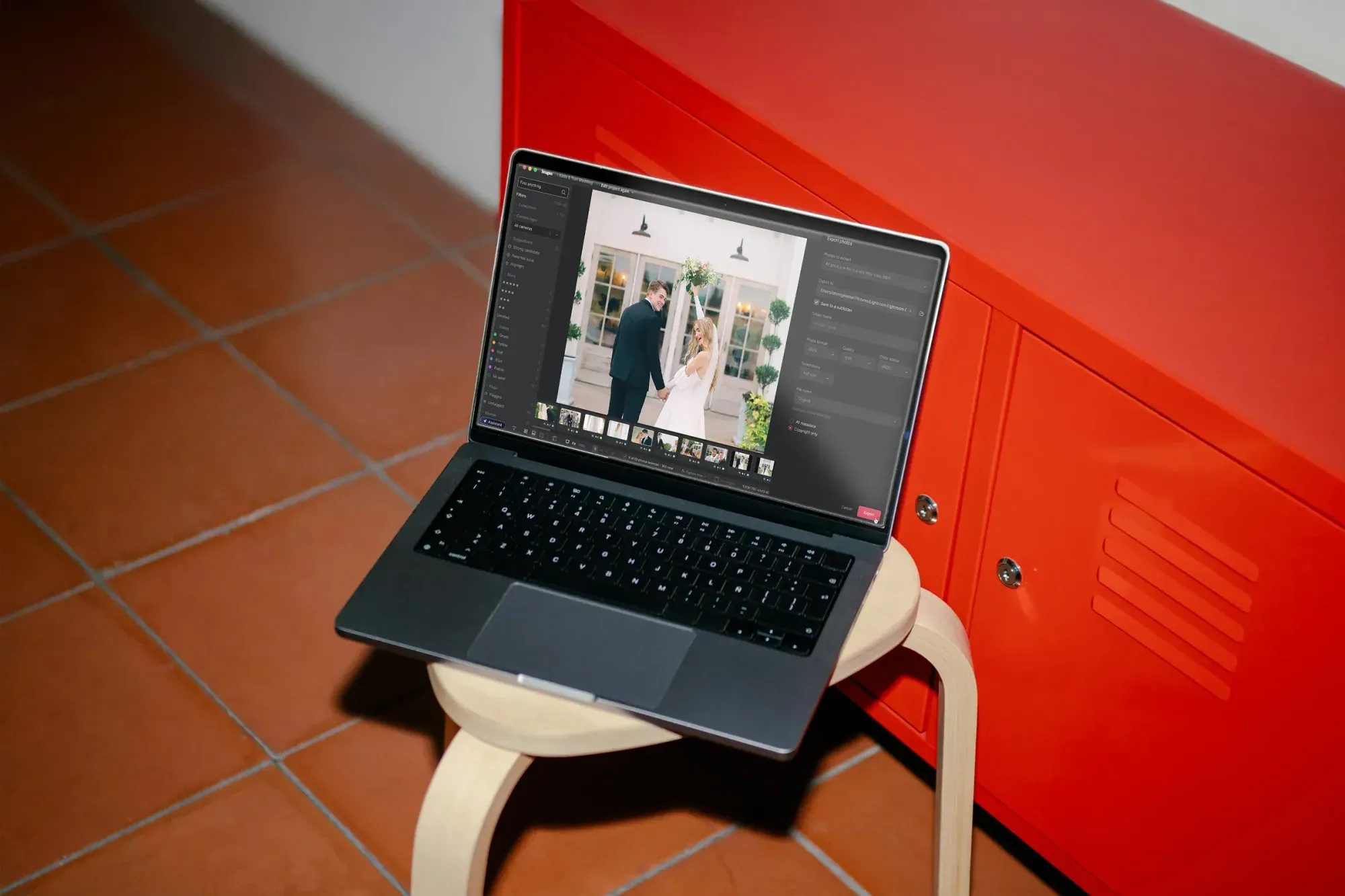
Corporate clients frequently want a same-day or next-morning preview gallery, especially for events tied to a product announcement or press cycle. This is where Imagen’s cloud-connected AI editing platform earns its place in an event photographer’s workflow: import RAW files straight from the card, let the AI batch editing engine apply your trained style profile across the full set, and export client-ready JPG, TIFF or PNG files straight from Imagen in a fraction of the time a manual pass would take. Because the correction happens per image rather than as a single blanket preset, exposure and white balance stay accurate even when the shoot spans multiple rooms and lighting setups. Pricing is pay-as-you-go, so you pay for the photos you export and exploring the tools is free, which scales predictably whether you are editing a 500-image half-day shoot or an 8,000-image multi-day conference.
9. Build a Repeatable Post-Event Checklist
Consistency across corporate accounts comes from process, not memory. Write down the exact sequence you follow after every event: upload, cull, run the batch edit with your trained style profile, spot check sponsor and brand-color frames, export the preview gallery, then archive the originals to your storage system. A written checklist means a second shooter or an assistant editor can pick up the workflow without you walking them through it live, and it keeps quality consistent even when you are juggling three events in the same week. Review the checklist every few months and adjust it as your equipment or client expectations change.
It is also worth documenting turnaround expectations alongside the technical steps, since corporate clients often ask about delivery timing before they ask about anything else. A checklist that includes rough time estimates for each stage, upload, cull, batch edit, spot check, export, gives you a realistic number to quote a client on the spot rather than guessing under pressure right after a long shoot day.
What’s new in Imagen: Imagen is now an intelligent, agentic Studio for professional photographers, one project where you cull, edit, review and export in any order. For event work, you can build a Personal AI Profile from your past edits before the shoot, apply more than one AI Profile to a selected set of photos when sponsor shots need a different look, and cull manually for free if you prefer. It is rolling out gradually as a beta.
Frequently asked questions
How much RAW file editing can cloud AI tools actually handle for a large conference? Cloud-based batch editors are built specifically for high volume, so a 5,000 to 8,000 image multi-day conference is well within normal range. The processing happens on remote servers rather than a local machine, which is what allows thousands of RAW files to be corrected without taxing your laptop’s own hardware.
Do I still need to manually retouch anything after batch editing? Batch correction handles color, exposure, and white balance across the whole set, but a few frames, usually sponsor branding shots or executive headshots, still benefit from a quick manual review before delivery. Heavier work like object removal or detailed retouching falls outside batch color correction and is better handled with a dedicated retouching tool when a specific image needs it.
Is cloud editing secure enough for events with confidential product launches? Reputable cloud editing platforms transmit and process files over encrypted connections and do not require you to share images publicly to use them. That said, always confirm a platform’s specific data handling practices directly with the vendor if a client has strict confidentiality requirements tied to an unannounced product.
What is the difference between a cloud editor and cloud storage for event photographers? A cloud editor processes and corrects your images, applying color and exposure adjustments across a batch. Cloud storage or backup services exist purely to hold and protect your files long term. They are complementary tools rather than substitutes, and treating them as separate steps in your workflow, edit first, then archive, keeps each one doing the job it is actually designed for. You can learn more about how Imagen’s new Studio, where you cull, edit and export in one project, fits into that editing step at Imagen.
