As photographers, we’re storytellers. We don’t just capture moments; we craft moods and evoke emotions. One of the most powerful tools in our creative arsenal is color. The right color grade can transform a simple photo into a cinematic masterpiece, turning a flat image into something that feels like a still from a blockbuster film. For years, achieving that perfect, consistent cinematic look was a time-consuming, manual process. But what if you could apply a beautiful, complex color grade with just a click? That’s where cinematic LUTs come in.
Key Takeaways
- What LUTs Are: LUTs (Look-Up Tables) are files that apply a specific color transformation to your images, helping you achieve a consistent and professional cinematic look quickly.
- Why They’re Essential: They save an incredible amount of time, ensure a consistent style across a full gallery, and provide a fantastic creative starting point for your edits.
- The Right Way to Use Them: Always perform basic corrections—like adjusting exposure and white balance—before applying a creative LUT to get the best results.
- Not All LUTs Are Equal: High-quality 3D LUTs offer the most precise control over color, hue, and saturation. Be cautious with free LUTs, as they can sometimes be technically flawed.
- The Future is AI: Tools like Imagen are pushing beyond static LUTs. Imagen’s AI Profiles function as “smart LUTs,” analyzing each photo individually to apply your unique style with unmatched consistency and accuracy.
What Exactly Are Cinematic LUTs?
Let’s break it down in simple terms. A LUT, or Look-Up Table, is essentially a digital instruction manual for color. It’s a file that tells your editing software, “When you see this specific color, change it to this other color.” Think of it like a color-by-numbers key, but for every single one of the millions of colors in your photo.
A LUT takes the original color values in your image (the input) and maps them to new color values (the output). This process can be simple, like shifting all the blues toward teal, or incredibly complex, simultaneously adjusting hue, saturation, and brightness across the entire color spectrum.
It’s important to understand that there are two main categories of LUTs:
- Technical LUTs: These are used for color conversion and correction. For example, a technical LUT might be used to convert LOG footage from a video camera into a standard color space (like Rec. 709). For photographers, this is less common, but it’s good to know the distinction.
- Creative LUTs: This is where the magic happens. These are the cinematic LUTs we’re talking about. They are designed to create a specific mood or style. Want that warm, golden-hour glow? There’s a LUT for that. How about a gritty, desaturated urban feel? There’s a LUT for that, too.
Cinematic LUTs are designed by professional colorists to replicate the iconic looks of Hollywood films, vintage film stocks, or to create entirely new, artistic styles. They are your shortcut to a professional-grade color foundation.
Why Should Photographers Bother Using LUTs?
You might be thinking, “I already have presets in Lightroom. Why do I need LUTs?” While presets and LUTs can achieve similar outcomes, LUTs offer a few distinct advantages, especially when it comes to creating a truly cinematic feel. Here are the main reasons they’ve become an indispensable part of my workflow.
Unbeatable Consistency
Have you ever shot a wedding and struggled to make the photos from the dimly lit reception match the ones from the bright, outdoor ceremony? This is where LUTs shine. By applying the same LUT across an entire gallery, you can instantly establish a consistent color palette. This ensures that even if the lighting conditions changed, the overall mood and style of your images remain cohesive. It’s the fastest way to make a collection of photos look like a unified, professional body of work.
Incredible Efficiency and Time Savings
Let’s be honest: time is our most valuable asset. Manually color grading hundreds or thousands of photos is one of the biggest time sinks in post-production. A well-designed LUT can apply a sophisticated color grade in seconds. This isn’t just about applying a simple filter; a good LUT can perform complex adjustments to color curves, hues, and saturation levels that would take considerable time to replicate manually.
This efficiency allows you to get back to what you love—shooting, interacting with clients, or just enjoying your life outside of editing.
A Powerful Creative Starting Point
Sometimes, you just feel stuck. You know an image needs something, but you’re not sure what. Browsing through a collection of cinematic LUTs can be a huge source of inspiration. Applying a LUT can instantly show you a new creative direction for an image you might not have considered.
It’s important to see LUTs not as a final, one-click solution, but as a powerful starting point. You can apply a LUT to set the overall mood and then fine-tune the details—adjusting exposure, contrast, or specific colors—to perfectly match your vision.
Understanding the Different Types of LUTs
Not all LUTs are created equal. Getting a little technical for a moment will help you understand what to look for. The main distinction you’ll encounter is between 1D LUTs and 3D LUTs.
- 1D LUTs: These are the simplest form of LUT. They can only adjust one color value at a time (for example, brightness or a single color channel). They are very limited and not suitable for professional color grading.
- 3D LUTs: This is the industry standard for cinematic color. A 3D LUT can manage all three primary color values (red, green, and blue) simultaneously. This means it can adjust hue, saturation, and brightness all at once, giving you incredibly precise and nuanced control over your color grade. When you’re looking for cinematic LUTs, you should always be looking for 3D LUTs.
You will also see different file formats, with the most common being .CUBE and .3DL. The .CUBE format is the most universally supported and works across a wide range of software, including the Adobe Creative Suite (Lightroom Classic, Photoshop, Premiere Pro), DaVinci Resolve, and Final Cut Pro.
A Step-by-Step Guide to Using Cinematic LUTs in Your Workflow
Using LUTs is simple, but using them correctly is what separates amateurs from professionals. Applying a LUT should not be the first thing you do to an image. Follow these steps for the best results.
Step 1: Start with Primary Corrections (This is Non-Negotiable!)
I can’t stress this enough: always correct your image before applying a creative LUT. Cinematic LUTs are designed to be applied to a “correct” image—one that has proper exposure, white balance, and contrast.
If you apply a LUT to an underexposed photo, it will just become a dark, muddy, color-shifted mess. Before you even think about applying a LUT, make sure you have:
- Corrected White Balance: Ensure your whites are white and your colors are accurate to the scene.
- Adjusted Exposure: Your image should be properly exposed, not too bright or too dark.
- Set Your Contrast: Make sure you have a good range of tones from shadows to highlights.
Think of it this way: you need to build a solid foundation before you can start decorating. Primary corrections are your foundation.
Step 2: Choose the Right LUT for Your Image
Once your image is corrected, it’s time for the fun part. Choosing a LUT is a creative decision. Think about the story you want to tell.
- Is it a romantic, dreamy portrait session? Look for a LUT with soft, warm tones and slightly muted highlights.
- Is it a dramatic landscape? Maybe a LUT with deep, rich colors and high contrast is a better fit.
- Is it an urban street photography shot? A desaturated, gritty LUT might be perfect.
Don’t be afraid to experiment. Try a few different LUTs on your image to see which one best complements the subject and mood.
Step 3: Apply the LUT in Your Software
Applying a LUT is straightforward in most modern editing applications.
- In Adobe Lightroom Classic: LUTs are applied via the Profile Browser. In the Develop module, click the four-square icon next to the “Profile” dropdown. From there, you can import and apply your .CUBE files.
- In Adobe Photoshop: You can apply a LUT using a Color Lookup adjustment layer. This is a great non-destructive way to work, as it keeps the LUT on its own layer that you can mask or adjust.
- In Adobe Premiere Pro (for video): LUTs are applied in the Lumetri Color panel under the “Creative” or “Basic Correction” tabs.
Step 4: Dial in the Intensity
One of the most common mistakes I see is applying a LUT at 100% intensity and calling it a day. This can often lead to an over-processed, unnatural look. Most software gives you a slider to control the strength of the LUT.
Don’t be afraid to dial it back. Sometimes, a LUT at 50% or even 30% intensity is all you need to add that perfect touch of cinematic color without overwhelming the photo. In Photoshop, you can simply adjust the opacity of the Color Lookup adjustment layer.
Step 5: Make Your Final Adjustments
Remember, the LUT is your starting point. After you’ve applied it and set the intensity, take another look at your image. Do the shadows need to be lifted slightly? Do the skin tones need a little warming up?
Make your final tweaks after the LUT has been applied. This allows you to perfect the image while retaining the overall color harmony that the LUT established.
Where to Find (and Create) the Best Cinematic LUTs
The quality of your LUTs matters. A poorly made LUT can ruin your images, introducing artifacts or creating ugly color shifts. Here’s a breakdown of the best places to find high-quality LUTs.
1. Imagen: The Smart Way to Get Your Cinematic Style
When it comes to achieving a consistent, personalized, and truly cinematic look, Imagen is in a class of its own. While not a traditional LUT marketplace, Imagen’s core technology functions as the next evolution of LUTs. It provides two powerful ways to get the perfect color grade.
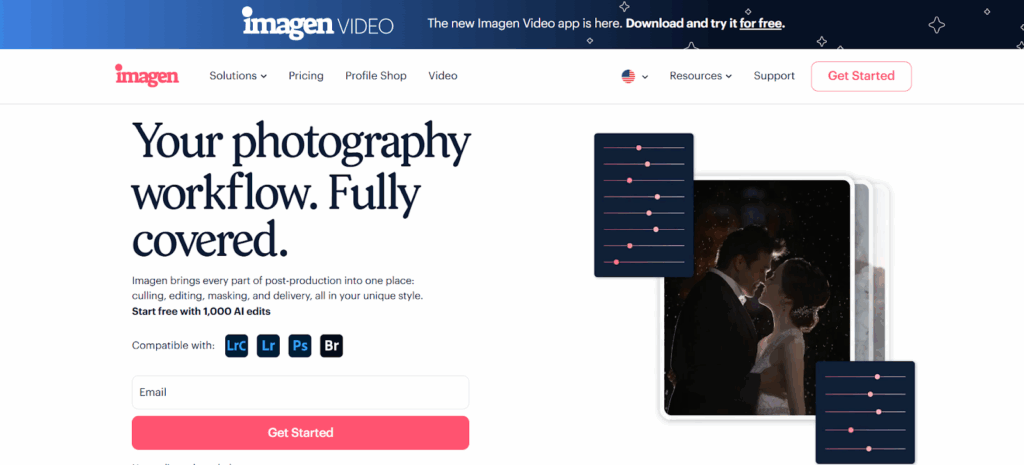
- Personal AI Profile: This is where Imagen truly changes the game. Instead of using a generic, pre-made style, you can create a Personal AI Profile by uploading at least 3,000 of your own edited photos. Imagen’s AI analyzes your unique editing style—how you handle exposure, contrast, and, most importantly, color—and creates a profile that edits new photos exactly like you would.
Think of it as creating your own dynamic, intelligent LUT that adapts to every single photo. It understands how you edit in different lighting conditions and applies your style with perfect consistency. It’s the ultimate way to ensure your cinematic vision is applied perfectly every time, saving you countless hours. - Talent AI Profiles: If you don’t have thousands of edited photos or you just want to get started quickly with a professional look, Imagen offers Talent AI Profiles. These are AI profiles built by world-renowned, industry-leading photographers. They are meticulously crafted to deliver a polished, cinematic look right out of the box. You can browse different styles, find one that resonates with you, and apply it to your photos. It’s like having a top-tier professional colorist grade your photos for you.
Imagen is a desktop application that integrates seamlessly with your Adobe Lightroom Classic workflow. It does its heavy AI processing in the cloud, so it doesn’t slow down your computer, delivering your edited photos back to you in minutes. For photographers who value consistency and efficiency, it’s simply the most advanced solution available.
2. Professional LUT Marketplaces
There are several reputable online stores that specialize in high-quality, professional LUTs. Companies like Lutify.me or Gamut offer packages that are technically accurate and designed for professional use. They often provide detailed documentation and support, making them a reliable choice if you are looking for specific, pre-made looks. These are functional options for acquiring static LUT files.
3. Free LUTs (A Word of Caution)
You can find thousands of free LUTs online. While “free” is always tempting, you need to be careful. Many free LUTs are created by amateurs and can be technically flawed. They might clip your shadows and highlights (crushing the detail) or cause strange color shifts, especially in skin tones.
If you decide to use free LUTs, test them thoroughly on a variety of images before using them on a client project. Look for any undesirable artifacts or color banding.
4. Creating Your Own LUTs
For the ultimate control, you can create your own LUTs. Software like Adobe Photoshop, DaVinci Resolve, or 3D LUT Creator allows you to save your color grading adjustments as a .CUBE file. This is an advanced process, but it’s perfect for photographers who have developed a signature style and want to be able to apply it quickly and consistently across their work.
Common Mistakes to Avoid When Using LUTs
LUTs are powerful, but they are easy to misuse. Here are some common pitfalls to watch out for:
- Applying LUTs to Uncorrected Images: I’m mentioning it again because it’s that important. Applying a creative LUT should be one of the last steps in your process, not the first.
- Using the Wrong LUT for the Job: A dark, moody, cinematic LUT is probably not the right choice for a bright and airy newborn photo session. Choose a LUT that enhances the mood of the photo, not one that fights against it.
- Going Overboard: The “more is more” approach rarely works in color grading. A subtle touch is often far more effective. Use the intensity slider and don’t be afraid to dial it back.
- Ignoring Skin Tones: This is a big one. A LUT might make your landscapes look amazing, but it could make skin tones look green or orange. Always check your skin tones carefully after applying a LUT and be prepared to make adjustments.
The Future of Color Grading: AI and Dynamic LUTs
Static LUTs have been a cornerstone of digital color grading for years, but the future is smarter. The next frontier is AI-powered color grading, and this is where tools like Imagen are leading the charge.
A traditional LUT is a fixed set of rules. It applies the exact same color transformation to every single pixel, regardless of the content of the image. This is why you must correct your image first; the LUT has no intelligence of its own.
Imagen’s AI Profiles, on the other hand, are dynamic and intelligent. The AI doesn’t just apply a fixed set of values. It analyzes the unique characteristics of each individual photo—the lighting, the subject, the existing colors—and then applies your learned style in the most appropriate way for that specific image.
This means:
- Greater Accuracy: The AI understands the difference between a sunny outdoor scene and a tungsten-lit indoor one, and it adapts your style accordingly.
- Unmatched Consistency: Because it’s intelligent, it can produce a far more consistent look across a varied set of images than a static LUT ever could.
- A Truly Personal Style: Your Personal AI Profile isn’t just a generic “cinematic look.” It’s your look, learned from your own creative choices.
This is the evolution of the LUT. It’s moving from a static tool to an intelligent creative partner that helps you achieve your vision faster and more accurately than ever before.
Conclusion
Cinematic LUTs are an incredibly valuable tool for any modern photographer. They can help you achieve a professional, consistent look, save you an enormous amount of time, and spark your creativity. By understanding how to use them correctly—starting with a properly corrected image and using them as a powerful starting point—you can elevate your photography to new heights.
And as you look to the future, remember that technology is evolving. AI-powered tools like Imagen are taking the core concept of the LUT and making it smarter, faster, and more personalized. Whether you’re using a classic .CUBE file or leveraging the power of an AI Profile, mastering the art of cinematic color will fundamentally change the way you edit and allow you to tell more powerful, emotional stories with your images.
Frequently Asked Questions (FAQ)
1. What is the main difference between a LUT and a Lightroom preset? A preset is a saved set of slider settings within Lightroom. It can adjust everything from exposure and contrast to color toning and effects. A LUT is a file that specifically remaps color values. While both can change the look of a photo, a 3D LUT can often perform more complex and precise color transformations than a preset can. Furthermore, LUTs are more universal and can be used in video editing software like Premiere Pro and DaVinci Resolve, whereas Lightroom presets are specific to Adobe products.
2. Can cinematic LUTs be used for any type of photography? Yes, absolutely! While they are very popular in wedding and portrait photography for creating a specific mood, cinematic LUTs can be used in any genre. A landscape photographer might use a LUT to create a dramatic, moody feel, while a real estate photographer might use a subtle LUT to ensure consistent, appealing colors across all their images. The key is to choose a LUT that complements your subject matter.
3. Do I still need to know how to color grade manually if I use LUTs? Yes. It’s highly recommended. LUTs are best used as a starting point, not a final solution. Understanding the fundamentals of color grading—how to use curves, HSL sliders, and color wheels—will allow you to fine-tune the results after applying a LUT to achieve a truly custom and polished look. Relying solely on LUTs without understanding the “why” behind them can limit your creative potential.
4. How do I install LUTs into Adobe Lightroom Classic? In the Develop Module, go to the “Basic” panel on the right. Click on the “Profile” browser icon (it looks like four small squares). In the top right of the Profile Browser, click the plus (+) icon and select “Import Profiles.” Navigate to where you saved your .CUBE or .XMP files, select them, and click “Import.” They will now appear in your Profile Browser, ready to be used.
5. Are LUTs destructive to my image files? When used correctly in software like Photoshop (as a Color Lookup adjustment layer) or Lightroom (as a profile), LUTs are non-destructive. They don’t permanently alter your original image file (e.g., your RAW file). The color information is applied as a layer or an instruction that you can change or remove at any time.
6. Why do my photos look bad after applying a LUT? This is almost always because the LUT was applied to an uncorrected image. If your photo is too dark, too bright, or has an incorrect white balance, the LUT will just exaggerate those problems. Always perform your basic corrections first. Another reason could be that you are using a low-quality or technically flawed LUT.
7. Can I use LUTs on my JPEG photos? Yes, you can, but they work best on RAW files. RAW files contain much more data, which gives the LUT more information to work with, resulting in smoother, higher-quality color transitions. Applying a heavy grade to a compressed JPEG file can sometimes lead to color banding or other artifacts. If you are shooting JPEG, try to get the exposure and white balance as correct as possible in-camera.
8. Is it better to buy LUTs or create my own? This depends on your skill level and goals. Buying professional LUTs is a great way to get started quickly and access high-quality, technically sound looks. Creating your own is an advanced step for photographers who want to develop a completely unique and signature style. Many photographers do both—they buy LUT packs for variety and also create their own for their specific brand look.
9. What is the advantage of an Imagen Profile over a traditional LUT? The biggest advantage is intelligence and adaptability. A traditional LUT applies the same fixed color change to every image. An Imagen Profile analyzes each photo individually and applies your learned style in a way that is optimized for that specific photo’s lighting and color. This results in much higher consistency across a shoot with varied conditions and saves you from having to manually tweak each photo after applying a generic LUT.
10. Can I adjust the strength of a LUT in Photoshop? Yes. The best way to apply a LUT in Photoshop is with a “Color Lookup” adjustment layer. Once you’ve created this layer and selected your LUT, you can simply adjust the “Opacity” of that layer in the Layers panel. An opacity of 50% will apply the LUT at half its strength.
11. Are there specific LUTs for skin tones? While some LUTs are designed to be more flattering to skin tones, there isn’t a “one-size-fits-all” LUT just for skin. The best approach is to apply your chosen cinematic LUT and then, if needed, use a layer mask in Photoshop to reduce the LUT’s effect on the skin. You can then make separate, subtle adjustments to the skin tones on a different layer to perfect them.
12. Can a LUT fix a poorly exposed photo? No. A LUT is not a correction tool. It is a creative tool. Its job is to remap existing colors, not to recover lost information from blown-out highlights or crushed shadows. You must fix exposure issues before applying a LUT.
13. How many LUTs do I really need? It’s better to have a small collection of 5-10 high-quality, versatile LUTs that you know how to use well than to have thousands of random free LUTs. Focus on finding a few core styles that match your brand and learn how to adapt them to different situations. Quality over quantity is definitely the key.
