

Church Wedding Photo Editing Workflow: AI Tools and Tips for 2026
Table of contents
- Key Takeaways
- Why Church Weddings Need Their Own Editing System
- Step 1: Import, Back Up, and Cull the Ceremony
- Step 2: Fix White Balance and Tame the Church Light
- Step 3: Build and Apply Your Signature Look
- Step 4: Retouch and Finish the Hero Frames
- Step 5: Export and Deliver the Gallery
- Where Imagen Fits in a Church Wedding Workflow
- How to Choose Your Church Editing Stack
- Try Imagen on Your Next Church Gallery
- Frequently Asked Questions
- Conclusion
A reliable church wedding photo editing workflow moves a full ceremony gallery from raw import to polished delivery in hours, and it keeps every frame true to the sanctuary you actually shot in. The fastest path in 2026 pairs an AI culling pass with a tool that learns your personal editing style from your own catalog and applies it across the whole service, then finishes the hero frames by hand. This guide walks the real production line step by step, shows you where AI removes the slow work, and names the tools photographers actually reach for so you can build a stack that handles dim naves and bright doorways with equal ease.
Key Takeaways
- Church interiors mix hard light sources. Warm tungsten, colored stained glass, candlelight, and blown-out doorways all sit in one frame, so white balance decisions carry the whole edit.
- Ceremony coverage is high volume and single-take. You cannot reshoot a vow or a first kiss, so you capture heavily and cull hard afterward.
- Imagen learns your personal style from your Lightroom or Capture One catalog, then culls, edits, and retouches the real photos you shot in one connected workflow.
- Imagen edits your photos, it does not invent them. It never generates an altar, a stained glass window, a congregation, or a person, so the gallery stays an honest record of the church where the couple actually married.
Why Church Weddings Need Their Own Editing System
A church ceremony hands you one of the hardest lighting situations in wedding work. The nave runs dark, the altar sits under warm tungsten, stained glass throws colored light across faces, and the open doors at the back blow out to pure white. Many churches also limit or ban flash during the service, so you shoot wide open at high ISO and carry noise into every frame. On top of that, the white dress and a dark suit or a dark robe stretch the dynamic range in a single shot, which pushes your exposure and recovery decisions hard.
Volume adds the second pressure. A ceremony is a single take, so you shoot heavily to protect the vows, the ring exchange, the first kiss, and the recessional, and you often walk out with well over a thousand frames from the service alone. The finished gallery still has to read as one calm, consistent story from the processional to the exit. A repeatable workflow fixes both problems at once, because a fixed order of operations plus AI on the repetitive corrections lets you deliver faster while your galleries hold their look. For a companion primer, our AI church wedding photo editing guide pairs well with the production line below.
Step 1: Import, Back Up, and Cull the Ceremony
Everything starts with getting files in safely. Import the full day into your catalog, then keep at least two copies before you touch a single edit. A dependable routine looks like this:
- Offload cards to your computer and a second drive the same evening.
- Add a cloud copy so an irreplaceable ceremony lives in more than one place.
- Keep the original cards unformatted until you confirm every copy reads back cleanly.
Culling comes next, and it is usually the slowest manual task in the whole job. You are trimming that heavy ceremony take down to the frames that tell the story, cutting blinks, missed focus from a dark nave, and near-duplicate bursts from the processional and the vows. Doing that by eye can eat two or three hours before a single edit happens. AI culling changes the math. Imagen’s AI culling scores your images for focus, exposure, and duplicates so you review smart suggestions instead of every frame, which helps most when so many shots were captured at high ISO in low light. Manual culling is free if you would rather skip the AI pass. Aftershoot is another culling-focused tool many photographers use for this same step. Either way the goal is the same, which is to reach your selects fast so the creative work can begin.
Step 2: Fix White Balance and Tame the Church Light
Before you apply any style, the raw ceremony frames need a correction pass, and church light makes this the pivotal step. Set exposure so the white dress holds detail and the dark suit does not crush to black, then recover the highlights from any blown doorway or window behind the couple. White balance is the real battle. Warm altar tungsten pulls one way, cool window light pulls another, and stained glass drops a colored cast across skin, so you often set a neutral base and then let per-image adjustments handle the drift. High ISO noise from a no-flash service also gets addressed here with careful noise reduction that keeps skin texture intact.
This is where AI batch editing earns its keep. Instead of hand-correcting every frame, you let a tool learn how you handle these corrections and apply them intelligently to each shot. Imagen adapts exposure and white balance per image while holding your intended tone, so the processional at the back doors and the vows at the lit altar both land where you want them. It works on the real photos you captured and never generates anything, so the sanctuary stays the sanctuary. Photographers who prefer to drive every slider themselves still lean on Adobe Lightroom or Capture One for manual white balance and tone curves, which give precise control at the cost of more time per gallery. Imagen’s built-in editor (Beta) also offers sliders, a histogram, and presets for quick manual tweaks. Here is the order most photographers follow:
- Set exposure so the dress keeps detail and the suit keeps shadow information.
- Recover highlights from bright windows or the open doors behind the couple.
- Neutralize white balance against the mixed tungsten, window, and stained glass light.
- Apply gentle noise reduction to the high ISO ceremony frames while protecting skin texture.
Step 3: Build and Apply Your Signature Look
Your edit style is your brand, and couples book you partly for the way your ceremony galleries feel. Once the corrections are clean, you apply your color grade, contrast, and tone curve as a base style across the whole service. The challenge is holding that exact look from the dim nave to the bright recessional without the tone drifting shot to shot. A single synced preset rarely survives the swing between a candlelit vow and a sun-flooded exit, so consistent style work usually needs per-image intelligence rather than one flat copy of settings.
Imagen learns your personal editing style from your own Lightroom or Capture One catalog, then applies it consistently across the full shoot, adapting each frame to its own light while keeping your signature tone. Because it edits the real photos you shot and never generates anything, the altar stays the altar and the congregation stays the people who were actually there. That scene honesty matters in a church, where a fabricated window or an invented backdrop would misrepresent a sacred space the couple chose on purpose. You keep the creative call, and the tool carries the repetitive application across hundreds of frames.
Step 4: Retouch and Finish the Hero Frames
Once the whole gallery shares a consistent base, you move to per-photo finishing. Not every image needs it, but the portraits of the couple, the vows, the first kiss, and the altar wide shots usually deserve a closer pass. This is where retouching lives, and church coverage brings its own cleanup list.
Common tasks include gentle skin smoothing that keeps texture natural, evening out shine under warm altar light, softening a glaring green exit sign in the background, and clearing a stray water bottle or a phone from a pew at the edge of an otherwise perfect frame. Imagen’s AI retouching handles skin and portrait cleanup in the same connected workflow as your culling and editing, so you are not exporting to a separate app for every touch-up. For heavy composite work, liquify, or intricate manual masking on your few most important frames, many photographers still reach for Adobe Photoshop. The guiding principle in a church is restraint, since the couple should look like the best version of themselves in the real place they married, not like different people in an invented one.
Step 5: Export and Deliver the Gallery
With edits and retouching done, you export for delivery. Most photographers produce two sets, high-resolution files for printing and the album, and web-sized JPEGs for the online gallery and social sharing. Set your export presets once so this step stays automatic on every job.
A smart move is to deliver a small sneak peek of 15 to 20 images within a day or two, while the couple is still glowing, then send the full gallery once you have finished the retouching pass. Deliver through a client gallery platform that lets the couple download, favorite, and order prints. Keep your naming and folder structure consistent so reprints and album orders are easy to find months later. A clean export routine protects the time you saved earlier, because a messy handoff creates support requests that eat back into your week.
Where Imagen Fits in a Church Wedding Workflow
Imagen is built to automate the slow, repetitive middle of the process while leaving the creative decisions in your hands. It connects three steps that photographers usually stitch across separate apps: AI culling to reach your selects, personal-style editing that learns your look from your catalog and applies it across the whole ceremony, and AI retouching for skin and portrait cleanup. Because it edits, culls, and retouches the actual photos you captured, nothing is fabricated. It does not generate an altar, a stained glass window, a candle, a congregation, or a person, so your gallery stays a true record of the church where the couple married and who was really there.
Pricing is pay-as-you-go, a monthly base fee plus a charge for each photo you export, and exploring the tools is free. That structure suits ceremony volume, since your editing cost tracks directly with the galleries you deliver rather than a larger fixed plan you pay for even in a quiet season. For a related read on venue-specific editing, our best AI vineyard wedding photo editing software roundup is a useful next step, and you can browse more tutorials on the Imagen valuable tips hub.
How to Choose Your Church Editing Stack
Start with your volume and how much manual control you want. If you shoot a full ceremony season and need consistent galleries delivered fast, an AI editor that learns your style removes the biggest bottleneck while keeping your look intact. If you photograph only a few weddings a year and enjoy the process, a manual base in Lightroom or Capture One may be all you need, with AI reserved for the culling step. A few questions help you narrow the fit:
- How many church weddings do you shoot a season? Higher volume tips the balance toward automated batch editing.
- How hard is your typical church light? Mixed tungsten, stained glass, and high ISO frames reward a tool that corrects per image.
- How much do you retouch? If most galleries need skin and background cleanup, an all-in-one workflow saves app switching.
- What is your turnaround promise? Faster preview windows reward tools that cut editing from days to hours.
Test any tool on one real ceremony gallery before you commit a full season to it. The right fit is the one that gives you your look, your consistency, and your turnaround without fighting your habits.
Try Imagen on Your Next Church Gallery
If speed and a consistent signature look are your priorities, the easiest way to feel the difference is to run a real ceremony through it. Imagen, now an intelligent Studio, learns your personal editing style from your Lightroom or Capture One catalog, then culls, edits, and retouches your actual church wedding photos in one project. Exploring is free and you pay on export, so see how much of your ceremony editing you get back.
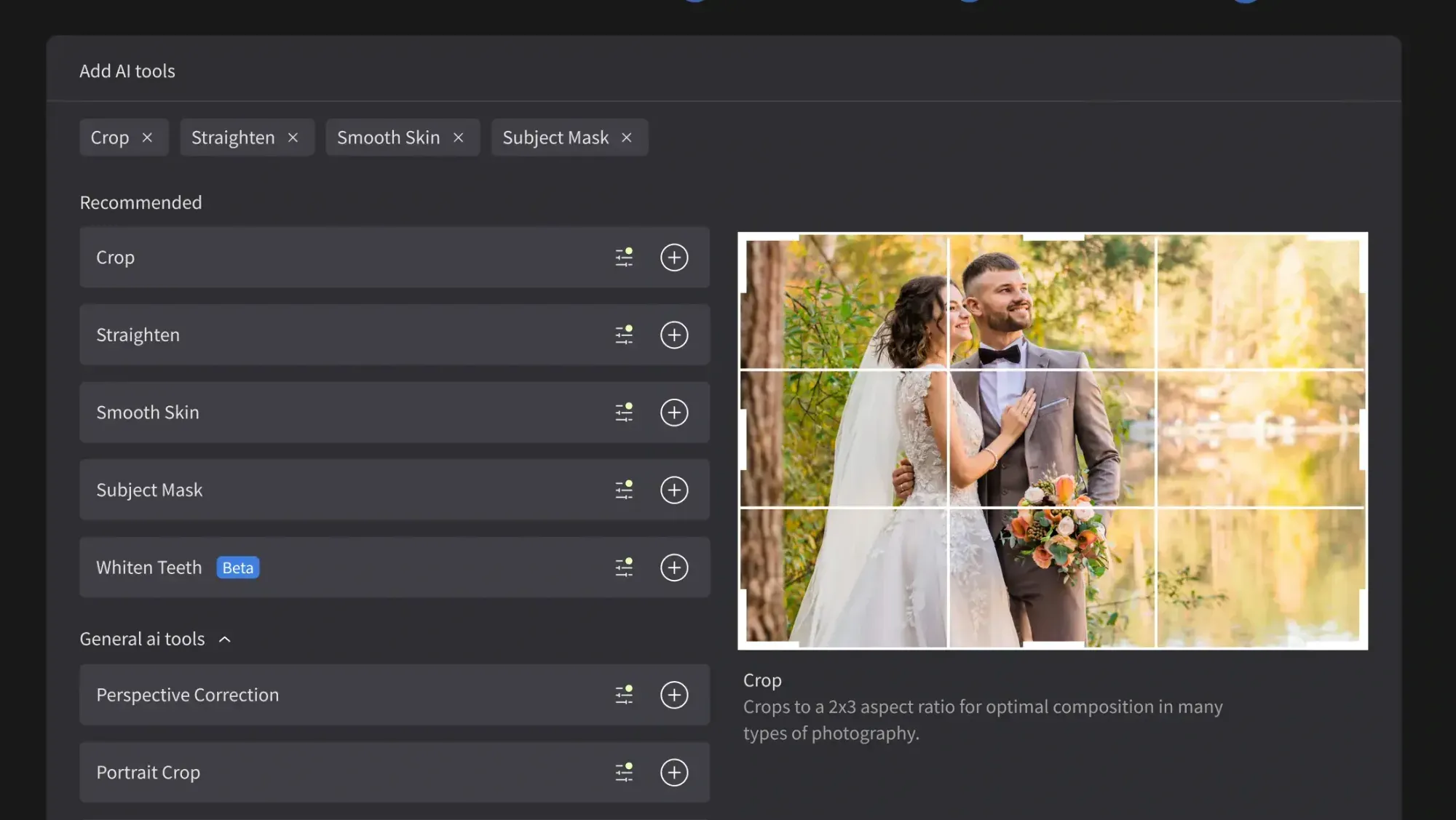
What’s new in Imagen: For this church workflow, Imagen now works as an intelligent, agentic Studio for professional photographers, with one project for your cull, edit, review and export in any order. Prefer to make manual adjustments yourself? The built-in editor (Beta) offers sliders, a histogram, crop and straighten, and presets. The Studio is rolling out gradually as a beta.
Frequently Asked Questions
What is the best way to edit church wedding photos with AI in 2026?
The most efficient approach is a connected workflow that culls your ceremony images, corrects the mixed church light, applies your personal editing style across the whole service, and retouches the hero frames. Imagen does this by learning your look from your own Lightroom or Capture One catalog and applying it consistently, which keeps a dim-to-bright gallery cohesive while cutting editing time from days to hours.
How do I handle stained glass and mixed light in a church?
Set exposure to protect the dress and the suit, recover any blown windows, then neutralize white balance against the tungsten, window, and stained glass casts before you apply your style. A tool that adjusts per image lands both the warm altar frames and the cool doorway frames on your signature tone instead of leaving them to drift shot to shot.
Does AI editing invent the church or the scene?
No, a good AI editor works only on the real photos you captured. Imagen culls, edits, and retouches your actual images and never generates an altar, a window, a candle, or a person. The gallery stays an honest record of the church where the couple married, just cleaner and more consistent from the processional to the recessional.
How long should it take to edit a church wedding?
By hand, culling and editing a ceremony gallery can take a full day or more of desk time, especially with heavy high ISO frames. With AI culling and batch editing, you can reach your selects and apply a consistent look across hundreds of images in a fraction of that, leaving time only for retouching the album shots and sending an early sneak peek.
Conclusion
Church editing is where one intense hour of ceremony becomes a gallery a couple keeps for decades. The workflow is clear: import and back up, cull down to your selects, fix the mixed church light, build and batch your signature look, retouch the hero frames, then export and deliver. AI removes the slow parts of that chain, culling thousands of frames and applying your style across hundreds of images so you deliver faster without losing what makes your work yours. Because Imagen edits the real photos you shot and never invents an altar, a window, or a person, the gallery stays true to the sanctuary. Try it on your next church wedding, where exploring is free and you pay on export, and build a workflow that keeps up with your season.
