
The Complete Guide to Using ChatGPT as a Photo Editor in 2026
Table of contents
- Key Takeaways
- Foundations: Understanding ChatGPT’s Role in the 2026 Photography Ecosystem
- Getting Started: Setting Up Your AI-Enhanced Darkroom
- Intermediate Techniques: Prompt Engineering for Visual Perfection
- Advanced Strategies: ChatGPT as a Creative Director
- The Professional Workflow: Integrating ChatGPT with Imagen AI
- ChatGPT vs. Traditional Editors: A 2026 Comparison
- Quality Control and Ethics in the AI Era
- Frequently Asked Questions
- Can ChatGPT edit RAW files directly in 2026?
- Is ChatGPT safe for sensitive client images?
- How does ChatGPT compare to Imagen for wedding shoots?
- Will using ChatGPT photo editor add AI tags to my metadata?
- Do I need Photoshop if I use ChatGPT and Imagen?
- How much does it cost to run an AI photo workflow in 2026?
- Can ChatGPT reconstruct missing parts of an image?
- Keep exploring
You’re probably worn out from nudging sliders all day. Let’s be honest: hunching over exposure curves for hours isn’t why you picked up a camera in the first place.
Want to speed things up? Try Imagen free and watch the difference on your own images in the new Studio, where you cull, edit, and export in one project.
But what if you could simply talk to your workspace? Here’s the deal: running a ChatGPT photo editor workflow in 2026 changes how we approach post-production from the ground up.
Key Takeaways
- The global AI-in-photography market is on track to hit $12.5 billion by 2026, reshaping how professionals edit.
- GPT-4o delivers near-instant visual feedback in just 232 milliseconds.
- More than 68% of professional photographers already use AI tools somewhere in their post-production.
- You don’t need to paint manual masks anymore. Natural language is your new creative brush.
- Pairing ChatGPT with Imagen can cut your post-production time by up to 90%.
- By 2026, 90% of online content will be AI-enhanced, which makes C2PA metadata standards essential.
Foundations: Understanding ChatGPT’s Role in the 2026 Photography Ecosystem
Let’s set expectations straight: ChatGPT isn’t a raster editor like Photoshop. It has no toolbar, no crop tool, no healing brush, and it won’t replace your primary pixel workspace. Instead, treat it as a sharp visual consultant sitting next to your usual editor. OpenAI now reports over 200 million weekly active users in 2026, and that scale has pushed multimodal tools into the mainstream. Everything runs on natural language here. Rather than nudging a Kelvin slider to 5500K, you simply tell ChatGPT to make the shot look like a humid summer afternoon in Savannah. The model reads spatial descriptions and complex lighting requests that used to trip up older systems. With GPT-4o’s vision hitting an 88.5% accuracy rate on multi-discipline benchmarks, the feedback is genuinely reliable. It reads composition, flags distracting background elements, and suggests specific crop ratios in real time. So what drives this? A mix of fast processing and semantic understanding that converts your words into real adjustments.
The Shift from Pixel Manipulation to Semantic Editing
Traditional editing pushes you to think in technical values. You ask yourself questions like, “How much contrast does this subject need to stand out?” Semantic editing flips that: you describe the emotional impact you’re after. The AI reads your intent and hands back precise edits, or the code behind them. It works like a master retoucher parked right beside you, turning vague feelings into concrete adjustments. Don’t expect it to plow through 2,000 RAW files from a wedding weekend, though; that’s where platforms like Imagen take over. For single, high-stakes hero shots, this is quickly becoming the standard. It’s visual communication at its sharpest.
The 2026 Tech Stack: GPT-4o, DALL-E 3, and Canvas
OpenAI’s current engine pairs GPT-4o with DALL-E 3 and the Canvas interface to form an interactive playground. Canvas lets you highlight one corner of a photo and type a direct change. Want to swap a flat sky for a moody sunset? Highlight it, type the prompt, and watch it blend the new light into the scene. It’s not simply pasting in a new background; it adjusts the reflections on your subject’s skin. And it’s fast, processing visual queries in a mere 232 milliseconds. To make this work well, you need your workspace set up correctly first. Here’s what ChatGPT can analyze for you right now:
- Exposure balance across complex lighting conditions
- Composition strength using classical rules of art
- Distracting elements that need cloning or removal
- Color harmony and palette coordination
- Metadata integrity and camera setting audits
Getting Started: Setting Up Your AI-Enhanced Darkroom
Ready to build your AI darkroom? It doesn’t take much effort, but getting it wrong means wasted hours on mediocre output. With 45% of AI-driven photo edits now happening on mobile devices in 2026, you’ll want a setup that works wherever you are. Here’s how to configure your ChatGPT account for results that hold up professionally. Move away from the default settings right away if you want feedback with any real fidelity.
- Upgrade to ChatGPT Plus. Reaching GPT-4o and the Canvas interface requires the $20/month tier; skip it, and you’re stuck with basic text models that can’t read your high-resolution files.
- Configure your Custom Instructions. Open the Custom Instructions panel in your account settings. Tell the AI your camera body, your lenses, your preferred editing style, and whether you shoot RAW or JPEG.
- Connect your cloud libraries. On mobile, grant the ChatGPT app permission to read your system photo library. That way you can import images directly instead of saving compressed copies first.
- Prepare your test file. Upload a high-quality image; ChatGPT in 2026 reads RAW, HEIC, and TIFF formats directly. Just remember that although it reads RAW files, it exports them back out as high-quality JPEGs.
Step 1: Configuring Custom Instructions for Photography
Most people get generic advice from AI because they ask generic questions. If you never tell ChatGPT who you are, it’ll treat you like a casual smartphone shooter. Write down your primary genre, whether that’s wedding photography or portrait work. Tell it whether you lean toward bright-and-airy tones or dark-and-moody vibes. (I’ve found that naming your preferred film stock, something like Fuji Pro 400H, makes a real difference). Now, every time you upload a photo, the AI already knows the mood you’re chasing. It won’t push bright yellow highlights on you if you’ve already said you love desaturated, cinematic tones.
Step 2: Integrating Your Photo Library
Don’t waste time manually dragging and dropping files. The 2026 ChatGPT desktop app integrates with major local folder structures. On an iPad, the system-level integration feels remarkably smooth. You can pull an image straight from Apple Photos, run your AI analysis, and send it right back. But remember: ChatGPT isn’t a storage vault. Keep your master library on a dedicated cloud storage service instead. For high-volume work, you’ll still want a professional tool to handle the heavy lifting.
Step 3: Mastering the Initial Upload and Analysis
When you upload a photo, resist the urge to just type, “Make this look better.” That’s a rookie move. Ask for a complete technical audit instead. Have the AI check the composition, locate the key focal points, and analyze light distribution across the frame. Within milliseconds, you’ll get a detailed breakdown of highlight recovery and shadow detail. It’s like a second pair of eyes reading your histogram before you’ve even touched a slider. And it tells you exactly where your exposures are clipping, so every adjustment you make afterward is informed.
Intermediate Techniques: Prompt Engineering for Visual Perfection
Prompting isn’t just typing “make it pretty” and hoping for the best. It’s a real skill, and once you know the formulas, the results are incredible. Over 30,000 custom GPTs now exist just for photography in 2026, so the appetite for sharp visual prompting is huge. Here are the core tips I lean on for everyday prompt engineering. Write a vague prompt, and you’ll get vague, muddy pixels right back.
- Always use the “Describe-to-Modify” technique: have the AI describe what it sees before you ask for any edit.
- Specify camera settings in your prompt: terms like “f/1.8 depth of field” or “1/1000s shutter freeze” guide the generative output.
- Set the color temperature explicitly: ask for “warm golden hour tones around 3200K” instead of just “warm light.”
- Control the aspect ratio: DALL-E 3 supports resolutions up to 1792 x 1024 pixels, so define your dimensions early.
- Avoid negative prompting traps: instead of saying “no shadows,” say “even, soft, high-key studio lighting.”
- Isolate your subjects: tell the AI exactly which elements to keep sharp and which to blur.
The “Describe-to-Modify” Framework
Here’s a tip I swear by: never ask for edits on a fresh image without running a description check first. If ChatGPT doesn’t realize the object in the corner is a softbox, it might turn it into a window mid-edit. Ask it: “What are the primary light sources and subjects in this photo?” Once the AI lists them correctly, you’re good to proceed. This one small step saves you from endless loops of bad generations. Here are the basic steps for running this workflow:
- Upload the raw or JPEG image to the chat interface.
- Ask for a detailed scene analysis focusing on light source direction.
- Confirm the AI’s description matches your actual setup.
- Issue your editing prompt based on the confirmed visual terms.
Iterative Editing with the Canvas Interface
The Canvas interface is where things get fun. You don’t have to regenerate the whole photo just because you hate the background. Just brush over the unwanted elements and ask Canvas to swap them out. Since Canvas understands spatial context, it keeps your main subject’s perspective perfectly intact. It’s great for removing stray hairs, power lines, or photo-bombers without leaving weird digital artifacts behind. And you stay in total control of which pixels shift and which stay untouched.
Recreating Lighting Schemes via Natural Language
Want to turn a flat, overcast portrait into something dramatic? You don’t need to rebuild your studio at all. Just ask ChatGPT to “apply classic Rembrandt lighting to the subject, casting a subtle triangle of light on the right cheek.” The AI gets these classical art terms right away. It calculates the light falloff and applies realistic highlights based on the actual 3D geometry of the face. That’s a lot faster than hand-painting dodge-and-burn masks in Photoshop, isn’t it?
Advanced Strategies: ChatGPT as a Creative Director
Let’s see how this plays out in practice. ChatGPT isn’t just a slider replacement; it’s a creative director helping you plan and execute complex commercial concepts. As of 2026, 75% of Fortune 500 marketing departments already use generative AI somewhere in their visual content pipelines. If you shoot commercial work, you need to know how to guide these tools toward high-end assets. You can even draft complete mood boards and lighting maps before your camera leaves its bag.
- Rim lighting: Ask for a strong backlighting profile to separate dark subjects from dark backgrounds.
- Clamshell beauty lighting: Use this for flawless skin tones and minimal shadow depth in fashion mockups.
- Split lighting: Perfect for high-contrast, dramatic portraits that require half the face to remain in deep shadow.
- Gobos and patterns: Tell the AI to project leafy shadow shapes across your subject to break up flat studio backdrops.
Scenario: Transforming a Product Shoot
Picture this: you’re hired to shoot a luxury perfume bottle. You don’t have the budget for a physical marble set, or exotic flowers. So you shoot a sharp, well-lit photo of the bottle against a plain white background instead. Upload it to ChatGPT and use the Canvas tool to isolate the bottle itself. Then you write: “Place this bottle on a wet, dark obsidian stone slab. Surround it with floating white jasmine petals and a soft, dark-blue mist in the background. Keep the bottle’s reflections completely intact.” The AI processes that request, keeping the actual bottle sharp while generating a breathtaking, photorealistic environment around it. The final image looks like a high-budget magazine ad, and you finished it in minutes instead of days.
Scenario: Restoring and Colorizing Historical Archives
Here’s another compelling use case: historical photo restoration. You upload a damaged, black-and-white photo from 1920. First, ask ChatGPT to identify the historical details, things like the fashion, the car models, and the building materials of that era. Its knowledge base pulls out the exact colors typically used in 1920s clothing. From there, you prompt DALL-E 3 to colorize the scene based on that historical analysis. It removes scratches, sharpens faces, and adds surprisingly accurate colors that honor the original moment. It’s not just guessing; it’s leaning on deep historical context to guide the restoration.
The Professional Workflow: Integrating ChatGPT with Imagen AI
Look, ChatGPT is fantastic for individual creative projects, but it hits a real wall on scale. If you just shot a wedding and need to deliver 1,500 photos, uploading them one by one to ChatGPT is an absolute nightmare. You’d lose your mind before you finished the first gallery. This is exactly where you need a professional, high-volume platform like Imagen. Combine ChatGPT’s analytical strengths with Imagen’s batch-processing muscle, and you’ve built the ultimate workflow.
The true power of AI in 2026 isn’t about letting a machine make all your decisions. It’s about combining conversational tools like ChatGPT for creative ideas with industrial platforms like Imagen to execute those ideas across thousands of photos in minutes.
Itamar Haim, SEO Expert and Digital Strategist specializing in search optimization and content marketing.
Here’s how this works in practice. You use ChatGPT to analyze your style and define your creative vision. Then feed that vision into Imagen to handle the heavy editing. This dynamic duo can cut your post-production time by up to 90%. You’ll go from a 4-week delivery turnaround to a stunning 24-hour window instead. Here’s the step-by-step process for marrying these two tools:
- Generate style descriptors in ChatGPT by uploading your favorite portfolio images.
- Translate these style descriptors into specific Lightroom settings suggested by ChatGPT.
- Build or select an AI Profile inside Imagen that matches these targets.
- Batch-process your entire gallery in Imagen’s cloud, and review edited photos as they arrive in batches.
Using ChatGPT to Define Your “Personal AI Profile”
To get the most out of Imagen, you need an AI profile. You can train a Personal AI Profile by uploading your past Lightroom catalogs. But what if you’re not sure how to describe your own style? Upload 20 of your best edits to ChatGPT and ask it to write a technical profile of your work. Have it analyze your color grading, your exposure preferences, and your contrast curves. It’ll hand you back a detailed breakdown: “Your style features a crushed black point, slightly desaturated greens. Warm, luminous skin tones.” You can then take those exact notes and use them to fine-tune your settings or pick matching styles inside Imagen, which can even apply more than one AI Profile to a selected set of photos, though that takes some processing time. It’s a genuinely smart way to build brand consistency.
Batch Processing vs. Bespoke Editing
Here’s how you split the work to save time. This is how high-earning photographers run their businesses without burning out. Why spend hours on manual labor when you can automate most of it?
- The Batch (99% of your shoot): use AI photo editing by Imagen to apply your consistent style to the whole gallery in seconds. It handles white balance, exposure, cropping, and straightening on its own.
- The Bespoke (1% of your shoot): take the 5 to 10 “hero” shots that need heavier creative work, like removing complex background objects or changing the lighting scheme, and run those through ChatGPT.
- Consistent Output: because your Imagen profile is based on that same ChatGPT style analysis, your batch and bespoke edits blend together smoothly.
Automating the Culling Process
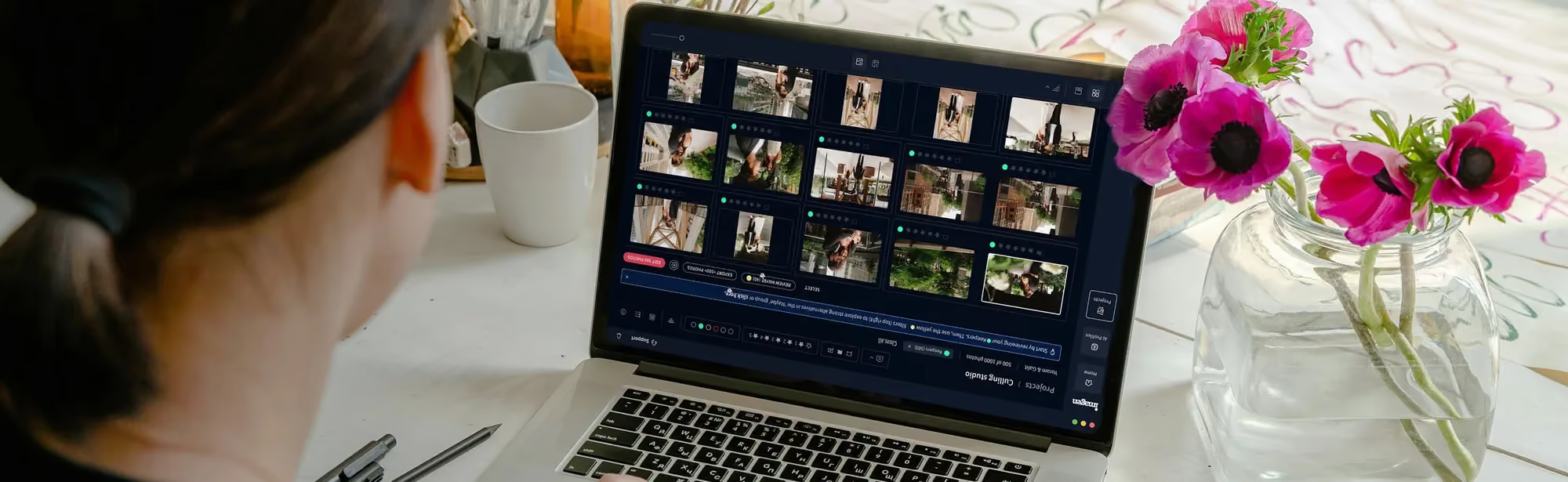
Before you edit, you’ve got to cull. It’s the most tedious part of the job. Instead of squinting at duplicates, use AI photo culling to automatically pick the best frames. The tool filters out blurry shots, closed eyes, and bad compositions in a fraction of the time. For trickier culling calls, you can also run a quick description of your storytelling goals past ChatGPT to help structure your final gallery layout. That keeps the narrative tight and engaging.
ChatGPT vs. Traditional Editors: A 2026 Comparison
Will ChatGPT replace Lightroom or Photoshop entirely? No, it won’t replace either one. These tools are built for fundamentally different tasks. Look at how they stack up in 2026 across speed, control, and cost, then decide where your money should go. Choose the right tool for the specific job in front of you.
| Feature / Metric | ChatGPT (with Canvas) | Adobe Creative Cloud | Imagen (AI Batch) |
|---|---|---|---|
| Primary Use Case | Conceptual edits, brainstorming, single-image manipulation | Manual pixel-level work, local masks, traditional printing | High-volume batch editing with personal styles |
| Processing Speed | 232 milliseconds per prompt action | Manual (minutes to hours per photo) | Seconds per photo (batch of 1,000 in under 10 minutes) |
| Input Formats | RAW, TIFF, HEIC, JPEG (outputs compressed JPEG/PNG) | All major professional RAW and raster formats | Direct integration with Lightroom Classic and ACR catalogs |
| Cost Structure | $20/month (ChatGPT Plus) | $55 to $85/month subscription | Pay-as-you-go (monthly fee + per-export charge) or a Limitless monthly plan |
| Workflow Volume | Bespoke (1 to 5 images at a time) | Manual batches (tedious adjustment syncs) | High-volume (1,000+ photos handled effortlessly) |
Feature Comparison: AI vs. Adobe Creative Cloud vs. Imagen
Adobe gives you incredible manual control, but that control demands a serious investment of your time. ChatGPT offers creative flexibility through simple text prompts, yet it lacks any batch capability. Imagen closes that gap by pairing the speed of AI with the precise consistency large catalogs require. Don’t think of this as choosing one tool over the others. Build a stack where all three work together, and you’ll save money and avoid headaches.
Cost-Benefit Analysis for Freelancers
Let’s talk budget for a moment. Paying for multiple subscriptions at once can feel like death by a thousand cuts. Use a pay-as-you-go model with Imagen instead, and you pay for the photos you export, so your costs follow the work you deliver. Combine that with a ChatGPT Plus subscription, and you’ll have a top-tier creative studio for a fraction of what traditional retouching houses charge. Here are the core financial benefits of building an AI-first tool stack:
- Zero upfront training costs for hiring manual retouchers
- Reduced software bloat by cutting unused plugin subscriptions
- Higher client volume because you can deliver galleries 90% faster
- Predictable expenses scaled directly to your actual shoot volume
Quality Control and Ethics in the AI Era
With great power comes real responsibility. By 2026, 90% of online content is expected to be AI-generated or AI-enhanced. Because of this shift, clients and platforms are demanding total transparency. Use this quality control checklist to keep your work professional, legal, and clean. Don’t let a lazy edit ruin your professional reputation.
- Check for the “AI Over-Smooth”: make sure your subject’s skin does not look like plastic or wax.
- Audit the hands and eyes: look closely for odd artifacting in fingers, eyes, and background patterns.
- Verify your C2PA metadata: confirm your camera’s content credentials match your edit export.
- Check light direction consistency: make sure generated background light matches the light on your subject.
- Inspect your edges: look for glowing halos or weird pixel blurring where the AI masked the subject.
The C2PA Metadata Audit
The industry is pushing back against deepfakes with C2PA metadata standards. When you edit a photo with ChatGPT or DALL-E, the file gets tagged automatically with AI credentials. If you’re delivering journalistic or documentary work, make sure you never strip these tags. Transparency builds real trust with your clients over time. If a client asks, be upfront about using AI for cleanups and creative enhancements. That’s simply the professional thing to do.
Avoiding the “AI Look”
We’ve all seen those over-processed, hyper-saturated AI images, and they tend to look cheap. To avoid that, always dial back your prompt strength. If ChatGPT hands you an edit, ask it to “reduce the opacity of this adjustment by 30%.” That keeps the natural texture of your photo intact. Remember that the best AI edit is the one nobody notices. It should enhance your story, not distract from it.
Final Export Settings for Print and Web
Since ChatGPT compresses its final outputs, you need to be careful with your exports. For web use, a high-quality JPEG works fine. But if you’re printing large-format physical media, you must upscale the file first. Use professional upscaling tools to bring the resolution back up to 300 DPI. Never send a compressed AI export straight to the print lab without a final quality check. Your business depends on that physical print quality.
What’s new in Imagen: Imagen is now an intelligent, agentic Studio for professional photographers, one project where you cull, edit, review and export in any order. Its Assistant works inside your own gallery: you ask in plain language, it finds photos and acts on them using Imagen’s tools, and you stay in charge of each step. It understands what is in a photo, though not yet where, and it does not generate images. The Studio is rolling out gradually; try the Assistant at Imagen.
Frequently Asked Questions
Can ChatGPT edit RAW files directly in 2026?
Yes, ChatGPT can ingest and analyze RAW files directly. It will, however, compress the final output down to a high-quality JPEG or PNG for download.
Is ChatGPT safe for sensitive client images?
If you use ChatGPT Plus, you can turn off data training inside your account settings. Doing this prevents OpenAI from using your client photos to train future models.
How does ChatGPT compare to Imagen for wedding shoots?
ChatGPT works best for single, highly creative hero edits. For wedding galleries of 1,000+ photos, Imagen is the better tool because it edits entire batches in minutes.
Will using ChatGPT photo editor add AI tags to my metadata?
Yes, edits processed through OpenAI’s pipeline will include C2PA metadata tags. These tags flag the image as AI-assisted or AI-generated, which keeps things transparent for viewers.
Do I need Photoshop if I use ChatGPT and Imagen?
You don’t necessarily need Photoshop if you already use ChatGPT and Imagen together. Photoshop still leads for advanced pixel surgery, but the combination of ChatGPT and Imagen handles 95% of standard modern workflows on its own.
How much does it cost to run an AI photo workflow in 2026?
You’ll pay $20 a month for ChatGPT Plus, plus Imagen’s pay-as-you-go rate for each photo you export. That combination stays incredibly affordable for freelancers.
Can ChatGPT reconstruct missing parts of an image?
Yes, using the Canvas interface, you can highlight missing edges and apply out-painting prompts to generate realistic extensions that match your camera’s original perspective.
Keep exploring
- Imagen AI editing tools
- See how Imagen works as a Studio
