
Canon Photo Editing Software: Digital Photo Professional and Beyond
Table of contents
- What Digital Photo Professional is built to do
- Where a camera-maker tool stops being enough
- CR3 files and third-party editors
- Canon RAW editor options by job
- Signs you are ready for a professional workflow
- The new Imagen experience for Canon shoots
- A Canon wedding from card to delivery
- Choosing without regret
- Frequently asked questions
For Canon files, the sensible place to start is Digital Photo Professional, Canon’s own free RAW tool, and the sensible time to move on is when volume, mixed camera brands, or delivery deadlines make single-photo editing the slowest part of your week. Every other canon photo editing software choice, from catalog editors to open source developers, is really an answer to that one question. If you want the wider market view first, our guide to the best photo editing software compares the main options side by side.
Whether CR3 files can be edited at all is never the real question, because dozens of programs open them. The harder question is how many hours a shoot costs once you do, and which tool gives some of them back without taking away your control of the final look.
Below you will find what Digital Photo Professional does well, how CR3 behaves in other editors, the signs that you have outgrown a camera-maker tool, and how an AI-assisted workflow fits a Canon shoot from card to delivery.
What Digital Photo Professional is built to do
Digital Photo Professional, usually shortened to DPP, comes from the company that designed your sensor and its color science. That gives it one clear advantage: it reads Canon RAW files, including the Picture Style you chose in camera and the lens data stored with each frame, with a high degree of fidelity to what the camera intended.
In everyday use, the capabilities that matter most are these:
- RAW development with white balance, exposure, tone curve, color and sharpness controls.
- Picture Style handling, so the look you set on the body carries into the editing stage and can be adjusted afterwards.
- Lens corrections, including Canon’s Digital Lens Optimizer for supported lenses, which addresses aberrations and diffraction softness.
- Dual Pixel RAW processing on the camera bodies that record that data, for small focus and ghosting adjustments.
- Rating, comparing and batch conversion, so you can check frames and turn a group of RAW files into JPEG or TIFF in one go.
Which of these you can use depends on your body and lenses, so confirm the details in Canon’s documentation before planning around a specific feature. For a photographer who shoots a few hundred frames a month and wants faithful color at no cost, DPP is a complete answer.
Where a camera-maker tool stops being enough
DPP is a RAW developer, not a complete professional workflow, and judging it as one would be unfair. Still, if you shoot weddings, events, sports or school portraits, you will meet the same few limits sooner or later.
It speaks one brand
A tool from Canon opens Canon files. The moment a second shooter arrives with another system, or you inherit a client archive shot on mixed bodies, you need software that handles every file in one place. Nikon owners have a similar situation with their own free tool, and our overview of nikon photo editing software shows how the same pattern plays out on the other side of the fence.
Each decision is yours, every time
DPP asks you to make the edit frame by frame, or to copy a recipe from one image to the next. On a two thousand frame wedding, that is a long evening of repeating one choice.
Culling and finishing live somewhere else
Selecting keepers, matching a flash-lit reception to a window-lit ceremony, removing a stray object and softening skin all happen in other tools or by hand. The more programs a shoot touches, the easier it is to lose a rating or export the wrong version.
CR3 files and third-party editors
CR3 is the RAW container Canon introduced to replace the older CR2 format. It carries the sensor data plus the settings, thumbnails and lens details the camera records, and some bodies also offer a compressed variant to save card space. Because it is now the standard Canon RAW file, almost every serious RAW editor reads it.
Refining an AI edit with manual sliders in the Imagen editor
Lightroom Classic and Photoshop through Camera Raw, Capture One, DxO PhotoLab and ON1 Photo RAW all open CR3 files, as do the open source tools darktable and RawTherapee. The practical differences are not whether the file opens but how each program renders it, how quickly it handles a thousand of them, and what else it can do once the file is open.
Two habits will save you trouble when you shop around:
- Check the supported camera list before buying a new body. Canon’s own software is usually ready for a new camera at launch, while third-party tools add support on their own schedules, so a brand-new model can open with a generic rendering for a while.
- Judge rendering on your own frames. Each program applies its own default color interpretation, so the same CR3 will look slightly different the first time you open it in two editors. Process the same three photos in each candidate and compare the skin tones and the highlights before you decide.
Canon RAW editor options by job
It helps to group tools by the job you need done rather than rank them. Licensing for commercial editors changes often, so check each vendor for current terms.
Faithful RAW development
Digital Photo Professional is the reference. It shows how Canon intended a frame to look, and it makes a useful second opinion even if you edit mostly elsewhere.
Catalog and library editors
Lightroom Classic is the best known example, with a catalog for a whole archive, develop controls and a large ecosystem of presets. It suits photographers who want one home for everything and are happy to make most edits themselves.
RAW-focused editors with their own color science
Capture One, DxO PhotoLab and ON1 Photo RAW each take a distinct approach to color, noise handling or local adjustments. They are strong choices if you care about a particular rendering, and each rewards a short trial on your own files.
Free and open source
darktable and RawTherapee are free and open source, and both are capable RAW developers for Canon files. They ask for patience and give back a lot of control. If cost is the main constraint, our roundup of the best free photo editing software covers the field.
Signs you are ready for a professional workflow
Switching tools is a nuisance, so a real problem should drive it. These signals tend to show up for working Canon photographers:
- You are turning down bookings, or delivering later than you promised, because editing takes longer than shooting.
- A single shoot passes through three or four programs, and you have lost a selection or a version at least once.
- You apply nearly identical corrections to hundreds of frames, which means the work is repetitive rather than creative.
- Your second shooter, your assistant or your own older work all need to match one consistent look.
If several of those sound familiar, the answer is rarely a bigger toolbox. It is fewer decisions per photo. Our look at the easiest photo editing software for busy photographers explains how to test any program against that measure.
The new Imagen experience for Canon shoots
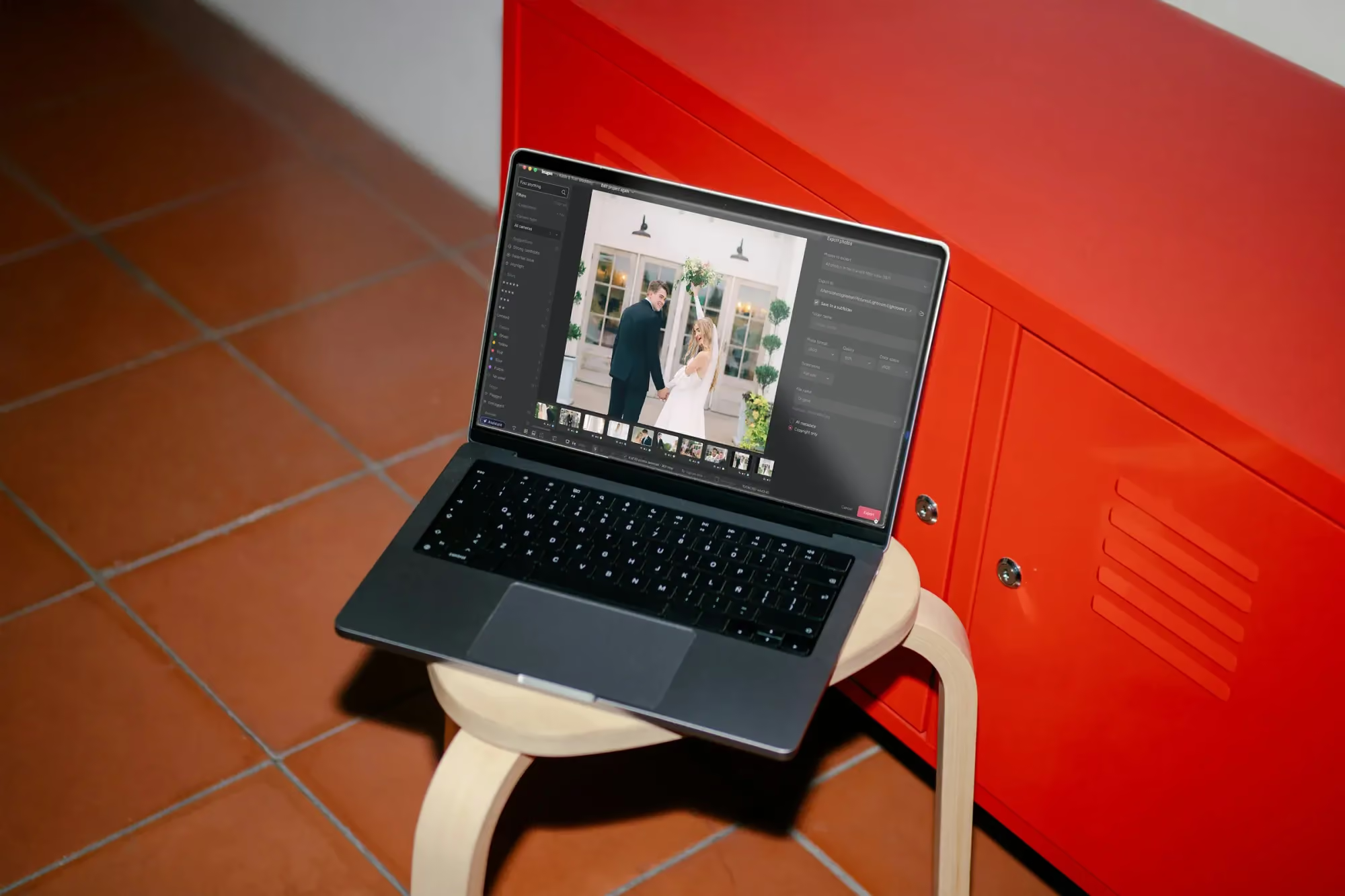
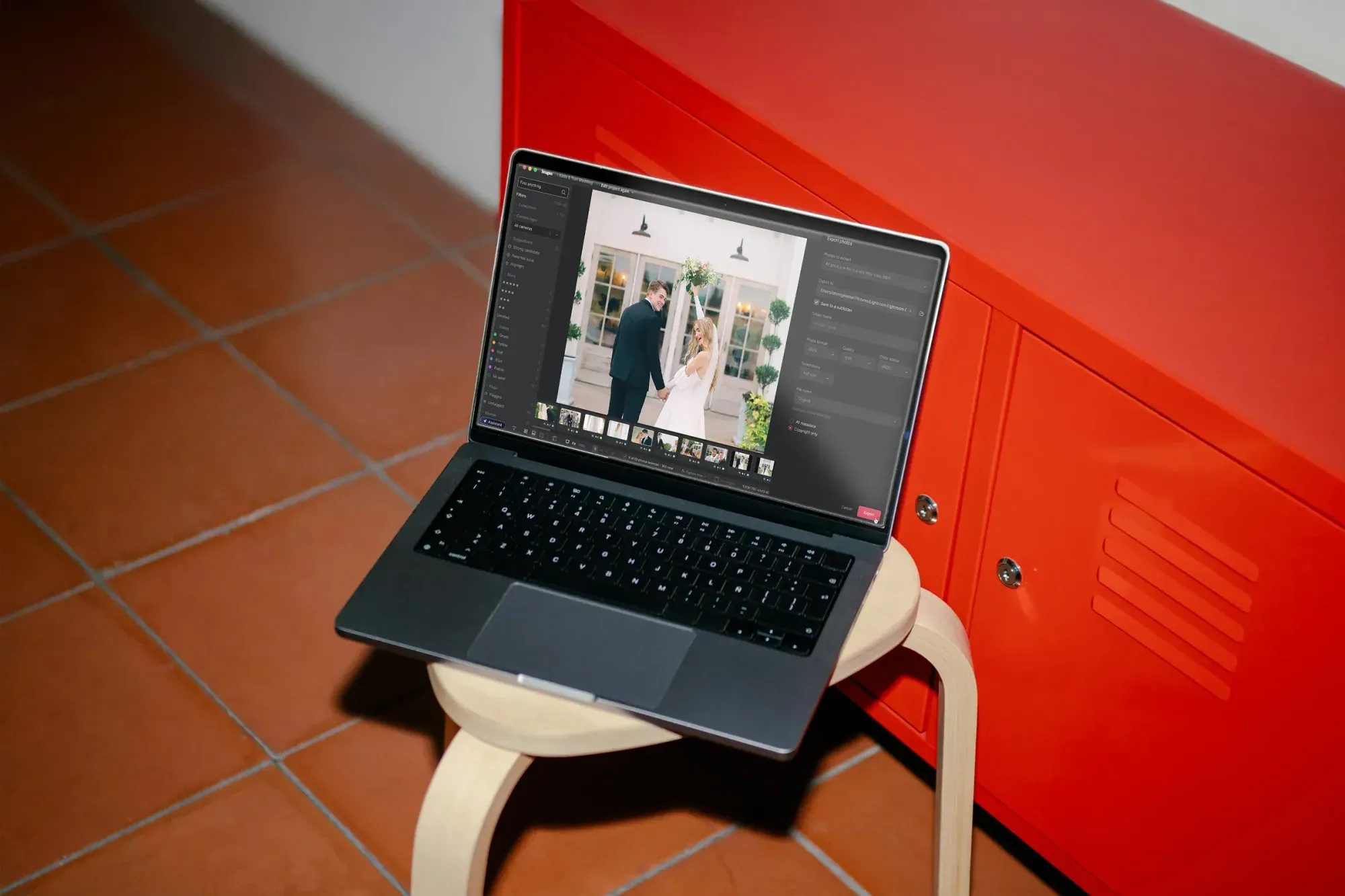
Imagen is a desktop app for Mac and Windows, with the AI processing running in the cloud. It is evolving into an intelligent studio for professional photographers, which we call the new Imagen experience. It is the same product you may already know, with the next stage of the idea built in, and it is arriving gradually as a beta so photographers can shape it with feedback.
Here is what that means for someone coming from DPP or any other single-photo editor:
- One project that does everything. Cull, edit, review and export in one non-linear project, in whatever order suits the day. Manual culling is free, and you can see your edited photos while you cull.
- AI culling when volume demands it. It is a standalone subscription for pay-as-you-go users and is included with Limitless.
- AI Profiles that learn your style. Your personal profile is learned from your past edits, or you can pick a ready-made profile from the Profile Shop, and it is applied to the photos you select. Edited photos arrive in batches as they are ready, so you review early frames while the rest process.
- A built-in editor. It has manual sliders and a histogram, crop and straighten, presets and versions, with editing quality comparable to Lightroom, so the stubborn frames are fixed without leaving the project.
- An assistant for finding and acting. You can ask it to show the first dance photos and warm them slightly. It knows what is in a photo, but not where, so it will not place a mask on a particular spot, it does not generate images and it does not take voice input.
- Exports on your terms. Export finished files from Imagen, or continue in Lightroom, where AI edits arrive as XMP.
On file types, Imagen accepts RAW, JPEG and TIFF uploads, and the Canon files that come off your card sit in that RAW category. The formats it does not support are HE NEF and lossy DNG, and neither is a Canon format. If you rely on DPP for a specific feature, such as lens optimization on a handful of hero frames, you can export a TIFF from it and bring that into Imagen alongside the rest. Real-time masking and more AI filters are on the roadmap, and your judgment stays in charge throughout: the AI does the heavy first pass, and you make the calls.
A Canon wedding from card to delivery
To make this concrete, picture a Saturday wedding shot on two Canon bodies. The sequence below is one way to run it, and none of the steps is mandatory, because the project does not force an order.
1. Back up and create the project
Copy the cards to two drives, then start a project in Imagen and upload the CR3 files. If you already selected frames elsewhere, skip culling and upload only the keepers.
2. Cull the way you prefer
Cull by hand for free, or use AI culling to narrow a few thousand frames quickly. Either way, you can see edited versions as you go, which helps when two frames are nearly identical.
3. Apply your AI Profile to the selection
Choose your personal profile and apply it to the photos you picked. The aim is consistent exposure and color across the whole shoot, so you start from a coherent set instead of a pile of individual fixes.
4. Review early, refine the exceptions
Batches arrive grouped by time, so you can start with the getting-ready frames while the reception still processes. Use the sliders and histogram on the few frames that need a human eye, and try the assistant to pull every photo from the first dance.
5. Export or continue elsewhere
Export finished JPEGs from Imagen for the gallery, or send the edits to Lightroom as XMP if that is where you finish. Both routes are supported, and neither locks you in.
Choosing without regret
You do not have to pick one program for life. Some Canon photographers keep DPP for the occasional frame that benefits from Canon’s own rendering and use a professional workflow for the bulk. Start with the problem that costs you the most time, try one tool on a real shoot, and judge it on the evening you get back. When you want more practical guidance, our collection of photo editing tips goes deeper on culling, color and delivery.
When you revisit the wider market, our ranking of the best editors puts Canon-friendly options in one table.
Frequently asked questions
What is the best canon photo editing software for beginners?
Digital Photo Professional is the best first step because it is free and made by Canon for Canon RAW files. Once you want more creative control or a catalog, try Lightroom, Capture One or an open source editor such as darktable on a few of your own frames.
Can I edit CR3 files in Lightroom and other editors?
Yes. Lightroom Classic, Photoshop, Capture One, DxO PhotoLab, ON1 Photo RAW, darktable and RawTherapee all read CR3. Support for a brand-new camera model can arrive later than the camera itself, so check each vendor’s supported camera list.
Is Digital Photo Professional free?
Yes. Canon provides it as a free tool for its cameras. It develops Canon RAW files and handles batch conversion, but it does not cover culling at scale, learned editing styles or retouching the way a full professional workflow does.
Does Imagen work with Canon RAW files?
Yes. Imagen accepts RAW, JPEG and TIFF uploads, and Canon CR3 files are RAW files. Its unsupported formats are HE NEF and lossy DNG, and you export finished work as JPEG, TIFF or PNG.
Ready to hand the repetitive first pass to your own AI style? Start with a free trial and run one Canon shoot through Imagen to see how many hours you get back.
