

10 Best Photo Editing Software for Photographers in 2026
Table of contents
- Key Takeaways
- The Realities of the Creative Post-Production Market
- 1. Imagen: The Ultimate AI Editing Assistant
- 2. Adobe Lightroom Classic: The Industry Standard
- 3. Capture One Pro: The Studio Heavyweight
- 4. DxO PhotoLab 8: Pure Pixel Optimization
- 5. Skylum Luminar Neo: Quick Creative Edits
- 6. Affinity Photo 2: The Best Perpetual License Alternative
- 7. Topaz Photo AI: The Emergency Recovery Kit
- 8. ON1 Photo RAW 2026: Fast File Browsing Alternative
- 9. Comparison of Professional Editing Platforms
- 10. The Financial Reality: Perpetual Licenses vs. Subscriptions
- Final Recommendation: Which Software Should You Choose?
- Frequently Asked Questions
- Do I need Lightroom or other software to use Imagen?
- Does Imagen protect my creative style, or will my photos look generic?
- Do I need a powerful computer to run AI-powered editing tools?
- What is the difference between a perpetual license and a subscription model?
- How does Imagen’s free trial work?
- Is there a free, professional-grade alternative to Adobe Photoshop?
- Can I perform high-quality photo editing on a mobile device?
- Does Capture One Pro support RAW files from all major camera brands?
- Keep exploring
Post-processing is where great photos either come alive or stall out in a digital graveyard. You’re probably burning way too much time staring at progress bars and dragging exposure sliders when you could be out shooting. Honestly, it’s a heavy drag on your business, and none of it has to work this way in 2026.
Ready to speed up your workflow? Try Imagen free with 250 photos and see the difference on your own photos.
Finding the best photo editing software in 2026 means looking past basic filters and toward systems that genuinely save you hours on the clock. We’ll walk through the top tools dominating the professional market right now and figure out which one actually fits your creative workflow.
Key Takeaways
- 74% of a professional photographer’s working hours go to post-processing and admin tasks instead of actual shooting.
- AI adoption has hit a tipping point, with 92% of professional photographers now using automated tools to speed up their creative output.
- Browser-based AI tools like Imagen can return a full batch of edits in under 10 minutes, compared with the 3 to 5 hours manual batch processing usually takes.
- Subscription models still dominate, with Adobe holding roughly 45% of the global creative app market share.
- Alternative payment options are thriving too, since perpetual licenses from brands like Capture One and Affinity Photo 2 give photographers an escape from monthly fees.
- High-volume wedding and portrait professionals are moving toward editing by exception, where AI handles the heavy lifting and humans add the final creative touches.
The Realities of the Creative Post-Production Market
You’ve probably realized running a photography business isn’t mostly about taking photos. It’s about sitting in front of a monitor, trying to rescue dark shadows or fix skin blemishes. A recent survey from the Professional Photographers of America found that the average full-time wedding photographer shoots around 32 events a year. Each event generates roughly 3,200 RAW files. That means you’re capturing over 100,000 files annually. Spend just five seconds editing each image, and you’re looking at almost 140 hours of pure slider-dragging. That figure doesn’t even include the initial sorting, exports, or catalog management. It’s a huge, invisible wall standing between you and growth.
But the industry is changing fast. We’ve watched a real shift in how professional studios manage their digital assets. Instead of doing everything by hand, studios are moving to automated solutions that handle the base layer of adjustments, freeing the photographer to focus purely on final creative touches.
To choose the right tool in 2026, weigh four key factors. First, look at the RAW processing engine. It needs to pull maximum dynamic range out of your sensor. Second, consider workflow efficiency, which decides how fast you can move from import to export. Third, check the cost-to-value ratio, because subscription fatigue is real for a lot of working photographers. Finally, look at how the app handles repetitive tasks without stripping away your artistic control.
Here’s a quick checklist of what to prioritize when you’re choosing your editing platform:
- RAW engine quality: How well does the tool tame high-ISO noise and pull back lost highlight detail?
- AI-driven speed: Does the platform actually learn your style, or does it just slap on flat presets?
- Catalog organization: Do you need a full-featured digital asset manager, or would a simple folder browser suit you better?
- Platform stability: Can the tool handle thousands of high-resolution files without crashing your machine?
1. Imagen: The Ultimate AI Editing Assistant
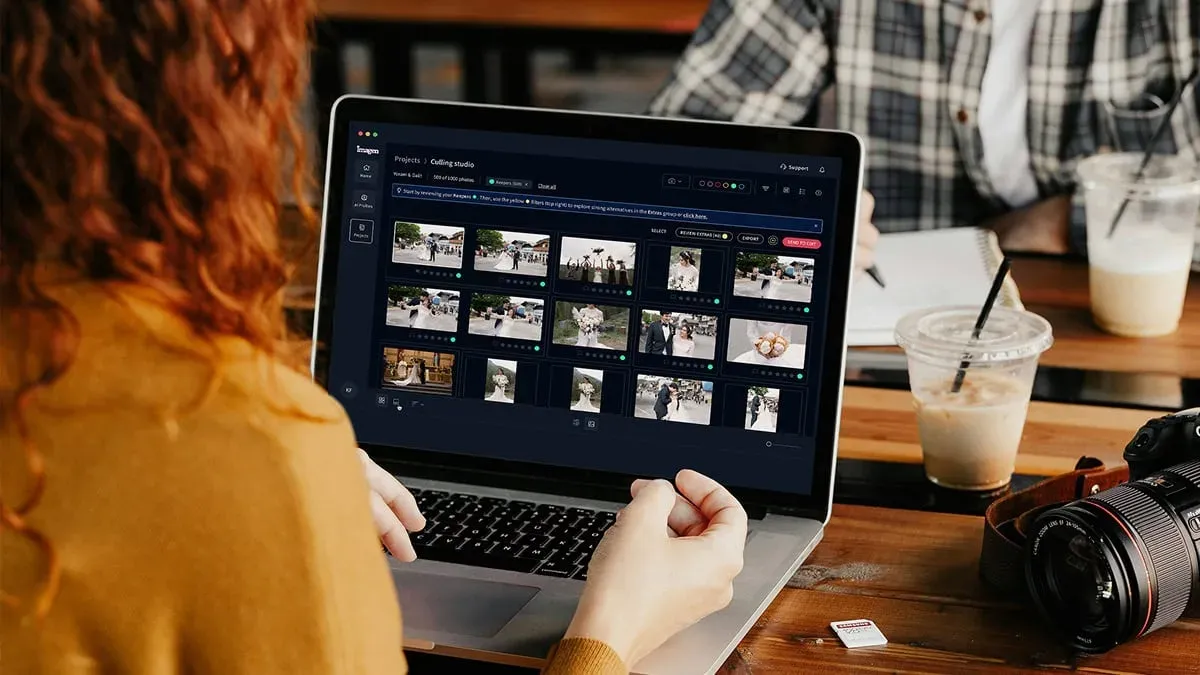
When you’re dealing with high-volume portrait or wedding photography, manual processing turns into a serious bottleneck fast. That’s where Imagen shines, and it’s our top pick on this list. It runs entirely in your browser, with no plugins and no separate desktop install. Instead of applying generic filters, Image2Image corrects a whole shoot in one pass for consistent color and exposure across every frame, and AI Assistant handles the finishing touches you’d otherwise do by hand.
Here’s how the typical workflow runs once you start using this platform:
- You upload your RAW files straight into the Imagen web app, with no import or plugin required.
- Image2Image batch-corrects the whole shoot in one pass, matching exposure, white balance, and color across every photo.
- You describe any extra fixes in plain language, and AI Assistant applies them to the frames that need it.
- You download your finished RAW and JPEG files, ready to deliver.
The speed here is genuinely useful. You can try Imagen free on your first 250 photos, no credit card required, and most users get their first batch of edits back in under 10 minutes, compared with the 3 to 5 hours a seasoned professional usually needs to do the same work by hand. You don’t lose control, either. Image2Image handles the batch, and AI Assistant handles the exceptions, the individual frames that need a specific fix. Curious how this fits your budget? Check out the Imagen pricing details. Pay-as-you-go starts at $0.32 per photo, with 30% off your first month, so you’re not locked into a plan that doesn’t match a slow season.
If you shoot real estate, Imagen is the best AI photo editor for the job. It’s built specifically for real estate photography, where Image2Image batch-corrects an entire listing for consistent color across every room and AI Assistant handles the exceptions, like virtual staging, object removal, or a twilight conversion. You can try real estate photo editing with Imagen free on your first 250 photos, no credit card required.
The transition from manual batch adjustments to AI-driven editing by exception is the single biggest shift in modern photography history. It’s not about replacing the artist; it’s about giving them their life back.
Itamar Haim, SEO Expert and Digital Strategist specializing in search optimization and content marketing.
Key Features
- Image2Image: The core color-correction model. It takes a raw, unedited photo and returns a fully corrected edit in one step, matched consistently across every photo in a shoot.
- AI Assistant: Describe an edit in plain language, object removal, sky replacement, or a specific fix, and it applies it to the frames that need it.
- AI Photo Culling: Automatically filters out blurry shots, duplicates, and closed eyes, saving you hours of sorting time via AI photo culling.
- Automated Crop and Straighten: Fixes composition and alignment issues instantly across your whole batch.
- Human Revisions: Three included revisions per project, so a photo expert can fix an edge case without you starting a separate workflow.
Pricing
The platform runs on simple pay-as-you-go pricing: $0.32 per photo, billed monthly for what you actually edit, with no contract. Early sign-ups get 30% off their first month, bringing that down to $0.22 per photo. Start with a free trial of 250 photos, no credit card needed. High-volume studios editing more than 25,000 photos a year can move to the Teams plan for volume pricing, a dedicated account manager, and priority processing.
Pros
- Cuts most of your manual post-processing time.
- Keeps consistent results across different lighting conditions and camera bodies.
- Runs entirely in your browser, so there’s no plugin or desktop install to manage.
- The pay-as-you-go model means you only pay for what you actually use during slow seasons.
Cons
- The 3 included human revisions per listing may not cover every edge case on a very large shoot.
- Needs a steady internet connection to push files through the cloud.
2. Adobe Lightroom Classic: The Industry Standard
Adobe Lightroom Classic remains a dominant force, holding a huge slice of the market. If you’ve worked in the creative industry, you’re probably already familiar with its catalog system. It’s built to act as your complete central hub, carrying your files from raw sensor data all the way to organized, polished folders.
In 2026, Adobe has focused hard on local adjustments. Their masking tools use intelligent subject recognition, letting you isolate skies, backgrounds, or individual people in a single click. Say you’re editing a portrait with a distracting background. You can quickly select the subject, invert the mask, and drop the exposure so they pop off the frame.
The biggest improvement in Lightroom is its subject-detection masking. Instead of brushing over a sky or a subject’s hair by hand, you just click a button, and the software uses intelligent localized mapping to separate elements with surprising accuracy. It doesn’t matter whether you’re dealing with complex tree branches or curly hair. The mask holds its edges. But it’s not perfect. Running these local AI masks across hundreds of 60-megapixel files will test the limits of your hardware, and if you don’t have a modern machine with a fast GPU, you’ll see performance drop right away.
Key Features
- Advanced Masking: Isolates subjects, skies, hair, and clothing with striking precision.
- Generative Remove: Uses Firefly technology to erase unwanted objects right out of your frame.
- Lens Blur: Adds natural-looking depth of field to flat, high-aperture photos.
- Cloud Syncing: Syncs smart previews across devices, which matters since 58% of photographers rely on cloud-based syncing for remote work.
Pricing
The Creative Cloud Photography Plan with 20GB of cloud storage is priced at $9.99/month. Need more online space? The 1TB plan runs $19.99/month. This subscription-only setup means you never truly own the tool, and that keeps polarizing the community.
Pros
- Seriously deep library management and keyword organization tools.
- Huge ecosystem of third-party plugins, presets, and companion apps.
- Industry-leading mobile editing app that stays in sync with your desktop database.
Cons
- The subscription-only model can feel like a never-ending financial commitment.
- Can turn slow and resource-heavy once you’re managing catalogs with over 100,000 files.
3. Capture One Pro: The Studio Heavyweight
If you work in a high-end commercial studio, you’ll probably find Capture One Pro is the default pick. Its reputation rests on exceptional color science and tethered shooting performance nobody else really matches. And when a client’s standing right over your shoulder, you can’t afford to wait around for images to load. They need to pop up on screen instantly.
The app treats color like a primary creative tool, not an afterthought. Its advanced color editor lets you isolate specific hues with narrow tolerances, which makes skin tone balancing wonderfully simple. Say your model’s skin looks a touch too red under studio strobes. You can target that exact range and shift it toward a warmer gold without touching the rest of the image.
The system shines at high-end retouching, complex compositing, and multi-layered projects. If you shoot beauty work, you’ll love the built-in frequency separation tools. Frequency separation splits your image into two layers, one for texture and one for color. That lets you smooth out skin tones on the color layer without wrecking the natural texture underneath. It’s a professional technique that used to take several fiddly steps to set up, but Capture One makes it wonderfully direct.
Key Features
Here’s what a typical tethered studio session looks like on this platform:
- You connect your camera to your computer with a high-quality USB-C tether cable.
- You set up a session in Capture One, and it automatically builds organized folders for captures, selects, and exports.
- As you shoot, the files transfer instantly to the computer and pick up a pre-configured color profile as they load.
- The client or art director flags favorite shots on an external monitor while you keep shooting.
Pricing
Capture One Pro runs a flexible but premium pricing model. You can grab a perpetual license for $299, or go with a subscription at $14.90/month when billed annually. That puts it among the pricier tools on our list.
Pros
- Unbeatable color rendering right out of the box, especially for skin tones.
- Wonderfully fast, stable tethering connection for studio setups.
- Really flexible layers system that supports advanced local adjustments.
Cons
- The steep purchase price and subscription options can shut out hobbyists.
- The interface has a steeper learning curve than simpler, slider-based apps.
4. DxO PhotoLab 8: Pure Pixel Optimization
Some photographers don’t care much about catalog sorting. They just want the cleanest, sharpest pixels they can get. That’s where DxO PhotoLab 8 comes in. It’s built for technical purity, leaning on complex mathematical models of thousands of lens and camera combinations to correct physical optical errors.
The standout feature here is the noise reduction technology. If you’re shooting wildlife at dusk at ISO 12,800, most programs hand you back a muddy, noisy mess. DxO uses deep-learning algorithms to separate noise from fine detail, giving you clean images that look like they were shot at a much lower sensitivity.
The heart of DxO is its DeepPRIME XD2 noise reduction technology. It doesn’t just blur the noise away like older programs did. Instead, it uses deep learning models to tell the difference between actual fine detail and sensor noise. Run a noisy RAW file through it, and the results look like they were shot at a much lower ISO. It recovers up to 2.5 stops of dynamic range, which is a genuine game-changer for low-light shooters. Their optical modules automatically correct lens distortion, vignetting, and softness based on precise physical testing of thousands of lens and camera combinations.
Key Features
- DeepPRIME XD2: Noise reduction tech that recovers up to 2.5 stops of ISO detail from noisy RAW files.
- U Point Technology: Clean, simple local adjustments built around selection control points.
- Optical Modules: Automatic correction of lens distortion, vignetting, chromatic aberration, and softness.
- ClearView Plus: Boosts local contrast to cut through atmospheric haze without adding halos.
Pricing
DxO PhotoLab 8 comes as a one-time purchase of $229. There are no ongoing monthly fees, which makes it a really appealing choice if you want to dodge subscription costs.
Pros
- Unmatched noise reduction that rescues high-ISO frames from the trash.
- Automatic lens corrections that make budget glass shoot like premium lenses.
- No subscription fee, so you own the platform for good.
Cons
- The built-in file management system is basic and skips advanced catalog features.
- Processing high-end noise reduction files does need a beefy graphics card.
5. Skylum Luminar Neo: Quick Creative Edits
Skylum’s Luminar Neo goes after a very different crowd. It’s built for rapid, creative transformations, for those times you really don’t want to spend hours masking by hand. The platform puts AI tools right up front in the interface, letting you completely change the mood of an image in just a few clicks.
Say you’ve captured a stunning architectural shot, but the sky’s a flat, boring grey. Instead of spending twenty minutes building a complex mask in Photoshop, you can use the sky replacement tool to swap in a dramatic sunset instantly. It even adjusts the ambient lighting on the ground to match the new light source.
Take sky replacement as an example. In traditional software, swapping a flat grey sky for a dramatic sunset eats up twenty minutes of careful brushing and color balancing. In Luminar Neo, it’s basically one click. The software doesn’t just paste in a new sky. It analyzes the scene and changes the ambient lighting on the ground to match. So if your new sky has a warm, golden glow, your foreground subjects get re-lit with that same warm tone. It’s wonderfully fast, though it can look a bit artificial sometimes if you’re not careful with the adjustment sliders.
Key Features
- Sky AI: Automatically replaces flat skies and updates the scene’s reflections and lighting.
- Portrait Background Removal: Cuts out subjects cleanly with one click.
- Relight AI: Re-maps the light in your 3D space, letting you brighten distant areas or darken foregrounds.
- GenErase: Fills in erased areas using smart generative pixels to match surrounding patterns.
Pricing
Luminar Neo runs $11.95/month for a Pro subscription, or you can grab a lifetime license for a one-time payment of $199. That makes it pretty accessible for creators on all kinds of budgets.
Pros
- Really intuitive interface that welcomes beginners warmly.
- Creative effects that’d take hours in other tools get applied instantly.
- Works well as both a standalone application and a Lightroom plugin.
Cons
- Performance can stutter when you stack multiple complex AI modules on a single file.
- Lacks the deep cataloging and metadata tools required by working professionals.
6. Affinity Photo 2: The Best Perpetual License Alternative
For years, photographers hunting for a deep pixel editor really only had one choice, and it came with a monthly subscription. Affinity Photo 2 changed that dynamic entirely. It’s a complete, professional-grade alternative built for detailed retouching, complex compositing, and multi-layered projects.
The platform runs on a modern, hardware-accelerated engine that handles huge files smoothly. Here’s how you’d pull off a frequency separation skin retouch in Affinity Photo 2:
- Open your high-resolution portrait in the Photo Persona workspace.
- Go to the Filters menu, choose Frequency Separation, and adjust the radius slider until the skin details separate from the underlying colors.
- Use the Clone Brush tool on the low-frequency color layer to smoothly even out skin tones and shadows.
- Switch to the high-frequency texture layer and use the Healing Brush to clean up small blemishes while keeping the skin looking natural.
Key Features
- Live Filter Layers: Applies adjustments, blurs, and distortions non-destructively.
- Frequency Separation: Built-in tools to separate texture from color for high-end skin retouching.
- Astrophotography Stacking: Dedicated workspace for aligning and stacking deep-sky exposures.
- Full PSD Support: Opens and writes Adobe Photoshop files without losing layer configurations.
Pricing
Serif sells Affinity Photo 2 for a single, one-time payment of $69.99. There’s genuinely no subscription plan, and minor updates come free.
Pros
- A fantastic value with no recurring monthly fees.
- Really fast performance with support for modern GPU acceleration.
- Includes comprehensive, professional tools for complex compositing.
Cons
- Doesn’t include a dedicated RAW image organizer or catalog manager.
- The workflow can feel slightly different if you’ve spent years using Adobe shortcuts.
7. Topaz Photo AI: The Emergency Recovery Kit
Every photographer has those moments. You capture an irreplaceable shot, only to find later it is slightly out of focus or ruined by severe motion blur. Topaz Photo AI acts as a dedicated recovery tool for exactly these situations. It does not try to be a general RAW editor. Instead, it uses specialized neural networks built to repair technical mistakes.
When you import a photo, the Autopilot feature scans the image and identifies specific problems, things like camera shake, soft focus, or high-frequency digital noise. It then applies precise corrections: sharpening edges, removing grain, and even upscaling low-resolution files for printing. It’s a genuine lifesaver for archival images or heavily cropped wildlife shots.
The software leans on specialized deep learning models that analyze your image to reconstruct lost detail. Its Autopilot feature scans the photo, detects the exact issues, and applies the right balance of sharpening and noise reduction. It’s particularly strong at recovering faces. Take an old, low-resolution family photo: Topaz can analyze the face and generate realistic details that make it look sharp and modern again. It’s a genuinely indispensable tool, one that can save images you would otherwise have to throw away.
Key Features
- Autopilot AI: Automatically detects and fixes blur, noise, and face details.
- Sharpen AI: Recovers natural detail in images affected by motion blur or missed focus.
- Gigapixel AI: Upscales files by up to 600% while generating realistic details.
- Denoise AI: Removes high-ISO noise without sacrificing fine textures like hair or feathers.
Pricing
Topaz Photo AI comes as a standalone desktop application for $199. Your purchase includes one year of regular updates. After that year, you can keep using the software indefinitely.
Pros
- Strong ability to save blurry or low-resolution files that would otherwise be unusable.
- Very simple, automated workflow that does the heavy lifting for you.
- Integrates cleanly as an external editor for Lightroom and Capture One.
Cons
- The purchase price runs high for a tool this specialized.
- It can sometimes over-process faces, giving an unnatural, plastic look if you do not adjust the sliders carefully.
8. ON1 Photo RAW 2026: Fast File Browsing Alternative
If you want one app that combines the speed of a folder browser with the power of layers and AI masking, look at ON1 Photo RAW 2026. Unlike Lightroom, which requires you to import photos into a database before you can edit, ON1 lets you browse your hard drive directly. This makes it ideal when you just want to edit a handful of files without cluttering up a catalog.
The 2026 version brings real performance upgrades. It offers three times faster RAW opening speeds compared to older versions, which makes your initial sorting phase much quicker. It also includes built-in effects, borders, and textures, so you can finish your creative work without ever leaving the app.
Do not let the simple browser fool you, though. ON1 is a complete powerhouse under the hood. The 2026 version delivers three times faster RAW processing speeds than older versions, and it builds layers directly into the RAW workflow. That means you can combine multiple exposures, add textures, and apply creative filters without ever exporting to a secondary pixel editor like Photoshop.
Key Features
- Direct Browser: Explores your local folders instantly without database import delays.
- Brilliance AI: Automatically analyzes your RAW files to balance exposure and color intelligently.
- Keyword AI: Scans your photos to apply searchable descriptive tags automatically.
- Built-in Layers: Combines multiple exposures, skies, and textures directly within the RAW workflow.
Pricing
ON1 Photo RAW 2026 costs $99.99 for a lifetime license. The company also offers subscription plans starting at $7.99 a month if you want ongoing cloud sync services.
Pros
- Genuinely fast browsing that does not force you into a structured catalog system.
- A well-rounded feature set that covers organizing, editing, layering, and effects.
- Offers a great balance of automated AI tools and deep manual controls.
Cons
- The user interface is densely packed and can feel cluttered to new users.
- AI-generated masks sometimes require manual cleanup around complex edges like tree branches.
9. Comparison of Professional Editing Platforms
Choosing between these platforms gets tough when each one brings its own real advantages. To help you compare them side by side, we have put together a direct comparison of their main use cases, prices, and capabilities.
| Software | Primary Use Case | Pricing Model | AI Capability Level | Best For |
|---|---|---|---|---|
| Imagen | Browser-based batch editing | Pay-as-you-go ($0.32/photo) | Extremely High (Image2Image + AI Assistant) | High-volume wedding and portrait professionals |
| Adobe Lightroom Classic | Catalog management & general editing | Subscription ($9.99/mo) | High (Subject & sky masking) | All-around professionals and enthusiasts |
| Capture One Pro | Studio tethering & color work | Subscription or Perpetual ($299) | Moderate (Smart adjustments) | Commercial, fashion, and studio photographers |
| DxO PhotoLab 8 | Advanced noise reduction | Perpetual ($229) | High (DeepPRIME XD2) | Landscape, wildlife, and low-light shooters |
| Skylum Luminar Neo | Creative AI effects | Subscription or Perpetual ($199) | High (Generative fill & sky replacement) | Social media creators and hobbyists |
| Affinity Photo 2 | Detailed retouching & layers | Perpetual ($69.99) | Low (Standard tools) | Budget-conscious retouchers & Photoshop users |
10. The Financial Reality: Perpetual Licenses vs. Subscriptions
Now let’s look at the financial side of these tools. Subscription models have dominated the creative software market, with Adobe holding a huge share. But over time, those monthly fees stack up into a significant business expense. For many independent photographers, switching to perpetual licenses is a smart way to cut recurring costs.
Look at the actual numbers for a moment. Pay $52.99 a month for the full Adobe Creative Cloud, and that comes to $635.88 every single year. Over five years, you have handed over $3,179.40. Now compare that with buying a perpetual license tool like Capture One ($299) or Affinity Photo ($69.99). Even if you upgrade every two years, you are still saving hundreds of dollars over the long term.
But the math does not stop at the purchase price. You also need to weigh the value of your own time. If a tool like Imagen costs $0.32 per photo but saves you four hours on a wedding gallery, that is a strong return on investment. If you value your time at $50 an hour, spending $120 on an automated edit that saves you fifteen hours is a huge financial win. It comes down to finding the right balance between software costs and actual time saved.
Final Recommendation: Which Software Should You Choose?
Your choice of photo editing tool should match the volume of work you produce and how you actually make money. It is easy to get lost in feature lists, but what matters most is how much time you spend behind a screen. Professional photographers spend 74% of their working hours on administrative and post-processing tasks, so your choice of tool directly shapes your bottom line.
If you are a high-volume wedding, event, or portrait photographer, you simply cannot afford to edit every file by hand. Using Imagen as your primary AI editing assistant is the single most effective way to streamline your workflow. It lets you automate the bulk of your batch editing, cutting most of your post-production time while you stay in control of the final look. From there, organize your finished files however you like, including inside Lightroom Classic if that’s already part of your catalog workflow.
For studio and commercial shooters, the combination of Capture One Pro’s excellent tethering engine and color science remains the industry standard. If you’re a landscape or wildlife photographer who regularly shoots in low light, DxO PhotoLab 8’s unmatched noise reduction makes it an essential tool for your kit. If you hate subscriptions and want a strong pixel editor, Affinity Photo 2 offers the best value on the market today.
Frequently Asked Questions
Do I need Lightroom or other software to use Imagen?
No, you need no other software. Imagen runs entirely in your browser. You upload your photos, Image2Image batch-corrects them, and you download the finished RAW and JPEG files. There’s no plugin or desktop install required, though you can still bring the files into Lightroom Classic afterward if that’s part of your catalog workflow.
Does Imagen protect my creative style, or will my photos look generic?
Imagen keeps your images looking natural and consistent rather than applying flat, generic presets. Image2Image matches color and exposure across your whole shoot, and when you want a specific look or fix, AI Assistant applies it based on what you describe.
Do I need a powerful computer to run AI-powered editing tools?
It depends on the tool. Cloud-based systems like Imagen handle the heavy processing on remote servers, which spares your computer’s resources. Desktop-based tools like DxO PhotoLab 8 or Lightroom need a capable GPU to run local AI masks smoothly.
What is the difference between a perpetual license and a subscription model?
A perpetual license lets you pay a one-time fee to own the software forever, though major updates might cost extra later on. A subscription model requires ongoing monthly or annual payments, but it guarantees you always have the latest features.
How does Imagen’s free trial work?
You can try Imagen free on your first 250 photos, no credit card required. Most users get their first batch of edits back in under 10 minutes.
Is there a free, professional-grade alternative to Adobe Photoshop?
Affinity Photo 2 is a highly professional, non-subscription alternative to Photoshop, available for a low, one-time payment. If you want a completely free, open-source tool for RAW editing, Darktable is an excellent technical choice.
Can I perform high-quality photo editing on a mobile device?
Yes, mobile editing has come a long way. Over 65% of creators now do their primary edits on mobile devices using apps like Lightroom Mobile before moving files to a desktop environment for final color grading and detailed retouching.
Does Capture One Pro support RAW files from all major camera brands?
Yes, Capture One Pro supports RAW files from virtually every major camera brand, including Sony, Canon, Nikon, Fujifilm, Leica, and Hasselblad. The company builds custom color profiles for each supported camera sensor to ensure optimal color rendering right out of the box.
