

10 Best Lightroom Photo Software in 2026
Table of contents
Key Takeaways
- Efficiency wins: The best software in 2026 focuses on saving you time through automation.
- AI is the standard: Artificial intelligence is no longer a gimmick but a core requirement for professional culling and editing.
- Workflow matters: Choose tools that integrate seamlessly with Lightroom to keep your files organized.
- Style consistency: Top-tier software learns your personal editing style rather than just applying generic presets.
Photography in 2026 moves fast. You shoot thousands of images and clients expect them back yesterday. Post-production can easily become a bottleneck that keeps you from shooting or living your life. This list covers the best software to speed up your Lightroom workflow this year. We look at tools that handle culling, editing, and finishing touches. These applications help you deliver better photos in less time.
1. Imagen
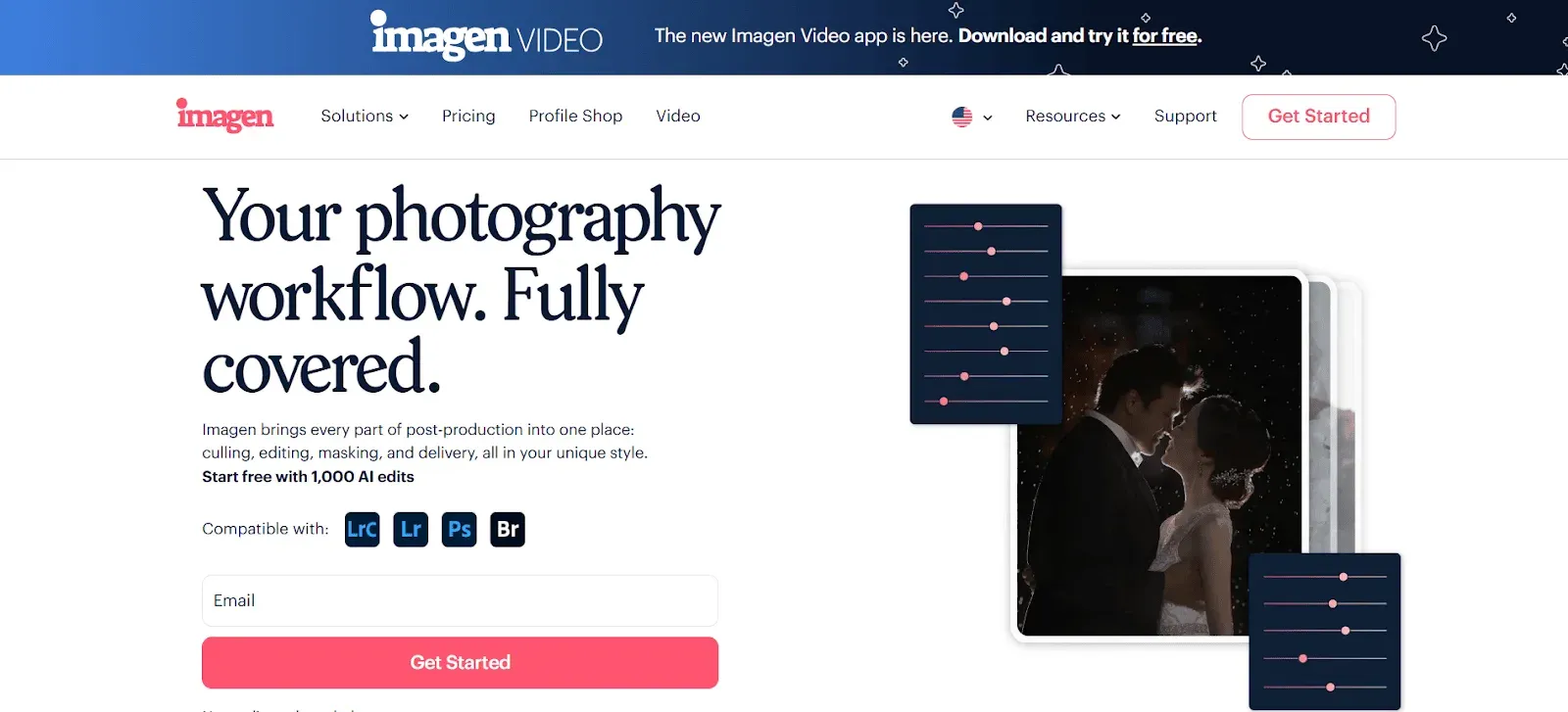
Imagen is a desktop application that acts as your personal AI-powered photo editing assistant. It is designed for professional photographers who need to clear their backlog without sacrificing their unique style. The software works directly with your Lightroom Classic catalogs. It also supports Lightroom, Photoshop, and Bridge. You can send AI edits back to Lightroom Classic as XMP, or export finished JPG, TIFF or PNG files straight from Imagen.
AI Culling Capabilities
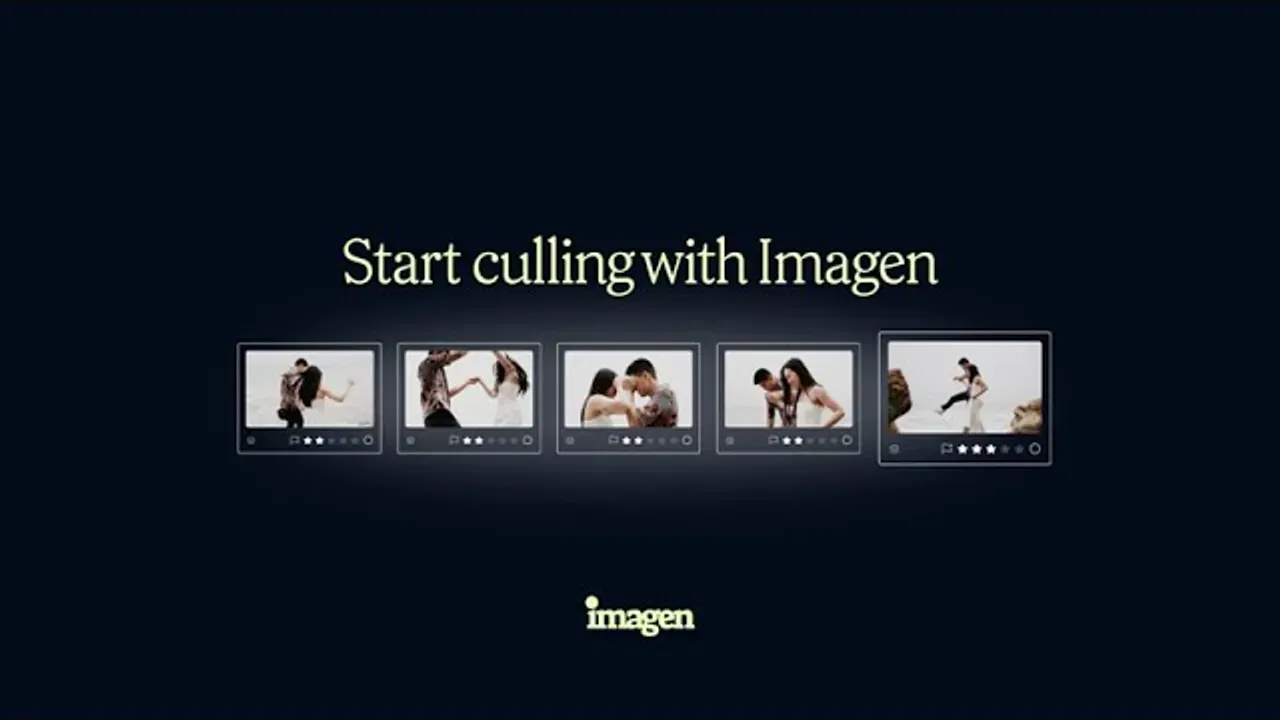
You likely spend hours selecting the best photos from a shoot before you even start editing. Imagen addresses this culling bottleneck first. The software uses a “Cull In” method. This means it selects the best photos for you to keep rather than asking you to reject bad ones.
The AI analyzes your entire shoot. It looks for technical issues like blur and closed eyes. It also checks for emotional moments like kisses. You can set the software to cull to an exact number or percentage. This is helpful for strict client deliverables. You review the results on your own computer. You stay in control of the final selection.
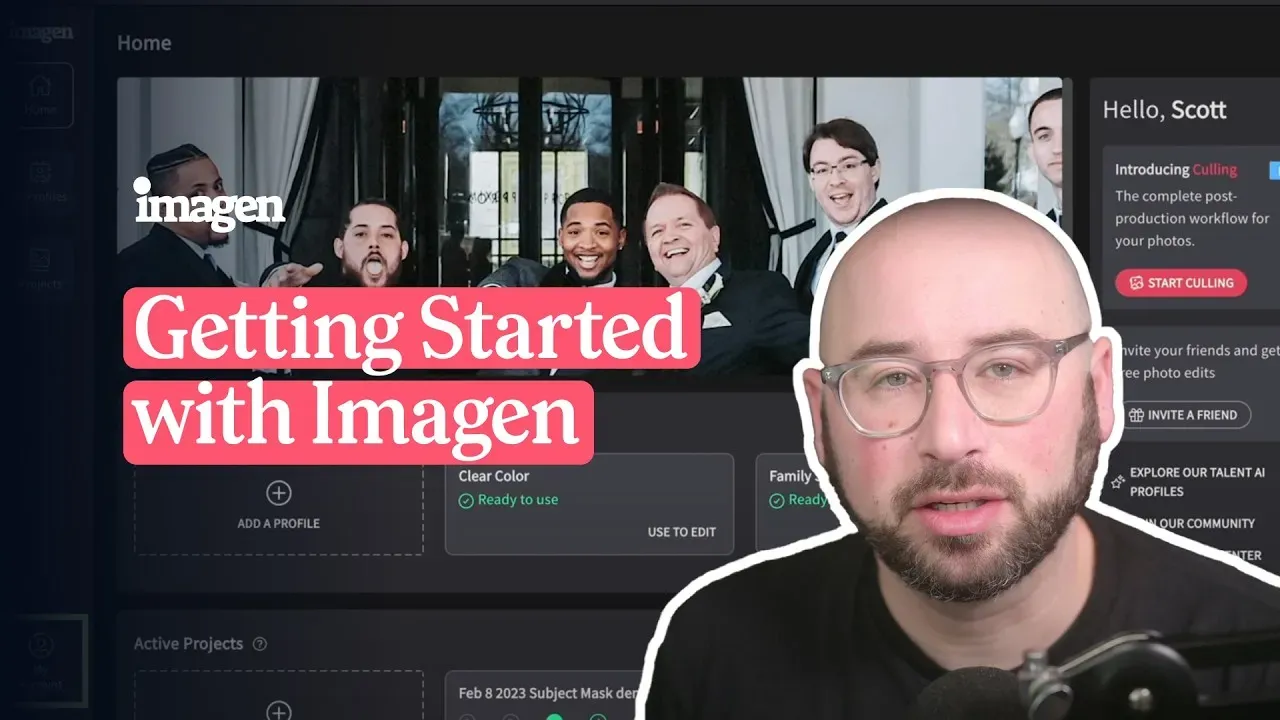
AI Editing Capabilities
Imagen edits your photos by learning your specific style. This is different from applying a standard preset. The software analyzes each photo individually. It adjusts parameters like exposure, white balance, and color based on the lighting conditions of that specific image.
Personal AI Profile: You create this profile by uploading your previous manual edits. Ideally, you upload 2,000 edited photos. The AI analyzes these to understand your preferences. It learns how you edit in different lighting. The more you use it, the better it gets. You can fine-tune the profile over time with your final tweaks.
Talent AI Profiles: You can use profiles created by industry-leading photographers if you do not have enough photos to train your own yet. These are great for trying new styles.
Lite Personal AI Profile: You can start quickly with a simple preset and a short survey. This gets you up and running in minutes.
Additional AI Tools
Imagen offers specific tools to fix common issues automatically.
- Crop: It adjusts the composition of your shots.
- Straighten: It fixes tilted horizons.
- Subject Mask: It selects the subject to apply local adjustments.
- Smooth Skin: It retouches skin textures naturally.
- Whiten Teeth: It brightens smiles without looking fake.
- Real Estate Tools: It offers specialized tools like HDR Merge and Perspective Correction for property photographers. Sky Replacement is also available for real estate projects.
Platform and Workflow
Imagen acts as a comprehensive platform for your post-production. It handles culling, editing, review, and export in one project.
- Desktop App: You install Imagen on your computer (macOS or Windows), and the AI processing runs in the cloud.
- Cloud Processing: The heavy processing happens in the cloud. This keeps your computer fast. You do not need a high-end machine to get fast edits.
- Cloud Storage: Cloud storage backup is on Imagen’s roadmap and is not available yet, so keep your usual backup running while you work to protect your projects from drive failure.
- Integration: It reads your Lightroom Classic catalogs directly. You upload a catalog, the AI edits it, and you download the edits back to Lightroom. The edits appear as standard Lightroom adjustments. You can tweak them easily.
Imagen simplifies the entire process from import to export. It lets you focus on shooting while it handles the repetitive work.
2. Adobe Lightroom Classic
Adobe Lightroom Classic remains the industry standard for photo management. It serves as the central hub for most professional workflows. It combines digital asset management with a powerful editing engine.
The software organizes your photos into catalogs. You can sort images using collections, keywords, and metadata. It handles large libraries of RAW files well. The Develop module offers precise manual control over every aspect of your image. You can adjust light, color, and detail using sliders and curves.
Recent updates include generative AI features. These tools help remove unwanted objects or expand canvas borders. The masking tools allow you to select subjects or skies automatically for local edits. It integrates with many other tools on this list through plugins.
3. Capture One Pro
Capture One Pro is a professional RAW converter and image editing software. It is known for its tethering capabilities. Studio photographers often use it to view images on a larger screen instantly as they shoot.
The software offers high-end color grading tools. You can manipulate specific color ranges with precision. The RAW processing engine renders fine detail and accurate colors from the start. It handles layers differently from Lightroom. You can apply adjustments to specific layers for complex edits.
It allows for a customizable interface. You can move tools and panels to fit your specific workflow. It also supports “Sessions” for project-based organization in addition to standard catalogs.
4. Luminar Neo
Luminar Neo works as both a standalone editor and a plugin. It focuses on creative tools powered by AI. The interface is designed to be simple and intuitive.
The software includes features for replacing skies and enhancing portraits. You can relight a scene to change the mood. It has a tool to remove power lines and dust spots automatically. The “Structure AI” tool adds detail without adding noise.
It uses a layer-based workflow. This allows you to combine multiple effects and images. It is often used for creative composites or quick stylistic changes that would take longer in other software.
5. DxO PureRAW
DxO PureRAW is a pre-processing tool. It optimizes your RAW files before you edit them in other software. It focuses on correcting optical flaws and reducing noise.
The software uses laboratory-grade measurements to correct lens distortion, vignetting, and chromatic aberration. It applies these corrections based on the specific camera and lens combination you used.
Its main feature is “DeepPRIME” noise reduction. This technology removes digital noise from high-ISO images while preserving detail. It outputs a cleaner DNG file that you can then import into Lightroom for further editing. It helps you get better quality from older cameras or low-light shoots.
6. Topaz Photo AI
Topaz Photo AI specializes in image quality enhancement. It combines sharpening, noise reduction, and upscaling into one application. It runs on autopilot to detect issues in your image.
The software detects if your subject is out of focus. It attempts to recover details to save blurry shots. It also removes noise from grainy images. The upscaling feature lets you increase the resolution of a photo for large prints.
You can use it as a plugin within Lightroom. You send a photo to Topaz, it fixes the quality issues, and sends it back. It is useful for saving from technical failures or improving crops.
7. ON1 Photo RAW
ON1 Photo RAW positions itself as an all-in-one photo editor. It combines organization, effects, and RAW processing. It does not require a subscription.
The software allows you to browse photos without importing them into a catalog. This can speed up access to files. It includes AI-powered tools for swapping skies and retouching portraits. It has a large library of filters and presets.
It also features “Resize AI” for enlarging images. The software aims to provide all necessary tools in one package, so you do not need multiple apps.
8. AfterShoot
AfterShoot is a culling and editing application. It runs locally on your computer rather than in the cloud. It focuses on high-volume workflows for wedding and event photographers.
The culling feature groups duplicate images. It identifies technical problems like blur. It suggests the best photo from a series. You can customize the strictness of the selection.
The editing module applies a profile to your images. You can create a profile on your own catalog. It integrates with Lightroom so you can review your selections and edits there. It is designed to work offline.
9. Retouch4me
Retouch4me offers a suite of specialized plugins. Each plugin handles a specific retouching task. They are designed to automate high-end retouching steps that usually require manual work in Photoshop.
The plugins include tools for dodging and burning, cleaning skin, and fixing fabric wrinkles. There are also tools for eye brilliance and teeth whitening. The software uses neural networks to identify the areas that need work.
It works directly on layers in Photoshop or as an external editor from Lightroom. It aims to provide a natural “hand-retouched” look without the time investment.
What’s new in Imagen: Imagen works alongside Lightroom and is now an intelligent, agentic Studio for professional photographers. Cull, edit, review and export in one project, in any order, then send AI edits back to Lightroom Classic as XMP or export finished JPG, TIFF or PNG files straight from Imagen. The rollout is gradual.
10. Evoto
Evoto is a dedicated retouching software. It is built for portrait photographers who need to process large batches of images quickly. It uses a credit-based payment system for exports.
The software offers comprehensive controls for facial reshaping and skin smoothing. You can adjust makeup or remove stray hairs. It also includes tools for background adjustments and color grading.
It operates as a standalone app. You import photos, apply edits, and export them. It is known for its speed and the ability to handle complex retouching tasks like glass glare removal automatically.
Criteria for How to Choose the Best Lightroom Photo Software in 2026
You have many options. Use these criteria to narrow down the list and find the tool that fits your business.
Speed and Efficiency
Time is your most valuable asset. Look for software that reduces your manual workload. Does the tool automate repetitive tasks like culling or basic adjustments? Tools that batch process images in the cloud often free up your computer for other tasks. A faster workflow means you can deliver galleries sooner and take on more clients.
Quality and Consistency
Speed means nothing if the results are bad. The software must produce professional results. Look for tools that learn your specific style. Generic presets often fail in difficult lighting. AI that adapts to each photo ensures your portfolio looks consistent from start to finish. Check if the skin tones look natural and if the exposure is balanced across different scenes.
Workflow Integration
The best software fits into your existing process. It should not force you to change everything. If you use Lightroom Classic, choose tools that function as plugins or read Lightroom catalogs directly. This keeps your files organized in one place. Avoid software that requires you to export and import files multiple times, as this creates a mess of duplicate files.
Cost and Value
Consider the return on investment. Some software charges a monthly subscription, while others use a pay-per-edit model. Calculate how much time you save. If a tool saves you 10 hours of work a week, it pays for itself quickly. Compare the cost of the software to the cost of outsourcing your editing to a human.
Feature Set
Determine what you actually need. Do you need an all-in-one platform or a specialized tool? If you struggle with culling, prioritize strong selection features. If you hate retouching skin, look for robust portrait tools. Some platforms offer storage and delivery as well. This can save you money on other subscriptions.
General Guide: Optimizing Your Workflow in 2026
Follow these steps to build a workflow that maximizes your creativity and profit.
1. Centralize your assets. Keep all your photos in one reliable management system like Lightroom Classic. Use a single catalog structure that makes sense to you. This ensures you never lose track of a client’s files.
2. Automate the boring stuff. Identify the tasks you hate. Culling, color correction, and basic retouching are prime candidates for automation. Use AI tools to handle the first pass of these tasks. This gets you 90% of the way there in minutes instead of hours.
3. Train your AI assistant. If you use adaptive AI software, take the time to train it properly. Feed it your best edits. Show it how you handle tricky lighting. The more data you give it, the more it becomes an extension of your own eye.
4. Review, don’t redo. Shift your mindset from “editor” to “reviewer.” Let the software do the heavy lifting. Your job is to check the work and apply the final 5% of polish. This is where your artistic vision really shines.
5. Back up continuously. Never rely on a single hard drive. Use a cloud storage solution that integrates with your workflow. Automatic backups while you edit save you from catastrophic data loss.
Frequently Asked Questions
1. Can AI software really match my personal editing style? Yes. Advanced AI software analyzes thousands of your previous edits. It learns your preferences for contrast, color, and exposure. It applies these preferences to new photos. The results are often indistinguishable from your manual work.
2. Is desktop software better than web-based editors? Desktop software is generally more powerful for high-volume work. It handles large RAW files better than browser-based tools. It also integrates more smoothly with local applications like Lightroom.
3. Do I need an internet connection for cloud-based AI editing? Yes. Tools that process in the cloud need an internet connection to upload catalogs and download edits. However, the heavy processing happens on remote servers, which keeps your computer running smoothly.
4. Will using AI editing software make my photos look fake? No. Good AI editing tools adjust standard photography parameters like exposure and white balance. They do not add fake elements unless you use specific generative tools. The goal is a natural, polished look.
5. Can I use these tools if I am a beginner? Yes. Many of these tools are designed to be user-friendly. They can help beginners achieve professional results quickly. “Lite” profiles or presets are great starting points.
6. Does AI culling actually save time? Absolutely. AI culling can group duplicates and hide bad shots automatically. It presents you with the best options. This can cut your selection time in half.
7. Is my data safe with cloud processing? Reputable companies use secure encryption for file transfers. They prioritize data privacy. Always check the security policy of the software you choose.
8. Can I edit JPEGs with these software options? Most professional tools support both RAW and JPEG formats. However, RAW files generally provide better results because they contain more data.
9. How does pricing typically work for AI editors? Models vary. Some charge a flat monthly subscription. Others charge per image edited. Some offer a hybrid model. Choose the one that fits your volume of work.
10. What happens if I lose my internet connection while working? Desktop apps usually pause the upload and resume when the connection returns. You can often continue reviewing downloaded edits offline.
11. Can I use multiple AI tools on the same photo? Yes. You can cull with one tool, edit color with another, and retouch with a third. However, an all-in-one platform reduces the need to switch between apps.
12. Do these tools work on both Mac and Windows? Most major software titles are available for both operating systems. Always check the specific system requirements before installing.
13. Will AI eventually replace photographers? No. AI replaces the repetitive tasks of post-production. It cannot replace the creative vision, connection with the subject, and storytelling ability of the photographer.
