
10 Best AI Photo Editor in 2026: Reviews & Buying Guide
Table of contents
- Key Takeaways
- 1. Imagen
- 2. Adobe Lightroom Classic
- 3. Aftershoot
- 4. Neurapix
- 5. Luminar Neo
- 6. Capture One Pro
- 7. Topaz Photo AI
- 8. ON1 Photo RAW
- 9. Adobe Photoshop
- 10. Evoto AI
- Criteria for Choosing the Best AI Photo Editor in 2026
- A General Guide to AI Photo Editing
- 13 Questions and Answers
- 1. Will AI editing replace professional photographers?
- 2. Is cloud processing safe for my client’s photos?
- 3. Do I need a powerful computer for AI photo editing?
- 4. Can AI really match my personal editing style?
- 5. What is the difference between AI culling and AI editing?
- 6. Can I use AI editors for JPEG files, or only RAW?
- 7. Does AI editing work offline?
- 8. How much time does AI editing actually save?
- 9. Can I use AI for black and white editing?
- 10. What happens if I don’t like the AI edit?
- 11. Is AI editing expensive?
- 12. Can AI fix blurry photos?
- 13. Which AI tool is best for beginners?
- Conclusion
Photography in 2026 looks a lot different than it did just a few years ago. We aren’t just capturing light anymore; we are managing massive data sets of visual information. The days of sitting in a dark room—or staring at a screen until your eyes burn—are fading. Today, artificial intelligence handles the heavy lifting. But with so many options flooding the market, how do you find the right tool? I’ve tested the top contenders to help you navigate this new landscape and find the best AI photo editor in 2026 for your specific workflow.
Key Takeaways
- AI is an assistant, not a replacement. The best tools enhance your unique style rather than replacing your creative vision.
- Workflow is king. Speed means nothing if the software doesn’t fit into your existing process with Adobe Lightroom or Capture One.
- Imagen leads the pack. For professional consistency and comprehensive workflow management (culling, editing, export), Imagen is the top choice.
- Specialization matters. Some tools excel at creative effects (Luminar), while others focus on pure image quality restoration (Topaz).
- Cloud vs. Local. Choosing between cloud processing (like Imagen) and local processing (like Aftershoot) depends on your hardware and internet speed.
1. Imagen

When we talk about the best AI photo editor in 2026, we have to start with the tool that has fundamentally changed how professionals handle high-volume work. Imagen isn’t just a preset slapped onto an image. It is a comprehensive post-production ecosystem that learns from you.
As a desktop application, Imagen sits right on your computer. It integrates directly with Adobe Lightroom Classic, Lightroom (CC), Photoshop, and Bridge. While the interface lives on your desktop, the heavy processing power happens in the cloud. This means you don’t need a supercomputer to get through thousands of edits. You upload your catalog, the cloud does the work, and edited photos arrive in batches as they process, so you can start reviewing early frames while the rest finish.
Personal AI Profile: Consistency at Scale
The core problem for most of us is maintaining consistency across thousands of images. You might edit the first 100 photos perfectly, but by photo 2,000, fatigue sets in.
Imagen addresses this with the Personal AI Profile. This isn’t a static filter. It is a smart profile that you train. You feed Imagen about 3,000 of your previously edited photos (from Lightroom Classic catalogs). The AI analyzes exactly how you adjust white balance, exposure, color grading, and tone curves in different lighting conditions.
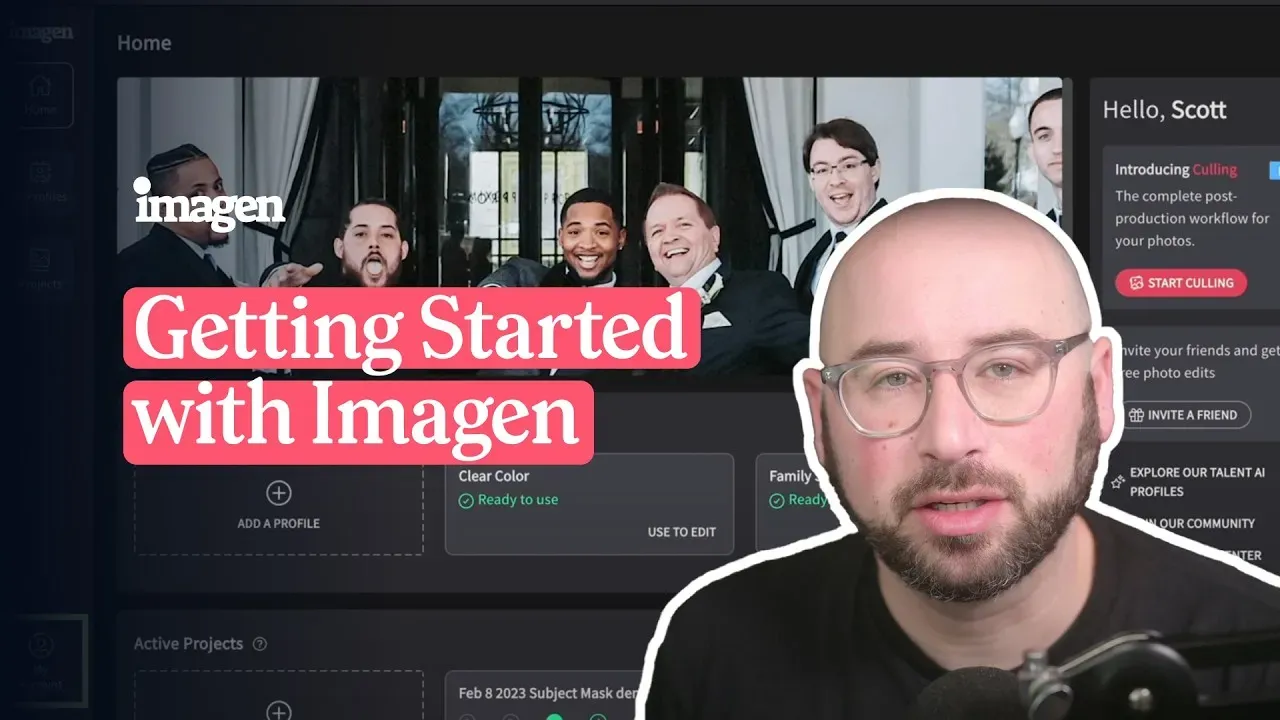
Once trained, this profile acts like a digital version of you. It applies your unique editing style to new shoots with incredible accuracy. It adjusts each photo individually based on its specific parameters, rather than applying a blanket setting across the board. If your style evolves, the profile evolves with you. You can upload final edits back to the system to “fine-tune” your profile, keeping it up to date with your latest creative preferences.
If you don’t have 3,000 photos ready, Imagen offers a Lite Personal AI Profile. You simply upload a preset and answer a few questions about your style to get started. Alternatively, you can use a Talent AI Profile, which lets you edit in the style of industry-leading international photographers.
Culling Studio: The First Line of Defense
Before you even think about color correction, you have to get through the culling process. Sorting through duplicates, blinks, and blurry shots is tedious.
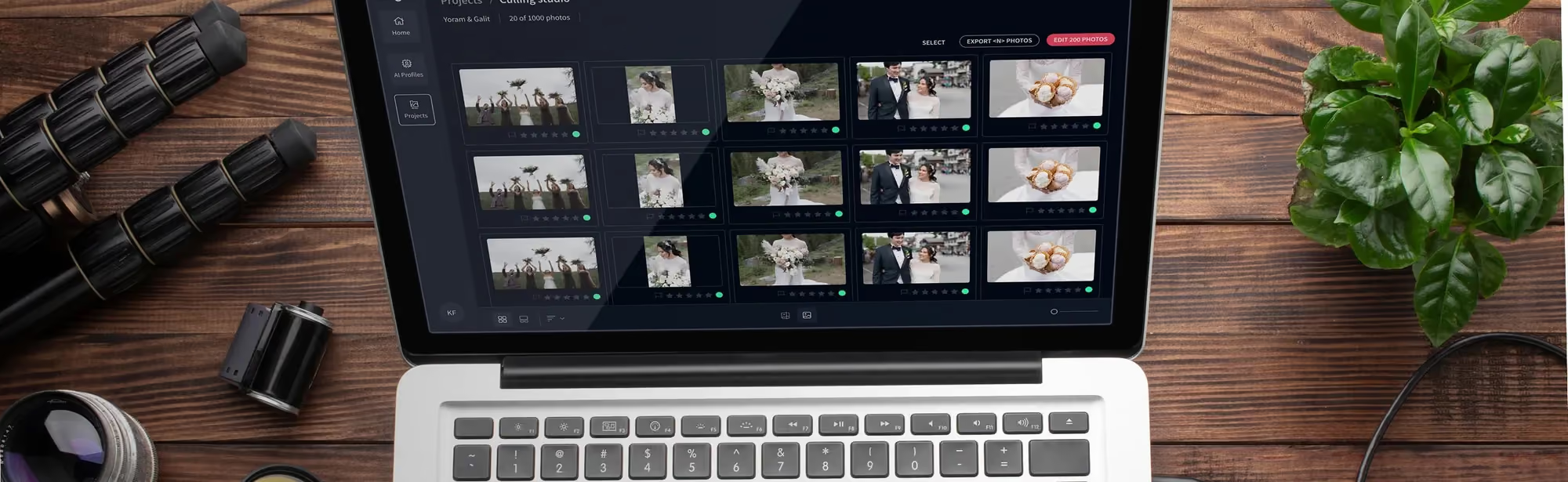
Imagen solves this with Culling Studio, which lives in the same project as your editing, so you can also cull manually for free. It uses AI to mimic the human selection process. You upload your raw shoot, and the software groups similar photos together. It automatically detects:
- Face Recognition: Identifies key subjects.
- Closed Eyes: Flags unintentional blinks (but is smart enough to recognize a romantic “kiss” moment where eyes should be closed).
- Blurry Photos: Weeds out out-of-focus shots.
- Duplicates: Groups bursts so you can pick the best one.
You can set it to “Cull to Exact Number” if you have a strict deliverable count for a client. The best part is the integration. You can review the culling results with your editing profile applied to the previews. This lets you see the final potential of a shot before you even commit to keeping it.
Specialized AI Tools
Imagen includes specific tools that address niche needs without requiring you to jump into Photoshop.
- For Portrait and School Photographers: Tools like Subject Mask automatically select the subject for local adjustments. Smooth Skin applies a professional, natural smoothing effect that saves hours of retouching. Crop and Straighten tools automatically fix horizons and composition. There is even a Whiten Teeth tool for batch processing smiles.
- For Real Estate Photographers: This is where Imagen shows its versatility. It applies your personal editing style across a whole property shoot, with batch color, exposure, and white balance. AI straightening then fixes vertical lines automatically, so every listing photo comes out consistent.
Backup Planning
Finally, Cloud Storage is on Imagen’s roadmap as the piece that would tie the workflow together. It is planned as a backup that runs while you cull and edit, but it is not available yet, so for now keep your usual backup in place.
2. Adobe Lightroom Classic
Adobe Lightroom Classic remains the industry standard for file management and organization in 2026. It is the backbone of most professional workflows.
Core Functionality
Lightroom Classic is a desktop-based application that focuses on cataloging and non-destructive editing. It stores your edits as metadata instructions, leaving your original files untouched. Its strength lies in its Digital Asset Management (DAM) capabilities. You can organize hundreds of thousands of images using collections, keywords, and metadata filters.
AI Features
Adobe has integrated AI features directly into the Develop module.
- Denoise: This tool uses AI to remove noise from high-ISO images while preserving detail. It requires creating a new DNG file.
- Lens Blur: This feature creates a depth map of the image to artificially blur the background, simulating a fast aperture lens.
- Masking: The masking tools use AI to automatically select subjects, skies, or backgrounds. This allows for precise local adjustments without manual brushing.
The Workflow
Lightroom Classic processes images locally on your computer. This means performance relies heavily on your CPU and GPU. It connects seamlessly with Photoshop for pixel-level editing. While it includes AI tools, it does not offer a “style learning” capability that applies personalized edits across a catalog automatically like Imagen. It relies on presets and batch syncing.
3. Aftershoot
Aftershoot is a desktop application that combines culling and editing into a single interface. It functions as a locally-run alternative for photographers who prefer offline processing.
Local Processing
The defining characteristic of Aftershoot is that it runs entirely on your local hardware. It does not upload images to the cloud for processing. This appeals to photographers with slow internet connections or strict data privacy concerns who prefer to keep everything offline.
Culling and Editing
Aftershoot started as a culling tool. It groups duplicates, identifies blurry images, and flags photos with closed eyes. It has since expanded into editing.
- AI Profiles: Users can create custom profiles by feeding the software past catalogs.
- Marketplace: It offers pre-built profiles from other photographers.
- Retouching: It includes basic AI retouching features for skin and cropping.
Integration
Aftershoot works as a standalone app. You import your raw files into Aftershoot, run the culling and editing, and then export the selection and metadata (XMP files) to Lightroom Classic or Capture One. It acts as a pre-processor before you enter your main catalog workflow.
4. Neurapix
Neurapix is a plugin-based AI editing solution that operates specifically within the Adobe Lightroom Classic environment. It focuses on keeping the user inside the Lightroom interface.
SmartPresets
Neurapix uses technology called “SmartPresets.” These are AI profiles trained on a photographer’s editing style. To create a SmartPreset, a user uploads edited images to the Neurapix servers. Once trained, the profile appears within Lightroom Classic essentially as a preset.
Processing Options
Neurapix offers a hybrid approach to processing:
- Cloud Processing: You can send images to their servers for faster processing.
- Local Processing: You can choose to process images locally on your own computer. This avoids upload times but uses your own system resources.
The Plugin Workflow
Because it lives as a plugin, there is no separate app to open. You select photos in your Lightroom catalog, run the plugin, and the sliders adjust automatically. It is designed for photographers who want to avoid switching between different software windows.
5. Luminar Neo
Luminar Neo by Skylum takes a different approach. It is designed as a creative editor first, utilizing AI to perform complex editing tasks that would typically require advanced Photoshop skills.
Creative AI Tools
Luminar Neo is known for its “magic” sliders.
- Sky AI: It replaces skies in outdoor photos, automatically relighting the scene to match the new sky.
- Relight AI: It creates a 3D map of the image, allowing you to adjust the lighting of the foreground and background independently.
- Face and Body AI: It offers sliders to slim faces, enlarge eyes, or change body shapes.
- GenErase: It uses generative AI to remove unwanted objects and fill in the gaps.
System Architecture
Luminar Neo can work as a standalone application with its own catalog system or as a plugin for Lightroom and Photoshop. It is layer-based, similar to Photoshop, allowing for composite edits. It is generally geared more towards creative manipulation and “hero” shots rather than high-volume batch processing of thousands of event photos.
6. Capture One Pro
Capture One Pro is the standard for high-end studio photography and tethering. It is renowned for its color science and raw processing engine.
Tethering and Speed
Capture One provides the fastest and most stable tethered shooting experience. Images appear on the screen almost instantly as you shoot. This is critical for commercial and studio photographers who need real-time feedback.
AI Capabilities
In 2026, Capture One has integrated specific AI tools to speed up workflow without taking over the creative process.
- Smart Adjustments: This feature automatically adjusts exposure and white balance to match a reference look across a batch of images. It helps maintain consistency when lighting conditions change slightly.
- AI Masking: Like Lightroom, it offers subject and background masking for local adjustments.
- Culling: A dedicated culling view allows for fast grouping and rating of images.
Color Grading
Capture One offers advanced color wheels and skin tone tools that provide granular control over specific color ranges. It is less about “learning your style” and more about providing precise tools for manual style creation and application.
7. Topaz Photo AI
Topaz Photo AI is not a full-featured editor or catalog manager. It is a specialized tool focused on image quality enhancement. It combines three of Topaz Labs’ core technologies: Sharpen, Denoise, and Gigapixel.
Image Restoration
The primary purpose of Topaz Photo AI is to salvage or enhance the technical quality of a file.
- Denoise: It removes heavy grain from high-ISO images.
- Sharpen: It corrects motion blur or soft focus.
- Upscale: It increases the resolution of an image, adding detail based on AI analysis.
Autopilot
The software uses an “Autopilot” function. It analyzes the image, detects the specific issues (noise, blur, low resolution), and automatically applies the necessary corrections. It works as a standalone app or as a plugin for Lightroom and Photoshop. It is typically used on specific “problem” photos rather than an entire wedding catalog.
8. ON1 Photo RAW
ON1 Photo RAW positions itself as an all-in-one alternative to the Adobe ecosystem. It combines a photo organizer, raw processor, layered editor, and effects app into one piece of software.
No-Subscription Model
A key selling point for ON1 is its perpetual license model. You buy the software once rather than paying a monthly subscription (though subscription options for cloud syncing exist).
AI Integration
ON1 integrates AI throughout its editing modules.
- Brilliance AI: This is an intelligent auto-enhancer that adjusts color and tone.
- Super Select AI: You point and click on an object in the photo (like a person, sky, or tree), and the software automatically masks it for adjustment.
- Keyword AI: It scans your photos and automatically adds descriptive keywords, making organization easier.
9. Adobe Photoshop
Adobe Photoshop is the heavy lifter of the creative world. While Lightroom handles the broad strokes, Photoshop handles the pixel-level details.
Generative AI
In 2026, Photoshop’s generative AI features, powered by Adobe Firefly, are central to its workflow.
- Generative Fill: You can select an area and type a prompt to add or remove elements. The AI generates new pixels to match the lighting, perspective, and style of the original image.
- Generative Expand: You can crop outward, and the AI fills the empty canvas to extend the image.
Deep Retouching
Photoshop remains the tool for high-end retouching. Frequency separation, dodge and burn, and composite work are all done here. It is a layer-based raster editor. It is not designed for batch editing thousands of photos, but for perfecting single images.
10. Evoto AI
Evoto AI is a newer competitor that focuses specifically on portrait retouching. It aims to replace the tedious manual retouching work often done in Photoshop.
Specialized Retouching
Evoto uses AI to detect facial features, skin, makeup, and hair.
- Skin Retouching: It removes blemishes, dark circles, and wrinkles while retaining skin texture.
- Digital Makeup: It can apply or adjust makeup digitally.
- Background Cleanup: It automatically removes stray hairs or wrinkles from studio backdrops.
Credit-Based System
Evoto typically operates on a credit-based system where you pay for each exported image. It is a standalone app that is used primarily for the final polishing stage of portrait workflows.
Criteria for Choosing the Best AI Photo Editor in 2026
Choosing the right software is not about finding the one with the most features. It is about finding the one that removes the bottlenecks in your specific workflow. Here are the criteria you need to consider.
1. Workflow Integration
This is the most critical factor. Does the software play nice with your current tools?
- Seamless Integration: Tools like Imagen integrate directly with Lightroom Classic. They read your catalog and write metadata back to it. This allows you to keep your organization system intact.
- Standalone vs. Plugin: Standalone apps (like Aftershoot) require you to export and import files between apps. Plugins (like Neurapix) keep you in one window. You need to decide if you are willing to leave your main catalog to process images.
2. Consistency vs. Creativity
What is your goal?
- Consistency: If you are a wedding or event photographer, your goal is to make 4,000 photos look like they were edited by the same person. You need a tool that learns your style (Imagen) rather than one that applies creative effects.
- Creativity: If you are a landscape or fine art photographer, you might want tools that allow for dramatic sky swaps or composite work (Luminar Neo, Photoshop).
3. Processing Location (Cloud vs. Local)
- Cloud Processing: Tools like Imagen offload the work to external servers. This frees up your computer so you can keep working on other tasks. It is generally faster for high volumes but requires an internet connection.
- Local Processing: Tools like Aftershoot or Lightroom use your computer’s processor. This works offline but can slow down your machine if you don’t have high-end hardware.
4. Specialization
Look for tools that match your genre.
- Real Estate: You need HDR merging, vertical correction, and window pulls.
- Portraits: You need skin smoothing, background masking, and stray hair removal.
- General: You need robust exposure and color correction.
5. Cost Structure
- Pay-as-you-go: Models like Imagen charge a monthly base fee plus a charge for the photos you export. This is ideal for businesses because the cost scales with your revenue. You pay more when you have more work.
- Subscription: Monthly fees (Lightroom, Capture One) provide access regardless of volume.
- Perpetual License: One-time purchases (ON1, Luminar) avoid monthly bills but often require paid upgrades for new versions.
A General Guide to AI Photo Editing
Entering the world of AI editing requires a shift in mindset. You are moving from being the “operator” to being the “manager.”
Step 1: Define Your Style
AI models work best when they have a clear target. Before you train a Personal AI Profile in software like Imagen, ensure your training data (your past catalogs) is consistent. If your past edits are all over the place, the AI will be confused. Spend time curating a set of 3,000 images that represent your best work.
Step 2: Trust but Verify
AI is powerful, but it is not infallible. The best workflow involves running the AI edit and then reviewing the results. In Imagen, you can send the edits back to Lightroom Classic or export finished JPG, TIFF, or PNG files, then scan through them. You will likely find the AI gets you 90-95% of the way there. Your job is to apply the final 5%—the artistic flourish.
Step 3: Utilize the Ecosystem
Don’t view these tools in isolation. Use them together.
- Cull with AI to save your eyes.
- Edit with a style-learning AI to save your hands.
- Retouch specific hero shots with generative AI for the “wow” factor.
- Back up with a cloud storage service of your choice.
Step 4: Keep Learning
AI tools update constantly. A feature that didn’t exist in January might be the industry standard by June. Keep your software updated and periodically check the release notes for new tools like subject masking or adaptive cropping.
13 Questions and Answers
1. Will AI editing replace professional photographers?
No. AI cannot capture the moment. It cannot interact with a client, manage a timeline, or see the light in a room. AI is a post-production tool. It replaces the repetitive task of editing, not the creative act of photography.
2. Is cloud processing safe for my client’s photos?
Yes. Reputable services like Imagen use enterprise-grade encryption for data transfer and storage. Your photos are generally safer in the cloud than they are on a single hard drive that could fail or be stolen.
3. Do I need a powerful computer for AI photo editing?
It depends on the software. If you use cloud-based tools like Imagen, you can edit thousands of photos on a basic laptop because the processing happens on the server. If you use local tools like Aftershoot or Lightroom’s Denoise, you need a powerful GPU and CPU.
4. Can AI really match my personal editing style?
Yes. Tools that utilize “Personal AI Profiles” analyze thousands of data points from your past work. They learn your preferences for contrast, warmth, and color shifts. They are surprisingly accurate, often indistinguishable from your own manual edits.
5. What is the difference between AI culling and AI editing?
AI Culling focuses on selection. It looks at technical quality (sharpness) and content (eyes open, composition) to decide which photos to keep. AI Editing focuses on aesthetics. It adjusts light, color, and detail to decide how the photo should look.
6. Can I use AI editors for JPEG files, or only RAW?
Most AI editors support JPEGs, but RAW files provide the best results. RAW files contain more data, allowing the AI to recover highlights and shadows more effectively. Imagen supports both RAW and JPEG workflows.
7. Does AI editing work offline?
Some tools do, and some don’t. Local processing tools like Aftershoot work offline. Cloud-based tools like Imagen require an internet connection to send your photos to the cloud for AI processing and receive the edits back (your original files stay on your drive).
8. How much time does AI editing actually save?
It is significant. Manual editing of a wedding (4,000 images) might take 15-20 hours. AI can process that same catalog in under 20 minutes. Even with review time, you are looking at a 75-90% reduction in workload.
9. Can I use AI for black and white editing?
Yes. Most AI profiles can be trained on black and white images. In Imagen, you can create a specific profile dedicated to your monochrome style.
10. What happens if I don’t like the AI edit?
You change it. AI edits are non-destructive. They move the sliders in Lightroom. If the AI makes an image too bright, you just pull the exposure slider down. You can also upload that correction to “teach” the AI for next time.
11. Is AI editing expensive?
It is often cheaper than outsourcing. Traditional human editors might charge $0.30 - $0.50 per image. AI editing typically costs a fraction of that, whether it is billed per image or included in a monthly subscription.
12. Can AI fix blurry photos?
To an extent. Tools like Topaz Photo AI can sharpen soft images using deconvolution algorithms. However, they cannot magically reconstruct detail that was never captured. They can make a soft photo usable, but they rarely make it perfect.
13. Which AI tool is best for beginners?
Luminar Neo is very beginner-friendly due to its visual interface and “magic” sliders. However, for a beginner wanting to learn professional workflow, starting with Lightroom Classic and pairing it with Imagen’s “Talent Profiles” is a great way to get professional results immediately while learning how the sliders work.
What’s new in Imagen: Imagen is now an intelligent, agentic Studio for professional photographers, the next evolution of the Imagen you already know. Cull, edit, review and export together in one project, whichever order fits the day. Edit in your own style with a Personal AI Profile, or ask the assistant in plain language to find photos and act on them while you steer. It is rolling out gradually as a beta.
Conclusion
The landscape of photo editing in 2026 is defined by choices. You can choose to spend hours manually tweaking sliders, or you can choose to leverage AI to handle the grunt work. The best AI photo editor for you depends on your volume, your style, and your willingness to adapt.
For the high-volume professional who demands consistency and efficiency, Imagen stands alone. Its ability to cull, edit, review and export in one desktop project, in any order, with the AI processing done in the cloud, makes it the ultimate productivity tool. It gives you your life back. For the creative artist looking to manipulate reality, tools like Luminar Neo and Photoshop offer boundless possibilities. And for the purist, Lightroom Classic and Capture One remain steady foundations.
The future isn’t about AI replacing photographers. It’s about photographers using AI to become better, faster, and more creative businesses. Choose the tool that lets you put the mouse down and pick the camera up.
