

8 Best AI Artwork Photo Editing Software in 2026
Table of contents
8 Best AI Artwork Photo Editing Software Tools in 2026
Artists, print sellers, and galleries who photograph paintings, drawings, and prints need editing that keeps color true to the original piece across a whole catalog. The best AI artwork photo editing software removes the slow, repetitive corrections so every reproduction shares the same exposure, white balance, and tone. Imagen is our top pick for high-volume artwork reproduction, because it learns your personal editing style and applies it across an entire shoot while working only on the real photos you captured. This guide ranks eight tools for 2026 and explains what each one does well, so you can match a program to the way you shoot and sell your work.
Key Takeaways
- Imagen learns your personal editing style from your own catalog and applies consistent, color-accurate exposure, white balance, and tone across a full batch of artwork photos.
- Imagen edits, culls, and retouches the real photos you shot of your artwork. It does not generate or alter the artwork itself, and it does not invent backgrounds.
- Imagen pricing is pay as you go: you pay for the photos you export. Sliders, crops, and masks you do yourself are always free.
- Adobe Lightroom, Photoshop, Capture One, Luminar Neo, ON1 Photo RAW, DxO PhotoLab, and Topaz Photo AI each cover a specific stage of artwork reproduction editing.
- Match the tool to your bottleneck, because color accuracy, batch consistency, culling, and detail cleanup each favor a different piece of software.
1. Imagen
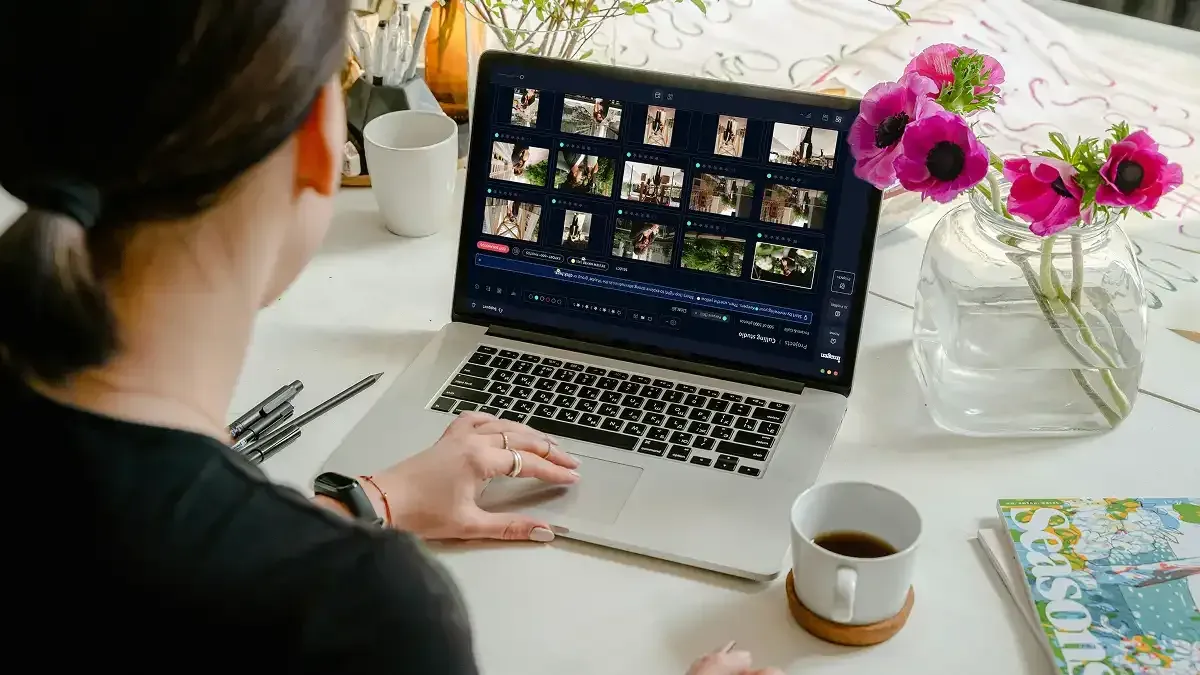
Imagen is built for photographers who shoot high volumes and need a consistent look across every frame, which makes it a strong fit for artwork reproduction. It studies your Lightroom or Capture One catalog, learns the way you already edit, and then applies that personal style to a full shoot. For fine-art reproduction, this matters because a print run or a gallery catalog often spans hundreds of pieces photographed across several sessions, and the color has to stay uniform across all of them. Imagen keeps exposure, white balance, and tone aligned to the choices you make by hand, so the first canvas and the last drawing read as one accurate set.
The platform connects three stages in one project. AI culling sorts through the take and flags the strongest frames, which saves time when you bracket each piece, and you can cull manually for free if you prefer. The editing engine applies your style to raw files and holds color accurate to the original work. A built-in editor (Beta) covers manual tweaks such as sliders, crop, and straighten without leaving the project. Imagen is not an image generator, so it does not create or alter the artwork itself, and it does not invent backgrounds. This keeps your reproductions honest and true to the piece in front of the camera.
Pricing is pay as you go: you pay at export, and you see every edit in the gallery first, so you can test the style engine on your own artwork files before committing. Check the pricing page for current rates. You can explore the platform at Imagen.
2. Adobe Lightroom
Adobe Lightroom is a core tool for artists and galleries who manage large libraries of reproduction files. Its cataloging, keywording, and collection tools help you organize work by series, medium, or exhibition across many shoots. The editing controls cover the range that artwork reproduction demands, including precise white balance, tone curves, calibrated color, and masking that lets you correct uneven lighting on a large canvas.
Presets and profiles help you establish a base look and sync it across a set of pieces, which supports consistency in a catalog. Lightroom uses a subscription model, and it fits creators who already live inside the Adobe ecosystem and need smooth handoff to Photoshop for detailed cleanup. For color grading and library control on fine-art reproduction, it is a dependable foundation that many artists build their process around.
3. Adobe Photoshop
Adobe Photoshop is the standard for detailed cleanup and correction in artwork reproduction. When a scan or capture shows dust, glare, or a slight keystone from the camera angle, Photoshop gives you pixel-level control through layers, masks, and precise retouching tools. Its perspective and warp features help you square a canvas or flatten a curled print so the final file reads true to the original geometry.
For reproductions that need flawless surfaces, Photoshop handles spot removal, texture matching, and color proofing that other tools do not reach. It pairs naturally with Lightroom for a raw to cleanup pipeline. Photoshop runs on a subscription, and it suits artists and print studios who want full manual command over every detail before a piece goes to print. It is the tool most reproduction workflows reach for when the file has to be perfect at large print resolution.
4. Capture One
Capture One is favored in reproduction studios for its tethered capture and color rendering. On a copy stand, the tethered workflow lets you review each frame on a large screen the moment it is shot, so you can confirm even lighting and accurate color before you move to the next piece. This is a practical advantage when you photograph a large collection and need every capture to hold up.
The color tools are a strength, with layered adjustments, advanced color editing, and fine control over the grade that helps you match a file to the original artwork. Capture One offers both a subscription and a one-time license, so studios can choose the model that fits their accounting. For fine-art reproduction that leans on accurate color and a controlled capture pipeline, it is a strong choice that many galleries and print makers trust.
5. Luminar Neo
Luminar Neo focuses on AI assisted edits that speed up common tasks. Its tools for relighting, dust removal, and background cleanup help artists produce polished reproduction files quickly, which suits smaller catalogs and fast turnaround. The interface is approachable, so solo artists and small galleries can move from raw to a finished look without a steep learning curve.
For artwork reproduction, Luminar Neo is best on pieces that need efficient enhancement rather than heavy correction. It can run on its own or as a plugin alongside Lightroom and Photoshop. Luminar Neo is available through both a subscription and a one-time license, which gives you flexibility on how you pay. It is a practical option when you want AI help to keep a set consistent without opening a full editing suite for every piece.
6. ON1 Photo RAW
ON1 Photo RAW combines a raw editor, an organizer, and effects in one package. For artists photographing their work, it offers layers, masking, and AI tools for common corrections, which lets you handle color and cleanup without moving between several programs. Its browsing and cataloging tools help you keep a growing body of reproduction files in order.
The masking and local adjustment tools give you room to even out lighting across a flat piece and correct color to match the original. ON1 Photo RAW is sold through a one-time license and also offers a subscription tier, so you can pick the plan that suits your budget. It works well as an all-in-one option for artists who want a single editor for both organizing and finishing their artwork photos.
7. DxO PhotoLab
DxO PhotoLab is known for raw conversion, optical corrections, and noise reduction. For artwork shot in mixed or low light, its denoising produces clean files that keep the fine texture of a canvas or the grain of a drawing intact, which matters when a reproduction will be enlarged for a fine-art print. The optical modules correct lens distortion automatically, so straight frame edges and canvas borders stay accurate.
The color and tonal controls give you a precise base before the file moves to final cleanup. DxO PhotoLab uses a one-time license, which appeals to artists who prefer to own their software outright. It works well as a raw and cleanup stage in a reproduction pipeline, feeding polished files into Photoshop or another editor for the final print-ready image.
8. Topaz Photo AI
Topaz Photo AI concentrates on image quality repair, including noise reduction, sharpening, and upscaling. In artwork reproduction, these tasks are important when a file has to hold up on a large giclée print where every flaw becomes visible. Topaz can recover detail from softer captures and raise resolution while keeping edges clean, which helps rescue frames that would otherwise not make the cut.
The tool works as a focused cleanup stage rather than a full editor, so it pairs with Lightroom, Photoshop, or Capture One in a larger pipeline. Topaz Photo AI uses a one-time license with paid upgrades. For fine-art prints that need pristine detail at scale, it is a reliable way to finish files before they go to a large-format printer.
At a Glance Comparison
| Tool | Batch consistency | Personal style match | Pricing model |
|---|---|---|---|
| Imagen | Imagen applies one color-accurate look across an entire artwork catalog. | Imagen learns your editing style and repeats it on every reproduction. | Imagen charges pay as you go for the photos you export. |
| Adobe Lightroom | Lightroom syncs your settings and presets across a full import. | Lightroom applies saved presets that you build and maintain yourself. | Lightroom runs on a monthly subscription plan. |
| Adobe Photoshop | Photoshop applies recorded actions to process files in a batch. | Photoshop follows the manual steps you record and repeat. | Photoshop runs on a monthly subscription plan. |
| Capture One | Capture One copies adjustments to many frames at once. | Capture One stores styles that you create and apply yourself. | Capture One offers a subscription or a one-time license. |
| Luminar Neo | Luminar Neo applies presets across a batch of images. | Luminar Neo uses looks that you select and tune. | Luminar Neo offers a subscription or a one-time license. |
| ON1 Photo RAW | ON1 Photo RAW syncs edits across a group of files. | ON1 Photo RAW applies presets that you set up yourself. | ON1 Photo RAW offers a one-time license or a subscription. |
| DxO PhotoLab | DxO PhotoLab copies corrections across a selected set. | DxO PhotoLab uses presets that you define and reuse. | DxO PhotoLab is sold through a one-time license. |
| Topaz Photo AI | Topaz Photo AI processes many files in one queue. | Topaz Photo AI applies its automatic model rather than your hand. | Topaz Photo AI is sold through a one-time license. |
How to Choose the Right AI Artwork Editing Software
Start with the stage of your workflow that eats the most time. If you photograph high volumes of artwork and need a consistent, color-accurate grade across a full catalog, a style learning tool like Imagen removes the repetitive editing while keeping every reproduction aligned. If your bottleneck is detailed cleanup on individual pieces, Photoshop gives you the manual control that fine-art finishing demands, and DxO PhotoLab or Topaz Photo AI keep detail clean when a file runs to a large print.
Consider your color and capture needs next. Artists who shoot tethered on a copy stand and depend on accurate color often build around Capture One, while creators inside the Adobe ecosystem lean on Lightroom for library management and raw processing. ON1 Photo RAW and Luminar Neo suit those who want an approachable all-in-one editor. Weigh the pricing model too, since a subscription suits people who want ongoing updates, while a one-time license fits artists who prefer to own their tools. Many reproduction workflows combine two of these, using one tool for the base edit and another for final cleanup. For deeper reading, see our guide on how to edit artwork photos with AI and our full AI artwork photo editing guide, or browse the complete valuable tips hub.
What’s new in Imagen: Imagen is now an intelligent, agentic Studio for professional photographers, one project for culling, editing, reviewing, and exporting in any order. When you compare tools for artwork reproduction, note the assistant, which finds photos and acts on them when you ask in plain language while you stay in control, and the AI filters that help narrow a shoot by blur. It is currently in beta.
Frequently Asked Questions
Does AI editing software change or generate my artwork?
The tools in this guide edit the real photos you shot of your artwork rather than create new art. Imagen, for example, adjusts exposure, color, and cleanup on your captured files, and it does not generate or alter the artwork itself or invent backgrounds. This keeps your reproductions honest and true to the original piece, which matters when a buyer expects the print to match the work on the wall.
How do I keep color consistent across a full catalog of artwork?
Consistency comes from applying the same color-accurate settings to every piece. A style learning tool such as Imagen studies your catalog, learns how you edit, and applies that look across an entire shoot, so the first canvas and the last drawing match. Presets and profiles in Lightroom and Capture One also help you set a base look and carry it across a set of reproductions.
Which tool is best for cleaning up dust and glare on reproductions?
Photoshop gives you full manual control for detailed spot removal and glare correction on individual pieces. Imagen’s built-in editor (Beta) adds manual sliders, crop and straighten, and presets inside the same project, which suits artists who reproduce many pieces and want uniform treatment, though it is an early release rather than a full retouching suite. For noise and detail repair before a large print, Topaz Photo AI and DxO PhotoLab keep the texture of the art intact.
Do I need to buy several of these tools?
Not always, though many artists combine two. A common setup uses one tool for the base edit and batch consistency, such as Imagen, and another for final cleanup, such as Photoshop. Start with the stage that costs you the most time, then add a second tool only where your workflow needs it, and test on your own artwork files before you commit.
Conclusion
Artwork reproduction rewards color accuracy and consistency, and the right software makes both easier to reach across a full catalog. Imagen leads this list because it learns your personal style, applies it consistently across a whole shoot, and now brings culling, editing, review, and export together in its new Studio, while working only on the real photos you captured of your art. The other tools each strengthen a specific stage, from tethered capture and color to noise cleanup and detailed correction. Choose the tool that fits your biggest bottleneck, and test on your own files before you commit. Start a free trial at Imagen, then pay at export.

