

Beginner Cloud Photo Editing for Corporate Event Photographers: Where to Start
Table of contents
- What Cloud Photo Editing Actually Means for Event Photographers
- Why Corporate Event Photography Creates an Editing Bottleneck
- The Beginner’s Cloud Editing Workflow, Step by Step
- How Imagen Helps You Edit a Full Event Gallery Fast
- Common Beginner Mistakes to Avoid
- What Cloud Editing Won’t Do for You
- Building a Repeatable Turnaround Process
- Frequently asked questions
The fastest way to start cloud photo editing as a corporate event photographer is to pick a browser-based tool that can batch-correct color, exposure, and white balance across hundreds of images at once, then upload your first gallery the same week you book it. You do not need a powerful desktop, a second monitor, or a stack of plugins. You need a workflow that gets a 500-image conference gallery out the door in a day or two instead of a week, because that is the real difference between corporate event work and almost every other genre.
This guide walks through what cloud editing actually is, why corporate events punish slow editors more than weddings or portraits do, and a step-by-step workflow you can start using on your very next shoot. Along the way we will point out the mistakes most beginners make in their first few months, and where cloud editing stops being the right tool so you know when to reach for something else.
What Cloud Photo Editing Actually Means for Event Photographers
Cloud photo editing means your images get processed on remote servers instead of your laptop’s processor. You send RAW files to the platform, its AI applies corrections, and the finished edits come back to you. Nothing heavy runs on your own laptop, and nothing ties you to one machine. If your laptop dies the night before a client deadline, you can install the app on another computer, sign in, and keep working.
For a beginner, the practical upside is speed of setup. Traditional desktop editors ask you to learn a dense interface, build custom presets, and manually sync settings across folders before you see consistent results. Cloud tools built for batch work skip most of that. You upload a folder, the AI reads the lighting and color conditions across the shoot, and it applies matching adjustments to every frame so your gallery looks like one cohesive event rather than 40 mismatched lighting setups stitched together.
It also means your gear choices matter less than your organization skills do. A beginner with a modest camera body and a tidy folder structure will consistently out-edit a beginner with better gear and no system, because the AI can only work with what you hand it. Clean groupings and a habit of reviewing samples before you accept a batch will do more for your results in the first few months than any hardware upgrade.
Why Corporate Event Photography Creates an Editing Bottleneck
A wedding photographer might shoot 2,000 frames over eight hours in one location with a fairly stable lighting scheme. A corporate event photographer often moves through a registration desk lit by fluorescents, a keynote stage lit by colored gels, a networking reception under ambient hotel lighting, and an awards dinner with candlelight centerpieces, sometimes all within the same three hours. Each lighting change means a different white balance and exposure baseline, and if you are editing manually, that means resetting your approach every time the light shifts.
Add to that the turnaround expectations. Corporate clients frequently want a same-day highlight set for social media and a full gallery within 48 to 72 hours, because the event has a marketing window that closes fast. A wedding client will wait weeks without complaint. A marketing director planning next quarter’s recap video will not. That combination of lighting variety and compressed deadlines is exactly the scenario cloud batch editing was built to solve.
There is also a volume problem unique to this genre. A single conference can span multiple rooms running in parallel, which means one photographer, or a small team, might come home with three or four thousand frames from a single day. Editing that manually, one image at a time, is not a realistic path for a beginner still learning color correction fundamentals. Batch tools let you apply your judgment once per lighting scenario instead of once per photo, which is the only way the math works out on a tight deadline.
The Beginner’s Cloud Editing Workflow, Step by Step
Start by culling before you touch color. Sort through your RAW files and remove the obvious misses, blinks, and duplicates first, since editing images you will never deliver wastes processing time and your own attention. Many cloud platforms include AI culling that flags likely keepers, which speeds up this stage considerably for a beginner still building a critical eye.
Next, group your selects by lighting scenario rather than by chronological order. A folder for the registration area, one for the stage, one for the reception. This lets the AI build accurate corrections for each environment instead of averaging across wildly different conditions, and it gives you a cleaner mental map of the event when you review results.
Upload each group, apply the batch correction, and review a sample of ten or fifteen images per group before accepting the whole set. This is the step new editors skip, and it is the one that saves you from delivering an entire folder with a color cast nobody caught. Once you approve a batch, download it, run a final visual pass for anything the AI could not have known about, like a stray exit sign in frame, and export.
Finally, settle on a consistent export and naming convention before your first paid shoot, not after. Decide on file naming, resolution tiers for web versus print, and a simple folder structure for delivery, then reuse that same structure every time. A beginner who reinvents their export process for every client spends time on logistics that should be going toward learning to read light and color faster, which is the skill that actually improves your editing over time.
How Imagen Helps You Edit a Full Event Gallery Fast
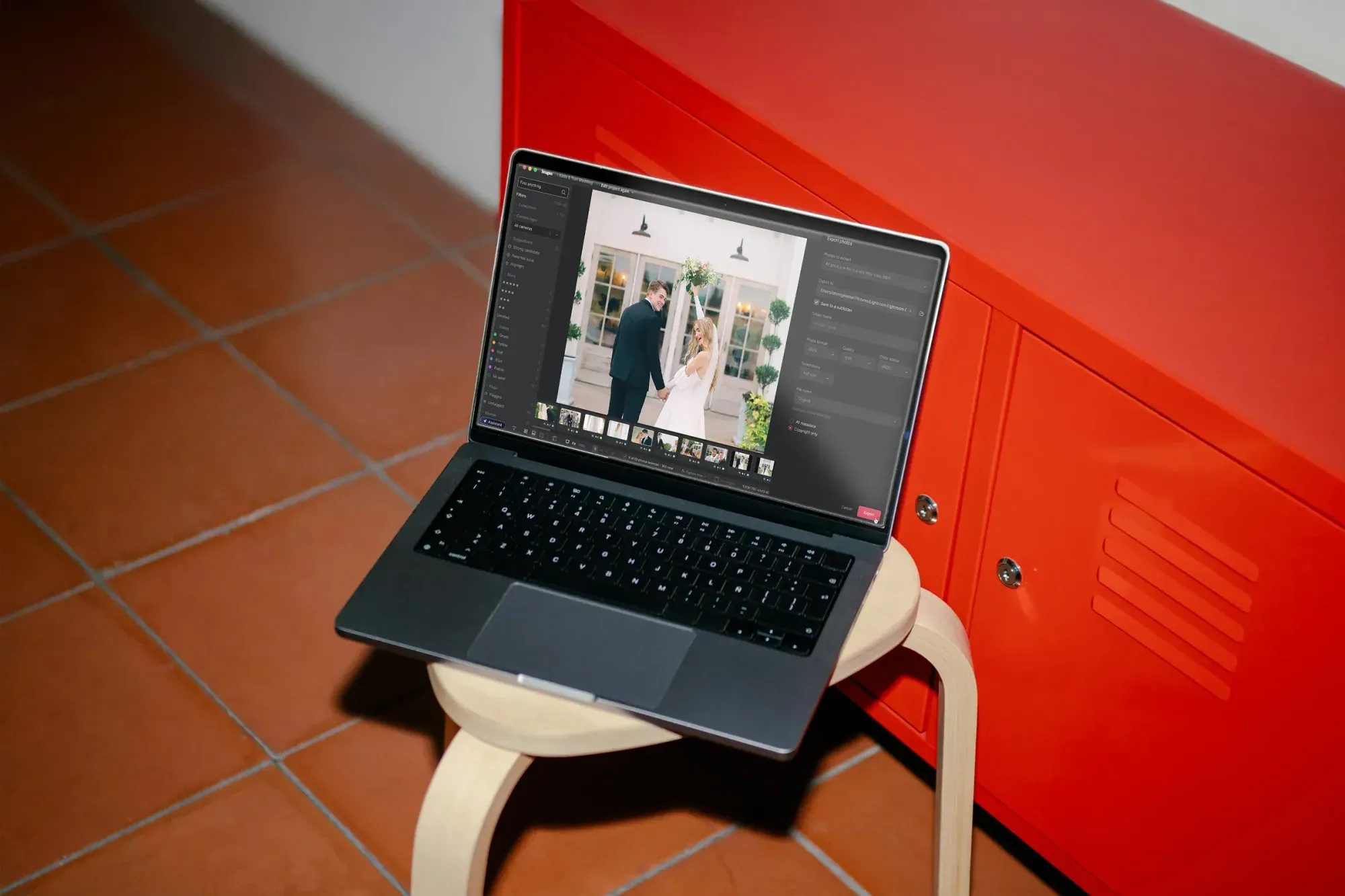
This is the stage where a dedicated cloud-based AI editing platform like Imagen’s cloud-based batch photo editing earns its place in a beginner’s workflow. Because Imagen does its AI processing in the cloud, you can start a large batch from your venue’s parking lot on a laptop and start reviewing early frames as edited photos arrive in batches while the rest finish. The AI studies a handful of images you edit yourself, builds a personal style profile from your choices, and then applies that same look consistently across the rest of the gallery, so a keynote shot under stage lighting and a hallway candid under fluorescents both end up feeling like they belong to the same photographer’s eye.
For corporate event work specifically, that consistency matters because clients often pull images for slide decks, press releases, and social posts side by side, and mismatched color between two photos from the same event reads as sloppy even when each image is technically fine on its own. Imagen’s batch approach, plus its AI culling for weeding out near-duplicates and misses, is priced simply: pay-as-you-go pricing means you pay for the photos you export, and exploring the tools is free, which for a beginner testing the waters on a few events a month keeps costs predictable while you build volume.
Common Beginner Mistakes to Avoid
The most common mistake is treating cloud editing as a one-click fix rather than a workflow you still need to guide. Uploading an entire unsorted event and expecting perfect results ignores that the AI works best when you give it a strong starting reference and consistent groupings by lighting scenario, as covered above.
A second mistake is skipping the quality check before delivery. Even reliable batch tools occasionally misread an unusual lighting mix, and a five-minute spot check on a sample of each batch catches that before your client does. A third mistake is under-culling. Sending a client 900 images when 350 tell the story better does not read as generous, it reads as unedited, and it also means you are paying to process frames nobody will ever use.
A fourth mistake, and one that catches even experienced photographers off guard, is forgetting to communicate turnaround expectations before the event. If a client assumes they will have images the next morning and your workflow realistically takes three days, that mismatch causes friction that has nothing to do with the quality of your editing. Set the timeline in writing when you book the job, so the workflow you build matches a promise the client already agreed to.
What Cloud Editing Won’t Do for You
It is worth being clear about the boundaries here, because a beginner who expects one tool to solve every problem ends up frustrated. Cloud batch editors are built for color, exposure, and white balance correction at scale, along with culling and style consistency. They are not a substitute for long-term file storage, backup, or archiving. Once your gallery is edited and delivered, you still need a dedicated cloud storage or backup service to keep your RAW originals and final exports safe over the years, separate from whatever tool you used to edit them.
The same goes for digital asset management. If you are organizing thousands of images across dozens of past events by client, date, and usage rights, that calls for a proper DAM system rather than an editing platform. Keep the two jobs separate in your head: one tool edits, another tool stores and organizes, and trying to make either do both usually creates more work than it saves.
Building a Repeatable Turnaround Process
Once you have run a few events through a cloud workflow, write down what worked as a checklist: how you grouped folders, how many sample images you reviewed per batch, and roughly how long each stage took. Corporate clients tend to book repeat business once they trust your turnaround time, so treating that process as something to refine rather than reinvent every time pays off quickly.
It also helps to set client expectations up front. Tell a new corporate client you can deliver a curated highlight set within 24 hours and a full gallery within three days, then build your editing workflow backward from that promise. Beginners who quote realistic timelines and hit them consistently tend to win more repeat corporate contracts than beginners who promise same-day everything and burn out trying to deliver it manually. If you want a broader look at how Imagen fits into an event photographer’s overall editing setup, the Imagen homepage walks through the full feature set beyond batch corrections, including the new Studio where you cull, edit and export in one project.
What’s new in Imagen: Imagen is now an intelligent, agentic Studio for professional photographers, which suits beginners because culling, editing, reviewing and exporting live together in one project, in any order. If you are starting out, you can cull manually for free, try a ready-made AI Profile before you have past edits to train your own, and use the built-in editor (Beta) for simple manual tweaks. The Studio is rolling out gradually as a beta.
Frequently asked questions
Do I need a powerful computer to start cloud photo editing? No. Since the actual processing happens on remote servers, a basic laptop or even a tablet with a stable internet connection is enough to upload files, review results, and download finished edits.
How long does it take to edit a corporate event gallery in the cloud? It depends on gallery size and how many lighting scenarios you shot, but a well-organized upload of a few hundred images typically comes back from batch processing in well under an hour, leaving your remaining time for review and final touches rather than manual correction.
Can cloud editing handle mixed lighting from one event, like a stage, a lobby, and a dinner reception? Yes, as long as you group your images by lighting scenario before uploading. Processing each environment as its own batch gives the AI a consistent baseline to work from, which produces far better results than uploading one giant mixed folder.
Does cloud editing replace the need for backup storage? No. Cloud editing platforms are built to correct and deliver images, not to serve as long-term storage or backup. Keep your RAW files and final exports backed up through a dedicated storage service regardless of which editing tool you use.
