

Batch photo editing software for graduation photographers: A Complete 2026 Guide
Table of contents
- Why graduation photography is a batch editing problem
- Step one: cull the take before you edit anything
- Step two: apply one consistent grade across the whole set
- How Imagen fits the graduation batch workflow
- Where deep retouching and repair belong instead
- Building a season workflow that actually scales
- Frequently Asked Questions
- What is the best batch photo editing software for graduation photographers?
- How does batch editing keep a graduation gallery consistent?
- How much does Imagen cost, and can I try it first?
- Can batch editing software retouch skin or fix out-of-focus graduation photos?
- Should I cull before or after I edit graduation photos?
Graduation season is a volume problem before it is anything else. A single ceremony can send hundreds of students across a stage in an afternoon, and a campaign of cap-and-gown portrait days can leave you with thousands of frames that all need to match. Batch photo editing software for graduation photographers is the category that turns that flood into a deliverable gallery without you touching every file by hand. This guide walks through how to think about batch editing for graduation work, what to look for, and where each part of the job actually belongs, so you can finish a shoot on time and still hand back photos that look like one consistent set.
The short answer is that batch editing lives at the front of your workflow. You cull the take down to the keepers, apply one color and tone grade across the whole set, and only then hand the rare problem frame to a specialist step. Get that order right and the rest of the season stops feeling like a backlog you can never clear.
Why graduation photography is a batch editing problem
Graduation work has a shape that rewards automation. The lighting is usually fixed for hours at a time, whether that is a gym with hard overhead light, an outdoor quad that shifts as clouds pass, or a studio backdrop set up for portrait day. Students file through in near-identical poses, so you end up with long runs of frames that differ by a smile, a tassel, or a blink. That repetition is exactly what batch tools are built for. When every frame in a run should share the same exposure, white balance, and color, editing them one at a time is wasted effort.
The second pressure is turnaround. Schools, families, and gown vendors often want proofs within days, and a portrait-day operation may promise galleries before students leave campus. Manual editing simply does not scale to that promise across hundreds or thousands of images. Batch editing software exists to collapse that timeline, applying a consistent look to a full shoot in one pass rather than one file at a time.
Step one: cull the take before you edit anything
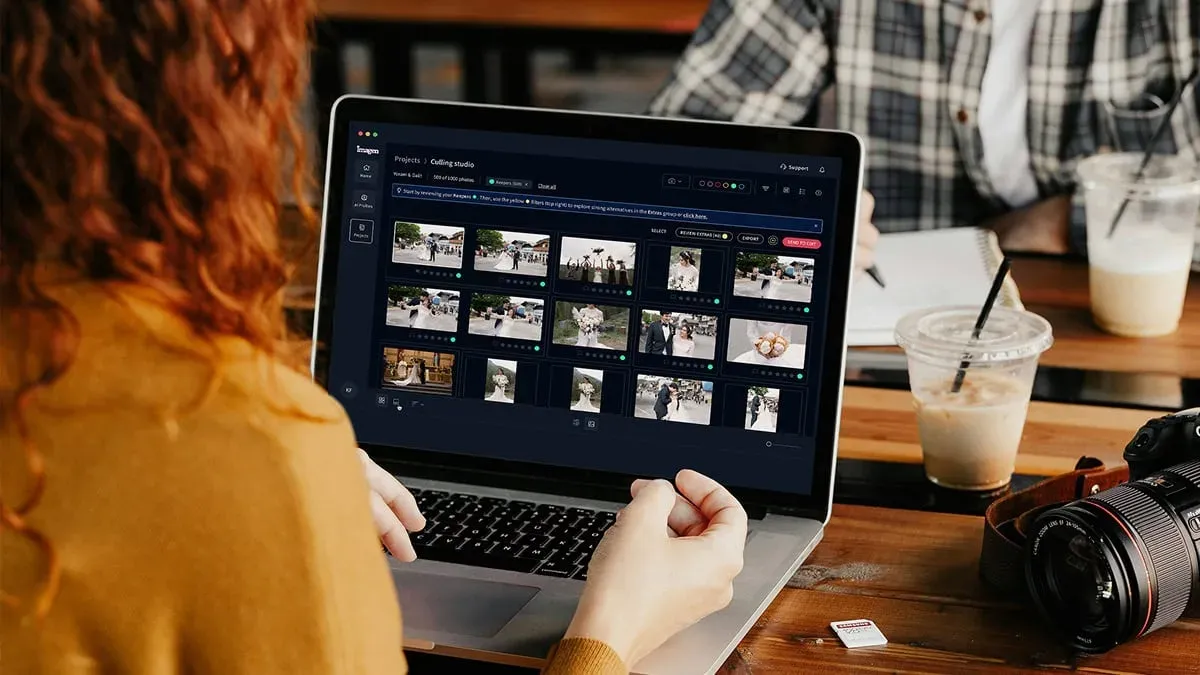
Culling is the step most graduation photographers underestimate. Every stage crossing produces a burst, every portrait sitting produces a handful of near-duplicates, and every family group has a few frames with a closed eye or a turned head. Editing before you cull means grading photos you will never deliver, which is pure wasted time.
Good culling software narrows those near-identical bursts down to the strongest frame in each run, so you spend your attention only on keepers. For graduation volume, this is where the first big time saving comes from. If you can walk into your grade with a set that is already trimmed to the frames that matter, every downstream step gets faster. Treat culling as a real stage in its own right, not an afterthought you rush through at 2 a.m.
Step two: apply one consistent grade across the whole set
This is the heart of batch editing for graduation work. Once you have your keepers, the goal is a single, coherent look across the entire gallery. A student photographed under warm gym lights and another shot near a bright doorway should come back looking like they belong to the same event, not two different shoots stitched together. Consistency is what separates a professional graduation gallery from a folder of raw exports.
Batch grading tools apply color correction, exposure balancing, and white balance across a full shoot in a style you define. The best of them learn your preferences so the output looks like your work, not a generic filter. For a portrait-day operation running the same backdrop and lighting all day, this is close to a solved problem: set the look once, apply it to everything, and review rather than rebuild. For ceremony coverage with shifting light, the tool does the heavy lifting of matching frames while you correct only the outliers.
How Imagen fits the graduation batch workflow
Imagen is a desktop app for Mac and Windows built for photographers who deliver whole shoots rather than single hero images. You download and install it, and the AI processing runs in the cloud, which matters when you are turning around a full graduation gallery on a deadline. It sits squarely in the two steps above: cull the take, then apply a consistent batch color and tone grade across the entire set in your own reusable style, now inside the new Studio where you cull, edit and export in one project.
The core is your Personal AI Profile. You point Imagen at a full shoot, and it applies color correction, exposure balancing, and white balance in your consistent style across every frame, so a stage shot under tungsten and a portrait under daylight come back as one coherent gallery. Culling runs in the same flow, narrowing the near-duplicate bursts before you spend a second scrolling. Imagen reports that the first batch finishes in under 10 minutes, which for a graduation photographer is the difference between delivering this week and editing all month. Edited photos arrive in batches as they process, so you can start reviewing early frames while the rest finish. Where a single frame needs individual attention, the AI Assistant handles per-photo work such as object removal and background or plate blur.
Pricing is pay-as-you-go, a monthly base fee plus a charge for the photos you export. Exploring Imagen is free, so you can test the batch on a real ceremony or portrait day before you commit, and you pay only when photos leave Imagen. Two honest limits are worth stating plainly. Imagen does not sharpen or deblur a soft capture, and it does not replace an entire background or run per-face beauty retouching. It grades and finishes what your camera actually recorded, and within that lane of high-volume, style-consistent batch editing, it is a strong fit for graduation work.
Where deep retouching and repair belong instead
Batch editing is not the whole toolbox, and it is important to be clear about what sits outside it. Some graduation deliverables need work that is inherently per-image and hands-on. A parent may want a single formal portrait with careful skin retouching, or a composite frame may need element-by-element compositing to place a student on a different background. That deep, per-subject retouch is a separate step, and it belongs to dedicated tools built for it, not to a batch grader.
The same is true for repair. If a stage frame missed focus, recovering detail is the job of a specialized sharpening and noise-reduction tool, and even then only within limits, because no tool invents focus that was never captured. Heavy noise reduction, upscaling for a large print, true HDR bracket-merging, geometry correction, and full background replacement all live in their own specialist categories. The healthy way to think about it is a division of labor. Batch software carries the whole set to a consistent, finished baseline, and a specialist tool takes the rare frame that needs surgery. Trying to force one app to do both jobs is how photographers end up disappointed with either.
Building a season workflow that actually scales
Put the pieces together and a repeatable graduation season workflow looks like this. First, cull each shoot down to keepers so you never grade a frame you will not deliver. Second, apply your consistent batch grade across the whole set so the gallery reads as one event. Third, pull out only the handful of frames that need per-photo finishing, object removal, or a specialist repair, and handle those individually. Fourth, review the edits and export, either as finished JPG, TIFF or PNG files straight from Imagen or as AI edits sent back to Lightroom Classic.
The reason this order matters is that each step removes work from the next. Culling shrinks the set the grade has to touch. The batch grade means your manual attention goes only to true outliers. And keeping deep retouch as a separate, small step stops it from bloating into work you apply to photos that never needed it. For a photographer running multiple ceremonies and portrait days in a compressed season, that structure is what makes the volume survivable. It also keeps your look consistent from one school to the next, which is part of what earns repeat bookings.
If you want to go deeper on the parts that eat the most hours, a few related guides help. See batch photo editing software for wedding photographers for another high-volume batch workflow, photo culling software for wedding photographers for a closer look at trimming the take, and color grading software for wedding photography for building a consistent look. You can also browse the full library of photography workflow tips for more on batch editing, culling, and finishing.
What’s new in Imagen: Imagen has grown into an intelligent, agentic Studio for professional photographers, where culling, editing, review and export share one project and can happen in any order. For batch work, edit in your Personal AI Profile or pick a ready-made AI Profile, and apply more than one profile to a selected set when you want options. The Studio is rolling out gradually as a beta.
Frequently Asked Questions
What is the best batch photo editing software for graduation photographers?
The strongest fit for graduation work is a batch-first tool that culls the take and then applies one consistent color and tone grade across the whole set. Imagen does exactly that in a desktop app, applying your style across an entire shoot with its personal AI style and culling in one pass, with the AI processing running in the cloud. That volume-and-consistency focus is what graduation galleries need most.
How does batch editing keep a graduation gallery consistent?
Batch grading applies the same color correction, exposure balancing, and white balance across every frame in a shoot, using a style you define. That means a student photographed under gym lights and another shot near a bright doorway come back looking like one coherent event rather than two separate edits. Consistency across the full set is what makes a graduation gallery read as professional.
How much does Imagen cost, and can I try it first?
Imagen is pay-as-you-go: a monthly base fee plus a charge for the photos you export. Exploring Imagen is free, so you can test the batch on a real ceremony or portrait day before committing.
Can batch editing software retouch skin or fix out-of-focus graduation photos?
No, those are separate jobs. Deep per-subject skin retouching is hands-on, per-image work that belongs to a dedicated retouching tool, and recovering a soft or missed-focus frame is the job of a specialized sharpening and noise-reduction tool, and only within limits. Imagen grades and finishes what your camera captured, so a batch grader carries the whole set while a specialist tool takes the rare frame that needs repair.
Should I cull before or after I edit graduation photos?
Cull first, always. Every stage crossing and portrait sitting produces near-duplicate bursts, and editing before you cull means grading photos you will never deliver. Narrowing each run down to the strongest frame first means your grade only touches keepers, which saves the most time across a high-volume graduation season.
