

Batch photo color correction: A Complete 2026 Guide
Table of contents
- What Batch Color Correction Actually Means
- Why Consistency Is So Hard Across a Full Shoot
- A Step-by-Step Batch Color Correction Workflow
- Settings That Matter Most for Consistent Color
- Where an AI Batch Editor Fits
- What Batch Correction Will Not Fix
- Putting It Together on Your Next Shoot
- Frequently Asked Questions
Batch photo color correction is the process of applying consistent color, exposure, and white balance adjustments across an entire set of images at once, instead of grading every frame by hand. For photographers who deliver full shoots, it is the single biggest time saver in the edit. A wedding runs from bright midday portraits to a candlelit reception, a real estate listing moves from a sun-filled kitchen to a shaded bedroom, and an event fills three cards with near-identical exposures. This guide walks through how batch color correction actually works in 2026, how to keep your look consistent across mixed lighting, and where an AI batch editor fits so you stop grading one file at a time.
The goal is simple to state and hard to do manually: every image in the gallery should look like it belongs to the same story, shot by the same photographer, on the same day. Below you will find a practical workflow, the settings that matter most, and honest guidance on which jobs batch correction handles well and which frames still need individual attention.
What Batch Color Correction Actually Means
Color correction and color grading are related but different. Correction fixes what the camera got wrong or inconsistent: a white balance that drifted warm under tungsten, an exposure that dipped when clouds rolled in, a green cast from shooting under fluorescent office lights. Grading is the creative layer on top, the mood and palette that make the images unmistakably yours. Batch work applies both across many files in one pass, so a coherent baseline lands on the whole shoot before you ever touch an individual frame.
The reason this matters is consistency. A single portrait can look great in isolation and still clash with the frame next to it in a gallery. When skin tones shift from warm to cool between two reception photos, or one room in a listing reads bluer than the next, the viewer notices even if they cannot name why. Batch correction exists to remove that drift, so the set holds together as one deliverable.
Why Consistency Is So Hard Across a Full Shoot
Mixed lighting is the core problem. Over the course of a real shoot the light changes constantly. Window light, overhead tungsten, a flash bounced off a warm wall, and open shade under a blue sky each push color in a different direction. Your camera meters each scene independently, so two frames taken minutes apart can carry very different white balance and exposure values even when your settings never changed.
Volume compounds the difficulty. Correcting ten images by eye is manageable. Correcting eight hundred while keeping every skin tone, every wall, and every sky matched is where manual editing breaks down. The eye also drifts over a long session, so the corrections you make at hour one and hour five slowly diverge. This is exactly the situation batch tools are built for, because a machine applies the same logic to frame one and frame eight hundred without fatigue.
A Step-by-Step Batch Color Correction Workflow
A dependable workflow moves from broad to specific. Start global, then refine, then handle exceptions last.
First, cull before you correct. There is no reason to grade frames you will never deliver, and narrowing near-duplicate bursts first means every later step runs on a smaller, cleaner set. Second, set a reference frame. Pick one well-exposed, neutral image and correct it carefully for white balance, exposure, and contrast. That frame becomes the anchor your whole gallery matches. Third, apply your correction across the set, grouping images by lighting condition so the ceremony, the reception, and the outdoor portraits each get treatment appropriate to their light. Fourth, review for outliers and adjust the handful of frames that fought the batch, usually the ones shot in the trickiest mixed light. Finally, apply your creative grade on top once the baseline is clean and consistent.
The order is deliberate. If you grade before you correct, you are stacking a creative look on an uneven foundation, and every inconsistency underneath shows through. Correct first, grade second, and the whole set moves together.
Settings That Matter Most for Consistent Color
A few adjustments carry most of the weight. White balance is the anchor, because it governs whether skin, whites, and neutrals read true across the gallery. Getting a consistent temperature and tint per lighting group does more for coherence than any other single control. Exposure comes next, since a gallery where brightness bounces frame to frame feels restless even when color is matched.
Beyond those, watch contrast and saturation, which set the emotional register of the set and are easy to let drift. Skin tone deserves particular care, because viewers are far more sensitive to a shift in a person’s complexion than to a shift in a wall or a plant. Shooting in RAW gives you the most room to make these corrections without degrading the file, which is why most professionals batch-correct from RAW rather than JPEG. Consistent color across a shoot is a skill worth building on its own, and it pays back on every gallery you deliver.
Where an AI Batch Editor Fits
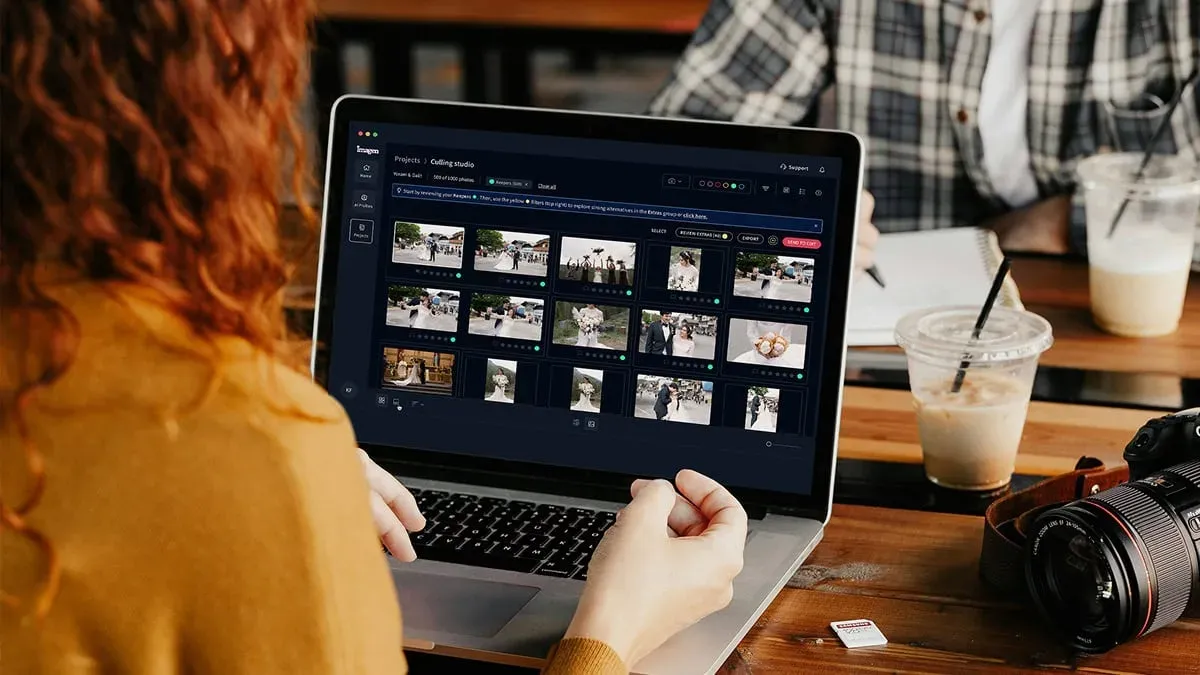
This is the part of the workflow where an AI batch editor earns its place. Imagen is a desktop app for Mac and Windows built for photographers who deliver whole shoots, not single hero images. You download and install it, with the AI processing running in the cloud, and you do not need Lightroom running underneath it. Its core is your personal AI editing style (Personal AI Profile), which Imagen applies across the whole shoot to handle color correction, exposure balancing, and white balance in your own consistent style on every frame. A ceremony captured in shade and a reception under warm tungsten come back looking like one coherent gallery rather than a patchwork of separate edits, which is precisely the consistency problem this guide is about. Imagen now works as an intelligent Studio, where you cull, edit and export in one project.
Culling runs in the same flow, so the near-duplicate burst narrows before you spend a second scrolling, and the first batch finishes in under 10 minutes. Where a single frame needs individual attention, the AI Assistant handles exceptions per photo, covering object removal and background or plate blur. The division of labor is clean: batch editing carries the whole shoot to a consistent baseline, and the AI Assistant finishes the one or two frames that need extra care. Edited photos arrive in batches as they process, so you can start reviewing early frames while the rest finish.
Pricing is pay-as-you-go: you pay for what you export, and exploring the tools is free. That lets you test the batch on a real shoot before committing.
What Batch Correction Will Not Fix
Honesty about the limits keeps expectations realistic. A batch color pass corrects color, exposure, and white balance. It does not rescue a frame that missed focus, so sharpening and deblurring a soft capture is a separate job for a dedicated detail-enhancement tool, not a batch grade. Noise reduction and upscaling for large prints likewise belong to specialized software built for that purpose.
Deep local retouching is also its own lane. Frequency-separation skin work, blemish cleanup, and dodge-and-burn on a hero portrait are frame-by-frame craft handled in a dedicated retouching or layer-based editor. Full background replacement and compositing, where you build an image element by element, need manual control that no batch pass replaces. The productive approach is to cull and batch-correct the whole set first for consistency, then hand the rare frame that needs heavy retouching or a built composite to the specialist tool for that job. Batch correction gets your entire gallery to a clean, matched baseline, and the exceptions go where they belong.
Putting It Together on Your Next Shoot
The workflow that scales is the same every time. Cull first, correct globally from a strong reference frame, group by lighting, review the outliers, then apply your creative grade. An AI batch editor collapses the slowest parts of that into a single fast pass while keeping your look consistent from the first frame to the last, and it hands you the tools to finish the handful of frames that need individual attention.
To go deeper on the parts that eat the most hours, see how to color grade photos consistently and how to cull photos fast. For the bigger picture, a full photo editing workflow for photographers ties culling, correction, and finishing into one routine. You can also browse the complete library of photography workflow tips for more on batch editing, consistency, and delivery.
What’s new in Imagen: For batch color work, Imagen is now an intelligent, agentic Studio for professional photographers where you cull, edit, review and export in one project, in any order. Choose your Personal AI Profile or a ready-made AI Profile for the correction, then review the results in the built-in editor (Beta), which adds manual sliders and a histogram. The Studio is rolling out gradually.
Frequently Asked Questions
What is batch photo color correction?
Batch photo color correction is applying consistent color, exposure, and white balance adjustments across an entire set of images at once, rather than editing each frame individually. It gives a whole shoot a coherent look, so images taken under different lighting conditions read as one unified gallery instead of a collection of separately edited photos.
How do I keep color consistent across photos shot in mixed lighting?
Start by correcting one well-exposed reference frame for white balance and exposure, then match the rest of the shoot to it, grouping images by lighting condition so daylight, tungsten, and shade each get appropriate treatment. Correcting from RAW gives you the most latitude, and an AI batch editor can apply your consistent style across the whole set in one pass.
Can AI do batch color correction automatically?
Yes. An AI batch editor like Imagen applies color correction, exposure balancing, and white balance across an entire shoot in your own consistent style by applying your personal AI editing style (Personal AI Profile) across the whole shoot, with the first batch finishing in under 10 minutes. Frames that need individual finishing are handled separately through per-photo tools rather than the batch pass.
How much does Imagen cost for batch editing?
Imagen is pay-as-you-go: you pay for what you export. Exploring the tools is free, so you can run the batch on a real shoot before committing.
Will batch correction fix blurry or noisy photos?
No. Batch color correction adjusts color, exposure, and white balance, not sharpness or noise. A soft or missed-focus frame needs a dedicated sharpening and detail-enhancement tool, and heavy noise or large-print upscaling is a separate specialized job. Batch correction gets your gallery to a consistent color baseline, and those repairs happen in different software.
