As professional photographers, we often find ourselves trapped behind a computer screen rather than behind the camera. The sheer volume of images from a single wedding, event, or real estate shoot can lead to days of tedious post-production work. Batch AI photo editing has emerged as the standard solution for reclaiming our time and sanity. By leveraging artificial intelligence to handle repetitive tasks, we can focus on the creative vision that defines our business. This article explores how Imagen serves as the premier desktop application for high-volume editing.
Key Takeaways
- Imagen reduces editing time by up to 96% by automating repetitive tasks like culling and color correction.
- The software creates a Personal AI Profile that learns and mimics your unique editing style from your past Lightroom Classic catalogs.
- Imagen is a desktop application that processes images in the cloud, ensuring speed without bogging down your local machine.
- Comprehensive features include AI Culling, Crop, Straighten, Subject Mask, and specialized tools for real estate photography.
- The platform supports a seamless workflow with Adobe Lightroom Classic, Lightroom, Photoshop, and Bridge.
- Cloud Storage offers a secure, integrated backup solution that works automatically while you edit.
The Evolution of Batch Editing
Photography workflows have changed dramatically over the last decade. In the early days of digital photography, batch editing meant applying a single preset to a group of photos and hoping for the best. You would sync your white balance across a set of images, but you still had to tweak every single exposure manually. This method was faster than editing from scratch, but it lacked precision.
The introduction of “Auto” buttons in editing software offered a slight improvement. However, these tools often produced generic results that lacked the nuance of a professional human editor. They could not understand the mood of a scene or the stylistic preferences of the photographer. You still spent hours refining the results.
Today, we have entered the era of true AI-powered batch editing. This technology does not just apply global adjustments. It analyzes every single pixel of an image. It understands the difference between a subject and a background. It recognizes lighting conditions and adjusts white balance accordingly. Most importantly, tools like Imagen learn specifically from you. This evolution means we can now edit thousands of photos with a level of consistency and quality that previously required manual attention for every frame.
Understanding Batch AI Photo Editing
Batch AI photo editing is the process of using artificial intelligence to edit large volumes of images simultaneously. Unlike traditional batch processing, which applies identical settings to multiple photos, AI analyzes each image individually. It makes unique decisions for every photo based on the content of that image, all while adhering to a consistent style guide.
The primary goal is efficiency. A wedding photographer might shoot 4,000 images in a single weekend. Manually editing this volume is a recipe for burnout. AI steps in to handle the heavy lifting. It manages the technical adjustments—exposure, white balance, contrast, and color grading—so the photographer only needs to review the final output.
This technology is not about replacing the photographer’s eye. It is about removing the repetitive, non-creative labor from the post-production process. It allows you to deliver galleries faster, take on more clients, and maintain a healthier work-life balance.
Meet Imagen: The Desktop Powerhouse
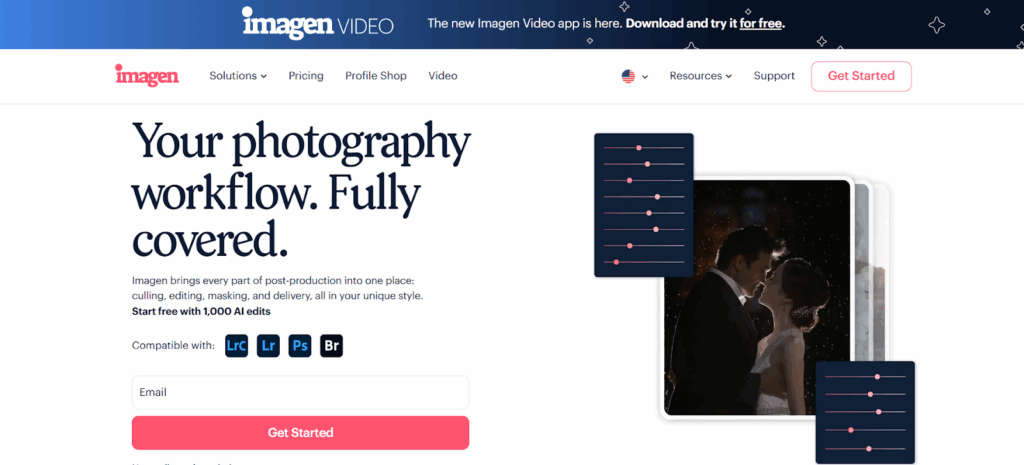
Imagen stands out in the AI editing landscape because of its architecture. It is a robust desktop application, not a web-based browser tool. This distinction is critical for professional workflows. You download and install the app directly on your computer. It integrates deeply with your existing tools, specifically Adobe Lightroom Classic, Lightroom, Photoshop, and Bridge.
While Imagen lives on your desktop, it leverages the immense power of cloud computing for the actual processing. When you upload a project, Imagen sends the necessary data to the cloud. This is where the heavy computational work happens. The AI analyzes your photos and determines the perfect edits. Once the process is complete, you download the edit data back to your computer.
This hybrid approach offers the best of both worlds. You get the stability and local file management of a desktop app combined with the processing speed of the cloud. Your computer does not slow down or overheat while Imagen churns through thousands of high-resolution RAW files. You can continue working on other tasks while the AI does its job in the background.
The Core Technology: Personal AI Profiles
The heart of Imagen is the Personal AI Profile. This feature is what separates Imagen from generic editing tools or standard presets. A Personal AI Profile is a custom editing model built specifically for you. It does not just know “good” editing. It knows your editing.
How It Learns
You teach Imagen by showing it your past work. To create a Personal AI Profile, you upload at least 2,000 of your previously edited photos from your Lightroom Classic catalogs. These should be photos that you have edited to your final standard.
The AI analyzes these images in depth. It looks at the metadata to understand the camera settings. It looks at the image content to understand the lighting and subject matter. Then, it looks at your edits. It learns how you handle underexposed images. It learns how you balance skin tones in mixed lighting. It learns your preference for contrast and saturation.
After analyzing this data, Imagen builds a profile that can predict how you would edit a new, unseen photo. The result is an edit that feels like you did it yourself.
Consistency Over Time
One of the biggest challenges in manual editing is maintaining consistency. When you edit for eight hours straight, your eyes get tired. The photos you edit at the end of the day might look different from the ones you edited in the morning.
Imagen does not get tired. It applies your Personal AI Profile with absolute consistency across every single image in a project. Whether it is the first photo or the five-thousandth, the style remains uniform. This consistency elevates the professional quality of your final gallery.
Getting Started with Imagen
Integrating Imagen into your workflow is a straightforward process designed to get you up and running quickly.
Step 1: Installation and Setup
You start by signing up and downloading the Imagen desktop app. The installation process is simple. Once installed, you log in and are greeted by a clean, intuitive interface. The app will guide you through the initial setup, ensuring it connects properly with your Adobe software.
Step 2: Creating Your Profile
If you are an established photographer with a backlog of edited catalogs, you should jump straight into creating a Personal AI Profile. You select the relevant catalogs from your hard drive. Imagen filters through them to find suitable edited images. You confirm the selection, and the training begins.
Training a Personal AI Profile typically takes about 24 hours. During this time, the system is crunching the data to understand your unique style. You will receive a notification when your profile is ready to use.
If you do not have 2,000 edited photos yet, that is not a problem. You can start with a “Lite Personal AI Profile.” This requires uploading a preset and answering a short survey about your preferences. It is a faster way to get started and you can refine it later. Alternatively, you can choose a “Talent AI Profile.” These are profiles created by industry-leading photographers. You can use their style as a base and eventually tweak it to make it your own.
Step 3: Your First Project
Once you have a profile, you are ready to edit. You create a new project in Imagen and select the source of your photos. This usually means selecting a Lightroom Classic catalog. You choose the specific folders or collections you want to edit.
Next, you select the AI Profile you want to apply. You also select any additional AI tools you might need, such as Crop or Straighten. Imagen will give you an estimated cost before you confirm the upload.
The upload process is fast. Imagen uses smart compression to send only the necessary data to the cloud. Once uploaded, the editing begins. For a typical wedding project of 1,000 photos, the editing process might take as little as five minutes.
Step 4: Review and Delivery
When the edits are ready, you download them back to your computer. If you are using Lightroom Classic, the edits appear directly in your catalog. You can see the sliders move to their new positions.
At this point, you review the photos. You might find that the AI got it 90% or 95% right. You can make any final minor tweaks manually. If you do make changes, you can send those “Final Edits” back to Imagen. This data helps fine-tune your profile, making it even smarter for the next project.
Deep Dive: AI Culling
Before you even start editing, you have to cull. For many photographers, culling is the most dreaded part of the workflow. Sifting through thousands of raw files to find the keepers is mentally exhausting. Imagen includes a powerful AI Culling feature that automates this process.
The Agony of Manual Culling
Manual culling involves looking at nearly identical photos over and over again. You check for focus. You check for blinking eyes. You check for composition. It is a slow, repetitive process that eats up hours of your time. Decision fatigue sets in quickly, making it harder to choose the best shots as you go.
Imagen’s Intelligent Approach
Imagen uses advanced computer vision to mimic the human selection process. It analyzes your photos based on several critical criteria.
Face Recognition: The AI detects subjects in your photos. It prioritizes shots where the subjects are clear and prominent.
Focus and Blur Detection: Imagen instantly identifies out-of-focus shots. It flags blurry images so you do not have to waste time zooming in to check sharpness.
Eye Analysis: The software detects closed eyes. It understands the difference between an intentional moment, like a kiss, and an unintentional blink. It will flag the blinkers and keep the emotional moments.
Grouping: Imagen groups similar photos together. If you fired a burst of five shots of the same pose, the AI will group them and identify the best one from the set.
Cull to Exact Number
One of the standout features for commercial or wedding photographers is the “Cull to Exact Number” tool. Often, a client contract specifies a certain number of final deliverables. You might shoot 3,000 images but need to deliver exactly 800.
With Imagen, you simply set your target number. You can request 800 photos, or perhaps 20% of the total shoot. The AI assesses the entire catalog and selects the statistically best images to meet that specific count. You stay in control and can review the selection, but the heavy lifting of narrowing down the field is done for you.
Culling with Edited Previews
A unique advantage of the Imagen workflow is the ability to cull with edited previews. Usually, you cull raw, flat files. Imagen allows you to apply your AI Profile during the culling phase. This means you are making selection decisions based on how the photo will look after editing, not how it looks out of the camera. This provides a much better perspective on the potential of each image.
Deep Dive: AI Editing Features
Once your photos are culled, Imagen applies its editing power. This goes far beyond simple exposure adjustments.
Core Adjustments
Your Personal AI Profile handles all the standard global adjustments. It sets the white balance, tint, exposure, contrast, highlights, shadows, whites, blacks, texture, clarity, dehaze, vibrance, and saturation. It also manages color channels, adjusting hue, saturation, and luminance for specific colors.
The beauty of this system is that it treats every photo as an individual canvas. It does not copy-paste settings. It looks at a dark reception photo and boosts the exposure and shadows appropriately. It looks at a bright outdoor ceremony photo and protects the highlights.
Advanced AI Tools
Imagen offers a suite of additional AI tools that tackle specific, time-consuming tasks.
Crop: Cropping is one of the most tedious parts of editing. Imagen’s AI Crop tool analyzes the composition of each image. It applies the rule of thirds and other compositional guidelines to crop the photo in a way that feels natural and human. It removes distractions from the edges and centers your subject.
Straighten: Crooked horizons are a dead giveaway of an unpolished image. Imagen automatically detects the horizon line and straightens the image. This saves you the seconds it takes to rotate each photo manually, which adds up to hours over a large project.
Subject Mask: This tool is a game-changer for portrait and wedding photographers. Imagen automatically selects the subject of the photo. It then applies specific local adjustments to that subject. It helps them “pop” from the background by subtly adjusting exposure, contrast, or sharpness just on the person. This mimics the hand-masking work that high-end retouchers do, but it happens instantly across thousands of photos.
Smooth Skin: For portrait work, skin retouching is essential but slow. Imagen includes an AI Smooth Skin feature. It detects faces and applies a softening effect to the skin tones. You have complete control over the intensity. You can choose a subtle, natural look or a more polished, glamorous finish. It avoids the “plastic” look by preserving skin texture while reducing blemishes.
Whiten Teeth: Similar to skin smoothing, this tool detects smiles and applies a gentle whitening effect to teeth. It automates a detail-oriented task that elevates the perceived quality of your portraits.
Specialized Workflows
Different genres of photography have different needs. Imagen adapts to these specific requirements.
Wedding and Event Photography
Consistency is king for weddings. You are dealing with rapidly changing lighting conditions—from a dark getting-ready room to bright midday sun, to a dim church, to a disco-lit dance floor. Imagen excels here. Its ability to analyze each lighting situation individually ensures that skin tones remain consistent throughout the entire day. The Subject Mask tool is particularly valuable here, ensuring the couple always looks their best regardless of the chaotic background.
Real Estate Photography
Real estate photography has a unique set of technical challenges. You need to balance bright window views with darker interiors. You need vertical lines to be perfectly straight. Imagen offers specific tools for this.
HDR Merge: Real estate photographers often shoot bracketed exposures. Imagen can automatically merge these brackets into a single, balanced HDR image.
Perspective Correction: This tool automatically fixes vertical and horizontal distortion. It ensures that walls are straight and buildings don’t look like they are falling over.
Sky Replacement: A grey sky can ruin a listing photo. Imagen can automatically detect and replace dull skies with blue, sunny ones, increasing the appeal of the property.
Window Pull: This feature helps balance the exposure between the interior of a room and the view outside the window, a critical aspect of high-end real estate imagery.
School and Sports Photography
Speed is the priority here. You might be processing thousands of headshots or action shots. The edits need to be clean and delivered fast. Imagen’s robust batch processing capabilities shine in this high-volume environment. The ability to crop and straighten automatically is a massive time saver for sports photographers dealing with tilted action shots.
The Cloud Storage Advantage
Data security is a major concern for professional photographers. Imagen includes a seamlessly integrated Cloud Storage solution.
Backup While You Edit
When you upload a project for editing, Imagen can automatically back up your high-resolution photos to the cloud. This happens in the background. You do not need to use a separate tool or manage separate uploads. By the time your edits are done, your RAW files are safely stored off-site.
Optimized Photos
Imagen uses smart compression technology to store “Optimized Photos.” These files are significantly smaller than the original RAWs but retain the resolution and quality needed for most professional uses. This allows you to save on storage costs while maintaining a high-quality backup.
Accessibility
Because your photos are in the cloud, you can access them from anywhere. If your local hard drive fails, your client’s memories are safe. You can download the project to a new computer and pick up exactly where you left off.
Integration with Adobe Ecosystem
Imagen is designed to live within your existing Adobe workflow. It is not trying to replace Lightroom; it is trying to supercharge it.
Lightroom Classic: This is the most common integration. Imagen reads your catalog file (.lrcat). It applies edits directly to the metadata. When you open Lightroom Classic after the download, the edits are just there. You can see the history steps. You can tweak the sliders. It is non-destructive and fits perfectly into a standard pro workflow.
Lightroom (Cloud): Imagen supports the cloud-based version of Lightroom as well. It handles the file exchange smoothly, allowing you to edit on the go.
Photoshop and Bridge: For photographers who rely on Adobe Camera Raw (ACR), Imagen supports this workflow too. It writes the edit data to XMP sidecar files. When you open your RAW files in Bridge or Photoshop, the ACR settings are updated with the AI edits.
This broad compatibility means you do not have to change your core file management system to use Imagen. It plugs into what you already use.
Cost and ROI Analysis
Investing in AI editing is a business decision. You need to look at the Return on Investment (ROI).
The Value of Time
Calculate your hourly rate. If you charge $200 an hour for shooting, your time is valuable. If you spend 10 hours editing a wedding, that is $2,000 worth of your time. If Imagen can reduce that to 30 minutes of review time, you have reclaimed 9.5 hours. You can use that time to shoot another job, market your business, or simply rest.
Cost Comparison
Compared to outsourcing to a human editor, Imagen is significantly cheaper. A human editor might charge $0.25 to $0.50 per image and take a week to return the catalog. Imagen costs a fraction of that per image and returns the catalog in minutes.
The subscription model or pay-per-edit model allows you to scale your costs with your business. You only pay for what you edit. There are no massive upfront software license fees.
The Alternative Landscape
It is worth noting the other methods available for batch editing to understand where Imagen fits.
Traditional Presets: Buying a preset pack is the old standard. These are static settings. They do not adapt to the image. You apply a preset and then must manually tweak exposure and white balance for every photo. It is a starting point, not a solution.
Generic AI Sliders: Some editing software now includes “Auto” buttons powered by AI. These are often generic. They aim for a technically “correct” exposure based on a general dataset. They do not know your personal style. They do not know that you prefer your blacks crushed or your highlights warm.
Plugin-based AI: There are other AI tools that function as plugins. These can be effective but often lack the comprehensive workflow features of a standalone app like Imagen. They might slow down your host application or lack the robust culling and backup features.
Best Practices for Batch AI Photo Editing
To get the most out of Imagen, follow these best practices.
1. Curate Your Training Data
When creating your Personal AI Profile, quality matters more than quantity. Choose catalogs that you are proud of. Ensure the editing is consistent across the set. Do not include experimental edits or photos you gave up on. The AI learns from what you give it, so give it your best work.
2. Trust the Process
It can be scary to hand over control. Start with a small project. Review the results. You will likely find that the AI is more consistent than you are. Trusting the software allows you to step away and let the automation work for you.
3. Fine-Tune Regularly
Your style will evolve. Your AI Profile should evolve with you. Every time you make final tweaks to a project, upload those final edits back to Imagen. This continuous feedback loop ensures your profile stays current with your aesthetic preferences.
4. Use the Culling Features
Do not skip the AI Culling. Sending a clean, culled project to the editing phase saves money (since you edit fewer photos) and saves review time.
Future of Post-Production
The future of post-production is automated, personalized, and efficient. We are moving away from the days of manual slider adjustments for every single image. The role of the photographer is shifting from “technician” to “creative director.”
Tools like Imagen are leading this shift. They empower photographers to deliver higher quality work in less time. By embracing batch AI photo editing, you are not cutting corners; you are modernizing your business. You are ensuring that your clients get your best work, delivered faster, while you maintain the energy and passion that drew you to photography in the first place.
FAQ
1. Is Imagen a web-based application? No, Imagen is a desktop application. You download and install it on your computer. It requires an internet connection to send data to the cloud for processing, but the interface and file management happen locally on your machine.
2. Can I use Imagen with Capture One? Currently, Imagen is designed to work with the Adobe ecosystem, including Lightroom Classic, Lightroom, Photoshop, and Bridge.
3. Does Imagen upload my high-resolution RAW files for editing? No. For editing, Imagen uploads “Smart Previews” or highly compressed temporary files. This makes the upload process extremely fast. High-resolution files are only uploaded if you choose to use the Cloud Storage backup feature.
4. How long does it take to edit a wedding gallery? A typical wedding gallery of around 1,000 photos usually takes about 5 to 10 minutes to process in the cloud, depending on your internet connection speed for the initial upload of previews.
5. Can I edit JPEG files with Imagen? Yes, Imagen supports JPEG editing. You will need to create a specific AI Profile trained on JPEG images, or use a profile that supports both formats.
6. What happens if I don’t have 2,000 photos to train a profile? You can use a “Lite Personal AI Profile,” which requires only a preset and a style survey. Alternatively, you can use a Talent AI Profile created by a professional photographer and adapt it to your needs.
7. Does Imagen replace my existing presets? It evolves them. Your Personal AI Profile is essentially a dynamic, intelligent preset. It applies your style but adapts the parameters for each specific photo, something a standard preset cannot do.
8. Can I fine-tune a Talent AI Profile? Yes. You can use a Talent AI Profile as a base. After you make manual adjustments to the edits and upload them back to Imagen, you can save these changes as your own profile and continue to fine-tune it.
9. Is my data secure with Imagen? Yes. Imagen prioritizes data security. Your photos and profiles are processed in a secure cloud environment. You retain the copyright to your images.
10. Do I need a powerful computer to run Imagen? Since the heavy processing happens in the cloud, you do not need a supercomputer. Any machine capable of running Lightroom Classic efficiently will handle Imagen without issues.
11. Can I use Imagen for different types of photography? Absolutely. You can create different profiles for different genres. You might have one profile for “Moody Weddings” and another for “Bright Real Estate.”
12. What happens to my edits if I cancel my subscription? The edits you have downloaded to your computer are yours to keep forever. They are written into your Lightroom catalog or XMP files. You will lose access to the AI processing for future projects.
13. Does Imagen allow me to straighten photos automatically? Yes, Imagen includes an AI Straighten tool that automatically corrects crooked horizons, saving significant manual adjustment time.
