

Baby Shower Photo Editing Workflow: AI Tools and Tips for 2026
Table of contents
- Plan the Shot List Before You Edit Anything
- Import and Back Up Every Frame First
- Cull the Shoot Down to the Keepers
- Batch Color and Tone in Your Personal Style
- Retouch the Portraits and Detail Shots
- Finish the Hero Images by Hand
- Export and Deliver Galleries That Match
- Where AI Saves the Most Time in This Workflow
- Frequently Asked Questions
A strong baby shower photo editing workflow moves a full shoot from memory card to finished gallery in a few connected steps: import and back up, cull to the keepers, batch color in your own style, retouch the portraits, finish the hero frames, and export. The fastest way to run that line in 2026 is to let AI handle the slow, repetitive stages while you keep control of the creative calls. This guide walks the whole process, shows where Imagen automates the tedious work, and names a few other real tools where they honestly help.
Baby shower work looks gentle, and it is deceptively heavy in post. You shoot decor, the gift table, candid guests, the games, the cake, and a run of portraits with the parents-to-be. A single afternoon can produce 600 to 1,200 frames across mixed indoor light, and every one of them needs the same warm, consistent finish. The workflow below keeps that volume manageable and keeps your galleries looking like they came from one editor with one eye.
Plan the Shot List Before You Edit Anything
Good editing starts on the shoot. When you plan the frames you need, you cull faster and you avoid finishing shots you will never deliver. Walk the space before guests arrive and build a short list so every priority moment gets covered from two angles.
- The decor and dessert table before anyone touches them
- Wide room shots that set the scene
- Candid guest reactions during the games and the gift opening
- A dedicated portrait run with the guest of honor and close family
- Detail frames of the cake, the favors, and any handmade signage
Group your captures by scene as you shoot, and your import folders practically build themselves. A tidy card is the first favor you do for your editing workflow.
Import and Back Up Every Frame First
Never edit off the only copy you own. The first move after any baby shower is a clean import into your catalog with an immediate second copy on a separate drive. Most professionals build their catalog in Lightroom or Capture One, since both create the editing library that later tools read from and write back to.
- Copy the full card into a dated shoot folder on your working drive.
- Write a second copy to an external drive or a cloud backup in the same pass.
- Import into Lightroom or Capture One and apply basic keywords by scene.
- Verify the counts match before you format the card for the next job.
This stage feels boring, and it protects the entire day. Once your catalog holds every frame with a backup behind it, the creative work can start without risk.
Cull the Shoot Down to the Keepers
Culling is where most baby shower editing time quietly disappears. You shot the same toast three times and the same candid burst five times, and now you have to pick the frame where nobody blinked and the smile landed. Doing this by eye across 900 images is slow, and it is the stage AI handles well.
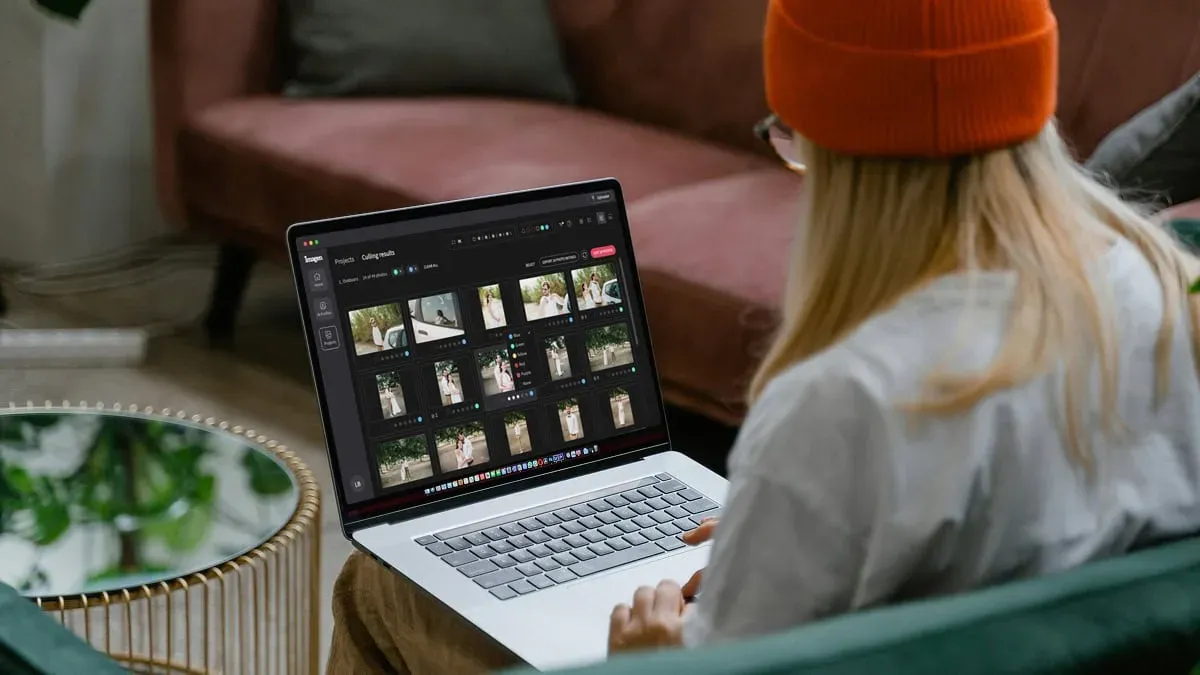
Imagen runs AI culling right inside your project, and you can skip it and cull manually for free if you prefer. It flags the sharp frames, groups the near-duplicates, and reads eyes, focus, and framing so you review a shortlist instead of the raw pile. You still make the final call on which keeper survives, and you make it in a fraction of the time. Dedicated culling tools like Aftershoot solve the same problem with their own selection engine, so you have real options depending on how you like to work.
The goal here is simple. Cut the gallery to the frames worth finishing before you spend a single minute on color, because every image you cull now is one you never have to retouch later.
Batch Color and Tone in Your Personal Style
Once you hold the keepers, the biggest visual job is consistency. A baby shower moves between window light, warm indoor bulbs, and the occasional bright doorway, so raw frames drift in white balance and exposure from shot to shot. Delivering a gallery where the tone jumps around is the fastest way to make good photos look amateur.
This is the stage where Imagen earns its place in the workflow. Imagen learns your personal editing style from your own Lightroom or Capture One catalog, then applies that look consistently across the full shoot as your Personal AI Profile. Ready-made AI Profiles are there too if you want a different starting point. It reads each frame and adapts exposure, white balance, and tone to match how you would have edited it by hand, which keeps the soft pastel warmth people expect from a baby shower gallery steady from the first frame to the last. You are not chasing sliders across hundreds of images. You are reviewing a batch that already looks like yours.
It helps to be clear about what this tool does. Imagen edits, culls, and retouches the real photos you shot. It is not a generator, so it does not invent guests, decor, cake, gifts, or backgrounds, and it does not fabricate a scene that never happened. The parents-to-be get an honest record of their day, finished in your signature look.
Retouch the Portraits and Detail Shots
Portraits are the frames the family prints and shares, so they deserve a careful pass. Retouching a baby shower portrait should stay light and natural, since the point is a real person on a real day, not a magazine cover. You want clean skin, calm distractions, and eyes that read clearly.
Imagen applies AI retouching inside the same connected workflow, so culling, color, and retouching all happen in one place rather than across three separate apps. It smooths skin gently, evens tone, and cleans small blemishes while keeping texture intact, which is exactly the restraint a family portrait needs. For quick manual tweaks, Imagen’s built-in editor (Beta) offers sliders, a histogram, crop and straighten, and presets. For heavier or highly specialized cleanup on a single hero frame, many editors still open Photoshop, and that remains a fair choice for the one or two images that need pixel-level attention.
Keep your retouching honest here too. You are cleaning up the photograph you captured, not building a different face or a different room. A light, consistent retouch across the portrait run reads far better than a few heavily worked frames sitting next to untouched ones.
Finish the Hero Images by Hand
Automation carries the volume, and your judgment carries the highlights. After the batch pass, pull the five to ten hero frames that will lead the gallery and the client preview, and give each one a short manual finish.
- Refine the crop so the guest of honor sits where the eye should land.
- Adjust local exposure on faces if a window blew out one side.
- Warm or cool the frame a touch to match the mood of the moment.
- Check the edges for a stray coat, cup, or cable you want to clean.
Because the batch already sits in your style, these final touches take minutes instead of hours. You are polishing a few standouts on top of a gallery that is already cohesive, which is a much calmer place to make creative decisions than a folder of raw files.
Export and Deliver Galleries That Match
The last stage turns finished frames into files the client can actually use. Because your color and retouching stayed consistent through the workflow, your export presets can stay simple. Build one set for high-resolution prints and one for web and social sharing, and run the whole gallery through both.
- Export full-resolution files for prints and archival delivery.
- Export sized, sharpened copies for the online gallery and phones.
- Name files by scene so the family can find the cake or the gifts fast.
- Deliver through your gallery platform with a clear download option.
A consistent gallery is easier to price, easier to upsell into an album, and easier for the family to share, because every image looks like it belongs to the same set. That consistency is the payoff of running a real workflow instead of editing frame by frame.
Where AI Saves the Most Time in This Workflow
The slow stages of any baby shower edit are culling, batch color, and portrait retouching, and those are exactly the stages Imagen automates in one connected pass. You keep the shot list, the final selects, and the hero finishing, and you hand off the volume that used to eat your evenings. That trade is what makes high-volume event editing sustainable.
Imagen runs on pay-as-you-go pricing, so you pay for what you export, and exploring its tools is free. That lets you run a real baby shower gallery through the workflow before you pay for anything. Competing culling and retouching tools price their work differently, some on subscriptions and some on per-image credits, so weigh how you shoot against how each option charges.
For neighboring event types, the same production line applies with small tweaks.
What’s new in Imagen: Imagen is now an intelligent, agentic Studio for professional photographers. Instead of passing a shoot between separate steps, you cull, edit, review and export inside one project, in any order. For a baby shower workflow, the assistant can find photos and act on them when you ask in plain language, and you can export finished files straight from Imagen. The Studio is rolling out gradually.
Frequently Asked Questions
How long should a baby shower photo editing workflow take?
With AI culling and batch color handling the volume, a typical baby shower gallery of several hundred frames moves from import to delivery in a small fraction of the time a fully manual edit takes. The manual work concentrates on your final selects and a handful of hero images, so your hours scale with creative decisions rather than raw file count.
Does Imagen change or invent anything in the photos?
No, Imagen edits the real photos you shot. It culls, colors, and retouches your actual frames in your personal style, and it does not generate guests, decor, cake, gifts, or backgrounds. The family receives an honest record of their event, finished to match your signature look.
Which tools work together in this editing workflow?
Most editors build the catalog in Lightroom or Capture One, run culling, color, and retouching through Imagen against that same catalog, and open Photoshop for the occasional heavy cleanup on a single hero frame. From Imagen you can send AI edits back to Lightroom Classic as XMP or export finished JPG, TIFF, or PNG files directly. Dedicated culling apps like Aftershoot are a fair alternative if you prefer to keep selection in a separate step.
How do I keep the whole gallery looking consistent?
Consistency comes from applying one style across the full shoot instead of editing frame by frame. Imagen learns your style from your own catalog and matches exposure, white balance, and tone across every keeper, so your baby shower gallery holds the same warm finish from the first frame to the last.
Ready to run your next baby shower gallery through a faster line? Try Imagen and explore the new Studio, where you cull, edit and export in one project.
