

Award Ceremony Photo Editing Workflow: AI Tools and Tips for 2026
Table of contents
- Build the ingest and backup step first
- Cull the ceremony down to the keepers
- Batch color the shoot in your own style
- Retouch the hero frames without the grind
- Review, tweak-spot fix, and quality control
- Export and deliver the gallery the same night
- What Imagen costs and how to try it
- Frequently asked questions
A fast award ceremony photo editing workflow starts the moment the cards come out of the camera and ends with a color-matched, retouched gallery your client can share the same night. The reliable way to hit that turnaround in 2026 is to cull and color the whole shoot with AI, then finish only the hero frames by hand. This guide walks the real production line an event photographer runs after an awards night, and it shows where Imagen automates the slow, repetitive steps so you spend your hours on the frames that matter.
Award ceremonies punish a slow editor. You shoot thousands of frames across a cocktail hour, a stage program, and an after-party, and every one of them lands in a different light. The stage has hot spotlights, the tables sit in warm tungsten, and the lobby runs cool LED. If you edit each photo from scratch, you lose the weekend. The workflow below keeps the volume moving while your personal look stays consistent from the first handshake to the last trophy.
Build the ingest and backup step first
Everything downstream depends on a clean import, so treat ingest as a real stage and not an afterthought. Card failures and duplicate copies cause more lost awards galleries than any editing mistake. Set up a repeatable routine before you touch a single slider.
- Copy every card to two drives at once, one working drive and one backup, before you format anything.
- Import into Lightroom Classic or Capture One and let it render standard previews while you grab coffee.
- Apply your lens corrections and a baseline profile on import so the whole shoot starts from the same footing.
- Tag the event, the client, and the shoot date in your metadata preset so files stay findable a year from now.
Lightroom Classic and Capture One both handle this ingest step well, and your choice usually comes down to the catalog you already live in. Imagen connects to both, so the editing engine reads the same catalog you import into and there’s no extra export or handoff to manage.
Cull the ceremony down to the keepers
Culling is where an awards night quietly eats your evening. You shoot the same handshake fifteen times to guarantee open eyes and a clean trophy handoff, and now you have to find the one frame worth keeping. Doing that by hand across 4,000 images is slow and numbing, and fatigue starts costing you good picks by the third hour.
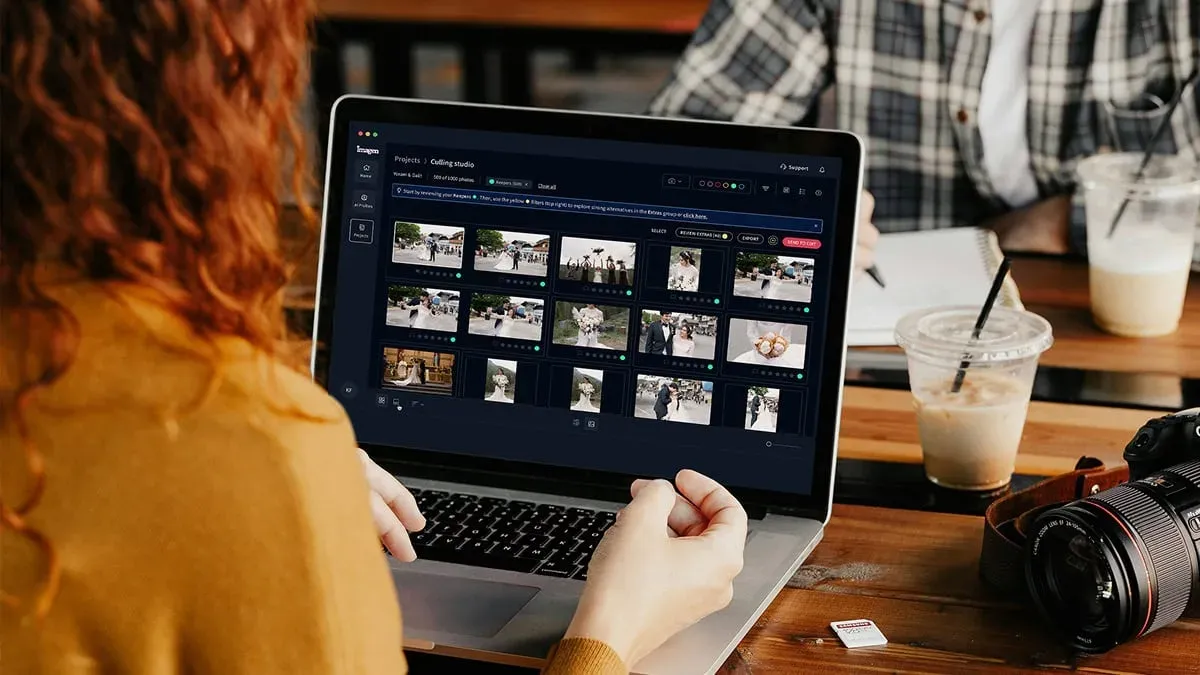
Imagen’s AI culling reviews the full take and flags blinks, soft focus, and near-duplicate bursts, then groups the similar frames so you approve a winner from each cluster in seconds. You stay the decision maker, and the software just clears the obvious rejects out of your way. You can also skip AI culling and cull manually for free. Aftershoot is another real tool photographers use for AI culling, and it earns a place in the conversation for high-volume shooters who want a dedicated culling pass. The advantage of keeping culling inside Imagen is that the same platform then edits and retouches the frames you kept, so your gallery never leaves one connected workflow.
Batch color the shoot in your own style
Here’s the step that defines an award ceremony photo editing workflow. Once your keepers are chosen, they need consistent color, and consistency across mixed venue lighting is genuinely hard. A generic preset gives every photo the same recipe, which means the stage shots go orange and the lobby shots go blue. That’s not a personal look, that’s a filter.
Imagen learns your personal editing style from your Lightroom or Capture One catalog and applies it consistently across the full shoot. You feed it a few thousand of your own past edits once, it builds a personal profile that reflects how you actually edit, and from then on it reads each frame and adapts exposure, white balance, and tone to match your look under whatever light that photo was shot in. The stage shots get your treatment, the table shots get your treatment, and they still look like they belong to one gallery. That’s the difference between a preset and a profile that thinks the way you do.
It’s worth being clear about what this tool is. Imagen edits the real photos you shot at the ceremony. It does not invent scenes, backgrounds, faces, trophies, or people, and it does not generate a fake crowd or a fake stage. It culls, color-corrects, and retouches the actual frames from the actual night, which is exactly what event clients expect from documentary coverage.
Retouch the hero frames without the grind
Award ceremonies produce a short list of frames that get printed, framed, and posted everywhere. The winner at the podium, the group shot of the whole table, the CEO handing over the trophy. Those deserve real finishing, and they usually need portrait cleanup that used to mean a slow trip through Photoshop.
Imagen’s AI retouching handles the repetitive skin and portrait work inside the same pass, so stray flyaways, hot spots from the stage lights, and blemishes get evened out without you masking each face by hand. For the handful of composited or heavily reworked hero images, Adobe Photoshop is still the honest answer, and nobody serious is retiring it. The point of the workflow is that you only open Photoshop for the two or three frames that truly need it, instead of every portrait in the gallery. Retouch4Me is another real option photographers reach for when they want specialized retouching plugins, and it fits teams that already build around a plugin stack.
The math is simple. If you cut per-frame retouching from minutes to seconds across a few hundred portraits, the awards gallery ships tonight instead of next week.
Review, tweak-spot fix, and quality control
Automation gets you 90 percent of the way, and a professional gallery lives in the last 10 percent. Run a fast quality-control pass over the whole set before anyone else sees it. This is a scan for the outliers, not a re-edit of every image.
- Sweep the full gallery at a large thumbnail size and pull any frame whose color drifts from its neighbors.
- Zoom the hero images to 100 percent and confirm the retouching reads natural rather than plastic.
- Check that faces in the front row of every group shot are sharp, since those are the ones clients notice.
- Fix the handful of outliers by hand, because your judgment still beats any automation on the tricky frames.
Because the color and retouching came from your own personal profile, the outlier list is short. You’re correcting a few dozen frames, not rescuing the whole shoot, and that’s the practical payoff of a consistent batch pass upstream.
Export and deliver the gallery the same night
Speed is the selling point of event work, and awards clients want images while the night is still trending. Set up export presets in advance so delivery is one click, not a fresh decision at midnight.
- Export a web-sized, sRGB set for the client’s social team to post before guests even leave.
- Export full-resolution files for print and press, sharpened for the output you know they need.
- Push the gallery to your delivery platform with the event name and date baked into the folder.
- Keep your two backups intact until the client confirms they have downloaded everything.
When the culling, color, and retouching all run inside one connected workflow, a same-night awards gallery stops being a scramble and becomes routine. Imagen can send AI edits back to Lightroom Classic or export finished JPG, TIFF or PNG files straight from the app, so delivery is part of the same flow. You can read the companion AI award ceremony photo editing guide for 2026 for a deeper look at the culling and color steps, and if you also cover exhibitions the best AI trade show photo editing software guide for 2026 covers a closely related high-volume event workflow. More event and editing walk-throughs live on the Imagen valuable tips hub.
What Imagen costs and how to try it
Imagen runs on pay-as-you-go pricing, so you pay per photo instead of committing to a plan you might not fill in a slow month. Pricing is a monthly base fee plus a charge for each photo you export. Exploring Imagen’s tools is free, so you can profile your style and try a real event before you decide. For event photographers whose volume swings hard between busy and quiet seasons, a cost that scales with the frames you actually export keeps the math honest.
What’s new in Imagen: Imagen now brings optional AI culling and a built-in editor (Beta) into one intelligent, agentic Studio for professional photographers. The cull, color and export stages of an awards night share one project, so you can move between them in any order, apply your own AI Profile or a ready-made one, and export finished JPG, TIFF or PNG files straight from Imagen. The Studio is rolling out gradually as a beta.
Frequently asked questions
How long should editing an award ceremony take?
With an AI-driven workflow you can deliver a full awards gallery the same night or the next morning. AI culling and batch color handle the bulk volume in one pass, and you reserve your hands-on time for the hero frames, so a shoot that once took a week ships in hours.
Does Imagen change what my photos actually look like?
Imagen applies your own editing style, learned from your Lightroom or Capture One catalog, so the results look like your work rather than a generic filter. It edits, culls, and retouches the real photos you shot, and it does not invent scenes, people, or trophies that were not there.
How does Imagen keep color consistent across mixed venue lighting?
It reads each frame individually and adapts exposure, white balance, and tone to match your personal profile under that specific light. Stage spotlights, warm table tungsten, and cool lobby LED all get corrected toward one consistent look, so the gallery reads as a single set.
Can I still finish key photos by hand?
Yes, and you should. Imagen automates the repetitive culling, color, and retouching, and you stay in full control of the final look. For light manual finishing you can use Imagen’s built-in editor (Beta) or Lightroom, and for a small set of composited or heavily reworked hero images you can open Photoshop, while the rest of the gallery is already done.
Ready to edit your next awards night faster? Try Imagen in its new Studio, where you cull, edit and export in one project.
