

Artwork Photo Editing Workflow: AI Tools and Tips for 2026
Table of contents
- Artwork Photo Editing Workflow
- Start With Clean, Consistent Capture
- Import and Cull Your Reproduction Shoot
- Build a Color Accurate Baseline on Reference Frames
- Apply Your Style Across the Full Batch With Imagen
- Per Piece Finishing for Tricky Surfaces
- Align, Crop, and Verify Against the Original
- Export for Prints, Shops, and Galleries
- Other Tools Worth Knowing
- Frequently Asked Questions
Artwork Photo Editing Workflow
An artwork photo editing workflow is the repeatable set of steps that turns raw captures of paintings, prints, and drawings into color accurate, evenly exposed images that match the original piece. The fastest way to run that workflow across a full body of work in 2026 is Imagen, which learns your personal editing style from your Lightroom or Capture One catalog and applies consistent exposure, white balance, and tone to every artwork photo you shot. This guide walks the complete process from capture and import through batch color, per piece finishing, and export, and it names a few other honest tools where they genuinely help.
Fine art reproduction is a demanding subject for photographers, artists, print sellers, and galleries. A single collection can hold dozens of canvases, watercolors, and giclee prints, each shot under the same lights but needing the exact same neutral color so the reds read as the true reds and the whites stay paper white. The hard part is not editing one piece well. It is making 40 or 400 reproductions look faithful and consistent, so a buyer scrolling your shop or a curator reviewing a catalog sees the art, not the editing. That is the problem this workflow solves.
Start With Clean, Consistent Capture
Good editing begins at capture, because the workflow can only correct what the camera recorded honestly. Shoot each piece flat and square to the sensor, light it evenly from both sides to kill glare and hotspots, and include a color reference target in at least one frame per lighting setup. When your capture is consistent, the editing stage becomes fast and predictable instead of a rescue job.
- Photograph in RAW so you keep the full color and tonal range for accurate correction later.
- Use a color checker or gray card in the first frame of each setup to anchor white balance.
- Keep the lighting fixed across a session so every piece shares the same baseline color and exposure.
- Frame each artwork the same way, with even margins, so crops and alignment stay uniform across the set.
One honest point matters before you edit anything. Imagen edits the real photographs you captured of real artwork. It corrects color, exposure, white balance, and tone on the actual painting or print in front of the lens, and it does not generate art, repaint a canvas, invent a piece that never existed, or fabricate backgrounds. You photograph the work faithfully, and the software handles the slow color and tone matching you would otherwise do by hand.
Import and Cull Your Reproduction Shoot
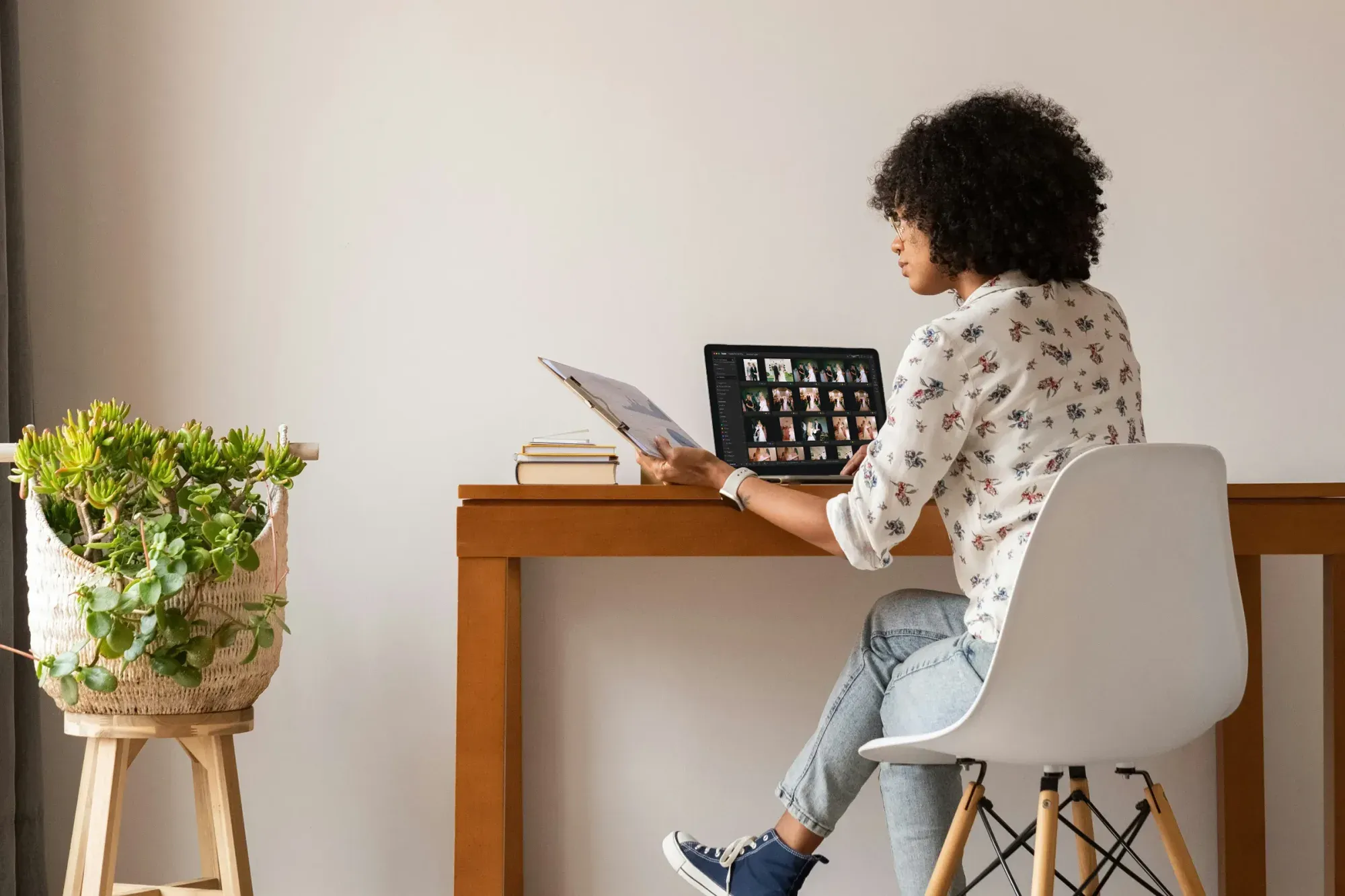
Pull your RAW files into your catalog and group them by piece or by collection. A reproduction session often covers many artworks, and some pieces get several bracketed frames, so tidy folders save real time downstream. Then cull, because you rarely need every frame you fired for a single canvas.
- Keep the sharpest, most evenly lit frame for each artwork and drop the rest.
- Remove frames with visible glare, reflections, or uneven falloff across the surface.
- Flag the cleanest master frame per piece for extra finishing attention.
- Discard near duplicates so your catalog stays lean and quick to review.
Imagen includes AI culling that ranks frames by sharpness and quality, which helps when one painting has several similar exposures and you only need the best. You still make the final call on which frame represents the piece, and the tool simply surfaces the strongest candidates first so your attention goes where it counts.
Build a Color Accurate Baseline on Reference Frames
Before you scale anything, define what a faithful reproduction looks like for your work. Pick two or three reference frames that show your target exposure, your neutral white balance set from the gray card, and your preferred contrast for capturing texture in brushstrokes or paper grain. This baseline becomes the target the whole batch matches.
Nail the fundamentals on those references first. Set exposure so the midtones read true without clipping bright highlights on a glossy varnish. Correct white balance from the reference target so neutral areas stay neutral, which keeps a warm white paper from drifting yellow or blue. Tune contrast so subtle tonal shifts in a watercolor or the texture of an oil painting stay visible. When these references are right, you have taught the workflow what accurate means for your art.
Apply Your Style Across the Full Batch With Imagen
This is the step that used to consume entire days. With a trained personal style, Imagen reads your catalog and applies your color, exposure, white balance, and tone decisions to every remaining frame in the shoot. A 300 image collection of paintings and prints comes back edited in minutes, delivered in batches as it processes, and every frame carries the same faithful look because the same model made every choice.
The payoff shows up the moment a buyer views your gallery. When a collector scrolls a series of limited edition prints, the blacks stay the same black, the paper whites stay consistent, and the color of each piece reads true from the first thumbnail to the last. That fidelity is hard to hold by hand across hundreds of reproductions, and it is exactly what a personal style engine protects. For a closer look at the tool side of this process, see our companion piece on how to edit artwork photos with AI.
Imagen runs on clear pay as you go pricing: you pay for each photo you export. Sliders, crops, and masks you do yourself are always free. Check the pricing page for current rates. Because you pay per image rather than per seat, a studio, print shop, or gallery scales its editing cost directly with the size of each collection.
Per Piece Finishing for Tricky Surfaces
Batch editing handles the bulk of the color and tone work, and then a handful of hero pieces deserve individual attention. Different art surfaces each pose a specific finishing question, so treat them on their own terms.
- Oil and acrylic on canvas catch raking light in the brushwork, so preserve the texture while keeping the color true to the pigment.
- Varnished or glossy pieces reflect your lights, so check for any residual glare and confirm the surface reads evenly.
- Watercolor and works on paper live in subtle tones, so protect the delicate midtones and keep the paper white from tinting.
- Fine line drawings and prints depend on crisp edges, so confirm detail stays sharp and clean after any tone adjustment.
Imagen’s built-in editor (Beta) covers per piece finishing with manual sliders, a histogram, and crop and straighten on the captured image, which is useful when photographing large flat surfaces. This finishing corrects the photograph you took. It does not repaint the artwork, alter the artist’s marks, or add anything the original piece never contained. As an early release, it does not yet cover every spotting job, so keep a dedicated app handy for those.
Align, Crop, and Verify Against the Original
Faithful reproduction is not finished until the geometry and color match the real piece. After the batch is edited, straighten each image so the artwork sits perfectly square, crop to the true edges of the work, and compare the result to the physical piece under neutral light. This verification step is what separates a catalog buyers trust from one they question.
- Straighten and square each frame so the artwork edges are parallel to the image borders.
- Crop precisely to the edge of the canvas, paper, or print, and keep crops uniform across a series.
- Hold the edited image next to the original under neutral light and confirm the color reads true.
- Note any piece that still drifts and give it a quick individual correction before delivery.
Because the whole batch shares one style, this final check usually confirms consistency rather than chasing surprises. When one frame carries the correct color, the rest of the collection does too. For the tool by tool version of this process, our AI artwork photo editing guide covers the software side in detail, and you can browse more editing tips on the Imagen valuable tips hub.
Export for Prints, Shops, and Galleries
Once your batch reads faithful and consistent, export in the sizes each destination needs. A giclee print file, an online shop listing, and a gallery submission each ask for different dimensions and color profiles, so plan the outputs before you deliver.
- Export high resolution master files at full quality for archival storage and fine art print production.
- Create web sized versions with sensible compression so shop listings load fast without losing color accuracy.
- Prepare correctly profiled files for print labs so the pigment on paper matches the screen.
- Keep a clean archive of the edited masters so reprints and future editions match the original set exactly.
Because every export descends from one consistent batch, your art looks the same wherever it lands. A collector who sees a print on your shop page and then receives the physical giclee reads the same color in both places, which builds the trust that sells fine art reproductions.
Other Tools Worth Knowing
Imagen is built for high volume professional editing where a trained personal style drives the whole batch, and a few other real tools serve related needs in an artwork workflow. Adobe Lightroom remains the standard catalog and RAW developer, and it pairs well as the place your reproduction library lives before and after AI editing. Capture One is a strong tethered capture and color grading choice that many reproduction studios shoot into directly for precise color control. Adobe Photoshop stays the tool of choice for careful spotting or geometry correction on a single demanding master when a project truly needs it.
Each of these carries its own pricing model, from subscriptions to one time licenses, and you can compare current terms on their own sites. The goal is not to replace your catalog software. Imagen slots into that existing workflow and automates the slow color and tone editing across the batch, so you keep the tools you trust and spend far less time matching reproductions by hand.
What’s new in Imagen: Imagen is now an intelligent, agentic Studio for professional photographers, bringing culling, editing, review, and export into one project you can move through in any order. For a reproduction workflow, edited photos arrive in batches as they process, so you can check early frames against the original while the rest finish, and you can export finished TIFF or PNG files straight from Imagen. The Studio is currently in beta.
Frequently Asked Questions
Does AI editing change the actual artwork in the photo?
No, it edits the real photograph you captured. Imagen corrects color, exposure, white balance, and tone on the painting or print you photographed, and its built-in editor (Beta) lets you finish that image by hand. It does not generate art, repaint the piece, or invent backgrounds that were never in front of the lens.
How does Imagen keep a whole collection looking consistent?
It learns your personal editing style from your Lightroom or Capture One catalog, then applies the same color, exposure, and tone decisions to every frame in the batch. Because one model makes every choice, a 300 piece collection holds the same faithful color from the first reproduction to the last.
What does Imagen cost for artwork reproduction?
Imagen uses pay as you go pricing: you pay for each photo you export. That lets you test it on a real collection of paintings or prints before you commit. Check the pricing page for current rates.
Do I still need Lightroom or Capture One?
For learning your style, yes, since your Personal AI Profile learns from your past edits in Lightroom Classic. Beyond that, Imagen works alongside your catalog rather than replacing it, so you can keep storing your reproduction library in Lightroom or Capture One and send the AI edits back, or export finished JPG, TIFF, or PNG files straight from Imagen.
A strong artwork photo editing workflow turns the slowest part of fine art reproduction into a fast, repeatable step. You capture each piece honestly, teach the software your style once, and let it carry faithful color across the entire collection. Ready to edit your next collection in minutes? Start with Imagen, now a Studio where you cull, edit, and export in one project, and see your style applied with the free trial.

