

AI Video Editing for Portrait Behind-the-Scenes 2026
Table of contents
- AI Video Editing for Portrait Behind-the-Scenes: A Calm Workflow for 2026
- Why Portrait BTS Footage Is Uniquely Messy
- Where Imagen Video Actually Helps
- Assistant Editor: Sorting the Pile Before You Cut
- The Cut Happens in Premiere Pro
- What Imagen Video Does Not Do, and What Covers It
- A Realistic Time Budget for a BTS Reel
- Fitting It Into How You Already Work
- Frequently Asked Questions
AI Video Editing for Portrait Behind-the-Scenes: A Calm Workflow for 2026
Behind-the-scenes video is some of the most valuable footage a portrait photographer captures, and some of the hardest to finish. You are shooting a session, so the BTS clips get grabbed in the gaps: a phone here, a mirrorless body there, a gimbal pass while you reposition a light. By the time the shoot wraps, you have a folder full of clips from three cameras, shot in different color profiles, under mixed lighting, with nobody watching exposure. Turning that pile into a clean, watchable reel is where most of us stall.
This guide walks through a practical way to handle portrait BTS video with AI doing the tedious parts, so your time goes to the creative decisions. The short version: let AI grade every clip to one consistent look and organize the footage, then do the actual cut in your editor. We will look at where Imagen Video fits, where it does not, and which dedicated tools cover the rest.
Why Portrait BTS Footage Is Uniquely Messy
Studio and location portrait work produces a very specific kind of video mess. Understanding it helps you pick the right tools instead of fighting the footage.
First, it is almost always mixed-camera. Your main camera might roll a Log profile for latitude, your second body shoots standard color, and a helper grabs verticals on a phone for social. Three sources, three color scientists, three white balance decisions. Cut them together raw and the reel flickers between warm and cool, contrasty and flat.
Second, skin tones carry the whole thing. A portrait BTS reel is mostly faces: your subject, you directing, a makeup artist stepping in. Viewers forgive a lot, but they notice green or magenta skin instantly. Getting tones true and consistent across every camera is the difference between footage that looks intentional and footage that looks like a rough dump.
Third, it is run-and-gun. Nobody lit the BTS. Exposure drifts as you move between the key light and a window, and you rarely have time to reset picture profiles between grabs. The result is dozens of short clips that each need individual attention but collectively deserve one coherent grade.
Where Imagen Video Actually Helps
Imagen Video is an AI color tool for videographers, built around one idea: adaptive grading, clip by clip. Instead of applying a single LUT and hoping it flatters every shot, it reads each clip, matches the cameras to each other, corrects skin tones, and lays a consistent cinematic grade across the whole timeline in one pass. For portrait BTS, that mixed-camera problem is exactly what it is good at.
You have two ways to steer the look. You can use Imagen’s AI Profiles, which are professionally trained looks that adapt to each clip rather than sitting on top like a flat filter. Or you can bring your own LUTs if you already have a signature grade you apply to your stills and want the video to match. Either way, the point is that you are not hand-balancing forty clips at 11pm.
The honest framing: Imagen Video takes the part of BTS post that eats the most time and the least creativity, the color match and skin correction across cameras, and does it fast. It gives you back a timeline that already looks like one shoot instead of three.
Assistant Editor: Sorting the Pile Before You Cut
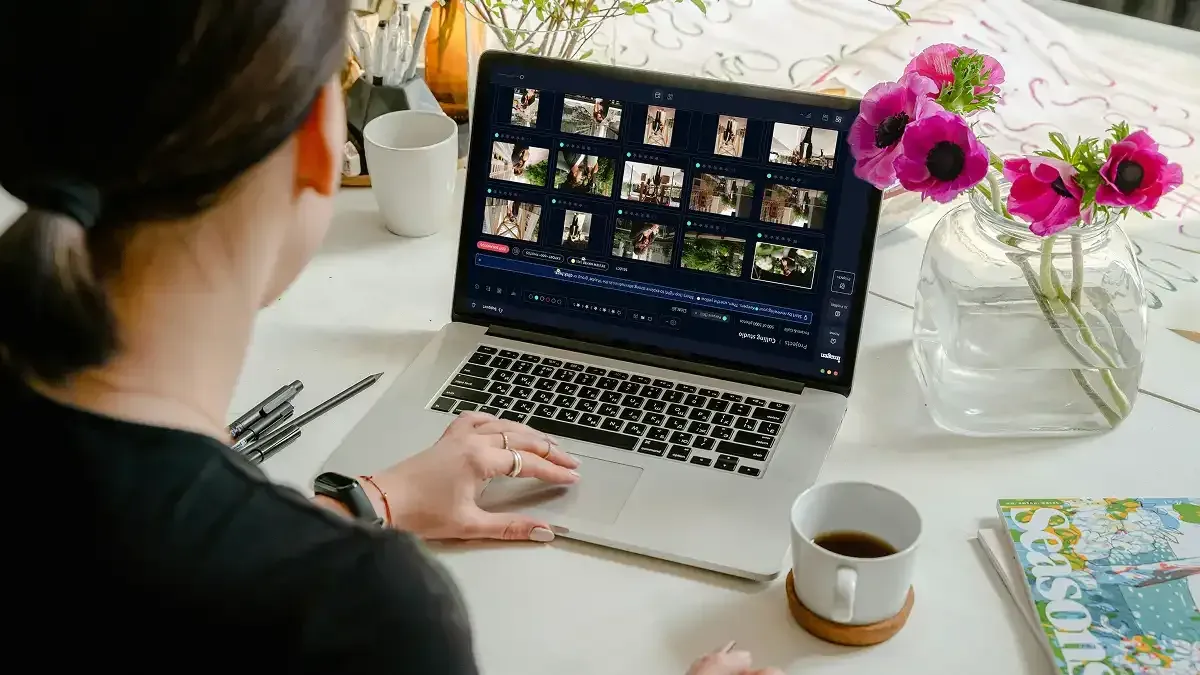
The other half of BTS pain is organization. A shoot can leave you with a hundred clips and no map. Imagen’s Assistant Editor, currently in beta, tackles this. You pick a category and upload your footage, and it sorts every clip and surfaces the shots it recommends, then opens a structured, ready-to-work project in Premiere Pro.
For a portrait BTS reel, that means you open your editor and the clips are already organized instead of dumped in bin order. You start from a clean, sorted project rather than from chaos. That is a real head start on the storytelling, which is the part only you can do.
Two honest caveats. Assistant Editor is beta, so treat it as a strong assistant rather than a finished autopilot. And it is framed around categories like weddings and events, so your mileage on niche studio setups will vary. It surfaces recommended shots; it does not decide your story for you, and that is the right division of labor.
The Cut Happens in Premiere Pro
This is the part people get wrong when they hear AI video editing, so it is worth being plain. Imagen Video is not a full editor. It does not assemble your final sequence, and it is not trying to. The actual cut, the trims, the pacing, the music sync, the choice of which take tells the story, all of that happens in Premiere Pro.
Think of the workflow as a relay. Imagen Video handles the grade and hands Premiere an organized, color-matched project. You take it from there and edit. This is a feature, not a limitation. Your creative decisions stay in the tool built for them, and the machine handles the color math and the filing that no one enjoys.
So a realistic portrait BTS pipeline looks like this: upload your mixed-camera clips, let Imagen grade every clip to one consistent look and correct skin tones, let Assistant Editor sort the footage and open a Premiere project, then cut your reel in Premiere with the color and organization already sorted.
What Imagen Video Does Not Do, and What Covers It
Being clear about the edges keeps your expectations right and your workflow smooth. Imagen Video grades and organizes. It does not track subjects or pull autofocus in post, it does not do slow-motion or optical-flow retiming, it does not stabilize shaky handheld, it does not build motion graphics or VFX, and it does not remove objects from video. If your BTS reel needs any of that, reach for a dedicated tool for that step.
For stabilization on a gimbal-free handheld pass, the warp stabilizer inside Premiere Pro or a tool like Gyroflow handles it. For clean slow-motion on footage you did not shoot at high frame rate, optical-flow retiming in Premiere or a plugin such as Topaz Video AI is the right call. For subject tracking or object removal, After Effects covers motion tracking and content-aware fill. Name the tool that owns the job, use it for that job, and let Imagen own the color and organization layer. That is the calm version of this workflow, no single tool pretending to do everything.
If your BTS also involves finishing the stills from the same shoot, the same clip-by-clip consistency idea applies to photos too. Our guide on AI portrait background replacement covers that side, and if you shoot weddings alongside portraits, the walkthrough on speeding up wedding video editing with AI uses the same grade-then-cut approach at event scale.
A Realistic Time Budget for a BTS Reel
Numbers help set expectations. Say you finish a portrait session with sixty BTS clips across two cameras and a phone. Graded and matched by hand, clip by clip, that is a genuinely long evening: pull each clip, balance it against the others, fix skin, check for drift, repeat sixty times. Most photographers simply do not do it, which is why so much good BTS footage never gets posted.
With the grade offloaded, the shape of the evening changes. Imagen matches the cameras and corrects tones across the batch, Assistant Editor sorts the clips and opens a Premiere project, and your hands-on time moves to the cut itself, where it belongs. You are choosing the story beats and setting the pace instead of nudging color wheels. The reel gets finished because the boring part stopped being a wall.
You can try this without committing anything. Imagen Video lets you edit your first project for free, so you can run a real BTS folder through it and judge the grade on your own footage before deciding it belongs in your workflow.
Fitting It Into How You Already Work
None of this asks you to rebuild your process. If you already cut in Premiere Pro, the grade and the organized project land right where you work. If you have a house look baked into a LUT, bring it. If you would rather start from a trained profile, use an AI Profile and adjust from there. The goal is a workflow you can repeat after every shoot without dread, so the BTS reel becomes a normal deliverable instead of a someday project.
The mindset that makes it stick is matching each tool to what it genuinely does. Let Imagen Video carry the color match and the sort. Let Premiere carry the edit. Let a dedicated tool carry stabilization or retiming when a clip needs it. Each step done by the tool built for it, calmly, in order. For more workflow walkthroughs like this, browse the Imagen valuable tips hub.
What’s new in Imagen: Imagen is now an intelligent, agentic Studio for professional photographers, one project where you cull, edit, review and export in any order. For the portrait stills from the same session, a Personal AI Profile learned from your past edits applies your style, and the Assistant finds photos when you ask in plain language. The Studio is rolling out gradually as a beta, while Imagen Video remains the place to grade and sort your behind-the-scenes clips.
Frequently Asked Questions
Can Imagen Video edit my behind-the-scenes reel from start to finish?
No, and it does not try to. Imagen Video handles adaptive color grading clip by clip, matches your cameras, corrects skin tones, and can sort your footage and open a structured Premiere Pro project through Assistant Editor. The actual cut, trimming and assembling your final reel, happens in Premiere Pro. Think of it as the grade-and-organize step ahead of your edit, not a replacement for your editor.
Does it handle footage from different cameras in one BTS folder?
Yes, that is one of its core strengths. Portrait BTS is usually mixed-camera, with a main body, a second camera, and often a phone shot in different profiles. Imagen Video reads each clip and matches them into one consistent cinematic look while keeping skin tones true across all of them, which is the hardest part to do by hand.
Can I use my own LUT or do I have to use Imagen’s looks?
Both options are available. You can apply Imagen’s AI Profiles, which are trained looks that adapt to each clip, or you can bring your own LUTs if you already have a signature grade you want the video to match. Either way the grade adapts clip by clip rather than sitting flat on top of the footage.
What about stabilizing shaky clips or adding slow motion?
Those are outside what Imagen Video does. It grades and organizes; it does not stabilize, retime for slow motion, track subjects, do VFX, or remove objects. For stabilization use Premiere’s warp stabilizer or a tool like Gyroflow, and for slow motion use optical-flow retiming in Premiere or a plugin such as Topaz Video AI. Use the dedicated tool for that one step and let Imagen own the color layer.
Is there a cost to try it on a real shoot?
You can edit your first project for free and run an actual BTS folder through Imagen Video to judge the grade on your own footage before deciding whether it fits your workflow.
