

The Complete Guide to AI Prom Photo Editing in 2026
Table of contents
- Why prom galleries need a dedicated editing plan
- Step 1: Import, back up, and cull the shoot
- Step 2: Set your look with a personal AI editing style
- Step 3: Batch the portraits and the dance floor separately
- Step 4: Retouch the portraits and hero frames
- Step 5: Review, export, and deliver the gallery
- Choosing the right tools for your studio
- Frequently asked questions
AI prom photo editing works best when you use it to clear the slow parts of post-production, so you cull the shoot fast, apply your color and tone across every frame, and finish the standout portraits without losing the look that your clients hired you for. The quickest path in 2026 is to train an AI on your own editing style, let it carry the repetitive batch work, and save your hands for the images that anchor the night. This guide walks the full workflow, from the memory card to the delivered gallery, and it names the tools that honestly earn a place at each step.
Prom is a fast, high-volume shoot with tricky light. You cover the pre-prom portraits at golden hour, the group shots on a staircase, the grand march, and hours of dance-floor color, and you often walk away with 800 to 2,000 frames in a single evening. That volume is exactly where a smart AI editing pass pays for itself, and it is also where a careless one flattens the mood. The sections below keep both the speed and the style in view.
Why prom galleries need a dedicated editing plan
Prom coverage mixes formal portraits and party energy in one night, and each part asks for a different touch. The pre-prom session outside is warm and soft, so you protect skin tones and let the golden light breathe. The dance floor is loud, colored, and fast, so you chase expression and movement under gels and strobes. If you edit both parts with one generic preset, the gallery reads uneven, and teens and parents both notice. A real plan sorts the night into scenes, sets a consistent look inside each scene, and finishes the emotional peaks with extra care.
The second reason to plan is turnaround. Prom season packs many shoots into a few short weeks, and referrals slow down when galleries drag. AI editing shortens the gap between the event and delivery, and it does that without asking you to drop your signature. For a hands-on companion to this piece, see our walkthrough on how to edit prom photos with AI, and browse more field guides on the Imagen valuable tips hub.
Step 1: Import, back up, and cull the shoot
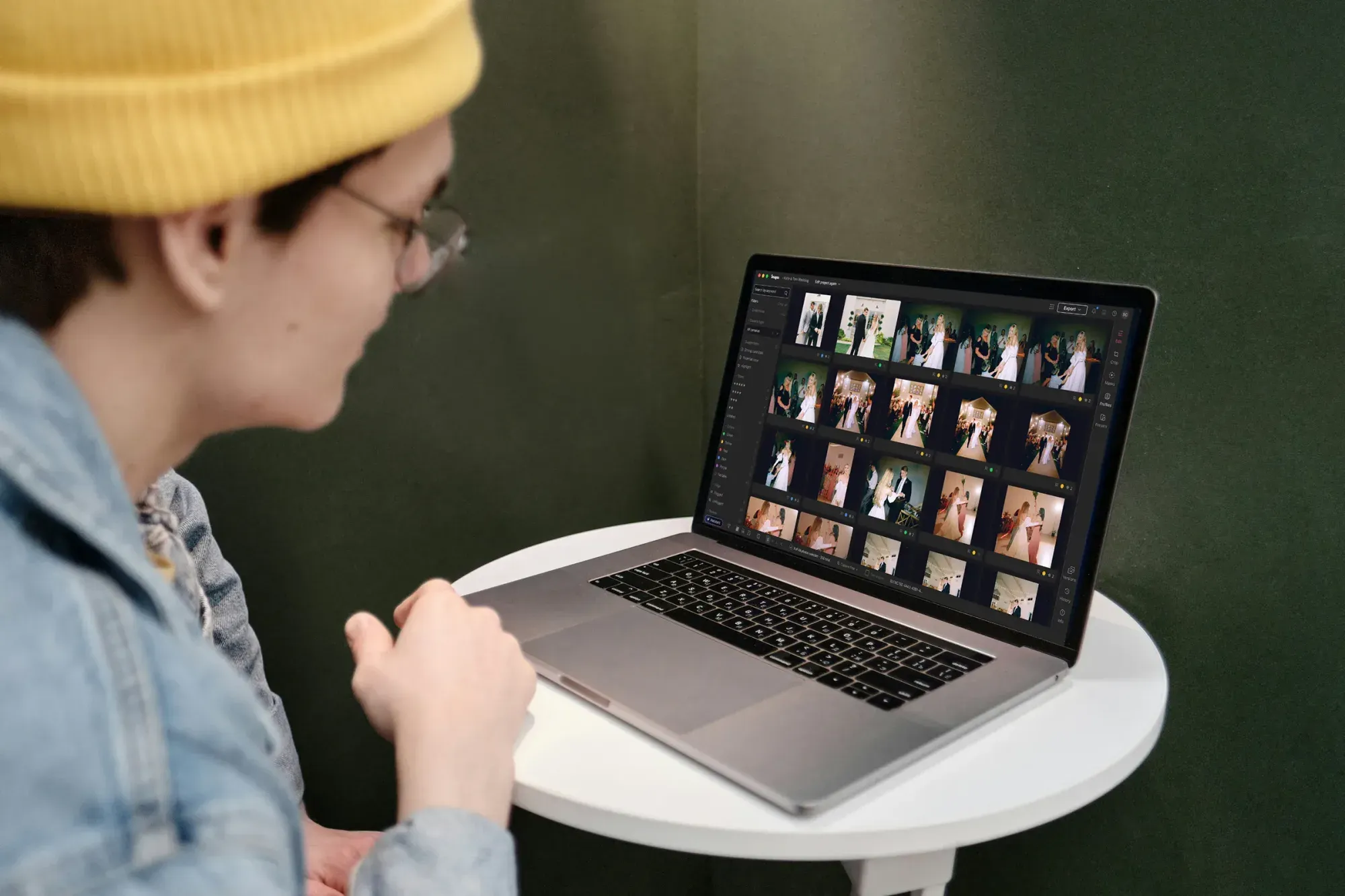
Start by ingesting every card into your catalog and building a second backup before you touch a single slider. Prom is a one-night event that nobody can reshoot, so you protect the files first and edit second. Once the images are safe, the real bottleneck arrives, because sorting a thousand or more frames by hand can eat an entire evening on its own.
This is where AI culling changes the math. Imagen reviews the full take, flags near-duplicates, marks closed eyes and soft focus, and groups the keepers so you make selection calls in a fraction of the usual time. You stay the final judge, because you decide which of three nearly identical grand-march frames tells the story best, and the AI simply clears the noise so that choice is quick. Tools like Aftershoot also center on AI culling and suit photographers who want a dedicated selection step before any editing begins.
- Ingest all cards, then confirm a full second backup before editing.
- Run AI culling to remove blinks, blur, and near-duplicate bursts.
- Confirm the key expressions by eye, since only you read the night in full.
- Split the take into scenes, so portraits and the dance floor get their own edits.
Step 2: Set your look with a personal AI editing style
Presets get you close, but they rarely match the exact way you balance a warm skin tone against a cool gym window or a colored spotlight. The stronger approach in 2026 is a personal AI model. Imagen learns your personal editing style from your Lightroom or Capture One catalog, then applies that style consistently across the whole shoot. You feed it a body of your past edits, it studies how you handle exposure, white balance, contrast, and color, and it renders new galleries the way you would.
This matters most at a prom because the night spans so many lighting situations. Your model carries the same intent from the sunset portraits to the packed dance floor, so the gallery feels like one coherent story rather than a stack of unrelated presets. Imagen is an editor, not a generator, which is the point that keeps this honest. It edits, culls, and retouches the real photos you shot, and it does not invent scenes, backgrounds, dresses, suits, guests, or moments that never happened. The couple on the staircase is the couple on the staircase, and the AI only refines the frame you captured.
Exploring Imagen’s tools is free, and pay-as-you-go pricing means you pay for what you export. Because the cost sits at the photo level, a large prom gallery stays predictable, and you always know the math before you commit.
Step 3: Batch the portraits and the dance floor separately
With your style locked in, run the batch pass, but treat the two halves of the night as separate jobs. Apply the model to the outdoor and formal portraits first, and check that skin tones stay natural under warm evening light. Then apply it to the dance floor, where colored gels, haze, and moving strobes push the frames in a different direction. Reviewing each scene on its own keeps the whole gallery balanced.
After the automated pass, scan the results at a comfortable zoom and look for the few frames that need a manual nudge. A backlit hallway shot, a spotlight during the crowning, or a candid in deep shadow may want a small local correction. The goal is not to redo the AI work, but to catch the handful of outliers that any batch produces. For that manual polish, Imagen’s built-in editor (Beta) offers sliders, crop and straighten, and presets, and Lightroom Classic is still a natural home for deeper work, since Imagen can send AI edits back there as XMP.
Step 4: Retouch the portraits and hero frames
Every prom gallery has a short list of images that teens and parents print, frame, and post for years. The portrait of the couple at golden hour, the group of friends before the march, the parents watching from the sideline, and the first slow dance all deserve a finishing pass. AI retouching handles the routine cleanup here, so you calm a breakout, soften a harsh shadow under the eyes, and even out skin without erasing the person. Imagen includes AI retouching in the same connected workflow as culling and editing, which keeps you from bouncing between apps for the last ten percent of the job.
Keep retouching honest and light for teenagers on a milestone night. A seventeen-year-old should still look seventeen, and a nervous first date should still look like themselves. Dedicated skin tools such as Retouch4Me appeal to studios that want granular control over individual portrait retouching, and they can sit alongside a broader AI editor when a single frame calls for extra attention. Whichever tool you reach for, the rule holds: refine the real face, and never rebuild it.
- Shortlist the fifteen to thirty frames the students and families will treasure most.
- Apply light AI retouching for blemishes, stray hair, and uneven shadows.
- Preserve natural skin texture, so each subject still looks like themselves.
- Compare each finished portrait against the untouched frame to check restraint.
Step 5: Review, export, and deliver the gallery
Before you export, do one full pass through the gallery in sequence, as if you were a student opening it for the first time. Watch for tone drift between scenes, confirm the portraits read warm and clean, and make sure the dance frames keep their energy. This final look catches the small inconsistencies that automated batching can leave behind, and it is the moment your judgment does the most good.
Then export at the sizes your clients need, usually full-resolution files for printing and web-optimized versions for the online gallery and for social sharing. Imagen can send AI edits back to Lightroom Classic as XMP, so your export presets, folder structure, and delivery pipeline stay exactly as they were, or you can export finished JPG, TIFF, or PNG files straight from Imagen. You gain speed at the front of the process and lose nothing at the end. If you also shoot other milestone events, the same workflow carries over cleanly, as our guide to the best AI christening photo editing software shows.
Choosing the right tools for your studio
The landscape splits into a few honest categories. Some tools focus on a single job, such as AI culling or portrait retouching, and they suit photographers who want one specialized step. Aftershoot leans into culling, and Retouch4Me leans into detailed skin work, and both handle their narrow task well. Other tools try to cover the entire pipeline in one place.
Imagen sits in that second group and connects culling, personal-style editing, and retouching in one workflow that works alongside the Lightroom catalog you already use. For a high-volume night like prom, that combination is the difference between a week of editing and an afternoon. Most of these tools let you try them first, and Imagen lets you explore its tools for free and pay when you export, so the practical move is to test two or three against one real gallery and keep the one that matches your style with the least fuss. Competitor pricing varies by model, from subscriptions to per-image credits, so weigh the fit against your volume rather than the sticker alone.
What’s new in Imagen: Imagen is now an intelligent, agentic Studio for professional photographers, one project where you cull, edit, review and export in any order. For prom coverage, you can use AI culling or skip it and cull manually for free, and a Personal AI Profile learned from your past edits carries your look from the sunset portraits to the dance floor. The Studio is rolling out gradually.
Frequently asked questions
Does AI editing change how the students actually looked?
No, a good AI editor refines the real photos you captured rather than inventing new ones. Imagen edits, culls, and retouches the frames you shot, and it does not generate guests, dresses, backgrounds, or moments that were not there. The people in the gallery are the people who stood in front of your lens.
How long does it take to edit a full prom gallery?
With AI culling and a personal editing model, most photographers cut a multi-day job down to a single working session. The exact time depends on your frame count and how many hero portraits you finish by hand, but the batch pass across a thousand or more images finishes in a fraction of the manual timeline.
What does Imagen cost for a large prom shoot?
Imagen uses pay-as-you-go pricing, so you pay for what you export, and exploring its tools is free. Because you pay per exported photo, a big prom gallery stays easy to budget in advance.
Do I have to leave Lightroom or Capture One?
No, Imagen works alongside Lightroom. It learns your style from your Lightroom or Capture One edits and can send AI edits back to Lightroom Classic as XMP, so your import, export, and delivery habits stay the same while the slow editing steps get faster.
Ready to speed up your next prom gallery without losing your look? Try Imagen free and explore the new Studio, where you cull, edit and export in one project.
