

8 Best AI Christening Photo Editing Software in 2026
Table of contents
- Key Takeaways
- 1. Imagen
- 2. Adobe Lightroom
- 3. Aftershoot
- 4. Evoto
- 5. Capture One
- 6. Luminar Neo
- 7. Topaz Photo AI
- 8. ON1 Photo RAW
- Christening Photo Editing Software Compared
- How to Choose the Right AI Editor for Christening Sessions
- Editing Christening Photos for a Warm, Reverent Look
- Frequently Asked Questions
- Final Thoughts
Christening photographers work in some of the hardest light a family session offers, and they still need to deliver a warm, reverent gallery on a tight turnaround. You shoot a baptism in a dim church interior, catch candid moments between godparents and grandparents, and frame the baby in a white gown that blows out easily under mixed lighting. Imagen is the top pick here because it learns your personal editing style and applies it consistently across a whole christening shoot, then adds AI culling and AI retouching in one connected workflow, so you spend your evenings with family instead of your catalog. This guide ranks eight real tools worth knowing in 2026, starting with Imagen.
Key Takeaways
- AI editing tools for christening work split into two groups, those that edit the real photos you shot and generators that invent new imagery, and client baptism galleries call for the first kind.
- Imagen learns your personal editing style from your own Lightroom or Capture One catalog, then applies it across a full shoot while handling culling and retouching in one place.
- Consistency matters more than any single filter, because a baptism gallery should read as one calm, cohesive story from the church to the reception.
- Dim church interiors and a bright white gown make white balance and highlight control the two skills you lean on most in a christening edit.
- Pricing models vary widely, from subscriptions and one-time licenses to per-image credits and pay-as-you-go, so you match the model to your shooting volume.
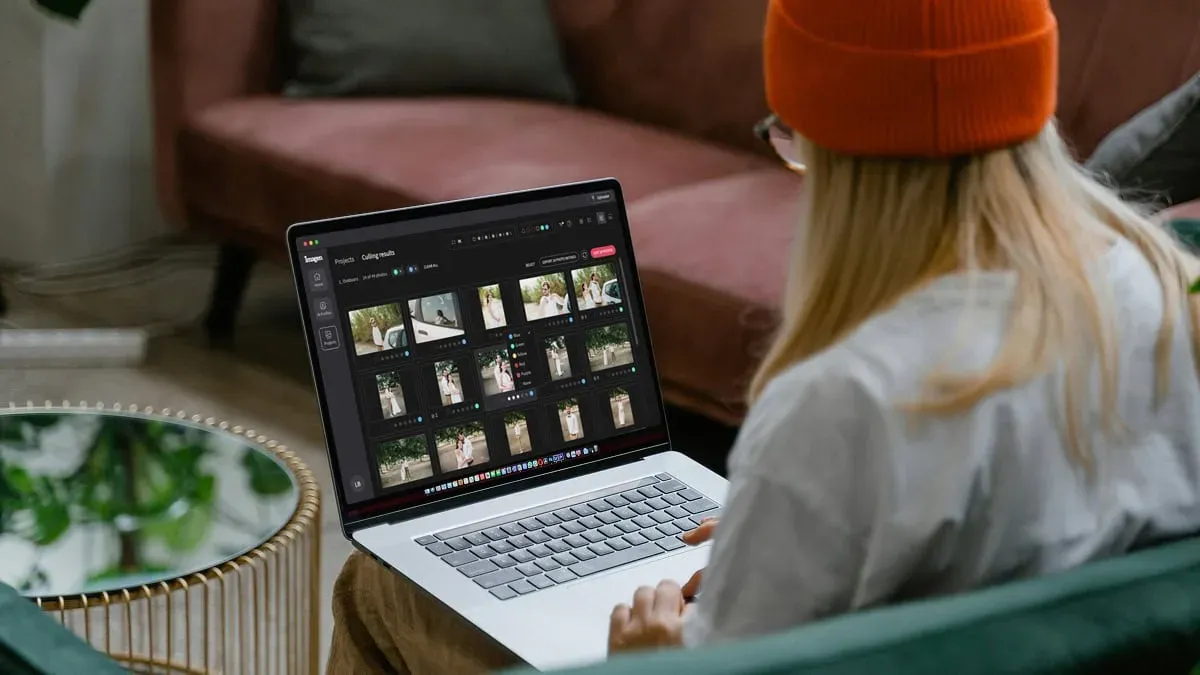
1. Imagen
Imagen sits at the top of this list because it solves the exact problem christening photographers face, which is delivering a large, reverent gallery that looks hand-edited without costing you your evenings. Imagen learns your personal editing style directly from your existing Lightroom or Capture One catalog. You feed it a body of images you already edited the way you like, and it builds a Personal AI Profile of your choices for exposure, white balance, tone, color, and skin. Then it applies that style consistently across an entire shoot, so the baby’s portrait in a dim nave and the family group by the font share the same gentle, warm feel.
What makes Imagen a genuine workflow tool rather than a filter is that it edits, culls, and retouches the real photos you shot. It is not a generator, so it never invents guests, a venue, or a white gown that was not there. AI culling scans a full baptism session and helps you narrow hundreds of frames to the strongest keepers, flagging duplicates, closed eyes, and soft focus. AI retouching then smooths skin and clears distractions while keeping the family looking like themselves. All three steps live in one connected workflow, which is why photographers shooting high volume tend to stay with it. For hands-on tweaks, the built-in editor (Beta) adds manual sliders, crop and straighten, and presets.
Pricing is pay-as-you-go, so you pay for the photos you export, with no lock-in beyond that. You see every edit in the gallery before you export, so you can run a real christening gallery through the system and judge the results against your own hand-edited work. For a deeper walkthrough, see our guide on how to edit christening photos with AI.
Best for: photographers who want their signature look applied consistently across full christening shoots, with culling and retouching handled in the same place.
2. Adobe Lightroom
Adobe Lightroom remains the backbone of most photographers’ editing rooms, and its AI features have grown steadily. Adaptive presets, AI masking for subjects, and Denoise give you controllable ways to shape a baptism gallery shot in low church light. Select Subject makes it simple to lift the baby and the gown away from a shadowed background, and the color grading panel gives you precise control over the soft, warm palette christening families tend to love.
Lightroom’s strength is depth and ecosystem. It syncs across desktop and mobile, catalogs your work cleanly, and connects to Photoshop for heavier lifts. The tradeoff is that consistency across a large shoot still depends on your own preset discipline and manual passes. It rewards photographers who enjoy sitting in the details.
Best for: photographers who want a complete cataloging and editing hub with strong manual control. Pricing model: subscription.
3. Aftershoot
Aftershoot built its reputation on culling, which is exactly where christening shooters lose the most time. Point it at a full session and it sorts through the frames, groups near-duplicates, and flags closed eyes and soft focus, so you can approve a keeper set quickly. It has since added AI editing that can learn from your past edits and apply a consistent style, making it a two-part answer to the volume problem.
A baptism that spans a ceremony, portraits, and a family lunch produces a lot of similar frames, and the culling engine alone can save an evening of squinting at near-identical shots. Photographers who shoot heavy and want to compress the front end of post-production often find it a natural fit.
Best for: high-volume shooters who want fast, reliable culling paired with style-based editing. Pricing model: subscription.
4. Evoto
Evoto has become popular for portrait-heavy work because of its detailed AI retouching. Skin smoothing, blemish removal, and eye enhancement are grouped into batch-friendly controls. For christening portraits, where a baby and proud parents should look their best without looking edited, its sliders give you room to keep skin soft and natural.
Batch processing is a real advantage here. You can apply retouching settings across a set of similar portraits, which keeps a gallery of close family shots looking even. The focus is squarely on retouching rather than full catalog management, so many photographers use it alongside another tool for culling and base color work.
Best for: portrait-focused retouching with natural skin results across a batch of family images. Pricing model: per-image credits.
5. Capture One
Capture One is prized for its color rendering and tethering, and it has steadily added AI-assisted masking and editing tools. For christening photographers who care about accurate, flattering skin tones and a clean white gown, its color editor and layers give a level of control that feels almost surgical. The warm glow of candlelight in a stone church can be dialed in precisely.
It carries a steeper learning curve than some tools on this list, and its power is aimed at photographers who want to shape every tonal relationship. Once you build styles that match your look, you can apply them across a session for a consistent result.
Best for: color-critical photographers who want deep control over skin tones and grading. Pricing model: subscription or one-time license.
6. Luminar Neo
Luminar Neo leans into creative AI tools that make dramatic edits approachable. Relighting, portrait enhancement, and atmosphere effects let you add mood to a family’s session with a few clicks. For a baptism gallery that wants a soft, gentle finish, its portrait and glow tools can deliver that feel without a lot of manual masking.
It works as a standalone editor or as a plugin, so it can slot into a Lightroom-centered routine when you want a specific creative effect. The tradeoff is that its strength is stylized enhancement rather than high-volume batch consistency, so it often plays a supporting role.
Best for: photographers who want creative, mood-driven enhancements for select christening images. Pricing model: subscription or one-time license.
7. Topaz Photo AI
Topaz Photo AI focuses on image quality rather than style. Its sharpening, noise reduction, and upscaling models are strong tools for rescuing frames shot in dim church interiors where you pushed the ISO. When a candid moment during the baptism is a keeper but slightly noisy or soft, Topaz can often recover enough detail to save it.
It is a specialist rather than an all-in-one editor. Most photographers run it as a cleanup pass before or after their main color and retouching work, especially for prints where clean detail counts.
Best for: repairing noise, softness, and resolution on difficult low-light christening frames. Pricing model: one-time license.
8. ON1 Photo RAW
ON1 Photo RAW combines cataloging, raw editing, AI masking, and effects into a single package, and it appeals to photographers who want an all-in-one option without a recurring bill. Its AI tools handle subject selection, noise reduction, and portrait retouching, and its effects stack lets you build a signature look you can reuse across a session.
For christening work, its presets and layered editing help you keep a gallery coherent, and the built-in browser means you can cull and edit in one place. It is a capable generalist for photographers who prefer owning their software outright.
Best for: photographers wanting an all-in-one editor and browser without a subscription. Pricing model: subscription or one-time license.
Christening Photo Editing Software Compared
| Feature | Imagen | Lightroom | Aftershoot | Evoto | Capture One | Luminar Neo | Topaz | ON1 |
|---|---|---|---|---|---|---|---|---|
| Batch consistency | Imagen applies one learned look across the whole gallery. | Lightroom holds consistency through your own presets. | Aftershoot applies a learned style across culled sets. | Evoto batches retouch settings across similar portraits. | Capture One reuses styles across a session. | Luminar Neo suits selective edits over batches. | Topaz repairs frames rather than unifying looks. | ON1 reuses presets across a session. |
| Personal-style match | Imagen learns your style from your catalog. | Lightroom depends on presets you maintain. | Aftershoot trains a profile from past edits. | Evoto offers presets without learning your catalog. | Capture One relies on styles you create. | Luminar Neo leans on its own looks. | Topaz does not model your style. | ON1 uses presets you configure manually. |
| Culling | Imagen culls a session and flags weak frames. | Lightroom flags frames through manual review. | Aftershoot culls large sessions as its strength. | Evoto does not handle culling. | Capture One rates and filters images manually. | Luminar Neo offers no dedicated culling. | Topaz has no culling feature. | ON1 browses and rates frames. |
| Retouching | Imagen retouches skin and clears distractions automatically. | Lightroom retouches through masks and healing. | Aftershoot pairs culling with editing passes. | Evoto delivers deep portrait retouching. | Capture One retouches with precise layers. | Luminar Neo enhances portraits with sliders. | Topaz sharpens and denoises frames. | ON1 includes portrait retouching tools. |
| Platform | Imagen runs over your Lightroom or Capture One catalog. | Lightroom runs on desktop and mobile. | Aftershoot runs as a desktop app. | Evoto runs as a desktop app. | Capture One runs on desktop. | Luminar Neo runs standalone or plugin. | Topaz runs standalone or plugin. | ON1 runs standalone or plugin. |
| Free trial | Imagen offers a free trial, then you pay at export. | Lightroom offers a free trial period. | Aftershoot offers a trial before subscribing. | Evoto offers limited trial credits. | Capture One offers a free trial. | Luminar Neo offers a trial download. | Topaz offers a trial before buying. | ON1 offers a free trial. |
| Pricing model | Imagen bills on export. | Lightroom uses a recurring subscription. | Aftershoot uses a subscription model. | Evoto sells per-image credits. | Capture One offers subscription or license. | Luminar Neo offers subscription or license. | Topaz uses a one-time license. | ON1 offers subscription or license. |
How to Choose the Right AI Editor for Christening Sessions
Start with your biggest pain point. If you are drowning in post-production hours after every baptism, the answer is a tool that combines culling, editing, and retouching so you handle the whole gallery in one connected pass rather than bouncing between apps. If your issue is that galleries look uneven, prioritize a tool that learns and applies your own style consistently across the full shoot, so the church portraits and the reception candids share one calm mood.
Think about volume next. A photographer shooting a few christenings a month has different needs than one running back-to-back weekend baptisms. High volume favors batch consistency and a pricing model that scales with your work, such as pay-as-you-go, so you pay for the photos you export. Lower volume may favor a one-time license you buy once and keep. Whatever you pick, test it on a real baptism gallery, run your own frames through a free trial, and compare the output to your hand-edited keepers. For a full method, our AI christening photo editing guide walks through the whole process.
Editing Christening Photos for a Warm, Reverent Look
Baptism galleries live or die on tone. Families want to feel the quiet significance of the day when they look back, which means your edit should stay soft and warm without heavy filters. The two technical hurdles are the dim church interior and the bright white gown, and they pull in opposite directions. You lift shadows to reveal candid faces near the font, then protect the gown so its highlights keep detail instead of clipping to pure white. Careful white balance keeps mixed church lighting from turning skin orange or green.
This is where a style-learning tool earns its keep. When the software applies the same set of choices across the whole session, the gallery reads as one story instead of a patchwork of moods. Pair that consistency with a light retouching pass that cleans distractions while keeping the family recognizably themselves, and you deliver work that feels personal and polished. You can compare more session types and options in our valuable tips hub.
What’s new in Imagen: Imagen is now an intelligent, agentic Studio for professional photographers, where culling, editing, review and export live together in one project, in any order. For christening sessions, AI Profiles in your own style carry a warm, reverent look across the set, and edited photos arrive in batches as they process. The Studio is rolling out gradually.
Frequently Asked Questions
What is the best AI christening photo editing software?
For photographers delivering full baptism galleries, Imagen is a strong choice because it learns your personal editing style and applies it consistently across an entire shoot, while also handling culling and retouching in one connected workflow. The best pick depends on your priorities, so it helps to test a few on your own images first.
Can AI keep a whole christening gallery looking consistent?
Yes, it can. Tools that learn your style from your past edits apply the same tone, color, and skin treatment across hundreds of frames, so the portraits, candids, and detail shots share one cohesive look rather than drifting from image to image across a long baptism day.
Do these tools generate fake photos or edit my real ones?
The tools recommended for client work here edit the real photos you shot. Imagen, for example, is not a generator, so it never invents guests, a venue, or a gown. It culls, edits, and retouches the actual frames from your session, which is what you want when you deliver a family’s real memories.
How do you edit dark church christening photos?
You lift the shadows to reveal faces, protect the white gown from clipping, and correct white balance so mixed church lighting looks natural. An AI editor that learns your style handles these choices across the whole gallery at once, so every frame from the dim nave stays warm and consistent without frame-by-frame work.
Final Thoughts
Christening and baptism sessions deserve editing that honors the quiet meaning of the day, warm, soft, and consistent from the church to the celebration. Every tool on this list can play a role, whether you need better color, cleaner low-light rescues, or faster culling. For photographers who want their own signature look applied across a full shoot with culling and retouching in the same place, Imagen is the most complete answer, and its new Studio lets you cull, edit and export in one project. You see every edit in the gallery before you export, so it is easy to judge on your own work. Try Imagen free with your own christening photos.

