

The Complete Guide to AI Product Launch Event Photo Editing in 2026
Table of contents
- The AI Product Launch Event Photo Editing Guide for 2026
- Start With a Fast Import and a Ruthless Cull
- Set Your Personal Style Once and Apply It Across the Shoot
- Balance Stage and Venue Lighting Without Fighting Every Frame
- Retouch People and Product Shots the Honest Way
- Organize the Gallery Around What the Client Actually Needs
- Export, Deliver, and Keep Your Turnaround Tight
- Where Imagen Fits and What It Costs
- Frequently Asked Questions
The AI Product Launch Event Photo Editing Guide for 2026
An AI product launch event photo editing guide comes down to one goal, which is turning a few thousand frames from a fast corporate evening into a clean, on-brand gallery within a day. The quickest route in 2026 is to lean on AI for the slow, repetitive work of culling, color, and retouching, and to keep your own judgment for the frames that carry the story. This guide walks the full workflow for a product launch shoot, from the first import to the final export, and it shows where a tool like Imagen automates the parts that used to eat your evening.
Product launch events are a specific kind of assignment. You shoot mixed stage lighting, a keynote or demo on a bright screen, product close-ups on a display table, and candid audience reactions in dim room light. Every one of those looks needs a different edit, and the client usually wants the highlight set the next morning for press and social. If you want a companion piece on the setup and shooting side, read our sibling walkthrough on how to edit product launch event photos with AI, and browse the full valuable tips hub for more event coverage.
Start With a Fast Import and a Ruthless Cull
A single product launch can leave you with 2,000 to 4,000 frames after two or three hours of coverage. Most of those are duplicates, blinks, or half-caught gestures during the keynote. The first job is not editing, it is deciding which photos survive. Import everything into your Lightroom or Capture One catalog, back up to a second drive, and only then start culling.
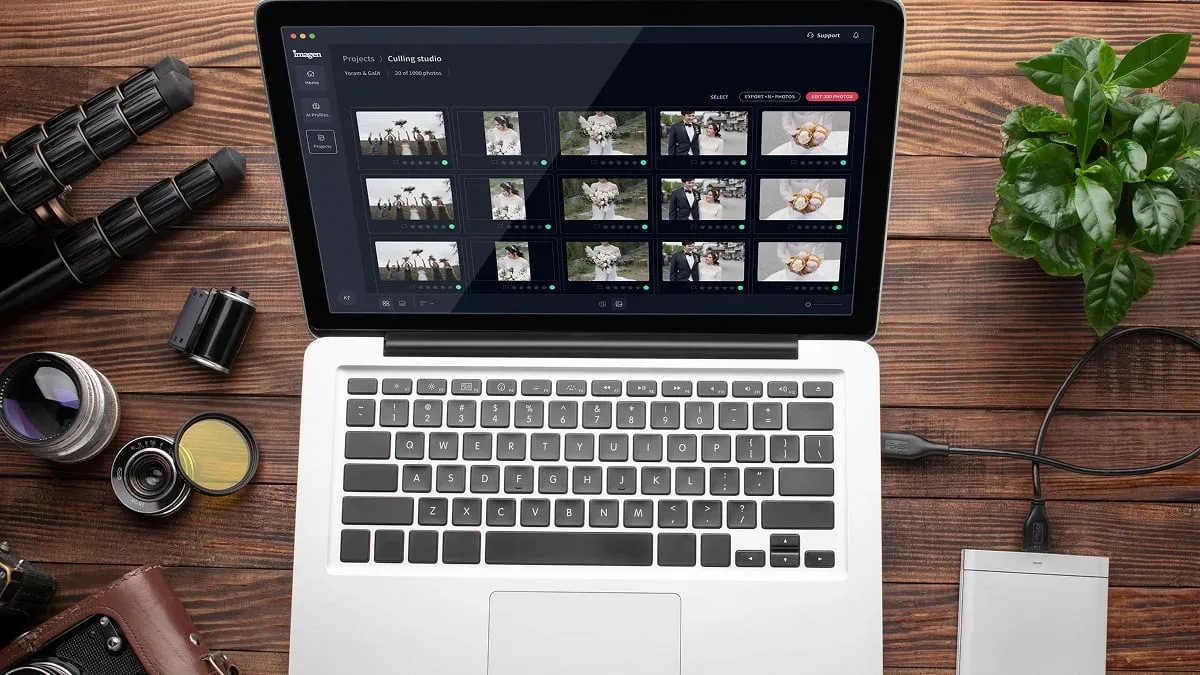
AI culling reads your frames for sharpness, closed eyes, and near-duplicate bursts, then groups them so you approve or reject in seconds instead of minutes. Imagen runs culling inside the same project as your edits, so the keepers flow straight into color and retouching with no export in between, and you can skip AI culling and cull manually for free. You still make the final call on which reaction shot or which product angle tells the story, and the AI just clears the obvious rejects out of your way.
- Flag every frame from the keynote and demo segments first, since those are the client’s hero moments.
- Reject blinks, motion blur, and back-of-head shots during the audience candids in one pass.
- Keep two or three angles of each product close-up so you have options for the layout later.
- Leave a small margin of extra keepers, because press teams often want more variety than you expect.
Set Your Personal Style Once and Apply It Across the Shoot
Consistency is what separates a professional event gallery from a phone dump. Every frame in the highlight set should feel like it came from the same photographer on the same night, even though the lighting changed from stage to lobby to product table. This is the step where AI saves the most time.
Imagen learns your personal editing style from your own Lightroom or Capture One catalog, which means it studies how you actually edit and then applies that look consistently across a full shoot. You are not picking a generic preset, you are teaching the tool your white balance habits, your contrast curve, your skin tone preferences, and your black point. Once the model reflects your style, it edits a few thousand launch photos in the time it takes to grab a coffee, and the results match the frames you edited by hand.
It helps to hand-edit 15 to 20 reference frames from a shoot like this, covering the stage, the audience, and the product table, before you build or refresh your style. That gives the AI a clear picture of how you handle each lighting condition, so the batch result needs less cleanup.
Balance Stage and Venue Lighting Without Fighting Every Frame
Stage lighting at a launch is rarely kind. You get hot key lights on the speaker, colored wash from LED panels, and a dark room behind the crowd. Screen content from the presentation can throw a strong blue or magenta cast across faces in the front rows. Fixing all of this by hand, frame by frame, is where event edits stall.
Because Imagen applies your learned style consistently, it handles the recurring corrections across the batch, including exposure recovery on backlit speakers, white balance under mixed LED, and shadow lift on the audience side. You review the batch, then spend your hands-on minutes only on the tricky frames, such as a spotlit product reveal or a moment where the screen dominated the color. Imagen’s built-in editor (Beta) covers quick manual touches with sliders, crop and straighten, and presets, while Lightroom and Capture One remain excellent for deeper finishing, and you can send AI edits back to Lightroom Classic without breaking your catalog.
- Correct global exposure and white balance across the full set with your learned style first.
- Isolate the stage frames that mixed spotlight and screen glow, then finish those by hand.
- Lift the audience-side shadows so reaction shots read clearly in a dark room.
- Match the product-table close-ups to the same tone as the wider room shots.
Retouch People and Product Shots the Honest Way
Launch galleries feature real people, including executives on stage, guests in the crowd, and staff at the demo stations. AI retouching cleans up the natural distractions in those frames, such as a stray flyaway, a shine on the forehead under stage lights, or a bit of sensor dust. Imagen runs retouching inside the same connected workflow, so skin stays natural and the correction matches your style rather than a heavy generic filter.
Here is the honesty clause that matters for this niche. Imagen edits, culls, and retouches the real photos you shot at the event. It is not a generator, so it does not invent scenes, guests, decor, products, packaging, or backgrounds. If a product was not on the table, no tool in this workflow will conjure it, and that is exactly what you want when a client’s brand and a real launch are on the line. Your gallery shows what happened in the room, cleaned up and color-matched, and nothing fabricated.
For the hero product shots on the display table, keep retouching light. Buyers and press want to see the real finish, the real label, and the real form of the product. Remove dust and fingerprints, even the reflections, and stop there.
Organize the Gallery Around What the Client Actually Needs
A product launch client usually needs three deliverables, and each one has a different edit priority. The press set wants sharp, well-lit hero frames of the product and the keynote. The social set wants energy, candid faces, and vertical crops. The internal archive wants broad coverage so the marketing team can pull assets for months.
Sort your keepers into those three buckets before you finalize color, because it changes how you crop and how tight you retouch. A press hero gets full attention, while an archive frame just needs correct color and a clean export. When your batch edit already applied a consistent style, this sorting stage moves fast, since you are arranging finished-looking frames rather than fixing raw ones.
- Press set: 20 to 40 hero frames, tightly finished, product and keynote forward.
- Social set: 40 to 60 candids and reactions, cropped for vertical and square.
- Archive set: the full clean gallery, correct color, ready for the client to browse.
Export, Deliver, and Keep Your Turnaround Tight
Speed is a real selling point for event work, since a launch loses news value within a day or two. Once your batch is edited and sorted, export presets do the rest. Set one preset for full-resolution press files, one for web-sized social files, and one for the archive gallery. Deliver through your usual client gallery platform, and note the sets clearly so the marketing team finds the right file fast.
This is where the front-loaded AI work pays off. Because culling, color, and retouching already ran in one connected pass, you reach export without the usual late-night grind. For a deeper look at sequencing these stages under a deadline, our companion piece on the product launch event photo editing workflow breaks down the timing hour by hour.
Where Imagen Fits and What It Costs
Imagen sits at the center of this workflow as the tool that automates the slow steps, which are culling, batch color in your personal style, and retouching, all in one connected pass tied to your Lightroom or Capture One catalog. You keep creative control over selects and final crops, and the AI clears the volume. Other tools have their place too. Lightroom and Capture One remain strong for manual finishing and catalog management, and dedicated retouching apps can help on a single portrait when you want to work one frame at a time.
On pricing, Imagen runs pay-as-you-go, which means you pay for what you export. Exploring the tools is free, which is enough to run a small launch shoot through the full pipeline and see the batch result before you commit. Competing tools price in their own ways, through subscriptions, one-time licenses, or per-image credits, so compare the model against your own event volume.
The math is simple for high-volume event photographers. If a launch leaves you 1,000 keepers, paying on export scales with the shoot, so your cost stays in line with your actual volume.
What’s new in Imagen: Imagen is now an intelligent, agentic Studio for professional photographers, a single project where you cull, edit, review and export together and in any order. When a launch shoot leaves thousands of frames, the assistant can find the ones you describe in plain language and act on them while you steer, and AI filters such as blur and closed eyes help you narrow the shoot. It is rolling out gradually as a beta. Explore Imagen today.
Frequently Asked Questions
How long should editing a product launch event take with AI?
Most photographers deliver a launch gallery within a day when AI handles the culling, color, and retouching. The batch edit itself runs in minutes once your style is set, so your real time goes into selecting heroes and finishing the few tricky stage frames by hand.
Will AI editing keep my photos looking like real event coverage?
Yes, because Imagen edits the real photos you shot rather than generating anything. It culls, colors, and retouches your actual frames, and it does not invent guests, products, decor, or backgrounds. Your gallery reflects what happened in the room, cleaned up and color-matched.
How does Imagen handle mixed stage and screen lighting?
Imagen applies your learned personal style across the whole batch, which corrects the recurring exposure and white balance issues from spotlights, LED wash, and screen glow. You then finish the handful of frames where the lighting was extreme, using Lightroom or Capture One for those manual touches.
What does Imagen cost for a launch shoot?
Imagen is pay-as-you-go, which means you pay for what you export. Exploring the tools is free, which is enough to run a small launch through the full pipeline before you decide.
Ready to cut your launch turnaround from a late night to a lunch break? Try Imagen’s new Studio, where you cull, edit and export in one project.
