As professional photographers, we live inside Lightroom Classic. For years, the “preset” has been our best friend and our biggest frustration. It’s a fantastic starting point but never a finished product. Now, the conversation is changing. Artificial intelligence is moving editing beyond static filters into a new world of dynamic, responsive tools. This article is a professional-to-professional deep dive into this shift. We’ll explore what “AI presets” really are, how they change our workflow, and how tools like Imagen are personalizing this technology.
Key Takeaways
- Traditional Presets are Static: A classic Lightroom preset applies the exact same set of slider settings to every photo, regardless of differences in lighting, subject, or exposure.
- AI Editing is Dynamic: AI tools analyze the content of each photo before applying edits. This means each photo gets a unique, custom adjustment tailored to its specific needs.
- Personalization is the Goal: The most powerful AI solutions, like the Imagen Personal AI Profile, learn your specific editing style. The AI trains on thousands of your own edited photos to create a model that edits new photos just like you would.
- It’s More Than Presets: True AI platforms also automate other tedious tasks. This includes AI Culling (sorting your photos), as well as adding Crop, Straighten, and Subject Mask adjustments.
- The Workflow Revolution: This technology dramatically cuts post-production time. An edit that took hours of manual tweaking can now be 95% complete in just minutes.
- Desktop Integration is Key: The best solutions, like Imagen, are desktop apps that integrate directly with your local Lightroom Classic catalogs. This maintains a non-destructive RAW workflow without clunky exporting and re-importing.
What’s the Real Difference? Traditional Presets vs. AI Editing
We throw around the term “preset” a lot. But the AI tools we’re talking about are a completely different animal. Understanding this difference is the key to seeing why it’s such a big deal for our workflow.
The Classic Lightroom Preset: A Trusted Starting Point
Let’s start with the basics. A classic Lightroom preset, or .xmp file, is simply a saved list of slider positions. That’s it. When you click a preset, you are telling Lightroom to set the Exposure to +0.50, the Contrast to +20, the Shadows to +15, and so on.
The Good:
- Speed: It’s a single click to apply a base look.
- Consistency (Sort of): It gives you a consistent starting point. If all your photos were shot in the exact same lighting, it can create a consistent look.
- Creativity: Presets are a great way to experiment with new styles and “looks.”
The Bad (and why we’re here): The “one-size-fits-all” problem is the core frustration of every pro photographer. A preset built for a sunny, golden-hour portrait will absolutely destroy a photo from a dark, indoor reception. The sunny preset might lift shadows, but the reception preset needs to lift them way more.
This means the preset is never the final step. It’s step one. We spend the real time—hours and hours of it—going through every single photo and manually re-adjusting the exposure, white balance, and shadows to correct what the preset did wrong for that specific image.
The Rise of “AI Presets”: What Does That Even Mean?
The term “AI preset” is a bit of a marketing buzzword, but the concept is simple. Unlike a dumb filter, an AI tool analyzes the photo first.
Think about Lightroom’s own “Select Subject” or “Select Sky” masking tools. That’s a form of AI. The software looks at the image and identifies a person or the sky. An “AI preset” uses this same idea for the entire edit.
Instead of just applying “+0.50 Exposure” to everything, an AI tool:
- Analyzes the Histogram: It looks at the photo and says, “This image is underexposed.”
- Identifies Subjects: It sees a person, a face, or a landscape.
- Applies a Dynamic Edit: Based on its analysis, it decides, “This specific photo needs +1.20 Exposure and a warmer White Balance to look correct.” The next photo in the set, which might be slightly overexposed, would get -0.25 Exposure.
This is a fundamental shift. The edit is responsive to the image itself.
Beyond a Simple Preset: AI-Powered Profiles
This brings us to the real professional solution. A true AI editing tool isn’t just a smarter generic preset. It’s a complete editing model that has learned a specific, high-end style.
This is exactly how Imagen handles this. It takes the concept of AI editing and personalizes it. Why use a generic AI that thinks it knows what a “good” edit is when you can use an AI that knows what your specific, branded “good” edit is?
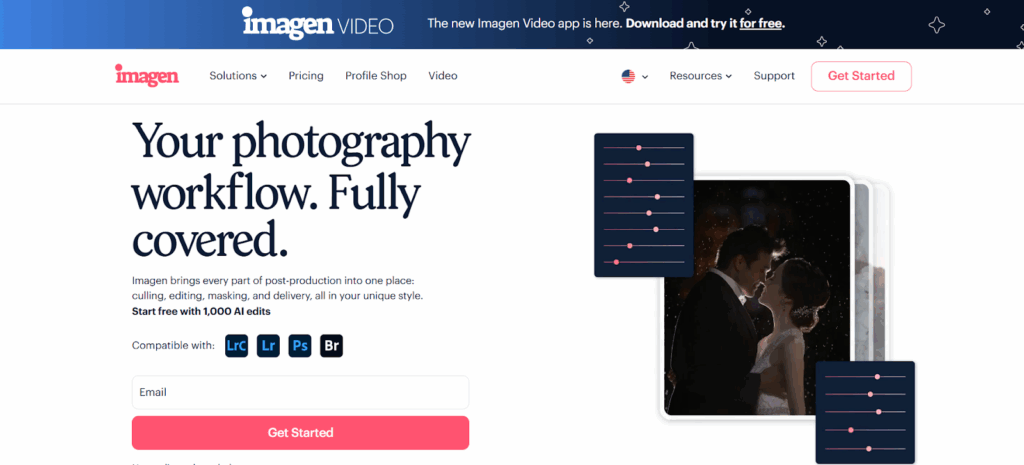
How Imagen Addresses This: The flagship feature is the Personal AI Profile. This is the “AI preset” you’ve always dreamed of because it’s your AI, not someone else’s.
Here’s the step-by-step process:
- Feed the AI: You provide Imagen with at least 3,000 of your previously edited photos. These must be your final, delivered edits from your own Lightroom Classic catalogs.
- The AI Learns: Imagen’s AI gets to work. It uploads this data (the edit settings, not your giant RAW files) to the cloud and trains its neural network. It doesn’t just average your settings. It analyzes your decisions. It learns how you treat highlights in backlit photos. It learns how you adjust white balance with flash. It learns how you handle high-ISO noise.
- A Profile is Born: After about 24 hours, this training process creates your Personal AI Profile. This is a unique model that thinks like you do as an editor.
- Apply to New Photos: Now, you feed Imagen a new, unedited shoot. It applies your Personal AI Profile, and in under half a second per photo, it delivers a unique edit for every single image, based on the decisions it learned from you.
The result is stunning. A photo that’s badly underexposed gets the right exposure. The next photo, which is properly exposed, is left alone. The white balance is consistent from the dark church to the sunny park. This goes far beyond any preset you can buy.
Section Summary
To wrap up this section, let’s be clear. A classic preset is a static, one-size-fits-all filter. An “AI preset” is a generic, dynamic tool that adjusts based on the photo. But a Personal AI Profile from Imagen is a dynamic, personalized assistant that edits photos based on your own unique, creative style.
How AI Editing Changes the Professional Workflow
The why is simple: time. This technology completely overhauls the post-production workflow, moving our biggest bottleneck from a multi-day chore to a 20-minute review.
The Old Workflow: Clogged by Manual Tweaks
Think about your last big wedding or event. Your workflow probably looked like this:
- Import: Get 3,000+ photos into Lightroom.
- Cull: Spend 2-4 hours flagging, rejecting, and rating.
- Base Edit: Go to the Develop module. Select all your photos. Apply your “base” preset.
- The Manual Grind: This is the killer. Go to the first photo. It’s too dark. Fix exposure. Next photo. Too green. Fix white balance. Next photo. Shadows are crushed. Fix shadows. Repeat this 800 more times. This takes hours or even days.
- Local Adjustments: Go back through and mask subjects, brush skin, etc.
- Export: Finally, send the photos to the client.
The bottleneck is clear: Step 4. It’s 90% of the work.
The New Workflow: Edit in Minutes, Not Days
Now, let’s look at that same job using Imagen.
- Import: Get your 3,000 photos into your Lightroom Classic catalog.
- Launch Imagen: Open the Imagen desktop app.
- AI Culling (Optional): You can tell Imagen to cull the project first. Its AI culling service groups similar photos, highlights the best ones, and flags all the blurry, out-of-focus, or closed-eye shots. This standalone service can cut your culling time down to 20-30 minutes.
- Send to Edit: Whether you culled with Imagen or not, you now select your keeper photos inside the Imagen app. You choose your Personal AI Profile and click “Upload.”
- Cloud Processing: Imagen uploads your photos (or low-res previews, which is fast) to the cloud and the AI gets to work. This takes about 0.5 seconds per photo. A 1,000-photo shoot is often ready in less than 10 minutes.
- Download Edits: You get a notification. You click “Download Edits.”
- The Magic: This is the best part. Imagen writes all the new slider settings directly into your Lightroom Classic catalog. It’s 100% non-destructive. It’s not creating new files. It’s just moving the sliders for you.
- Final Review: You open Lightroom, and… it’s done. The entire shoot is 95-99% finished. The white balance is consistent. The exposures are correct. Your style is there. You just spend 20-30 minutes doing a quick final review, applying any creative local adjustments you want, and then you export.
A job that took 8 hours of editing is now done in 30 minutes.
The Power of an Integrated Platform
This new workflow shows that Imagen isn’t just an “AI preset” tool. It’s a comprehensive post-production platform.
This is a key distinction. You can use the parts you want, or you can use them all together for a seamless experience:
- AI Culling: Use it standalone to speed up your selection process.
- AI Editing: Use it to apply your Personal AI Profile or a Talent AI Profile.
- Cloud Storage: Imagen can also back up your Lightroom catalogs, giving you peace of mind.
- Delivery: You can even export the final JPEGs or publish them directly to an online gallery.
Because Imagen is a desktop app that talks to your local Lightroom catalogs, it all feels like part of one single, streamlined process. You import into Lightroom, manage the heavy lifting with Imagen, and do your final creative review back in Lightroom.
Building Your Own AI Preset: The Personal AI Profile Deep Dive
The Personal AI Profile is the core of this whole thing. Let’s get into the nuts and bolts of how it works and why it’s so powerful.
Why 2,000 Photos? (The “Why” and “How”)
When you first hear that you need 2,000 photos (or more) to train your profile, it can sound intimidating. But as a pro, you likely have that from your last few shoots. There’s a critical reason for this high number: data.
An AI is only as smart as the data it learns from. To truly learn your style, the AI needs to see examples of your editing decisions in every possible situation:
- Outdoor Light: Full sun, open shade, golden hour, blue hour, cloudy days.
- Indoor Light: Window light, dark reception halls, on-camera flash, off-camera flash, mixed (tungsten and fluorescent) lighting.
- Camera Settings: High ISO, low ISO, different camera bodies, different lenses.
If you only “teach” the AI with your pretty, golden-hour photos, it will have no idea what to do with a grainy, high-ISO flash photo from a wedding reception. The large, 2,000+ photo dataset is what gives the AI the wisdom to be accurate in all the messy, real-world situations we shoot in. This data is what makes it your profile, not a generic “look.”
Step-by-Step Guide: Training Your First Personal AI Profile
Here is the practical, step-by-step guide to creating your own profile.
- Install Imagen: First, download and install the Imagen desktop app for your Mac or PC.
- Organize in Lightroom Classic: This is the most important prep work. Go into your Lightroom Classic catalog. Create a new Collection (e.g., “Imagen Training”). Go through your past shoots and add your best, final, client-delivered photos to this collection. Make sure they are all edited in a consistent style. You need at least 2,000 photos.
- Launch Imagen & Create: Open the Imagen app. On the “AI Profiles” screen, click the option to create your own profile and select “Personal AI Profile.”
- Point to Your Catalog: Imagen will ask to read your Lightroom Classic catalogs. You’ll see a list. Select the catalog that contains your “Imagen Training” collection.
- Select Your Collection: The app will then show you the folders and collections inside that catalog. Find and select your “Imagen Training” collection.
- Upload & Train: Click “Upload.” Imagen will analyze your catalog, pull the edit settings (not the full RAW files, so it’s fast), and upload that data to its cloud servers to begin training.
- Wait for the Magic: The training process is complex and can take up to 24 hours. You can close the app and go about your day. You’ll get an email as soon as your profile is ready to use.
What If I Don’t Have 2,000 Photos? The “Lite” Profile
For newer photographers or those who don’t have a large, consistent backlog, Imagen offers the Lite Personal AI Profile. This is a great way to get started.
Here’s how it works:
- Upload a Preset: Instead of thousands of photos, you just upload a single Lightroom preset (.xmp file) that you like.
- Take a Survey: Imagen then gives you a short, visual survey where you answer questions about your style preferences (e.g., “Do you prefer warmer or cooler tones?”).
- Profile Creation: The AI combines your preset and your survey answers to build a “Lite” profile.
It’s a fantastic starting point, but it won’t be as deeply “you” as a full profile trained on 2,000+ images.
What If I Want a Different Style? Talent AI Profiles
What if you’re new and don’t have a defined style yet? Or what if you want to experiment? For this, Imagen has Talent AI Profiles.
These are pre-trained AI profiles built from the work of leading, world-class photographers. It’s like buying a pro’s preset, but with all the power of AI. It’s not a static filter; it’s that pro’s entire editing brain, automated. It will still analyze each of your photos and apply that pro’s style dynamically and correctly to your images.
Section Summary
You have three clear paths with Imagen. You can build the ultimate, personalized Personal AI Profile that’s 100% yours. You can start fast with a Lite Profile based on a preset. Or you can “hire” a famous pro by using a Talent AI Profile.
Fine-Tuning: The AI Preset That Learns as You Do
This is my favorite part. This is what truly elevates the technology and leaves traditional presets in the dust. Your style is not static. You evolve as an artist.
The Problem: Presets Don’t Evolve
The preset you bought or made in 2023 is the exact same file in 2025. But your style has changed. You’ve decided to warm up your skin tones, or you’re lifting your shadows less for a moodier look. With a classic preset, you have to go in, manually save a new preset, and replace your old one. It’s a clumsy, manual process.
How Imagen’s Personal AI Profile Evolves
Your Personal AI Profile is a living model of your style. It’s designed to evolve with you.
The workflow is simple:
- Imagen Edits: You use your Personal AI Profile to edit a project.
- You Tweak: You review the edits in Lightroom and make your final 5% tweaks. Maybe you warm up a few photos or drop the exposure a bit.
- You Teach the AI: When you’re done, you go back to the Imagen app and click “Upload Final Edits” for that project.
- Imagen Learns: The AI analyzes the differences between its edit and your final, tweaked edit. It says, “Ah, I see. On these flash photos, you wanted the temperature even warmer. Got it.” It stores this new information.
What is “Fine-Tuning?”
After you’ve done this “Upload Final Edits” process on several new projects (totaling a few thousand new photos), Imagen will notify you that your profile is “Ready for Fine-Tuning.”
You simply click a button, and Imagen re-trains your entire Personal AI Profile, incorporating all of your recent tweaks and new preferences. Your AI assistant just got smarter and more accurate to your current style.
This feedback loop is revolutionary. Your “AI preset” is no longer a static tool. It’s a partner that learns from you, adapts to your creative changes, and continuously gets better at automating your work.
What About Other AI Editing Tools?
Imagen isn’t the only player in the AI game. Lightroom has its own tools, and other software offers AI features. How do they stack up?
Built-in Lightroom AI Tools
- What They Are: These are Lightroom’s own AI features, like “Select Subject,” “Select Sky,” “AI Denoise,” and the “Adaptive Presets” (e.g., “Enhance Subject,” “Whiten Teeth”).
- How They Work (Functional): These are powerful single-task and masking tools. They are excellent at identifying a part of your photo. The AI Adaptive Presets apply a specific, pre-built effect to that AI-detected part.
- The Limitations (Objective): This is not a holistic editing solution. You can’t teach it your style. It doesn’t look at a photo and make 30 slider adjustments (WB, Exposure, HSL, Tone Curve, etc.) to match your unique brand. It’s a set of smart tools that you still have to manually apply, photo by photo.
Other AI Editing Software
- What They Are: These are other desktop apps or plugins that offer AI editing.
- How They Work (Functional): Many of these apps are great at specific, heavy-lifting tasks, like advanced portrait retouching or dramatic sky replacements. They often apply their own pre-built AI “templates” or “looks” to your photos.
- The Limitations (Objective): The focus of these tools is often to make your photos look like their AI-generated style, not yours. More importantly, the workflow can be a major problem. You often have to right-click in Lightroom, “Edit In” the other app, which creates a new, massive TIFF file. You edit it there, save it, and it re-imports into Lightroom. This breaks your non-destructive RAW workflow, eats up terabytes of hard drive space, and is a slow, clunky process.
How Imagen’s Approach is Factually Different
When you compare them, Imagen’s advantages for a working pro become very clear:
- Focus on Personalization: Imagen’s number one goal is not to give you a generic “AI look.” It’s to learn your look and automate it. The Personal AI Profile is the entire point.
- Workflow Integration: This is the big one. Imagen is a separate desktop app, but it reads and writes directly to your Lightroom Classic catalog’s metadata. It never creates bulky TIFFs. It just moves the sliders on your original RAW files, non-destructively. The integration is seamless and built for a professional, high-volume workflow.
- Holistic Platform: Imagen is not just one tool. It’s an ecosystem that can handle Culling, Editing, Storage, and Delivery. It’s an end-to-end solution, not just a single plugin for a single task.
Beyond Color and Tone: Additional AI Tools
Post-production isn’t just color and tone. It’s all the other little, repetitive tasks that drive us crazy. Imagen can bundle these into the edit as well.
These are optional, pay-per-photo AI tools you can add to your profile:
- Straighten: The AI analyzes horizons and vertical lines and automatically straightens your photos.
- Crop: The AI uses compositional rules to apply an intelligent crop.
- Subject Mask: This is a huge time-saver. It automatically finds and masks the main subject(s) in your photo, so you can apply a local adjustment (like a slight brightness bump) instantly.
- Smooth Skin & Whiten Teeth: Subtle, AI-powered portrait touch-ups that can be applied automatically.
By adding these, you’re not just automating your global edit; you’re automating the small, detailed work that follows.
Challenges and Practical Considerations
Let’s talk about the real-world implications of handing your edit over to an AI.
Is AI Editing “Cheating?”
As a professional, I’ve heard this question. My honest answer? Absolutely not.
Is using autofocus “cheating?” Is using a digital camera instead of film “cheating?” Of course not. They are tools that allow us to focus on the creative part of our job.
An AI, especially a Personal AI Profile, is just automating your own creative decisions. It’s not the AI’s style; it’s yours. It’s a tool for massive efficiency. It frees you from the 10 hours of repetitive slider-pushing so you can focus on the art: the final 5% tweak, the advanced local adjustments, or just getting back out to shoot your next client.
The “Garbage In, Garbage Out” Principle
Here is a practical challenge: Your Personal AI Profile is only as good as the photos you train it on.
If you feed it 2,000 photos that are all edited inconsistently—some warm, some cool, some moody, some bright—it will learn that inconsistency. It will get confused and the results will be mediocre.
Practical Tip: Be ruthlessly selective about your training images. They must represent your best, most consistent, deliverable work. A clean dataset is the secret to a powerful AI profile.
Trusting the AI
Letting go can be hard for us. We’re control freaks by nature. You will need to review the AI’s edits. The goal isn’t 100% “export-without-looking” perfection on every single frame. The goal is 95% consistency across thousands of photos in minutes. The time you save on the 995 photos that are perfect far outweighs the 30 seconds you spend tweaking the 5 photos that need a small adjustment.
Conclusion: The AI Preset is Not a Preset, It’s an Assistant
We’ve come a long way from the simple .xmp preset. The world of “AI presets” is a massive leap forward. But as we’ve seen, the real revolution isn’t just a smarter generic filter.
It’s the personalization of that AI and its integration into our workflow.
The AI preset is not a preset; it’s an assistant. With Imagen, it’s an assistant you’ve trained yourself. It knows your style, it evolves with you, and it integrates with your existing Lightroom-based workflow. It handles the 95% of repetitive work, freeing you to be the creative professional and business owner you need to be. It gives you back your most valuable asset: your time.
Frequently Asked Questions
Here are 13 common questions I hear from other pros about this technology.
1. Q: Is Imagen a plugin for Lightroom? A: No, it’s a separate, standalone desktop app for Mac and Windows. It works with Lightroom by reading and writing edit data directly to your Lightroom Classic catalogs, which is much faster and more seamless than a plugin.
2. Q: Does Imagen work with Lightroom CC (the cloud-based version)? A: Imagen is built to integrate directly with Lightroom Classic because that’s what most high-volume professionals use. It also supports editing photos from folders (non-catalog) for use with Lightroom CC, Photoshop, and Bridge, though the LrC integration is the most seamless.
3. Q: Does Imagen edit my original RAW files? A: Yes, but non-destructively. It does not create new TIFF or JPEG files. It simply writes the new slider settings (the .xmp metadata) to your Lightroom catalog, just as if you had moved the sliders yourself. Your original RAW file is never, ever touched.
4. Q: How long does it take for Imagen to edit my photos? A: It’s incredibly fast. Once your photos are uploaded for editing, the AI processing time is less than 0.5 seconds per photo. A 1,000-photo shoot is often finished and ready to download in under 10 minutes.
5. Q: What happens if I don’t like an edit Imagen made? A: You just change it! Since the edit is just a set of sliders in Lightroom, you can tweak any setting you want. Even better, you can then use the “Upload Final Edits” feature to “teach” your Personal AI Profile about your correction, so it learns to do it your way next time.
6. Q: Can I have more than one Personal AI Profile? A: Yes. Many pros do. You can have one profile for your “Color” style and a separate one for your “Black & White” style. You can also have different profiles for different work, like “Weddings” and “Real Estate.”
7. Q: What’s the difference between a Personal AI Profile and a Talent AI Profile? A: A Personal AI Profile is trained on your own photos, so it edits in your unique style. A Talent AI Profile is trained on a famous photographer’s photos, so it allows you to edit in their style.
8. Q: What if my style changes over time? A: This is what Fine-Tuning is for. As you upload your final, tweaked edits after each project, your profile learns your new preferences. You can then fine-tune your profile to have it fully adopt your new, evolved style.
9. Q: Is Imagen web-based? Can I edit in the cloud? A: No. Imagen is a desktop app that you install. It uses the cloud for processing (which is why it’s so fast), but it works with your local Lightroom catalogs and photos on your own hard drives. You are not working in a web browser.
10. Q: What does AI Culling do? A: It’s an AI-powered sorting tool. It groups all your similar photos together, picks the best one from each group, and flags all the photos with technical issues (blurry, out-of-focus) or human issues (closed eyes). It makes selecting your “keepers” from thousands of photos much faster.
11. Q: What are the “Additional AI Tools” like Crop and Straighten? A: These are optional, low-cost (e.g., one cent per photo) add-ons to your edit. You can have the AI automatically straighten, crop, mask your subject, or smooth skin, all at the same time it applies your main edit.
12. Q: How much does Imagen cost? A: Imagen is a pay-as-you-go service. You pay a small amount for each photo you have the AI edit (typically a few cents). This is often far cheaper and faster than paying a human editor or spending hours doing it yourself. Culling and the additional AI tools are also priced per photo.
13. Q: Is 2,000 photos really necessary to build a Personal AI Profile? A: Yes, and more is even better. An AI needs a large, diverse dataset to learn all the nuances of your style in different lighting conditions. If you don’t have 2,000 photos, the Lite Personal AI Profile (which uses a preset and a survey) is the best alternative to get started.
