

AI Photo Editing Tips for Product Photographers in 2026
Table of contents
- AI Photo Editing Tips for Product Photographers
- Start With a Clean Capture So AI Has Less to Fix
- Cull the Take With AI Before You Edit Anything
- Teach the AI Your Personal Style, Then Batch the Whole Catalog
- Fix Backgrounds and Color Accuracy the Honest Way
- Retouch Products Without Erasing What Makes Them Real
- Keep a Consistent Look Across Angles and Sessions
- Export Once, Sized for Every Sales Channel
- What Imagen Costs and How to Try It
- Frequently Asked Questions
AI Photo Editing Tips for Product Photographers
The fastest way to speed up product editing is to let AI handle the repetitive steps while you keep control of the look. Train an AI editor on your own style, apply it across the whole catalog in one pass, then finish the hero shots by hand. This guide walks through a practical product-photography workflow and shows where AI saves you the most time, from culling and batch color to background cleanup, retouching, and export. Every tip below works on the real photos you shot in the studio, so your product stays true to what the customer will actually receive.
One honesty note up front. Imagen edits, culls, and retouches your real product photographs. It does not invent products, labels, packaging, food, dishes, garments, models, or fake scenes, and it never generates a product that was not in front of your lens. That matters for e-commerce, where a shopper expects the item on the page to match the box on the doorstep. If you want more background on the full setup, read our complete guide to AI photo editing for product photographers, and browse the rest of the valuable tips hub for related walkthroughs.
Start With a Clean Capture So AI Has Less to Fix
Good editing starts before you open the computer. When you shoot product photos with consistent light, a color checker in the first frame, and a clean sweep or tabletop, the AI editing stage becomes far shorter. You give the software fewer problems to solve, so the results look cleaner and need less manual rescue.
- Lock your white balance to a gray card or color checker in the opening frame of each setup.
- Keep the light direction and distance steady across a product family so the batch matches.
- Shoot in raw so the AI editor has the full tonal range to work with.
- Leave a little margin around the product for cropping and background masking later.
These habits pay off at scale. A jewelry seller shooting 300 SKUs a week gains hours simply because every frame lands in the same ballpark before AI touches it.
Cull the Take With AI Before You Edit Anything
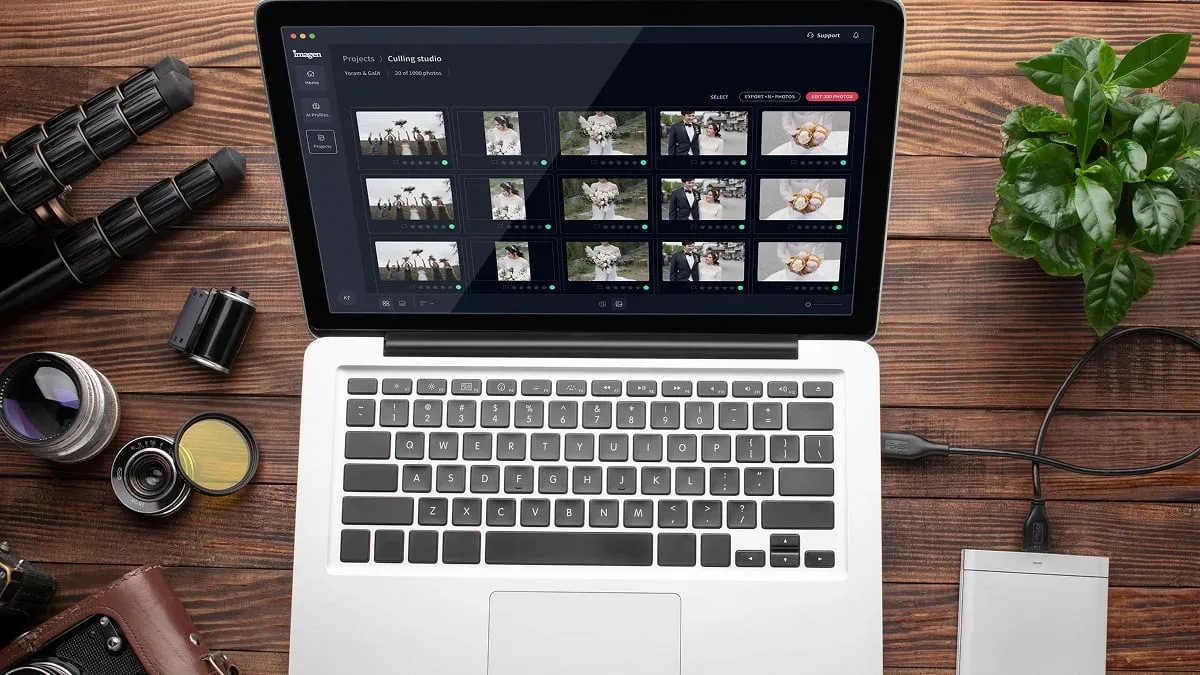
Product shoots produce a lot of near-duplicates. You bracket exposures, you shoot the same angle three times, and you cover a few compositions per item. Sorting that by hand is slow and dull. AI culling reviews the take, flags blurred or blinked frames, groups the similar shots, and points you to the sharpest option in each group.
Imagen includes AI culling in the same workflow as editing, so you move from a raw folder to a tidy selection without switching tools. AI culling is optional, and manual culling is free. You stay the decision maker on every pick, and you keep the frames that fit your creative call. The software just clears the obvious rejects so your attention goes to real choices.
Teach the AI Your Personal Style, Then Batch the Whole Catalog
This is the biggest time saver for product work. Instead of nudging sliders on every file, you teach an AI editor how you like your photos to look, then it applies that look across the full shoot in one pass. Imagen learns your personal editing style from your past edits in Lightroom Classic, so the edits reflect your taste rather than a generic filter.
The practical win is consistency. When a customer scrolls a category page, 40 products should share the same brightness, contrast, and color feel. A trained personal style keeps a white mug white and a navy sweater navy across every frame, so the grid reads as one coherent set. You get first-pass edits on hundreds of photos in the time it used to take to fix a handful.
- Import your catalog and let the AI study how you already edit your product work.
- Run a small test batch and check the color, exposure, and crop against your standard.
- Adjust the profile if the batch drifts, then apply it to the full shoot.
- Spot-check the hero frames and the trickiest materials, such as glass or chrome.
Fix Backgrounds and Color Accuracy the Honest Way
Product buyers care most about two things in an image. They want a clean, distraction-free background, and they want the color to match reality. AI helps with both, and the honest approach keeps you out of trouble. You clean and correct the real photo of the real item. You do not swap the product for a rendered stand-in.
For a pure white e-commerce background, shoot on a bright sweep and let AI even out the tone so the product sits cleanly on white. For color accuracy, a color-checked capture plus a trained style gets you close on the first pass, then you confirm the critical hues by eye. If a customer returns a red bag because your edit pushed it toward orange, that is a real cost, so treat color as a check you always make.
Tools like Photoshop and Lightroom remain useful for hand masking and precise local work when a single hero shot demands it. Bring them in for the frames that earn the extra minutes, and let the AI editor carry the volume for everything else.
Retouch Products Without Erasing What Makes Them Real
Retouching product photos is a balancing act. You want to remove dust, fingerprints, stray threads, and sensor spots, but you do not want to sand away the texture that tells a shopper the item is genuine. AI retouching handles the tedious cleanup fast, and you keep the material honest.
Imagen offers AI retouching inside the same connected workflow, so cleanup happens alongside culling and style edits rather than in a separate round. It works on your actual photograph, which means the leather grain, the fabric weave, and the label print all stay true to the product on your table. Keep the wear that belongs to the item and remove only the studio noise that does not.
- Clear dust, lint, and fingerprints that came from handling on set.
- Remove reflections of your gear in glossy surfaces where they distract.
- Leave real texture, stitching, and finish intact so the photo stays truthful.
Keep a Consistent Look Across Angles and Sessions
A product listing usually needs several views, and a store adds new items every week. The challenge is making today’s shoot match last month’s, and making the top view match the three-quarter view. Consistency is where a trained AI style earns its keep, because the same profile applies whether you shot on Monday or in March.
Save your style as your studio standard and reuse it on every session. When a client asks for a reshoot of one item, you apply the same look and the new frame drops straight into the existing set. If you want a deeper comparison of tools that hold this kind of consistency, see our roundup of the best AI photo editing software for fashion photographers, since apparel work leans on the same batch discipline.
Export Once, Sized for Every Sales Channel
The final step is delivery, and product photographers rarely export to just one place. You feed a website, a marketplace, an ad platform, and sometimes a print catalog, and each wants its own size and format. Set up export presets so one run produces every version you need.
- Create a square crop for marketplace thumbnails and a wider crop for the site hero.
- Export a high-resolution master and a compressed web version in the same pass.
- Name files by SKU so the catalog team can match images to products fast.
Because the AI edits are consistent, every exported size carries the same color and tone. Your marketplace thumbnail matches your website hero, and your ad creative matches both, so the brand looks steady wherever the shopper meets it.
What Imagen Costs and How to Try It
Imagen uses pay-as-you-go pricing, so you pay for the photos you export. You see every edit in the gallery before you export, so you can run a real product shoot through the workflow and judge the results on your own catalog.
Competitor tools price differently, with options such as subscriptions, one-time licenses, per-image credits, and freemium tiers. Test a few against your own volume, since a high-throughput product studio and a boutique shooter weigh cost in very different ways. The right pick is the one that matches how many photos you push each month.
Try Imagen’s new Studio on your next product shoot and see your own style applied.
What’s new in Imagen: Imagen has become an intelligent, agentic Studio built for professional photographers, so culling, editing, review, and export happen together in one project. For product work, the Assistant can find photos and act on them in plain language, with you steering, and AI filters such as blur help you narrow a shoot quickly. The Studio is rolling out gradually as a beta.
Frequently Asked Questions
Does AI product editing change what the product actually looks like?
It should not, and honest tools do not. Imagen edits, culls, and retouches the real photo you shot, and it does not invent products, packaging, or scenes. The goal is an accurate, clean image, so a shopper receives the item they saw on the page.
How does AI keep a large product catalog looking consistent?
You train the AI on your personal editing style, then apply that style across the whole shoot in one pass. Every frame shares the same exposure, contrast, and color feel, so a category page reads as one coherent set instead of a patchwork of mismatched edits.
Can I still retouch hero shots by hand?
Yes, and you should. Let AI carry the volume with culling, batch style, and cleanup, then open your top frames in a tool like Photoshop for precise local work. You keep full creative control where it counts and save your time for the images that sell the product.
How much does Imagen cost for product photographers?
Imagen is pay-as-you-go, so you pay for the photos you export, which fits the uneven volume of product work well.
