

AI Photo Editing Tips for Food Photographers in 2026
Table of contents
- AI Photo Editing Tips for Food Photographers
- Start With a Clean Import and a Fast Cull
- Teach the AI Your Personal Food Editing Style
- Nail White Balance and Color on Every Plate
- Retouch Real Food Without Faking It
- Batch Edit for Consistency Across the Whole Shoot
- Export Clean Files for Menus, Web, and Social
- Build a Repeatable Workflow You Trust
- What Imagen Costs and How to Try It
- Frequently Asked Questions
AI Photo Editing Tips for Food Photographers
The fastest way to edit a full food shoot is to teach an AI your personal editing style once, then let it apply that look across every frame while you handle the creative calls. AI photo editing tips for food photographers come down to one idea, which is that software should speed up the repetitive work of culling, color, and cleanup without changing the way your images actually look. Imagen learns your style from your own Lightroom or Capture One catalog and edits, culls, and retouches the real photos you shot, so a menu shoot or a recipe series looks consistent from the first plate to the last. This guide walks the whole workflow, from import to export, and shows you where to hand slow steps to automation and where to keep your hands on the mouse.
Start With a Clean Import and a Fast Cull
Food shoots pile up frames quickly, because you shoot the same dish across several angles, garnish tweaks, and steam bursts. A single restaurant menu session can leave you with 800 to 1,500 raw files, and most of them are near duplicates. Import everything into Lightroom or Capture One first, add basic keywords for the dish or client, and back the catalog up before you touch a slider.
Then cull hard. Culling by hand is where photographers lose an hour or two per shoot, so this is the first place automation earns its keep. Imagen offers AI culling that flags near duplicates and weak frames, which lets you keep the sharpest version of each plate and move on. You stay the final judge on which hero shot goes to the client, and the tool simply narrows the field so you review fewer files.
- Group frames by dish so you compare like with like.
- Reject anything with obvious focus miss or blown highlights on the sauce.
- Keep two or three finalists per plate, not ten.
- Star your hero frame before any color work starts.
Teach the AI Your Personal Food Editing Style
Food photography lives on a personal look. One photographer wants bright, airy, and neutral whites for a bakery brand, while another wants moody, warm, and low key for a steakhouse. The point of AI editing is not to hand you a generic preset, it is to reproduce your look at scale.
Imagen builds a personal AI profile from a catalog of images you already edited by hand. Feed it a few thousand of your finished food edits, and it learns how you balance white point, warmth, contrast, and saturation on plates, drinks, and table scenes. Once the profile exists, you apply it to a fresh shoot and every frame comes back in your style. This matters most for high volume work, because a caterer with 20 dishes needs all 20 to feel like one cohesive set. For a deeper walkthrough of building and refining that profile, read our companion piece on AI photo editing for food photographers.
Nail White Balance and Color on Every Plate
Color is where food images win or lose. Greens have to read fresh, reds cannot go orange, and a white plate has to stay white under mixed restaurant lighting. Shoot a gray card or a white reference at the start of each lighting setup, so you have a true neutral to anchor your correction.
When your personal profile runs across the batch, it carries your white balance and color decisions to every frame at once, which removes the tedium of matching plate to plate by hand. You still spot check the tricky items, since a deep red wine or a bright yellow curry can push the auto reading. Fix those few outliers manually, and let the batch handle the rest. Dedicated color tools like the ones inside Lightroom and Capture One remain useful for targeted hue and luminance adjustments when a single ingredient needs attention.
Retouch Real Food Without Faking It
Here is the honest line every food photographer should hold. Imagen edits and retouches the real photos you shot, and it does not invent dishes, ingredients, plating, packaging, or backgrounds. It will not add steam that was never there or generate a burger that never sat on your table. What it does is clean up what the camera captured, so your images stay truthful to the food the client actually served.
Practical retouching on food usually means small, believable cleanup. Remove a stray crumb, soften a fingerprint on the glass, even out a smudge on the plate rim, or calm a hot specular hit on a sauce. Imagen offers AI retouching that handles these repeatable fixes across the batch, and you keep the calls that need taste. The goal is appetizing and real, not a plastic look that makes a viewer distrust the meal.
- Clear obvious distractions like crumbs and drips first.
- Soften harsh reflections on glass and glaze.
- Even out plate and linen blemishes.
- Leave natural texture on the food itself so it still reads as food.
Batch Edit for Consistency Across the Whole Shoot
Consistency is the deliverable a food client remembers. If dish three looks warmer than dish nine, the menu feels disjointed and the brand looks careless. Batch editing solves this, because your style profile applies the same treatment to the entire take instead of you dragging sliders 1,000 times.
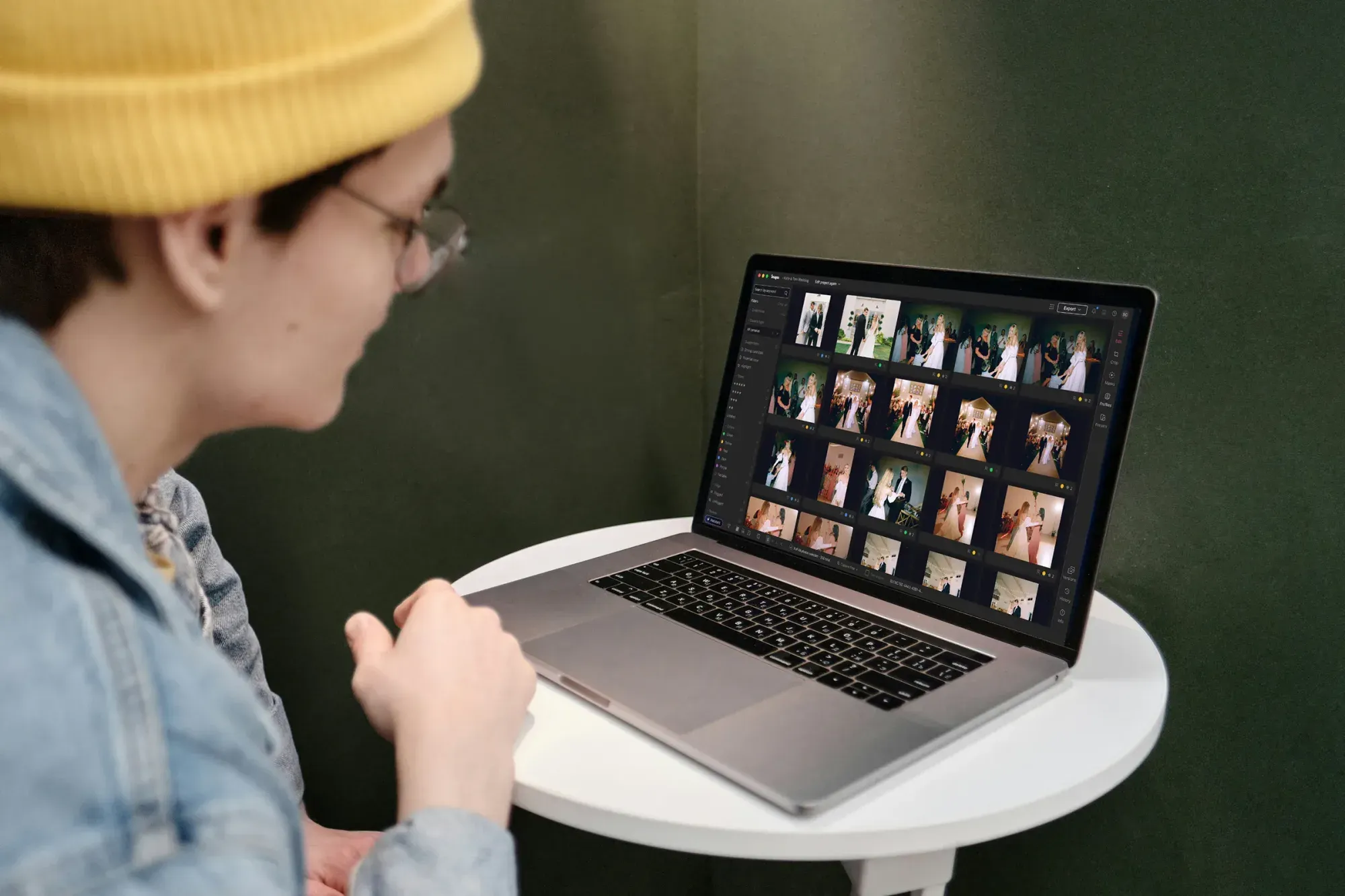
A realistic Imagen pass looks like this. You import and cull, you apply your personal profile to the full set, and edited photos arrive in batches as they process, so you can start reviewing early frames while the rest finish. Then you tweak the handful of outliers, in Imagen’s built-in editor (Beta) if you like, and export JPG, TIFF or PNG files straight from Imagen. What used to take a full evening now fits into a short review session, and the entire gallery holds one look. Other tools in this space help here too, since Lightroom presets and sync can push a base recipe across selected images when you want a lighter touch on a small set.
Export Clean Files for Menus, Web, and Social
Every food client wants the same shots in three or four sizes. Print menus need high resolution files with room to crop, websites want fast loading and correctly sized images, and social wants tight square or vertical crops that hold the plate. Set up export presets once so you deliver each format without rebuilding settings per job.
- Full resolution TIFF or high quality JPEG for print menus.
- Long edge web JPEGs sized for the client site, with sRGB color.
- Square and vertical crops for Instagram and delivery apps.
- A contact sheet or gallery link so the client picks favorites fast.
Because your edits are consistent from the batch stage, these exports all match, and you avoid the last minute scramble of fixing one odd frame. If you also shoot people for other genres, the same style and batch logic carries over, and our guide to the best AI photo editing software for newborn photographers shows how the workflow adapts to a very different subject.
Build a Repeatable Workflow You Trust
The best food photographers treat editing as a system, not a mood. Write down your steps, from import naming to export presets, and follow the same order on every job. A repeatable workflow means a new dish shoot on Monday runs the same way as a beverage shoot on Friday, and your turnaround stays predictable even in a busy season.
Automation fits inside that system rather than replacing it. You still art direct the plate, choose the hero, and make the taste calls that separate a good food image from a forgettable one. The AI handles culling volume, color consistency, and repeatable cleanup, so your hours go to the creative work clients pay for. For more tactical breakdowns across photography niches, browse the full valuable tips library.
What Imagen Costs and How to Try It
Imagen runs on a pay as you go model, so you pay for what you export, on top of the monthly base fee. Exploring the tools is free, which gives you room to run your style profile against a real shoot and judge the results on your own work before you export anything.
Competitor tools price differently, with some using subscriptions, some using one time licenses, and some using per image credits, so weigh the model against how you actually work. If your food volume swings month to month, pay as you go pricing tends to match the workload more closely than a fixed subscription.
Ready to edit your next food shoot in your own style? Try Imagen’s new Studio, where you cull, edit and export in one project, and see how a full menu comes back consistent, clean, and true to the plates you shot.
What’s new in Imagen: Imagen is now an intelligent, agentic Studio for professional photographers, one project where you cull, edit, review and export in any order. For a menu or recipe shoot, your Personal AI Profile can edit every plate in your own style, and you can narrow a big shoot first with AI culling or by culling manually for free. The Studio is rolling out gradually as a beta.
Frequently Asked Questions
Does AI photo editing change what the food actually looks like?
No, and this is the important part. Imagen edits, culls, and retouches the real photos you captured, and it does not invent dishes, ingredients, plating, or backgrounds. It applies your personal color and cleanup choices, so the food stays true to what was on the table while the images look polished and consistent.
How does the AI learn my food editing style?
You build a personal profile from a catalog of images you already edited by hand in Lightroom or Capture One. The AI studies how you handle white balance, warmth, contrast, and saturation, then reproduces those decisions across a new shoot so every plate matches your signature look.
Is AI editing worth it for small food shoots?
It helps most on high volume work like menus and recipe series, where consistency across many frames is hard by hand. On a small shoot you still save time on culling and cleanup, and exploring Imagen is free, so you can test it on a real job and pay only when you export.
Can I still retouch by hand after the AI pass?
Yes, and most professionals do. The batch pass handles repeatable color and cleanup, then you open your hero frames and make targeted adjustments in Lightroom, Capture One, or Photoshop. The AI removes the tedium, and you keep full control over the final look.
