

AI Photo Editing for RAW Photos: A 2026 Workflow Guide
Table of contents
AI photo editing for RAW photos: a 2026 workflow guide
AI photo editing for RAW photos means software that works from your camera’s original files, learns how you like to edit, and applies that look to a whole shoot so you review instead of build. Imagen does this as a desktop app for Mac and Windows: it learns a Personal AI Profile from your past edits, culls, edits in batches and sends the edits back to your Lightroom Classic catalog. This guide walks through the workflow on one real job and is plain about what the AI does not do.
What a RAW file gives the AI to work with
A RAW file keeps the sensor data before your camera bakes in white balance, contrast and sharpening. That is why you can pull back a blown sky by a stop or two, or lift a shadowed face without banding. A JPEG has already thrown part of that away.
Imagen edits from the original file. It takes RAW, DNG with RAW data (needed for HDR merges), JPEG and TIFF. It does not take HEIC, PSD, PNG or GIF, and HE NEF and lossy DNG are not supported, so check your camera settings before a big job. If you shoot Nikon, that means the standard NEF options rather than the high-efficiency ones.
Imagen edits, culls and retouches the photos you shot. It does not generate imagery or add things that were not in the frame.
The worked example: a 1,400-frame corporate conference
Corporate events are a good test for RAW work because the light is bad in a predictable way. Our example is a one-day conference: a stage with LED walls and tungsten spots, a foyer with daylight from big windows, and ISO 3200 for most of the day.
Import, back up and check the files
Copy the cards twice before you touch anything, then confirm the frame count. Shoot RAW (not RAW plus a small JPEG you will never use) and check that your camera is not set to a format Imagen cannot read. A lossless compressed RAW is fine and saves card space.
Cull
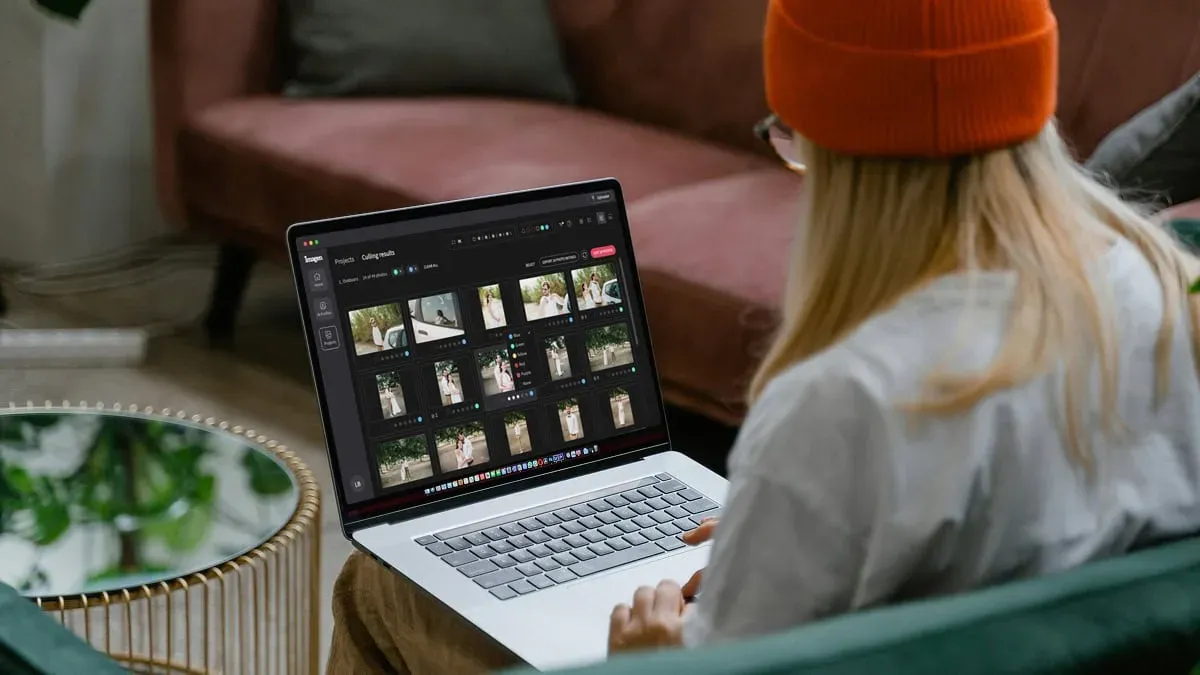
Fourteen hundred frames from one day contain a lot of speakers mid-blink and mid-word. Imagen’s AI filters flag blur and closed eyes, and batch culling does the first sort. Culling needs an editing plan (an add-on on pay-as-you-go), and manual culling is free. We treat the AI result as a first draft: add back the frame you love that it dropped, and remove the rest.
Edit the keepers in your style
Imagen applies your Personal AI Profile to the culled set. For this kind of job the useful part is that it responds to each frame. The LED-lit stage frames, the tungsten-lit speaker close-ups and the window-lit foyer shots all need different white balance, and a single copied preset will miss at least one of them. Edited photos arrive in batches by timestamp, so you can start checking the morning session while the afternoon processes.
If your profile was trained on warm wedding work and this client wants clean, neutral corporate color, train or choose a profile that matches the job instead of fighting the output slide by slide. You can also apply a ready-made AI Profile.
Review the extremes and finish
Read through the gallery before export. The frames that need you are the ones at the edges: a speaker backlit by a bright LED wall, a face half in a tungsten spot, a group shot where the highlights on a white shirt are clipped. Fix those with sliders (free), crop and straighten. If a frame needs noise reduction or an object removed, do that in Lightroom Classic or Photoshop, because Denoise and Object Removal are not in the Studio. Our post on recovering blown highlights in RAW files covers the manual side.
Export
Export JPG, TIFF or PNG from Imagen, or keep exporting through Lightroom Classic. Edits from your AI Profile and AI tools carry to Lightroom Classic. Edits you make in the Studio’s own editor do not, so decide before you start where each frame’s final edit will live.
Other tools to know
Lightroom Classic is still the cataloging and manual-editing hub for most working photographers, and Photoshop covers the heavy retouching. Capture One has a loyal following for color and tethered studio work, but Imagen does not support it. Aftershoot is another AI option for culling and style editing, and it is worth testing on your own files if you are comparing. We would judge any of them the same way: run a real, ugly shoot through it, not a demo gallery. Our comparison of AI software for RAW photos goes through the options, and the desktop guide covers the install side.
For a plain-language primer on the batch step, see AI photo editing for RAW files, and for how the edits sit beside your catalog, the Lightroom AI plugin page. The rest of our workflow guides are on the valuable tips hub.
How pricing works
Pay-as-you-go is a monthly base fee plus a charge per exported photo. Limitless is a fixed fee, and Business is custom. You see every edit in the gallery before you export, and sliders, crops and masks you do yourself are always free. The current plans are on the pricing page.
What’s new in Imagen: The newest Imagen is an intelligent, agentic Studio for professional photographers who shoot RAW, still running as a desktop app for Mac and Windows with the AI processing in the cloud. You cull, edit, review, and export in one project, in any order, and you can choose a Personal AI Profile in your own style or a ready-made AI Profile. The Studio is currently in beta.
Frequently asked questions
Does AI photo editing work directly on RAW files?
Yes. You upload your RAW originals, and Imagen edits them in your style, so highlights, shadows and color are handled from the full sensor data. Imagen accepts RAW, DNG with RAW data, JPEG and TIFF. It does not accept HEIC, PSD, PNG or GIF, and HE NEF and lossy DNG are not supported.
Will AI editing make all my photos look the same?
It should not. Imagen learns your own editing style and adapts it to each frame, so a sunlit frame and a shaded one get different corrections that still read as your work. You check every edit in the gallery before you export.
Does Imagen generate or fake any part of my images?
No. Imagen edits, culls and retouches the real photos you captured. It does not generate imagery, so the gallery you deliver is what you shot.
How is AI RAW editing priced?
Pay-as-you-go is a monthly base fee plus a charge per exported photo, Limitless is a fixed fee, and Business is custom. You see every edit before you export, and sliders, crops and masks you do yourself are always free.

