

AI Photo Editing for Headshot Photographers: A Complete 2026 Guide
Table of contents
- AI Photo Editing for Headshot Photographers: A Complete 2026 Workflow Guide
- What AI Actually Does in a Headshot Edit
- Step 1: Import and Organize Your Session
- Step 2: Cull Faster with AI
- Step 3: Apply Your Personal Style in Batch
- Step 4: Retouch Skin Without Losing Realism
- Step 5: Final Review, Crop, and Export
- How Much AI Headshot Editing Costs
- Practical Tips to Get Consistent Results
- Frequently Asked Questions
AI Photo Editing for Headshot Photographers: A Complete 2026 Workflow Guide
AI photo editing for headshot photographers means training software on your own editing decisions, then letting it apply that exact look across an entire session while you review and refine. The fastest path in 2026 pairs your Lightroom or Capture One catalog with Imagen, which learns your personal style, culls the weak frames, and retouches skin on the real photos you shot. This guide walks the full headshot workflow, shows where AI saves the most time, and names a few other honest tools so you can choose what fits your studio.
Headshot work rewards consistency more than almost any other genre. A corporate team of 40 people needs to look like one cohesive gallery, and a personal branding client wants every frame to match the two they loved on the back of the camera. Doing that by hand across hundreds of near-identical portraits is slow, and it is exactly the kind of repetitive judgment that a well-trained AI can carry for you.
What AI Actually Does in a Headshot Edit
It helps to be clear about what these tools do and do not do. Imagen edits your real headshot photos to your personal style, and it does not invent faces, features, or people. It applies your exposure, color, contrast, and tone choices, it flags duplicates and closed eyes for culling, and it smooths skin and reduces stray flyaways on the actual person in front of your lens. It never generates a new face or swaps someone’s features for a synthetic version.
That distinction matters for headshots more than for any other category. Your clients trust that the person in the final image is genuinely them, only lit, graded, and cleaned up the way a skilled retoucher would do by hand. AI here is an accelerator for your taste, not a replacement for the truth of the photograph.
- Style learning: the software studies how you edit and reproduces your look on new frames.
- Culling: it groups similar shots and marks the sharpest, best-expression keepers.
- Retouching: it evens skin tone and removes small blemishes while keeping real texture.
- Batch consistency: it holds the same treatment steady across the whole session.
Step 1: Import and Organize Your Session
Every clean edit starts with a clean library. Import your raw files into Lightroom Classic or Capture One, apply your lens corrections, and set a sensible folder structure by client and date. Headshot sessions often produce 300 to 800 frames per person for a full personal branding shoot, so naming and keywording early saves real confusion later.
Set your white balance reference now if you shot a gray card, and pick one hero frame per look that represents the expression and crop you want. That hero becomes your visual anchor for the rest of the edit, and it gives any AI tool a clear target to match against.
Step 2: Cull Faster with AI
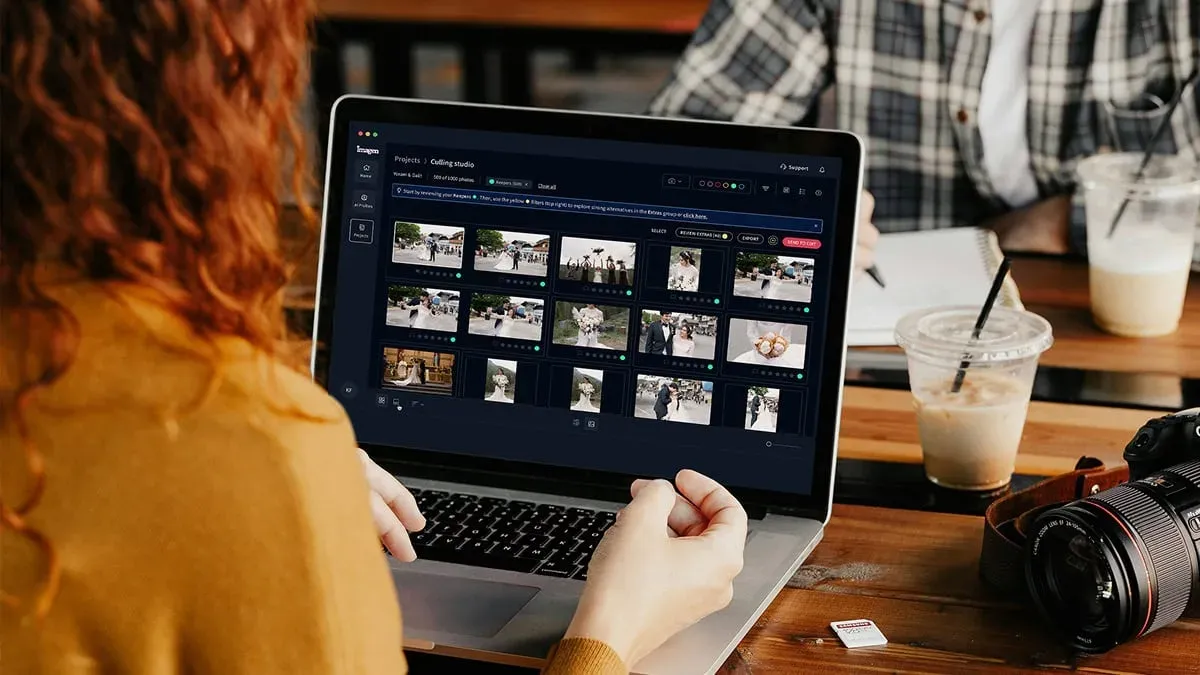
Culling is where headshot photographers lose the most hours. Hundreds of frames of the same person differ only by a blink, a micro-expression, or a fraction of focus, and comparing them one by one is exhausting. AI culling groups the near-duplicates and scores each frame on sharpness, eye state, and expression, so you skim clusters instead of the full roll.
Imagen includes AI culling inside the same workflow as its editing, so you flag closed eyes and soft frames, then keep the sharpest option from each group. You stay the final judge on expression, because the smile that sells a headshot is a human call, but the tool clears the obvious rejects and hands you a short list. Aftershoot is another honest option focused heavily on culling if you want a dedicated tool for that one step.
- Let the AI cluster similar frames and flag technical failures first.
- Review one cluster at a time and keep your favorite expression.
- Reject soft focus and closed eyes in a single pass.
- Mark your final selects before you move into color.
Step 3: Apply Your Personal Style in Batch
This is the core of a modern headshot workflow. Instead of copying develop settings from one frame and hoping they hold, you train a profile on how you actually edit. Imagen builds a personal style profile from your past Lightroom or Capture One edits, then applies your exposure, color grade, contrast curve, and skin tone treatment across every select in the session. Edited photos arrive in batches as they process, so you can start reviewing early frames while the rest finish.
Because the profile reflects your own decisions, a batch of 40 corporate headshots comes back looking like one consistent gallery rather than 40 separate attempts. You open the results in your catalog, spot check a handful, and adjust anything the light or wardrobe made unusual. The slow, repetitive part is done, and your creative control stays intact because every setting lives on real sliders you can still touch.
For photographers who prefer preset packs or manual grading, Lightroom and Capture One remain the trusted homes for that work, and many studios run Imagen alongside those catalogs rather than replacing them. The AI handles the volume, and you can polish in your host editor or in Imagen’s built-in editor (Beta).
Step 4: Retouch Skin Without Losing Realism
Headshot retouching lives on a fine line. Clients want clear, healthy skin, but they do not want a plastic mask that looks nothing like them on a video call. Good AI retouching evens tone, softens temporary blemishes, and tames shine while keeping the pores, lines, and texture that make a face read as real.
Imagen applies AI retouching on the actual photographed person, so it cleans up a breakout or a stray hair without inventing new features. You set the strength once, review the batch, and dial back anything that went too soft. Retouch4Me and PortraitPro are two other real tools in this space if you want frequency-separation style control, and both keep their focus on retouching the real portrait rather than generating one.
- Keep skin texture visible so the person still looks like themselves.
- Remove temporary marks like blemishes, not permanent identity features.
- Match retouch strength to the delivery size, since web crops hide less than print.
- Review a zoomed-in sample before you commit the whole batch.
Step 5: Final Review, Crop, and Export
With color and skin handled, your last pass is quick. Check each select at full size, confirm the crop suits the client’s platform, and verify that the eyes are sharp and the catchlights read well. Corporate directories often want a tight square crop, while personal branding galleries mix vertical and horizontal frames, so export presets tuned to each use save time.
Set your export sizes for web and print, embed your copyright metadata, and deliver through your gallery of choice. Because the heavy lifting happened in batch, a full team shoot that once took a weekend can move through review and export in an afternoon, and every frame still carries your signature look.
How Much AI Headshot Editing Costs
Pricing models vary across the category. Some tools sell a subscription, some sell a one-time license, and some charge per image credit, so the right choice depends on your monthly volume. It pays to compare the structure against how many headshots you actually deliver each month before you commit.
Imagen runs on a pay-as-you-go model, which combines a monthly base fee with a charge for what you export. Exploring the tools is free, which is enough to test a full profile on a real session before you pay anything. For a deeper look at how the tools stack up, see our roundup of the best AI photo editing software for headshot photographers.
Practical Tips to Get Consistent Results
The photographers who get the most from AI treat it as a partner that follows their taste. A few habits make a large difference in how clean and repeatable your galleries become across every client.
- Feed it good examples: train your style profile on your best, most consistent past edits.
- Shoot consistently: steady lighting and exposure give the AI a stable base to match.
- Review in batches: spot check clusters rather than every single frame.
- Keep a light touch on skin: subtle retouching ages better than heavy smoothing.
- Save export presets: match crops and sizes to each platform you deliver to.
For more targeted advice on refining your look, read our field notes on AI photo editing tips for headshot photographers, and browse the rest of our guides in the Imagen valuable tips hub. The core idea stays the same across every one of them. You define the style, the AI carries it across the volume, and you keep the final word on every face you deliver.
What’s new in Imagen: Imagen is now an intelligent, agentic Studio for professional photographers, so the cull, edit, review and export steps in this guide live in one project, in any order. Its Assistant finds photos and acts on them when you ask in plain language, with you steering, which helps when a headshot session runs long, and you can export finished JPG, TIFF or PNG files straight from Imagen. The Studio is rolling out gradually as a beta.
Frequently Asked Questions
Does AI headshot editing change what a person looks like?
No, and this is the key point for headshot work. Imagen edits your real photos to your personal style, so it adjusts color, tone, and skin the way you would by hand. It does not invent faces, features, or people, and the person in the final image is genuinely the person you photographed.
How does AI keep a whole corporate team looking consistent?
The AI learns your personal editing style from your past Lightroom or Capture One catalog, then applies that same look to every frame in the session. A team of 40 headshots comes back as one cohesive gallery because the exposure, color, and skin treatment stay steady across all of them while you review the results.
Can I still adjust the images after the AI edits them?
Yes, you keep full control. The AI returns your images into your normal catalog with real, editable settings, so you can fine-tune any frame the lighting or wardrobe made unusual. The tool handles the repetitive volume, and you make the final creative calls on every select.
Is there a way to test AI headshot editing before paying?
Exploring Imagen is free, which lets you train a style profile and run it on a real session first. After that, pay-as-you-go pricing runs on a monthly base fee plus a charge for what you export.
Ready to speed up your next headshot session while keeping your own look? Try Imagen’s new Studio, where you cull, edit and export in one project, and see how your personal style holds across a full gallery.
