

AI Newborn Photo Editing Tips and Techniques for 2026
Table of contents
- AI Newborn Photo Editing Tips
- Start With a Fast, Honest Cull
- Nail White Balance and Skin Tone First
- Keep Color Consistent Across the Whole Gallery
- Retouch Skin Gently and Keep It Real
- Clean the Background Without Faking It
- Finish Each Hero Frame by Hand
- Export, Deliver, and Save Your Style
- What Imagen Costs and How to Try It
- Frequently Asked Questions
AI Newborn Photo Editing Tips
The fastest way to edit a newborn session well is to let AI handle the repetitive corrections so you keep your time for the delicate, hand-finished touches that protect a baby’s skin. AI newborn photo editing tips come down to three moves: cull the keepers quickly, apply your own color and skin style consistently across the whole gallery, and reserve manual retouching for the few frames that need it. Imagen learns your personal editing style from your Lightroom or Capture One catalog and applies it across a full shoot, then adds AI culling and AI retouching in one connected workflow, so a two-hour edit can become a short review. This guide walks the real newborn workflow step by step, from import to export, with practical settings you can use today.
Start With a Fast, Honest Cull
Newborn shoots produce a lot of near-duplicates because babies move, blink, and sneeze, and you shoot in bursts to catch the calm frame. Your first job is to find the sharp, safe, well-posed keepers and set the rest aside. A tight cull protects your editing time and keeps the final gallery focused on the best expressions.
- Reject frames where the eyes or eyelashes are soft, since newborn portraits live or die on eye sharpness.
- Keep the safest pose from each setup and drop the risky mid-transition frames.
- Group similar poses together so you compare like with like instead of jumping around the catalog.
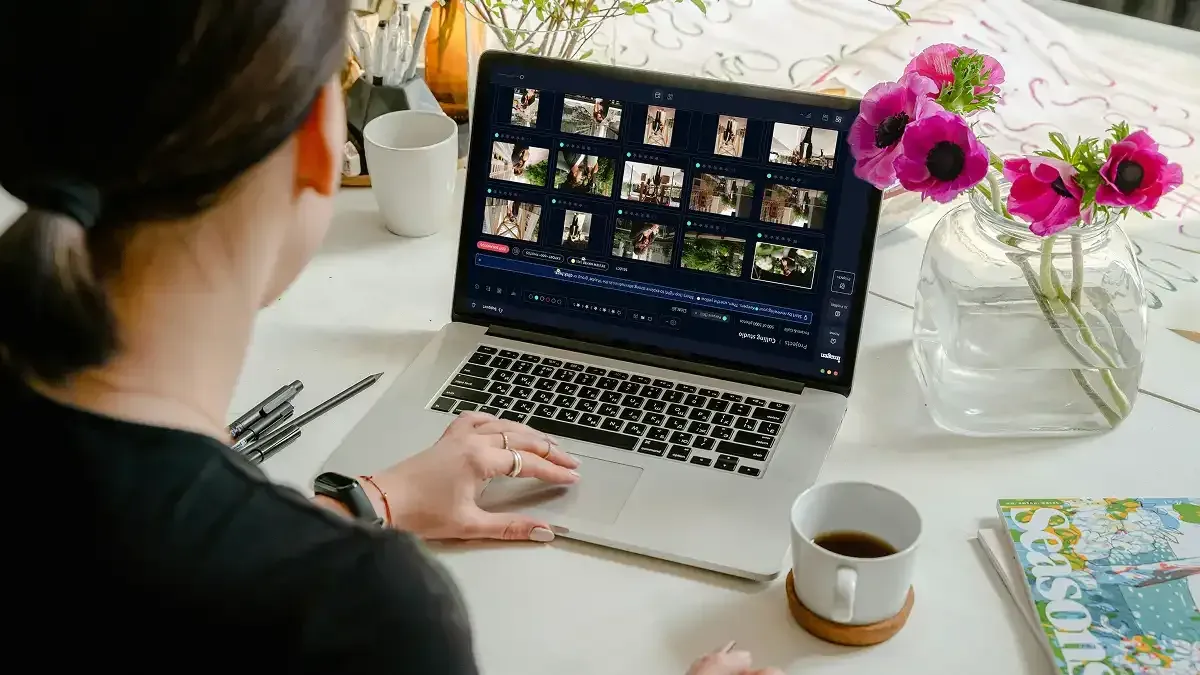
Imagen offers AI culling that flags blur, closed eyes, and duplicates, so you can accept its picks or override them in seconds. If you prefer to cull by hand, manual culling in Imagen is free, and the flag and rating tools inside Lightroom or Capture One still work well for a small session. Either way, finish the cull before you touch color, because editing photos you plan to reject wastes your best hours.
Nail White Balance and Skin Tone First
Newborn skin is the whole point of the image, and it is also the hardest thing to get right. Fresh skin often reads red, blotchy, or slightly jaundiced, and mixed light from a window plus a lamp can push tones in two directions at once. Fix white balance before anything else, because every later adjustment builds on an accurate base.
- Set white balance from a neutral part of the wrap or blanket rather than the skin itself.
- Pull down global saturation slightly, then lift luminance in the reds and oranges to smooth blotchiness.
- Warm the overall tone just enough to keep the baby looking healthy and calm.
The real time drain is that you have to repeat this on dozens of frames per pose. Imagen learns how you personally correct skin from your past catalogs and applies that same treatment across the full shoot, so the twentieth frame matches the first without you touching each slider. That consistency is what makes a newborn gallery feel like one cohesive story instead of a set of separate edits.
Keep Color Consistent Across the Whole Gallery
Parents scroll a newborn gallery as one continuous experience, so a warm frame next to a cool frame looks like a mistake even when both are technically fine. Consistency is more valuable than any single dramatic edit. Your goal is a steady, repeatable look that carries from the first wrapped pose to the last family shot.
Build your style once, then apply it everywhere. If you edit by hand, save a develop preset and sync it across a pose group, then correct the outliers. Imagen takes this further by turning your own editing history into a personal profile, so the entire gallery inherits your color, contrast, and tone choices automatically. Edited photos arrive in batches as they process, so you can start reviewing early frames while the rest finish. You review the batch, adjust a handful of frames, and move on. For a deeper walkthrough of building that repeatable look, see our AI newborn photo editing guide.
Retouch Skin Gently and Keep It Real
Newborn skin has texture that belongs in the photo. Fine peeling, milia, and soft baby fuzz are natural, and parents usually want a clean but honest result rather than a plastic finish. The tip here is restraint: remove the temporary marks, keep the real skin.
- Clear temporary blemishes like scratches, dry flakes, and stork bites if parents ask, and leave permanent features such as birthmarks unless requested.
- Reduce redness on the nose, ears, and hands without draining the natural warmth from the skin.
- Preserve skin texture by editing at low opacity so the result still looks like a real baby.
Imagen provides AI retouching that handles the routine skin cleanup across a batch, so you are not stamping out the same flake on frame after frame. It edits the real photos you shot and does not invent skin, features, or scenes, which keeps the result honest for the family. When a frame needs a truly delicate hand, you can still finish exposure and crop in Imagen’s built-in editor (Beta), or do the delicate manual retouching in Photoshop, and that combination keeps both speed and care in the workflow.
Clean the Background Without Faking It
Newborn setups get messy fast. You end up with stray fibers on the blanket, a visible posing pillow, wrinkles in the backdrop, and the occasional supporting hand from a spotter. Cleaning these distractions helps the viewer stay on the baby, which is exactly where their eyes should land.
Handle the big structural fixes, like removing a support hand, on the hero images where they matter most. For the rest of the gallery, focus on quick cleanup of lint, wrinkles, and color casts on the fabric. Your editor’s healing and clone tools do the heavy lifting here, and a consistent batch treatment keeps every blanket reading the same shade. The point is to tidy the real scene, not to build a fake one.
Finish Each Hero Frame by Hand
A newborn gallery usually has a handful of hero images that parents will print large, and those deserve individual attention. This is where you slow down and treat the frame like a portrait rather than one row in a batch. The batch got you ninety percent of the way, so now you refine the last ten.
- Dodge and burn softly to shape the light on the cheeks, hands, and the curve of the head.
- Add a gentle vignette or local contrast to draw the eye toward the face.
- Check catchlights in the eyes and clean up any distracting reflection.
Because Imagen already handled culling, color, and routine retouching, you arrive at this stage fresh instead of exhausted. That is the real payoff of automating the slow steps: your creative energy goes into the frames that will hang on a wall. If you want the full click-by-click version of this stage, read our companion piece on how to edit newborn photos with AI.
Export, Deliver, and Save Your Style
The final step is delivery, and a clean export keeps your work looking right on a phone, a laptop, and a printed album. Set your export once so every session ships the same way. A repeatable export saves you from re-deciding the same settings on every shoot.
- Deliver full-resolution files for print and a resized set around 2048 pixels on the long edge for web sharing.
- Apply light output sharpening tuned for either screen or paper, since they need different amounts.
- Keep your edited catalog so your personal style profile stays current for the next newborn session.
Saving your style matters because your look evolves, and a tool that learns from your recent work stays in step with you. You can browse more workflow ideas across niches on the Imagen valuable tips hub, then bring the ones that fit into your own newborn process.
What Imagen Costs and How to Try It
Imagen uses pay-as-you-go pricing, which suits the uneven schedule of newborn work where some months are busy and others are quiet. You pay for the photos you export, and exploring the tools is free, so your cost follows the sessions you actually deliver.
Because Imagen edits, culls, and retouches the actual images you captured, your style stays yours and the babies stay real. When you are ready to speed up your newborn editing, you can start at imagen-ai.com and run your first gallery through Imagen’s new Studio, where you cull, edit and export in one project.
What’s new in Imagen: Imagen is now an intelligent, agentic Studio for professional photographers, where culling, editing, review and export live in a single project and can happen in any order. Apply your Personal AI Profile, and add a ready-made AI Profile alongside it for a selected set of photos when you want, which takes some processing time. Edited photos arrive in batches, so you can start reviewing while the rest finish. The Studio is rolling out gradually as a beta.
Frequently Asked Questions
Does AI editing make newborn skin look fake?
It does not have to, because good AI editing follows your own low-opacity, texture-preserving choices. Imagen applies the skin treatment you already use in your catalog, so the result keeps natural texture and only cleans up the temporary marks you would remove by hand anyway.
Will AI culling reject my best frames?
AI culling flags blur, closed eyes, and duplicates as suggestions, and you stay in control of the final selection. You can review its picks and override any of them in seconds, so it saves time on the obvious rejects while leaving the creative call to you.
How does Imagen learn my personal newborn style?
Imagen studies your past Lightroom or Capture One edits and builds a personal profile from your real choices. When you run a new session, it applies that same color, tone, and retouching approach across the whole gallery, so the batch matches how you already edit by hand.
Is pay-as-you-go better than a subscription for newborn work?
Pay-as-you-go fits well when your booking calendar rises and falls through the year. You pay for the photos you export, and exploring the tools is free, so your cost follows the photos you actually deliver.
