

AI Model Portfolio Photo Editing Tips and Techniques for 2026
Table of contents
- AI Model Portfolio Photo Editing Tips
- Cull the Shoot Before You Touch a Single Slider
- Build Your Personal Editing Style Once and Reuse It
- Batch Your Color and Tone for a Cohesive Set
- Retouch Skin and Detail Without Erasing Realism
- Keep Every Look Consistent Across the Full Book
- Export in the Right Sizes for Agencies and the Web
- Put the Workflow Together and Ship Faster
- Frequently Asked Questions
AI Model Portfolio Photo Editing Tips
The fastest way to edit a model portfolio is to cull the shoot, lock in one consistent look, and let AI apply your personal style across every frame so the whole set reads as one body of work. That means you spend your hours on selects and creative direction instead of dragging sliders across hundreds of near-identical frames. Imagen learns your editing style from your Lightroom or Capture One catalog, then handles culling, color, and retouching in one connected workflow, so a full agency portfolio ships in a fraction of the usual time. The tips below walk through the exact workflow professional portrait and fashion photographers use to keep a model book clean, cohesive, and on-brand.
These tips assume you shoot in raw and deliver polished portfolios to agencies, brands, or the models themselves. If you want a deeper walkthrough, our guide to editing model portfolio photos with AI covers the full pipeline step by step, and you can browse more tutorials on the Imagen valuable tips hub.
Cull the Shoot Before You Touch a Single Slider
A model shoot produces hundreds of frames per look, and most of them are duplicates, blinks, or soft focus. Culling first keeps you from editing photos that never make the book. Start by rejecting obvious technical failures, then compare the remaining frames pose by pose and keep the strongest expression in each group.
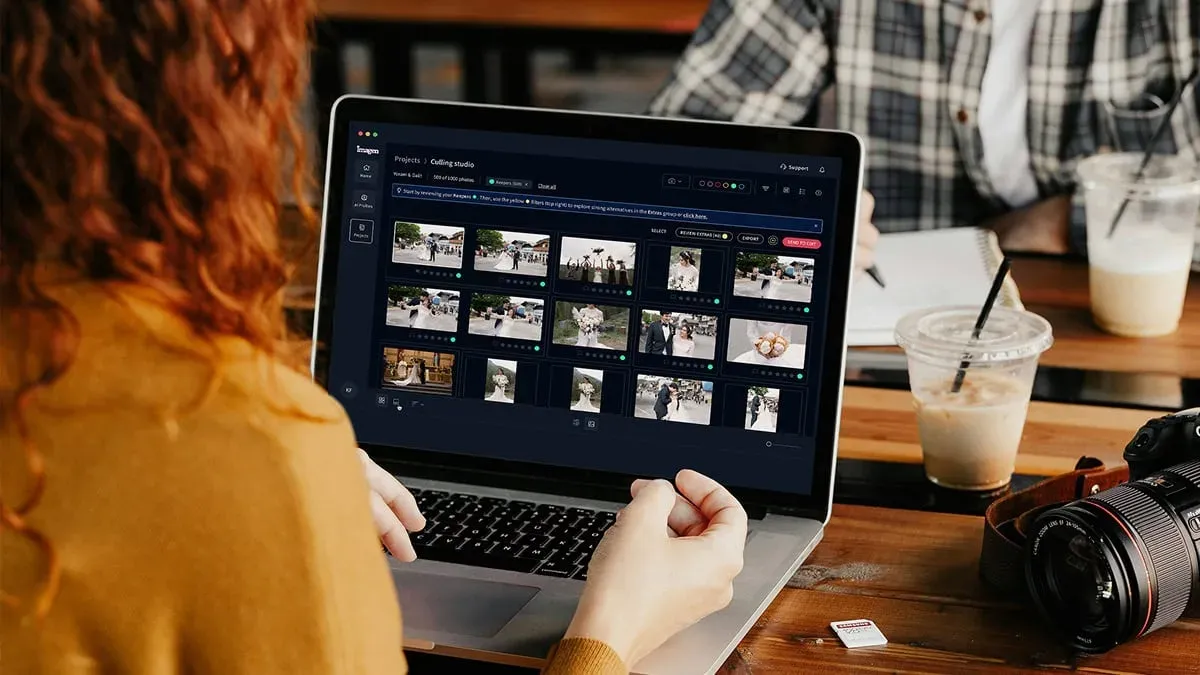
AI culling speeds this up dramatically. Imagen scores your raw files for focus, eyes-open, and composition, then flags the best frame in each burst so you review a short list instead of the full take. You still make the final creative call, but you make it on 60 frames instead of 600. Set a target select count per look before you begin, since agencies usually want a tight edit rather than every decent frame.
- Reject blinks, motion blur, and missed focus in the first pass.
- Group by pose and keep one hero frame from each cluster.
- Aim for 8 to 12 finished selects per look for a portfolio set.
Build Your Personal Editing Style Once and Reuse It
A recognizable portfolio comes from a consistent editing signature, not from editing each photo on instinct. The smartest move is to define your look once, then apply it everywhere. Decide on your baseline for skin tone, contrast, white balance, and how warm or cool you want your shadows, and treat that as your house style.
Imagen learns your personal style directly from your Lightroom or Capture One catalog. It studies the edits you have already made across thousands of your own photos, so it applies your taste rather than a generic filter. Because the model reflects your real decisions, the results look like your hand did the work. This is the single biggest time saver for portfolio shooters, because it removes the repetitive slider work while keeping your creative fingerprint intact.
To be clear about what this does, Imagen edits, culls, and retouches the real photos you shot on set. It does not invent models, garments, backgrounds, or scenes, so your portfolio stays an honest record of the actual shoot and the actual talent in front of your camera.
Batch Your Color and Tone for a Cohesive Set
Nothing breaks a model book faster than frames that jump in temperature and exposure. A portfolio should feel like one continuous look even when the frames come from different setups. Batch editing is how you get there without touching every photo by hand.
Apply your style to the entire selection at once, then scan for outliers. Imagen processes a full set and holds your color and tone steady across every frame, which matters most when lighting drifts between the start and end of a session. Edited photos arrive in batches as they process, so you can start scanning for outliers while the rest finish. Tools like Lightroom and Capture One let you sync settings manually across a batch, and they remain the standard for raw processing, so a common pro setup is to edit through Imagen, then send the edits back to Lightroom Classic as XMP for any final tweaks or export finished JPG, TIFF or PNG files straight from Imagen. Check your skin tones under a neutral gray reference so warmth stays believable across the whole book.
Retouch Skin and Detail Without Erasing Realism
Model portfolios need clean skin, but agencies also want to see real texture, because casting directors judge the actual talent. The goal is to remove temporary distractions while keeping pores, fine lines, and natural structure. Over-smoothed skin reads as plastic and can cost a model a booking.
AI retouching handles the repetitive cleanup so you keep control of the artistic calls. Imagen retouches skin, removes stray flyaway hairs, and evens out blemishes across your set in one pass, and it does this on the real frame rather than generating a new face. Keep your retouching honest by fixing only what is temporary, such as a blemish or a loose strand, and leaving the features that define the model.
- Remove temporary blemishes, stray hairs, and lint on wardrobe.
- Preserve skin texture, freckles, and natural facial structure.
- Even out obvious hot spots without flattening the whole face.
- Review at 100 percent before you accept any batch retouch.
Keep Every Look Consistent Across the Full Book
A strong portfolio moves through several looks, from clean beauty to editorial to commercial, and each look still needs to feel like it belongs to the same photographer. Consistency across looks is what turns a set of nice photos into a professional book that agencies trust.
Because Imagen applies the same learned style to every frame, the beauty close-ups and the full-length fashion shots share one color and tone signature. You can still adjust individual frames when a look needs a specific mood, for example with the manual sliders and presets in Imagen’s built-in editor (Beta), but you start from a consistent base instead of rebuilding your grade each time. For a full breakdown of how to sequence and finish these looks, our AI model portfolio photo editing guide lays out the complete process.
Export in the Right Sizes for Agencies and the Web
The final tip is technical but it protects all your editing work. Agencies, comp cards, and casting platforms each want specific formats, so export once for each destination instead of resizing later. Deliver high-resolution files for print comp cards and smaller sized files for web portfolios and social channels.
Set up export presets for each use so your batch ships in minutes. A typical portfolio delivery includes full-resolution edits for the agency, web-ready files near 2048 pixels on the long edge, and a square crop set for social. Keep your color profile consistent, since a portfolio that shifts between sRGB and a wider profile can look mismatched once it lands on an agency site.
- Export full-resolution files for agency review and print comp cards.
- Create web-ready versions around 2048 pixels for online portfolios.
- Save your presets so the next shoot exports in a single click.
Put the Workflow Together and Ship Faster
When you chain these tips into one pipeline, a full model shoot moves from card to delivered book in a single working session. You cull with AI, apply your learned style across the set, batch your color, retouch honestly, hold consistency across looks, and export to preset sizes. Imagen ties the culling, color, and retouching steps into one connected workflow, so the slow repetitive work happens automatically while you keep every creative decision.
Imagen is pay-as-you-go, so you pay for the photos you export, and exploring the tools is free. Ready to speed up your next book? Try Imagen and edit a real shoot in your own style in the new Studio, where you cull, edit and export in one project.
What’s new in Imagen: Imagen is now an intelligent, agentic Studio for professional photographers, one project where you cull, edit, review and export in any order. For model portfolio work, you can use AI culling or skip it and cull manually for free, edit with an AI Profile in your own style, then send the edits back to Lightroom Classic or export finished files from Imagen. The Studio is rolling out gradually as a beta.
Frequently Asked Questions
How long does it take to edit a full model portfolio with AI?
Once your style is learned, a full portfolio shoot of several looks can go from raw files to finished selects in a single session. AI culling trims the take quickly, and batch style application handles color and retouching across the whole set, so most of your time goes to selecting and final review rather than manual slider work.
Will AI editing make model skin look fake?
It should not, as long as you retouch honestly. Imagen removes temporary blemishes and stray hairs on the real frame while preserving pores, freckles, and natural facial structure. Agencies want to see the actual talent, so the aim is clean and believable skin, not a smoothed or generated face.
Does AI editing replace my personal style?
No, it applies your style. Imagen learns from the edits already in your Lightroom or Capture One catalog, so it reflects your real decisions across a full set rather than imposing a generic preset. Your creative signature stays intact while the repetitive work gets automated.
How much does it cost to edit a portfolio with Imagen?
Imagen is pay-as-you-go, so you pay for the photos you export, and exploring the tools is free. That keeps your cost tied to the portfolio frames you actually deliver.
