Retouching used to be the bottleneck. We all know the drill. You shoot a session, cull the bad ones, and apply a color grade. That’s the fast part. Then comes the retouching. Smoothing skin, fixing stray hairs, whitening teeth, and removing distractions. That is where the hours disappear. In 2026, we don’t have to work that way. AI has evolved from simple filters to complex understanding of facial structure and texture. But with new tools popping up every week, which one actually works for a professional workflow? I have put the top AI retouching tools to the test to help you reclaim your time.
Key Takeaways
- Retouching is now scalable. What used to take 30 minutes per photo can now be applied to 3,000 photos in minutes without making them look like plastic.
- Imagen prioritizes natural results. For photographers who need to deliver large galleries with professional polish (like weddings and schools), Imagen’s batch retouching is unmatched.
- Context matters. Some tools are built for “glamour” (reshaping bodies), while others are built for “fidelity” (removing acne but keeping texture).
- Integration is critical. A standalone app might offer great features, but if it requires a clumsy export/import process, it kills your efficiency.
- Cost vs. Value. Subscription models, credit packs, and pay-per-edit models all calculate value differently based on your volume.
1. Imagen
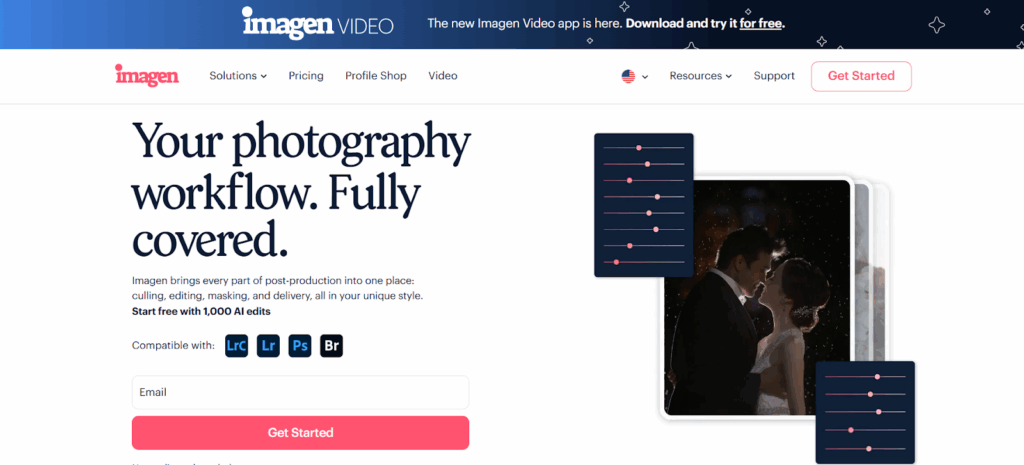
When discussing the best AI image retouching in 2026, we have to look at efficiency. Imagen stands out because it treats retouching not as a separate “fix-it” stage, but as an integrated part of the post-production pipeline. Imagen is a desktop application that processes in the cloud, allowing it to handle heavy AI tasks without slowing down your local machine. It integrates seamlessly with Adobe Lightroom Classic, Lightroom (CC), Photoshop, and Bridge.
Smooth Skin and Local Adjustments
The standout feature for retouchers here is the Smooth Skin tool. Most batch skin smoothers fail because they destroy texture. They blur the skin until the subject looks like a wax figure. Imagen uses AI to detect skin texture and differentiate it from blemishes. It softens the rough areas while retaining the pores and natural details that make a portrait look human.
This is critical for high-volume shooters like wedding, event, and school photographers. You can apply this effect to hundreds of photos at once. The AI identifies the subjects in each frame and applies the mask automatically. You don’t have to brush it in.
Beyond skin, Imagen offers sophisticated Subject Masking. This allows you to apply specific adjustments just to the subject or the background. If you need to brighten your subject while darkening a distracting background, the AI handles the selection for you.
For school and portrait photographers, the Whiten Teeth and Crop & Straighten tools are massive time savers. The AI detects smiles and applies a natural whitening effect—again, avoiding the “glow in the dark” look that cheap filters produce. The crop tool analyzes the composition and straightens horizons or centers subjects according to professional rules of thirds.
Comprehensive Post-Production
While its retouching tools are powerful, Imagen operates as a complete ecosystem. It doesn’t just retouch; it edits.
- Personal AI Profile: This is the core of the color engine. You train Imagen using your previous Lightroom catalogs (about 3,000 images). It learns your specific style of color grading, exposure, and white balance. It applies this style to your new images while simultaneously applying the retouching settings you’ve chosen.
- Culling Studio: Before you retouch, you have to select. Imagen’s culling feature groups duplicates and detects closed eyes or blurry shots. It helps you narrow down a shoot from 4,000 images to the keepers in minutes.
- Cloud Storage: The platform includes a backup solution. As you work, your high-resolution or optimized files can be stored in the cloud directly from your Lightroom Classic catalog. This adds a layer of security to your workflow without requiring extra steps.
The beauty of Imagen is that it combines these steps. You can cull, color correct, and retouch (smooth skin, straighten, crop) all in one upload. The processing happens on their servers, and the finished metadata is downloaded back to your computer.
2. Adobe Photoshop
Adobe Photoshop is the long-standing industry standard for raster graphics editing. It provides pixel-level control over images and serves as the primary tool for detailed manual retouching.
Generative AI Features
In recent versions, Photoshop has integrated Adobe Firefly technology to power features like Generative Fill. This allows users to select an area of an image and use text prompts to add or remove elements. The AI analyzes the lighting, perspective, and depth of the scene to generate new pixels that blend with the existing image. This is used for removing large distractions or extending the canvas size.
Neural Filters
Photoshop includes a suite of “Neural Filters” designed for specific retouching tasks.
- Skin Smoothing: This filter automatically detects faces and applies blurring to skin tones to reduce blemishes.
- Smart Portrait: This allows for the manipulation of facial expressions, eye direction, head orientation, and age.
- Makeup Transfer: This applies the makeup style from a reference image onto the target subject.
Workflow
Photoshop is a layer-based editor. It is designed for working on one image at a time. While it offers automation via actions/droplets, the AI features generally require manual interaction for each file. It requires a subscription to the Adobe Creative Cloud.
3. Evoto AI
Evoto AI is a standalone desktop application dedicated specifically to portrait retouching. It is designed to automate the high-end retouching process that is typically done manually in Photoshop.
Retouching Capabilities
Evoto uses facial recognition to identify specific features.
- Blemish Removal: It detects and removes acne, freckles, and moles based on user settings.
- Digital Makeup: Users can apply preset makeup looks or adjust individual elements like lipstick and eyeshadow.
- Body Reshaping: The software includes tools to adjust the proportions of bodies and faces, such as slimming waists or lengthening legs.
- Background Changer: It can automatically mask the subject and replace the background with a different color or texture.
Payment Model
Evoto operates on a credit-based system. Users purchase credits, and one credit is deducted for each image exported. The software is free to download and use for editing, but payment is required to save the final result. It works outside of the Lightroom ecosystem, requiring users to import and export files.
4. Retouch4me
Retouch4me is a suite of individual AI plugins. Each plugin is designed to handle a single, specific task that a professional retoucher would perform.
Specialized Plugins
Instead of one all-encompassing interface, Retouch4me sells separate tools:
- Dodge & Burn: This plugin automates the lightening and darkening of skin to smooth out transitions and shape the face.
- Heal: This tool focuses solely on removing blemishes and spots.
- Eye Brilliance: This highlights the eyes and enhances the iris.
- Fabric: This plugin detects clothing and smooths out wrinkles and creases.
Integration
These tools function as plugins for Adobe Photoshop, Lightroom Classic, and Capture One. They can also run as standalone applications. They are processed locally on the user’s hardware. The pricing model involves purchasing perpetual licenses for each individual plugin separately.
5. Luminar Neo
Luminar Neo is a creative image editor developed by Skylum. It focuses on simplifying complex editing tasks through AI-driven sliders and presets.
Portrait Tools
Luminar Neo includes a specific “Face AI” panel.
- Face: Controls for lighting the face, slimming the face, and enhancing eyes.
- Skin: An AI skin smoothing tool that includes a toggle for “Skin Defects Removal.”
- Body: Sliders to shape the torso and abdomen.
GenErase and GenSwap
Luminar utilizes generative AI for object removal and replacement. GenErase removes unwanted objects and fills the space. GenSwap allows users to swap elements in the photo.
Platform
Luminar Neo works as a standalone app or a plugin. It uses a catalog system for organizing photos. It offers both subscription options and “lifetime” licenses, though major updates may require additional purchases.
6. ON1 Photo RAW
ON1 Photo RAW is an all-in-one photo editing suite. It combines digital asset management, raw processing, and effects into a single program.
Portrait AI
The software features a dedicated “Portrait AI” tab. When a photo is opened, the software automatically detects faces.
- Automatic Retouching: It applies a default level of skin smoothing and eye enhancement.
- Batch Processing: Settings can be copied and pasted across multiple images.
- Masking: It generates separate masks for skin, eyes, and mouth, allowing for local adjustments.
Licensing
ON1 is known for its perpetual license model, allowing users to buy the software outright. It processes images locally on the user’s computer.
7. PortraitPro
PortraitPro by Anthropics Technology is specialized software focused entirely on facial beauty retouching. It has been on the market for many years and has integrated AI features in recent versions.
Facial Shaping
The software creates a wireframe mesh over the detected face. Users can manipulate this mesh to change the shape of the jaw, nose, eyes, and mouth.
- Lighting: It allows for the “re-lighting” of the face by virtually moving a light source around the subject.
- Hair: It includes tools to recolor hair, add volume, or smooth stray hairs.
Usage
PortraitPro is typically used as a plugin or standalone app. It is designed for deep manipulation of individual portraits rather than batch processing large events. It requires a license purchase, with different tiers (Standard, Studio, Studio Max) offering different features like batch processing.
8. Topaz Photo AI
Topaz Photo AI is designed to improve image quality rather than alter the subject’s appearance artistically. It focuses on technical restoration.
Face Recovery
The primary retouching feature in Topaz is “Face Recovery.” This is used for low-resolution or blurry images. The AI analyzes the low-quality facial features and generates high-resolution details to reconstruct a sharp face. This is often used for saving out-of-focus shots or upscaling cropped images.
Technical Fixes
It also handles:
- Denoising: Removing digital noise from high ISO shots.
- Sharpening: Correcting motion blur and lens softness.
- Upscaling: Increasing the pixel dimensions of the file.
It runs locally and can be used as a standalone editor or a plugin.
9. Facetune
Originally a mobile-first application, Facetune has expanded its reach. It is widely known for its aggressive social media aesthetic.
Feature Set
Facetune provides a suite of tools for heavy modification.
- Reshape: Tools to warp and shift facial features and body curves.
- Filters: A large library of color presets and overlays.
- Patch: A manual tool for copying texture from one area to another.
Target Audience
While used by some content creators, it is primarily consumer-focused. It operates heavily on subscription models and is often cloud-connected. The workflow is optimized for single images intended for social media platforms rather than high-resolution print workflows.
10. Radiant Photo
Radiant Photo utilizes technology from Perfectly Clear. It positions itself as an automatic photo finisher that optimizes images based on scene detection.
Smart Presets
The software analyzes the image content (e.g., landscape, portrait, newborn) and applies a “Smart Preset.”
- Portrait Optimization: For portraits, it automatically applies skin tone correction and subtle smoothing.
- Eye and Face Detection: It locates facial features to apply localized contrast and sharpening adjustments.
Workflow
Radiant Photo is designed to be the first or last step in a workflow. It processes locally and can be used to batch process images to a “publish-ready” state. It focuses on color fidelity and tone mapping more than heavy reshaping or liquifying.
Criteria for Choosing the Best AI Image Retouching in 2026
With so many tools claiming to use “AI,” it is easy to get lost in the marketing. To find the tool that fits a professional workflow, you need to judge them against specific criteria.
1. Natural Results vs. “Plastic” Look
This is the most important factor. Bad AI blurs skin into a smudge. Good AI preserves texture. Look for tools that allow you to adjust the opacity of the effect. You want to clean up the image, not turn your subject into a doll. Tools like Imagen excel here because they are trained on professional edits that prioritize realism.
2. Batch Capabilities
Are you retouching one photo for a magazine cover, or 500 photos for a wedding reception?
- Individual Retouching: If you work one image at a time, tools like Photoshop or Evoto give you granular control.
- Batch Retouching: If you need to fix a whole catalog, you need a tool like Imagen or Radiant Photo. You cannot spend 5 minutes per photo on a 4,000-image wedding.
3. Workflow Friction
How hard is it to get the photo in and out of the software?
- Integrated: The best tools work inside your existing catalog (Lightroom). Imagen reads the catalog and sends the data back. No exporting required.
- External: Standalone apps require you to export a JPEG or TIFF, open it in the other app, save it, and re-import it. This “round-tripping” eats up massive amounts of time and disk space.
4. Non-Destructive Editing
Does the software alter the original pixels?
- Non-Destructive: Tools that apply metadata edits (like Imagen or Lightroom) allow you to change your mind later. You can always revert to the original raw file.
- Destructive: Tools that save a new pixel layer (like Photoshop or Topaz) bake the changes in. Once saved, it is harder to undo specific tweaks without starting over.
5. Specialized Features
Does the tool do the specific thing you struggle with?
- If you hate fixing stray hairs, look for that specific feature.
- If you struggle with skin tones in mixed lighting, look for AI white balance and masking.
- If you shoot real estate, look for sky replacement.
A General Guide to AI Image Retouching
Integrating AI retouching into your business is not just about buying software. It is about changing how you think about “finished” work.
Step 1: define “Standard” vs. “Premium”
Not every photo needs the same level of work. Establish a baseline.
- Standard: Global color correction + light AI skin smoothing (Batch processed). This applies to the 800 photos you deliver to a wedding client.
- Premium: Detailed distraction removal + hair cleanup (Individual attention). This applies to the 20 “hero” shots or album picks.
Step 2: Dial It Back
When you first get an AI tool, the temptation is to crank the sliders to 100 because the effect is impressive. Don’t. Set the slider to where you think it looks good, then pull it back 20%. The best retouching is invisible. If a client notices the retouching, you have failed.
Step 3: Check the Eyes and Teeth
AI can sometimes get confused by teeth and eyes. It might over-whiten teeth until they glow blue, or sharpen eyes until they look intense and scary. Always zoom in to 100% on a few test images to ensure the AI isn’t creating artifacts in these sensitive areas.
Step 4: Consistency is Key
The goal of AI is consistency. Ensure your retouching profile matches across the entire shoot. It looks jarring if the bride has perfect porcelain skin in the close-ups but looks natural and textured in the wide shots. Use batch tools to apply a consistent baseline across the board.
13 Questions and Answers
1. What is the difference between retouching and editing?
Editing refers to global adjustments: exposure, white balance, contrast, and color grading. Retouching refers to local adjustments: removing blemishes, smoothing skin, whitening teeth, and reshaping features.
2. Can AI retouching fix out-of-focus images?
To a degree. AI tools like Topaz Photo AI can use “deconvolution” to sharpen soft focus. However, they cannot recreate detail that was never captured. They can save a slightly soft image, but they cannot fix a completely blurry one.
3. Will AI retouching make my subjects look fake?
It depends on the settings. If you use high-intensity settings, yes. However, modern professional tools like Imagen allow for subtle application that retains skin texture while evening out tones, resulting in a natural look.
4. Is it safe to upload photos to the cloud for processing?
Yes. Professional services use encryption for data transfer and storage. Cloud processing allows for faster speeds and often includes backup features that local processing lacks.
5. Can I use AI retouching on RAW files?
Yes. It is actually preferred. RAW files contain more data, allowing the AI to pull back highlights and open shadows without quality loss. Tools like Imagen work directly with RAW files via Lightroom catalogs.
6. How much does AI retouching cost?
Models vary. Some charge per image (approx. $0.05), which is great for scalable costs. Others charge a monthly subscription ($10-$50/month) or a one-time license fee ($100-$300).
7. Does AI retouching work on group photos?
Yes. Advanced AI can detect multiple faces in a single frame. It can apply skin smoothing to the bride, the groom, and the bridal party simultaneously, often recognizing that men and women might need different levels of smoothing.
8. Can AI remove braces from teeth?
Some advanced generative AI tools (like in Photoshop) can do this efficiently. Specialized portrait software may also have this feature, but it is a complex task that sometimes requires manual review.
9. What hardware do I need for AI retouching?
If you use cloud-based tools (Imagen), a standard laptop is fine because the server does the work. If you use local tools (Aftershoot, Topaz), you need a powerful graphics card (GPU) and plenty of RAM.
10. Can AI replace a human retoucher?
For bulk work, yes. For high-end fashion or beauty work, no. A human retoucher makes subjective artistic decisions about what to keep and what to remove (e.g., keeping a characteristic mole but removing a temporary pimple).
11. Does AI retouching work on all skin tones?
The best tools are trained on diverse datasets to handle all skin tones accurately. However, older or cheaper filters often struggle with darker skin tones, sometimes lightening them or creating color casts. Always test software on diverse images.
12. Can I customize the AI settings?
Yes. Most professional tools allow you to create a “profile.” You can tell the AI, “I like warm skin tones and very subtle smoothing,” and it will apply that preference to future edits.
13. How long does it take to retouch 1,000 photos with AI?
With a cloud-based tool like Imagen, you can upload the catalog, and the editing and retouching can be finished in under 20 minutes. Doing this manually would take days.
Conclusion
The era of spending late nights manually brushing out acne is over. In 2026, the best AI image retouching tools offer a blend of speed, quality, and control. For the high-volume photographer, Imagen is the clear leader, offering a balanced workflow that handles culling, editing, and retouching in one seamless cloud-based process. It respects the integrity of the image while delivering the polish clients expect.
For those needing deep, pixel-level manipulation, the combination of Photoshop and specialized plugins remains a powerful standard. The key is to choose the tool that fits your volume and your vision. Embrace the AI, set your standards, and get back to shooting.
